How to Build a Change Order Agent for Your Construction Business
 Meikanda Nayanar 11 min read
 TL;DR: A change order agent is a chat assistant that fills your approved change order template from a short conversation and sends it out for signature. It does not sign, price, or reword anything, and your client signs it themselves, from their inbox, on any phone. You can build one in four steps without writing code, and this guide walks through all four.
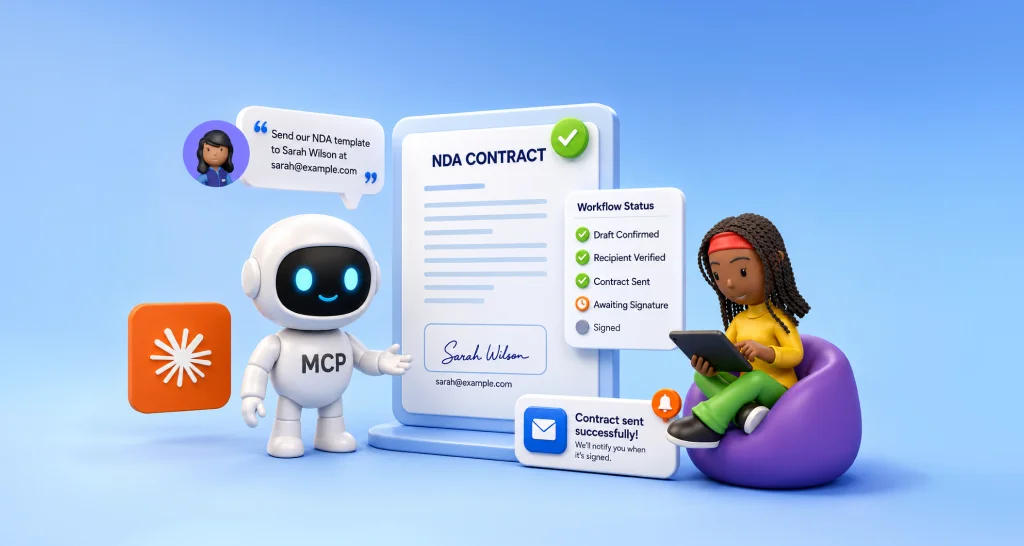
Change orders are supposed to protect both sides when a job changes, but in practice they sit half written until someone finally sends a PDF, and the extra work runs ahead of any signed agreement in the meantime. A change order agent closes that gap by turning a short conversation into a filled, approved template that is out for signature in minutes. If you are not sure what a change order is, start with this explainer on what a change order is and how an AI agent gets it signed.
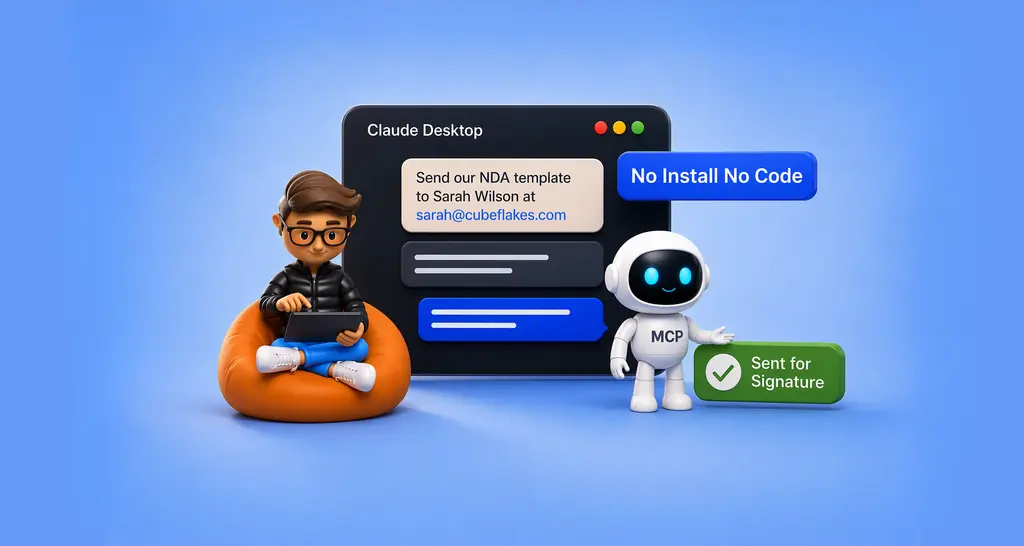
This guide shows how to build a change order agent using Claude and BoldSign MCP (Model Context Protocol), without writing any code. By connecting Claude to BoldSign, the agent can collect change order details, send documents for signature, and check document status when needed, all from within the same conversation. Whether you use Claude on the web or Claude Desktop, the setup and workflow are essentially the same.
By the end of this guide, you’ll have a working change order agent for your construction business, helping you turn project changes into signed change orders faster and ensure approval is documented before additional work begins.
Key takeaways
- One BoldSign template, one instruction file, and a BoldSign MCP connection are enough to create a working change order agent, with no developer required for the no-code setup.
- The guardrails matter more than the plumbing: a locked template, a confirmation before every send, and a hard rule that the agent never touches cost or schedule.
- The client signs the document, not the agent, so the legal position is the same as any other e-signature request.
- The same build extends to subcontractor packets, lien waivers, and closeout forms by adding templates rather than rebuilding.
- A live reference implementation exists. The Change Order Approval Agent demo runs the exact pattern in this guide.
What a change order agent is, in plain words
A change order is the one page document that updates a construction contract when the job changes. New tile on the balcony, rotten wood behind a wall, a client who wants a different fixture. It records what changed, what it now costs, and how the finish date moves. Until both sides sign it, the extra work has no agreement behind it. There is a full beginner explanation in What Is a Change Order and How an AI Agent Gets One Signed in Minutes.
A change order agent is the assistant that handles the paperwork around that page. You describe the change in a sentence. It finds your approved template, fills in the project, the reference, and the recipient, shows you a summary, and on your yes it sends the document out for signature.
The agent never signs. Worth stating plainly, because talk of AI signing gives the wrong impression. Your client receives a normal BoldSign signing request and applies their own signature, with the same consent step and audit trail as any other electronic signature. The agent handles the typing and the sending. The people involved still do the agreeing.
This guide is the construction version of the general build. If you want to send documents directly from chat using Claude Desktop, How to Send Contracts from Claude Desktop gets you there in under 30 minutes.
What you are building
Two workflows resting on one foundation.
The send side, which is you. From Claude or any MCP-enabled assistant, you describe the change and the recipient. The agent fills your approved change order template, shows a summary, and sends it after your confirmation.
The sign side, which is your client. The change order arrives as a standard BoldSign email. They review it and sign from any phone, with no account to create. You can also give clients their own chat agent for reviewing and approving change orders. Our live demo showcases this client-facing approval experience
Before you start
Building the agent only requires a few components. Before you begin, make sure you have the following accounts, templates, and permissions ready.
- A BoldSign account. The free API sandbox is enough.
- Your change order form as a PDF.
- A Claude account. Custom connectors work on Free, Pro, Max, Team, and Enterprise. Free accounts are limited to one custom connector, which is enough for this build.
- If you’re using a Team or Enterprise workspace, an Owner or Primary Owner must add the BoldSign connector before anyone else can use it. This is a one-time setup covered in Step 2.
- A BoldSign OAuth app, created in API → OAuth Apps, to get the Client ID and Client Secret that Claude needs. Step 2 walks through it.
Step 1: Turn your change order form into a BoldSign template
Upload the PDF in BoldSign and add form fields. A template is a reusable, field-mapped version of your document, so once it’s set up, the agent can fill in the blanks and send it without you touching the original file each time. If you’re new to templates, see our guide on creating document templates in BoldSign.
Four prefill fields are the whole intake.
| Field name | Filled by |
| clientName | The agent, from the conversation |
| clientEmail | The agent, from the conversation |
| projectAddress | The agent, from the conversation |
| changeOrderNo | The agent, from the conversation |
changeOrderNo accepts either a formal change order number (for example, CO-014) or a short description of the change (for example, “balcony tile upgrade”), whichever is typically used to identify the change order.
Add the client signature and date-signed fields as signer-completed fields. Leave every cost and schedule cell as part of the prepared document rather than something the agent fills. That separation is a guardrail, not a limitation. The agent can never be accused of touching a number if it structurally cannot reach one.
Name the template clearly, for example Change Order Form v1, because your agent will reference it by name.
Step 2: Connect BoldSign MCP
MCP (Model Context Protocol) is the standard that lets Claude communicate directly with BoldSign and other applications. Connecting BoldSign MCP allows your Claude conversation to create, send, and track documents in BoldSign instead of simply describing those actions.
Before adding the connector, you’ll need:
- A BoldSign OAuth app for authentication.
- The BoldSign remote MCP server URL for your account region. You can find the appropriate endpoint in the BoldSign MCP Server documentation.
First, create a BoldSign OAuth app
Claude uses OAuth to securely connect to BoldSign. Before you can add BoldSign as a connector, you’ll need to create a BoldSign OAuth app and use its credentials when configuring the connection. This is a one-time setup that you can reuse later.
- In BoldSign, go to API > OAuth Apps and click Create App.
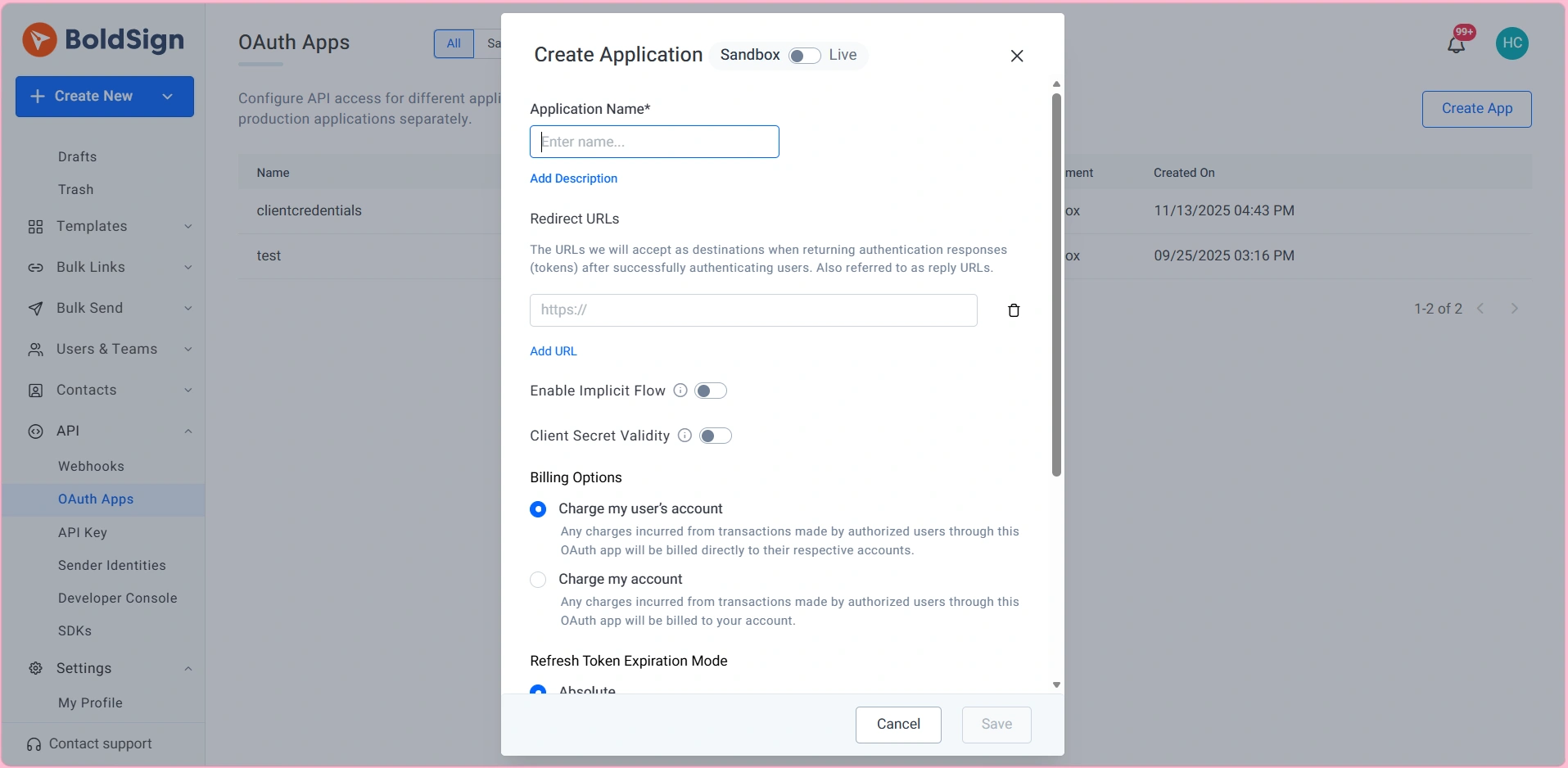
OAuth apps creation page
-
Enter an application name, for example Claude change order agent.
-
In the redirect URL section, add both redirect URIs listed on BoldSign’s Claude Web connector guide.
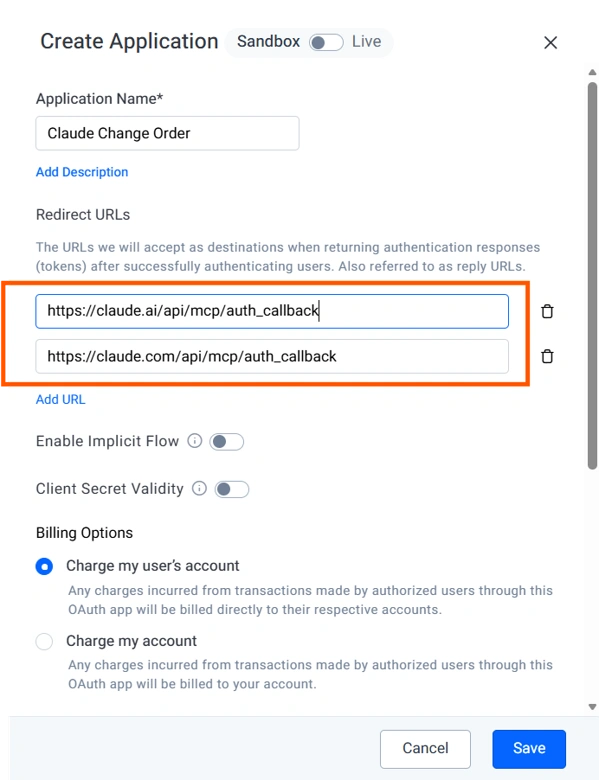
OAuth redirect URL
-
Click Save.
-
On the app details page, copy the Client ID and Client Secret. Store them securely, as you’ll need them when configuring the connector in Claude.
Note: Free sandbox account can create sandbox OAuth apps, which are sufficient for building and testing. Paid Enterprise API plan support separate sandbox and production credentials for live workflows.
Add the BoldSign Connector in Claude
If you’re using Claude Free, Pro, or Max
- Go to Settings by clicking your name or the gear icon, then select Customize > Connectors.
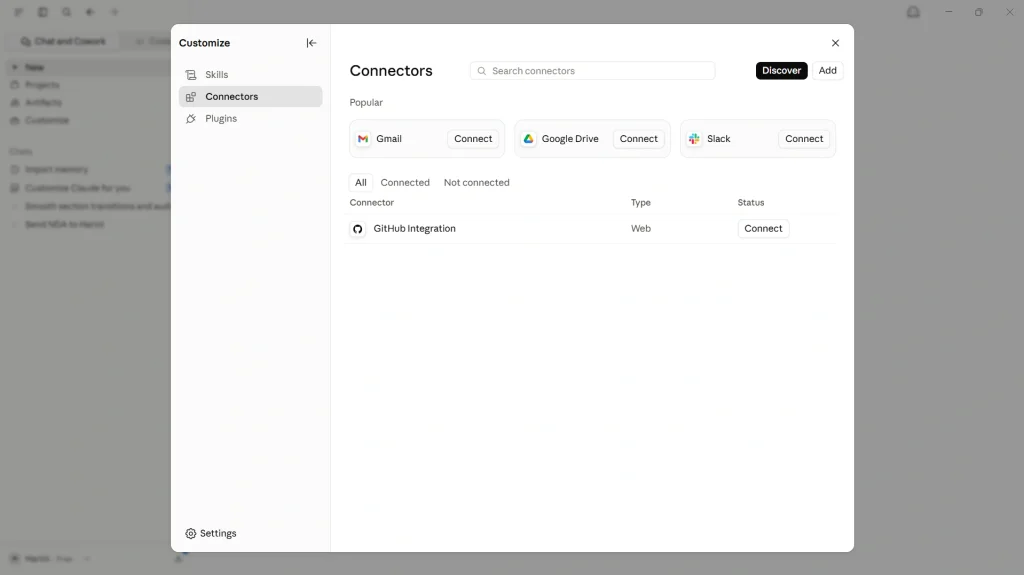
Connectors
-
Click Add, then Add custom connector.
-
Add name and enter the BoldSign MCP server URL for your account region. In this example, I’ll use the US region endpoint:
https://mcp.boldsign.com/mcp.If your BoldSign account is hosted in another region, use the corresponding regional endpoint listed in the BoldSign MCP Server Documentation.
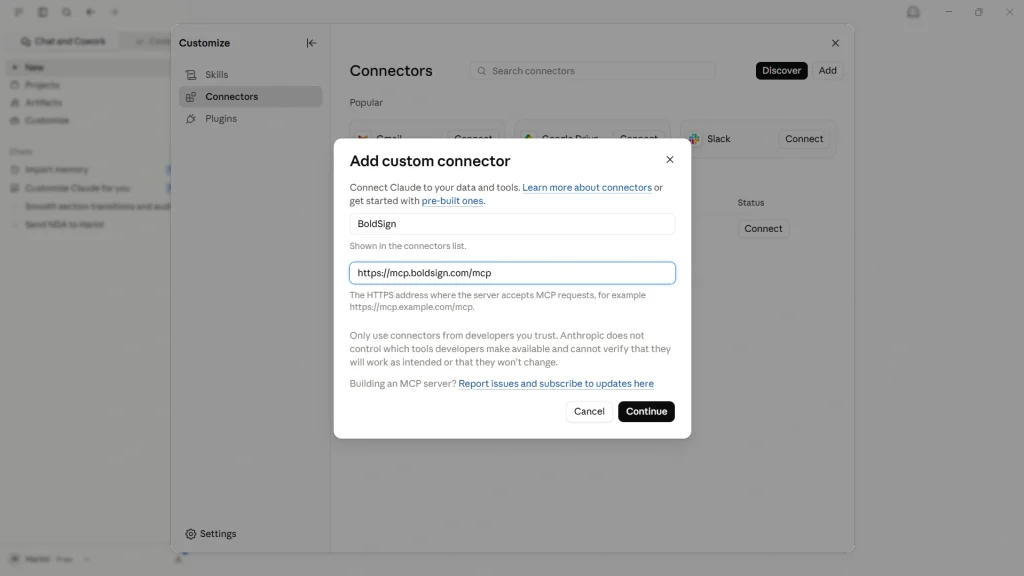
Add BoldSign remote MCP server URL
- Click Continue. In the OAuth Client section, enter the Client ID and Client Secret created in Step 1, and then click Add.
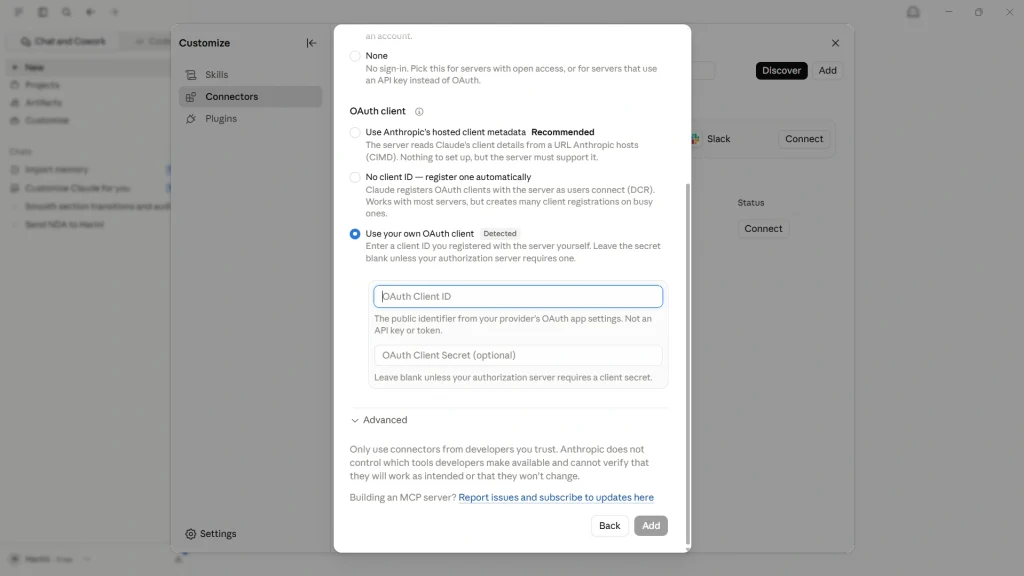
OAuth configuration
- Click Connect. Your browser opens a BoldSign sign-in screen; sign in and approve access for Claude Desktop
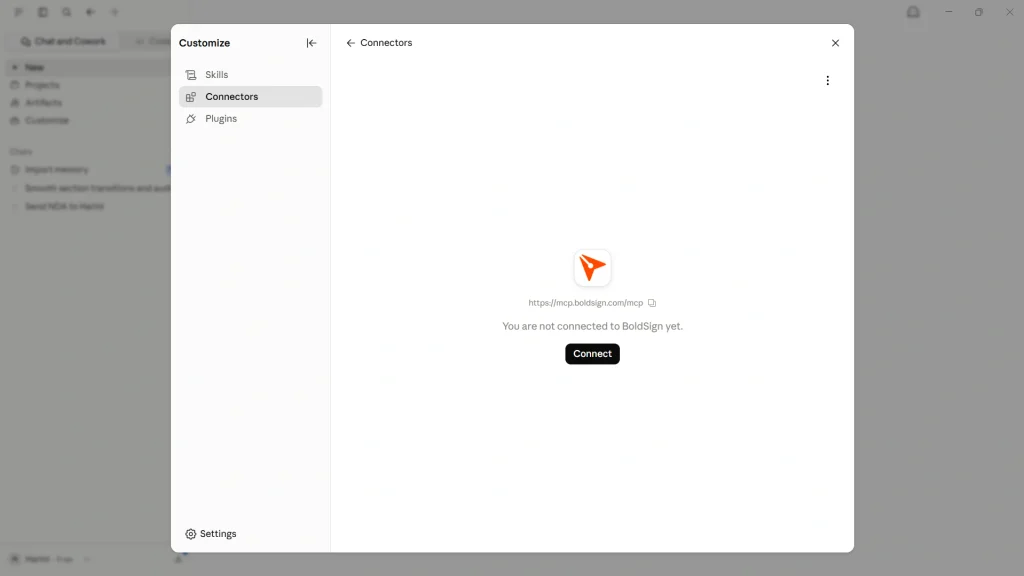
Connect to BoldSign MCP
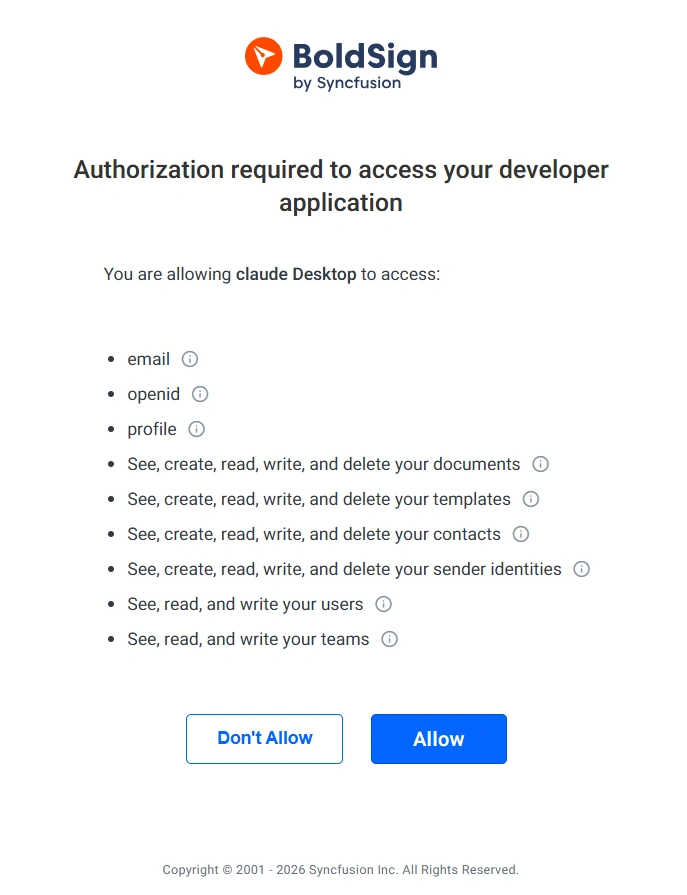
Authorize access to your BoldSign account
If you’re using Claude Team or Enterprise
An Owner or Primary Owner must add the BoldSign connector from Organization Settings > Connectors. Admin access is not sufficient. This is one of the most common setup blockers, so verify the required permissions before you start.
Once the connector has been added, each team member should:
- Go to Customize > Connectors.
- Find BoldSign, click Connect to Claude, and authorize access using their own BoldSign account.
Each person connects with their own BoldSign credentials, so the agent can only reach the documents and templates that person already has access to.
Step 3: Write the instructions that make the agent trustworthy
The plumbing is generic. The instructions are what turn it into a construction agent, and it is the step worth spending real time on.
Five rules, all proven in our live demo.
- One template, locked. The agent sends from your approved change order template and nothing else. It never drafts or edits document language.
- Never touches the price. It cannot state, estimate, or negotiate cost or schedule. Asked for a discount, it redirects the client to you.
- A summary before every send. Project, change reference, recipient name, recipient email, then an explicit yes from you.
- A four item intake, nothing sensitive. Project, change reference, name, email. No Social Security numbers, no bank details, and no payment talk at any point. A payment request inside a signing chat is a scam pattern, and the agent should name it as one.
- One question per message, with one example. “What change is this order for? Something short works, like the balcony tile upgrade.” People move faster when each message asks for just one thing.
- Our production instruction file for the demo implements all of this, including the scam-pattern checks and the safety pauses. Use it as a starting point and swap in your company details and template name.
Step 4: Test with your own inbox
Run the complete workflow once. Using the instruction file from Step 3, enter a sample project, describe a change, provide your real email address, confirm the summary, and sign the document delivered by BoldSign.
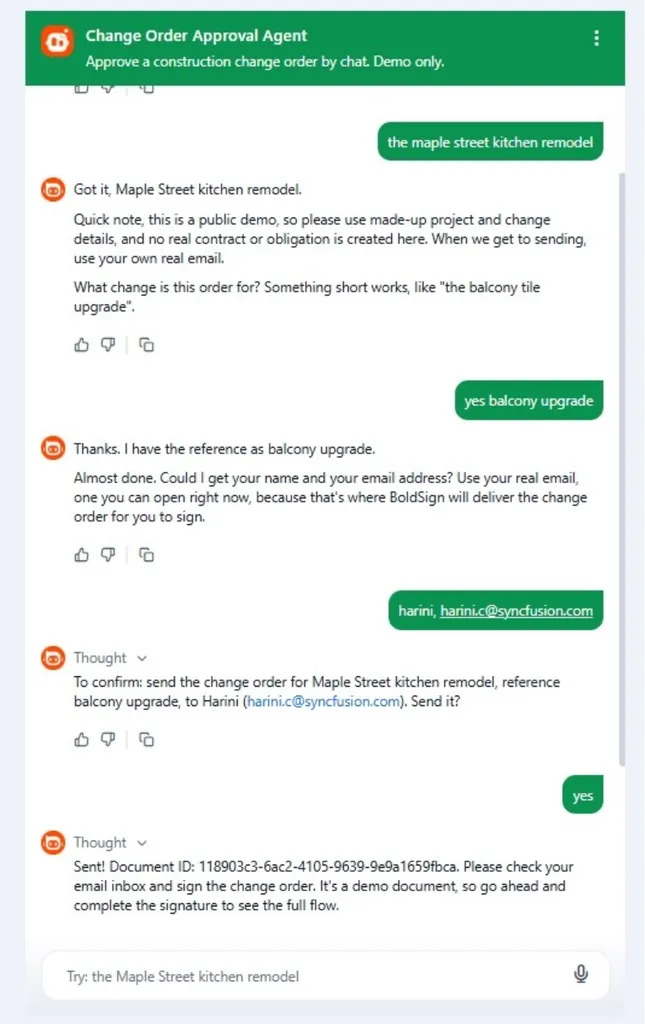
Change order approval agent conversation
If any field lands blank on the finished document, the field names in your instructions do not match the field names on your template. Line them up and run it again. That mismatch is the single most common reason a first build looks broken.
What the agent will never do
With the build tested and working, the boundaries matter as much as the mechanics. A conversation about money in the middle of a project is exactly where trust breaks and where scammers operate. The limits below are the most important part of the build, not a list of missing features.
- It never signs. Signing is always a human action, taken by the named signer in their own inbox.
- It never sets a price. Cost, scope, and dates come from the document you prepared.
- It never asks for payment. No deposits, wire transfers, gift cards, or processing fees. The FTC flags those exact patterns in home improvement fraud.
- It never collects sensitive identifiers. Social Security numbers, government IDs, and bank details have no place in a signing conversation, so they are structurally excluded.
- It never gives legal advice. Liens, permits, building codes, and contract rights go to a person who is accountable for the answer.
Why the signed change order holds up later
Speed only helps if the result stands up when someone questions it months later. Three things make it so.
- Editing it breaks the seal. The completed change order carries cryptographic hash values and a tamper-evident seal, so Adobe Acrobat and other PDF readers that validate digital signatures show if a line item was altered after signing.
- The timeline is recorded for you. Sent, viewed, and signed are timestamped separately, so when someone asks when the client approved the work, the audit trail already has the answer.
- The legal footing is well established. Electronic signatures are enforceable under the US ESIGN Act and UETA, and recognized under the EU eIDAS Regulation. If you ever have to prove one, this guide to producing electronic signature evidence for litigation or arbitration covers what a court or an arbitrator will ask for.
Two related pages are worth reading: what an e-signature audit trail records and why it matters, and an explainer on lien waivers, a key part of the construction payment process.
Where this goes next
Every recurring form in the job folder is the same pattern with a different template. Subcontractor onboarding packets, conditional and unconditional lien waivers tied to payment milestones, punch list sign-offs, completion certificates. Add the template, extend the template list in your instruction file, and the agent handles the routing conversation.
The full construction document picture, including multi-party routing and identity verification for high-value work, is on BoldSign’s eSignature for construction page.
One server, many workflows
The change order agent is one of a series built on the same foundation. The same BoldSign MCP server powers insurance claim, lease signing, patient check-in, and scholarship acceptance agents, and the only thing that changes between them is the template and the instruction file. You can see them all on the AI eSignature agents page, and the underlying mechanics are explained in What Is an AI eSignature Agent.
Build Your First Change Order Agent
Every project change creates a decision: wait for paperwork and delay the work, or move forward without a signed agreement. A change order agent helps you close that gap by turning a short conversation into a completed change order that’s ready for signature in minutes.
From collecting project details to sending documents for signature, the entire workflow happens within the same chat.
Create your free BoldSign developer sandbox account and connect the MCP server to build your first change order agent today.
Frequently asked questions
What is a change order agent?
A change order agent is a chat assistant that fills your approved change order template from a short conversation and sends it out for signature. It does not sign, price, or reword the document. The client signs it themselves from their inbox.
Do I need a developer to build a change order agent?
No. You can build a change order agent using the BoldSign MCP connector in Claude, along with a template and an instruction file, without writing code. A developer is only needed if you want to build a custom application or embed the agent into your own systems using APIs and AI frameworks.
Does the agent sign the change order?
No. The agent prepares and sends it. Your client applies the signature themselves in their own inbox, with the same consent step and audit trail as any other electronic signature request.
Can the agent change pricing on the change order?
Not if you scope it correctly, and you should. The recommended instruction pattern locks the agent to an approved template, requires a confirmation summary before sending, and forbids it from stating, estimating, or negotiating cost or schedule.
What Claude plan do I need for the BoldSign MCP connector?
Custom connectors using remote MCP work on Free, Pro, Max, Team, and Enterprise. Free accounts are limited to one custom connector. On Team and Enterprise, an Owner or Primary Owner adds the connector for the organization once, then each member connects with their own BoldSign account. Check the BoldSign MCP documentation for current requirements.
What BoldSign plan do I need?
A free API sandbox account is enough to build and test. Sending real documents uses your BoldSign plan’s API allowance.
How long does it take to build one?
Creating the template and connecting BoldSign MCP takes only a few minutes. Writing and testing the instruction file is the part that has the biggest impact on how the agent behaves, so spend most of your time there.
Is an electronically signed change order legally binding?
Yes, on the same basis as any electronic signature, because a person still signs it. Electronic signatures are enforceable under the US ESIGN Act and UETA, and recognized under the EU eIDAS Regulation.
What should I do if a signing chat asks me for a deposit?
Stop and contact your contractor directly using a number you already have. A legitimate signing conversation never asks for a deposit, a wire transfer, gift cards, or a processing fee.
Meikanda Nayanar
A veteran product manager at BoldSign, boasting a decade-long journey as a .NET developer. With a rich history of leading product development across diverse technologies like Windows Forms, WPF, UWP, Xamarin.Forms, Flutter, and MAUI, Meikandan brings a unique blend of technical expertise and strategic insight to the table. Connect with him on LinkedIn.
More posts by Meikanda Nayanar