E-Signature Audit Trail: What It Records and Why It Matters
 Rachael Chilson Arwa Olang
TL;DR: Audit trails record every action in an e‑signature process, who signed, when, where, and how. They ensure transparency, prevent fraud, and are essential for meeting required compliance requirements.
A signed contract can close a deal, approve a new hire, or finalize a loan. But what happens when someone later says, “I never signed that,” or “This document was changed after I signed it”?
In that moment, the signature alone isn’t enough. You need proof of exactly what happened: who signed, when, and how the document was protected from tampering. That proof is the e-signature audit trail, a detailed record that gives every electronically signed document reliability, transparency, and legal defensibility. By capturing every action taken on a document, audit trails protect organizations from disputes, fraud, and compliance risk.
What is an audit trail
An audit trail is a chronological record of every action taken on a document throughout its lifecycle, from creation and sending, to viewing, signing, completion, decline, or expiration. In short, it answers:
- Who participated in the signing process?
- Which document was signed?
- When did each action happen?
- How was the signer authenticated?
- Was the document completed without unauthorized changes?
This creates a transparent record that legal, compliance, sales, HR, finance, and operations teams can rely on to verify and manage signed agreements. In BoldSign, every document automatically generates an audit trail that includes signer details, timestamps, authentication methods, document status updates, and a completion certificate. No extra setup required.
| Type of Event | Description | Example |
| Creation of document | Document sent out for signature is created. | Document sent out for signature by Sandara Ladasha at 11:00 AM. |
| View logs | When the signer reviews the document. | Travis Noah viewed the document. |
| Signature actions | Signature is added by the signer. | Travis Noah e-signed using OTP verification at 11:30 AM. |
| IP and Device tracking | Records the signer's location, browser, and IP. | Signed in using Chrome from a specified IP. |
| Record of completion | Verifies the document is complete and executed. | Document completed at 11:32 AM with a SHA256 digital seal. |
What an audit trail records, field by field
The section above describes what’s captured at a category level. The table below breaks it down field by field, based on a real BoldSign Certificate of Completion.
| Field | What it captures | Example |
| Document summary | ||
| Document ID | Unique identifier assigned to the document | UUID |
| Type | The kind of request the document represents | "Signature Request" or "Self Signature" |
| Document Name | The uploaded file's name, including its extension | "Agreement.docx" |
| Status | Current state of the document, including Declined and Expired | "Completed" |
| Page Count | Number of pages in the document | 1 |
| Signer/Reviewer Count | Number of signers or reviewers associated with the document | 1 |
| Sent At | Date and time the document was sent, with timezone. Shown as "-" for self-signed documents, which have no separate send step | Aug 09, 2026 16:20:48 IST |
| Completed At | Date and time the document was completed, with timezone | Aug 09, 2026 16:21:52 IST |
| Title | The title given to the signature request itself, distinct from the uploaded file's name | "Agreement" |
| Signing order | Whether signers are required to act in a set sequence | Enabled / Disabled |
| Document integrity | ||
| Combined PDF Hash | Cryptographic hash associated with the combined PDF | Hex-encoded hash |
| Individual PDF Hashes | Cryptographic hash associated with each individual document, listed by document name. Not shown on every certificate | Hex-encoded hash, per document |
| Sender | ||
| Name | Sender's name | |
| Email ID | Sender's email address | |
| IP Address | IP address recorded for the sender | |
| Device | Browser and device used by the sender | "EdgeChromium via Desktop" |
| Recipients | ||
| Name | Recipient's (signer's) name | |
| Email ID | Recipient's email address | |
| IP Address | IP address recorded for the recipient | |
| Device | Browser and device used by the recipient | "EdgeChromium via Desktop" |
| Signature Type | How the signature was created | "Typed Signature" |
| Security Authentication | The authentication method used to verify the signer, such as email access, access code, SMS/OTP, KBA, or ID verification, if any was configured | "-" if none configured |
| Electronic Signature Disclosure Consent | Timestamp when the signer accepted the e-signature consent disclosure, or "Not requested by the sender" if the consent dialog wasn't shown to this signer, based on the business profile's consent display setting (Do not display, Display to all signers, Display to external signers only, or Show once per signer) | Date/time, or "Not requested by the sender" |
| Signature | The rendered signature image. If "Add a signature frame" is enabled in the business profile, the frame also shows whichever selected details apply, recipient name, email, and/or timestamp; if disabled, only the bare signature image appears | Signature |
| Sent / Viewed / Signed | A condensed list of the lifecycle timestamps that actually occurred for this document, not every document has all three | Date/time, each |
| Audit Trail | ||
| Event type | The specific action recorded at each step | Sent, Viewed, Signed, Completed, Declined, Expired |
| Event timestamp | Date and time each individual event occurred | Date/time, per event |
| Event description | A plain-language description naming the sender or recipient involved | "Alex sent the document to Jordan." |
| Recipient email (per event) | Shown specifically on Viewed and Signed events | |
| IP address (per event) | Shown specifically on Viewed and Signed events | |
| Custom legal terms (optional) | ||
| Custom section | An additional section appended at the very end of the audit trail, only present if custom legal terms are configured in the business profile. Includes a custom heading and custom body text | Business-defined heading and text |
One more thing worth knowing: this entire certificate can be generated in two languages at once. If Multilingual Audit Trail is enabled in the business profile and the signer’s locale is set to a non-English language, BoldSign appends a full second copy of the certificate, machine-translated into that language, as additional pages in the same PDF, with a table of contents at the front and a disclaimer noting the translation is for reference only and not legally binding, English governs in the event of any discrepancy.
The example below shows a standard certificate, single language, with no custom legal terms or signature frame configured, not the multilingual or customized variants just described. Names, emails, and IP addresses are redacted:
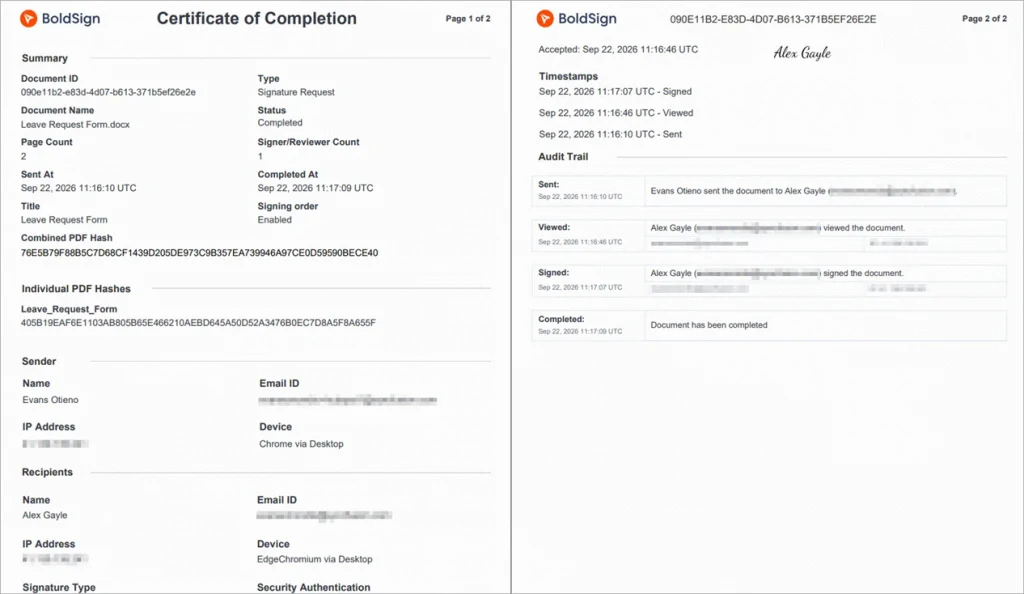
Once a document reaches “Completed,” this record can be attached directly to the signed PDF or downloaded separately.
Why an audit trail matters
It defends agreements in disputes. If a signer later claims “I never signed that” or “that wasn’t me,” the audit trail gives you concrete evidence to respond with: the signer’s identity, IP address, device, timestamp, and the authentication method used, instead of just your word against theirs.
It supports compliance requirements. Regulated industries like healthcare, banking, insurance, and HR can’t rely on “we’re pretty sure it was signed correctly.” Auditors and regulators expect a documented, timestamped chain of custody for every agreement, and the audit trail is that document.
It builds trust and transparency. When every party involved, including signers, internal teams, and outside auditors, can see the exact sequence of actions on a document, there’s no ambiguity about who did what and when. That transparency cuts down on back-and-forth during reviews and renewals.
It proves document integrity. A signed contract is only as good as your ability to prove it wasn’t altered afterward. Completion certificates, cryptographic sealing, and document hashes tie the audit trail to one specific, unchanged version of the file, so “someone edited this after I signed” isn’t a viable claim.
Audit trail vs. a regular signing record
A basic signing record may only confirm that a document was signed. An audit trail goes much further:
| Feature | E-Signature audit trail | Regular signing record |
| Proof of signing | Signer details, timestamps, authentication, and full activity history | Usually confirms only that a document was signed |
| Compliance support | Supports legal, regulatory, and internal compliance needs | May be insufficient for regulated workflows |
| Tamper evidence | Certificates, hashes, or digital seals confirm integrity | May not show whether the document was altered |
| Detail level | Identity, timing, authentication, and document events | Usually limited signing details |
| Dispute defense | Stronger evidence if a signature is challenged | Weaker support in disputes |
| Workflow use | Downloadable, attachable, shareable, archivable | Often requires manual tracking |
How audit trails assist with compliance
All businesses, no matter where they operate are governed by legal requirements that they must maintain compliance with. Depending on your business functions, you may need to meet legal requirements across multiple jurisdictions through maintenance of proper audit trails for all documents that are e-Signed to ensure compliance and enforceability.
How audit trails assist with UETA compliance
According to UETA, the electronic signatures and records should be traceable to an identifiable individual and the system which is used for collecting them should be reliable. Customers of BoldSign who require UETA compliance can use BoldSign’s audit trails in this detail record to help in meeting their compliance needs.
Signer logs
Signer logs provide an evidence trail that certifies the accuracy and integrity of electronic signatures and records. These logs will document the signature creation process, which include time stamps and activities recorded, thus ensuring that signature is in line with the correct record and that the signer’s intention is to sign electronically.
Technical logs
Technical logs provide documented proof for digital transfers that will ensure that data accuracy is in place, identity verification, and proof that is undeniable.
If you need your business to be compliant with UETA, you can use these audit trails:
E-Signature audit trails
This will involve unique signer identification, which takes place when signer is identified and when who is involved during the signing process. This therefore should include their email addresses, IP addresses, and name. Through this information, the exact individual who signed the document will be verified.
Time stamps should record every action in inclusive of the time the document was sent for signature, when the document was viewed, when signature was applied, and completion of the document.
Application-level audit trails
It is essential to track down and record all user operational activities within the system. This is vital as this ensures that the documents integrity is maintained.
How audit trails are important for HIPAA compliance
Properly maintained audit trails will help the healthcare organizations in prevention of data breaches, detecting security threats, and comply with the regulatory requirements.
Signer logs
Signer logs in HIPAA are crucial since they provide a record of who altered and changed the protected health information PHI and the interventions that took place aftermath. This therefore will ensure that there are transparency and any kind of breach noted hence ensuring that HIPAA security measures have been implemented.
Technical logs
This is vital since it helps in ensuring there is compliance and safety by offering an accountable system record of access to the system, hence ensuring that breach is detected and the route cause is investigated.
If your business needs to be compliant with HIPAA, these are the requirements of HIPAA.
Security of audit logs
To maintain decency and availability of audit logs, they should be kept safe. Keeping the audit logs safe include using storage solutions that are secure and encrypted.
Retention of audit logs
HIPAA regulations do not have a stated specific period for retention for the audit logs. Hence, audit log retention period should be as required by state law or the organization needs.
Content of audit logs
Detailed information of audit logs should be captured to know the information of the date and time of activity, data affected, and every action in details.
Accessing audit logs
Accessing audit logs easily will ensure that if any investigation is being done, the logs will be reviewed to know the primary cause and have solutions to those.
Review of audit logs
Audit logs are reviewed to know risks earlier enough before they occur and hence address the risks.
How audit trails are important for eIDAS compliance
Effective audit trails are essential for demonstrating compliance with eIDAS by capturing every key event throughout the signing process.
Significance of audit trails for eIDAS
Audit trails are crucial because they provide openness and protection. They matter because they record who signed a document, when, and under what conditions the document was signed. Through this audit trails are made crucial for compliance with eIDAS.
Significance of signer logs for eIDAS
During the signing process, signer logs will track the actions of each signer. This involves recording when the signature was started and completed, device details and Internet Protocol (IP) address, do verification process, and document integrity checks.
Significance of technical logs for eIDAS
Technical logs will provide every record of actions including verification of the user and secure signing.
Technical logs will help in identifying irregularities, prevent fraud, and assist in compliance reviews.
Electronic signature and audit trail management in BoldSign
BoldSign generates a clear, traceable audit trail for every document, with no manual notes or scattered email confirmations required. Teams can view, download, attach, localize, and share audit trail evidence directly from the platform.
Automatically attach an audit trail (Combine Audit Trail)
Admins can enable Combine Audit Trail in BoldSign so that every completed document includes its audit trail inside the final PDF. This helps keep the signed document and its evidence together in one file.
- Log in to BoldSign as an admin.
- Go to Settings > Branding.
- Open the relevant brand (or edit an existing one).
- Find the Combine Audit Trail option and turn it on.
- Save your changes.
Once enabled, every completed document under that brand includes the audit trail inside the final signed PDF, keeping the document and its evidence together in one file.
Download an audit trail manually
Users can also download an audit trail manually when it is available.
- Log in to your BoldSign account and open the dashboard.
- Go to Documents > My Documents (or All Documents).
- Select the document you need.
- Open the document details to review signer information and status updates.
- Select More actions > Download audit trail.
Localization and secure sharing
For global teams, BoldSign supports localized audit trails in different languages and regional date formats, useful for international teams and auditors reviewing signing evidence. Because audit trails contain signer names, IP addresses, and technical metadata, share them carefully: via email to auditors or legal teams, through access-controlled cloud storage (OneDrive, Google Drive, Dropbox), or directly into your compliance system or CRM.
Where audit trails pay off in practice
- Sales contracts: faster dispute resolution when a customer questions whether they actually executed the agreement.
- HR onboarding: evidence for offer letters, policy acknowledgments, and approvals.
- Finance and procurement: consistent evidence for vendor approvals and purchase agreements.
- Embedded eSignatures (SaaS): automatically generated evidence per transaction, feeding downstream CRM, storage, or case-management systems.
Conclusion
An e-signature audit trail is the evidence behind a signed document. It records signer details, timestamps, authentication activity, and completion information so your team can verify signatures and defend agreements with confidence. With BoldSign, every document generates this record automatically, and you can download, auto-attach, localize, and securely share it whenever compliance, legal, or a customer dispute calls for it.
Try BoldSign free and explore powerful audit logging, automated workflows, and secure signing.
Have questions? Our team is here. Schedule a demo and get expert support.
Frequently asked questions
What are the best tools for maintaining a secure audit trail for electronic signatures?
Look for automatic timestamping, tamper-evident sealing, signer authentication (OTP, access codes, KBA, or ID verification), and a completion certificate. BoldSign includes these by default, with advanced verification options for higher-risk documents.
Can I track every change made during the signing process with an audit trail?
Audit trails track every signing event, including sending, viewing, signing, and authentication details. They don't track document content edits. Any content change requires a new version with its own audit trail.

Rachael Chilson Arwa Olang
Rachael works in Regulatory Compliance Team and enjoys writing blogs about data protection. Knowledge gained from data security helps users gain knowledge on the protection of personal and organization data.
More posts by Rachael Chilson Arwa Olang