TL;DR: To request an electronic signature on a PDF, upload the file to an eSignature tool, add the signer’s name and email, place signature and date fields where the signer needs to act, and send the request. The signer opens a secure link and signs from any device, with no printing or scanning. What decides your turnaround time is the setup before you send: fields, signing order, authentication, delivery channel, and reminders.
The PDF is final. One person needs to sign it. Three days later it is still sitting in an inbox while you write another polite follow-up.
Sending the request itself is quick. Upload the file, add the signer, place the fields, hit send. Most tools get you through that in about two minutes, and the mechanics barely differ between them.
What actually varies is everything you decide before sending. Where the fields sit, who signs first, how the signer proves who they are, which channel reaches them, and who owns follow-up when nothing happens. Those choices are why one PDF comes back in an hour and an identical one takes a week.
This guide covers the sending steps, the decisions behind each one, and how to tell when a basic PDF signer is enough versus when you need a real sending workflow.
Key takeaways
- Most of the delay on a signature request traces back to how the sender configured it, not to a slow signer.
- Field placement is the quiet failure point: missing or unclear fields send signers back to you with questions instead of a signed PDF.
- Signer authentication is a per-document risk decision, not an account-wide default, because every added verification step also adds friction.
- If nobody owns follow-up, pending documents stay invisible until someone escalates. Automatic reminders turn that ownership into a setting.
- Sending the same PDF repeatedly is a preparation problem, and a template with fields already placed removes the repeat setup entirely.
Where PDF signature requests actually lose time
The print, sign, scan loop is the obvious offender. The signer prints your PDF, signs it, scans it at an angle, and emails back a large file with a page missing. You now have a signed document you cannot search and a signature you cannot verify.
Emailing a PDF as an attachment has a subtler problem. You have no idea what happened after you clicked send. Was it opened, forwarded, buried, or filtered into spam? Silence and a delay look identical from the sender’s side.
Then there is the evidence gap. An email thread tells you when a file was attached, not when a specific person signed, from what IP address, or whether the document changed afterward. For an employment contract or a client agreement, that gap matters later, not now.
And the rework. Signers who cannot tell where to sign, which fields are required, or whether they were supposed to fill in the date will ask you instead of guessing. Every one of those questions is another round trip.
All four problems come from the same source: paper and a plain email attachment were never built to track status, verify who acted, or guide someone through where to sign.
That is what eSignature software is actually for. Not a fancier way to sign your name, but a workflow that replaces the printer, the scanner, and the guesswork with something that can answer “who signed this, and when” on its own.
What happens when you send a PDF for signature
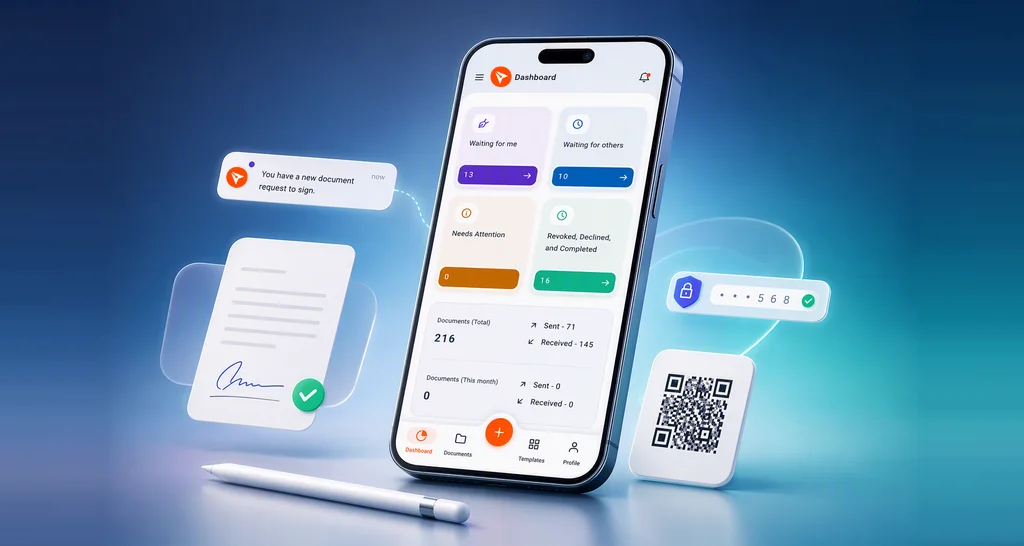
A signature request is not an email with a file attached. The tool generates a secure signing link tied to each recipient, presents the PDF in a browser with your fields on it, records each action taken on the document, and produces a completed PDF plus an audit trail once everyone finishes.
An audit trail is the record of signing activity on a document: who received it, when they opened it, how they were authenticated, and when they signed. That recorded activity is the part senders undervalue. It is what turns a signed PDF into something you can defend if the signer later disputes it.
On the legal question: the ESIGN Act states that a signature, contract, or record cannot be denied legal effect solely because it is in electronic form. State-level UETA rules cover much of the same ground. Some document types carry extra requirements, so check with counsel for anything unusual in your industry.
That is the shape of the fix. What still decides your actual turnaround time is how much of that workflow a given PDF genuinely needs.
When a basic PDF signer is enough, and when you need a sending workflow
Most articles on this topic assume you need a full platform. Often you do not. Here is the honest split.
| Your situation | What you actually need |
|---|---|
| You need to sign a PDF yourself and send it on | A free self-signing tool |
| One or two signers, a few documents a month | Basic requests: fields plus email delivery and tracking |
| The same PDF goes out repeatedly | Reusable templates with fields already placed |
| A multi-party contract requiring a countersignature | Signing order, status tracking, and reminders |
| High-value, regulated, or disputable agreements | Stronger authentication plus a downloadable audit trail |
| Signing has to happen inside your own product | An eSignature API with embedded signing |
The pattern to watch for is repetition. The moment you are sending the same agreement more than a couple of times a month, or chasing signers by hand, the cost has moved from the signing to the preparation and the follow-up.
Where BoldSign fits into this
BoldSign is one place to run the workflow above. Here is exactly what each decision looks like inside it, in case you want to send your next PDF this way instead of describing it in the abstract.
Upload the final version, not the working draft
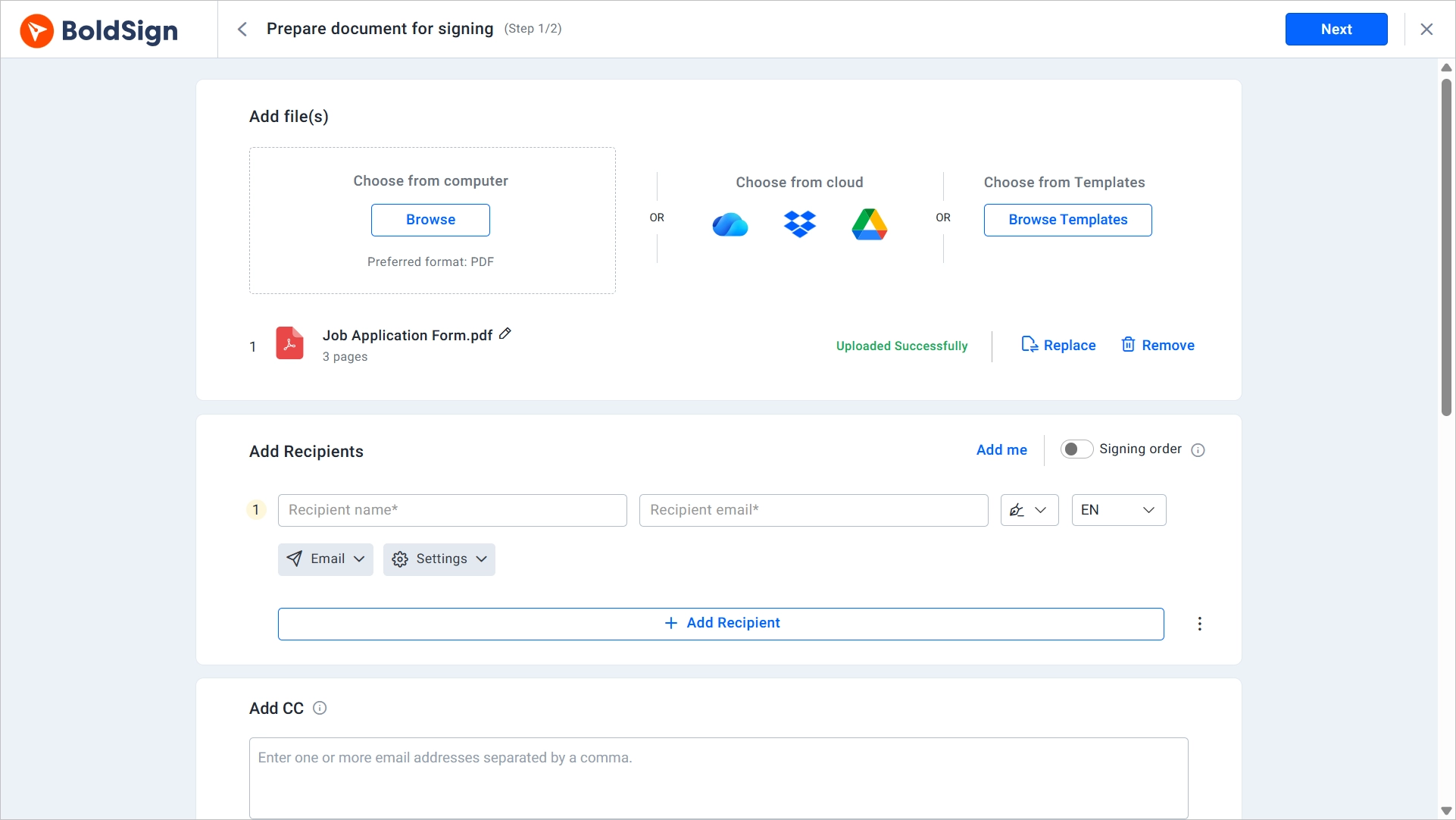
In BoldSign, click Create New, choose Create New Document, and upload the PDF on the Prepare Document page. Once the request is out, signers can sign or decline, they cannot fix your numbers, so catching a wrong figure after sending means revoking the document and starting again. Confirm the version before you upload.
Upload the PDF
Add each recipient by the role they actually play
Add each person’s name and email in the Add Recipients section, or click Add Me to include yourself. BoldSign lets you set the correct role and permissions per recipient, so an internal reviewer does not get treated as a required signer. A two-party contract should still need only two signatures.
Place fields where the signer has to act
On the Configure Fields page, drag signature, initials, date, text, and checkbox fields onto the exact spots where the signer needs to act, then mark required fields accordingly. When creating a reusable template, you can use BoldSign’s Place Fields with AI feature to automatically detect and place supported fields, then review, move, resize, or reassign them as needed. Prefill known details, such as the contract value or start date, so the signer has less to enter and fewer opportunities for error.
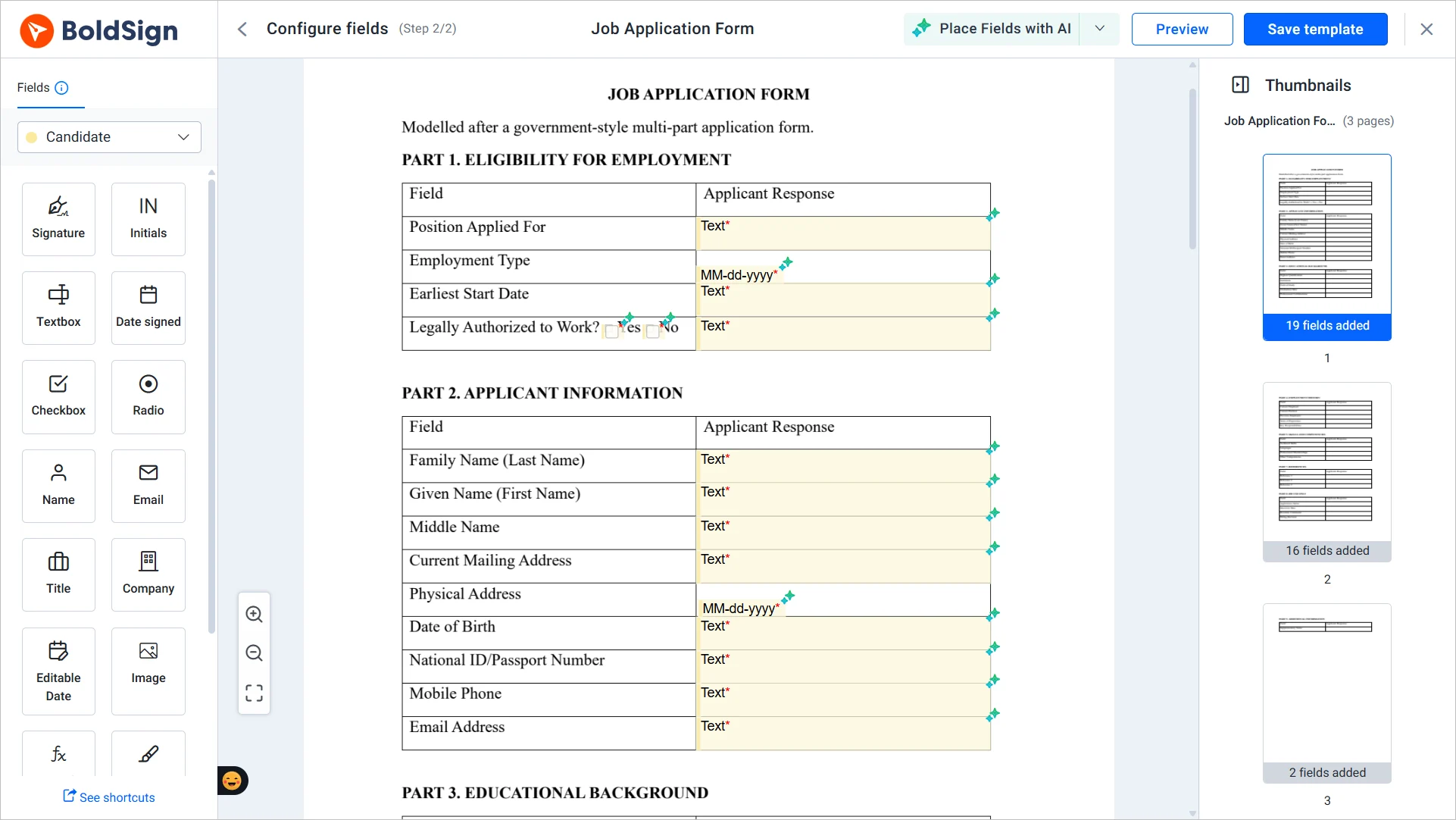
Place fields
Set signing order only when order genuinely matters
Enable signing order when a later signature depends on an earlier one, such as when a company representative must countersign after the customer. Leave it disabled when recipients can sign independently, such as multiple department heads acknowledging the same policy, so everyone can receive and complete the document without waiting for others.
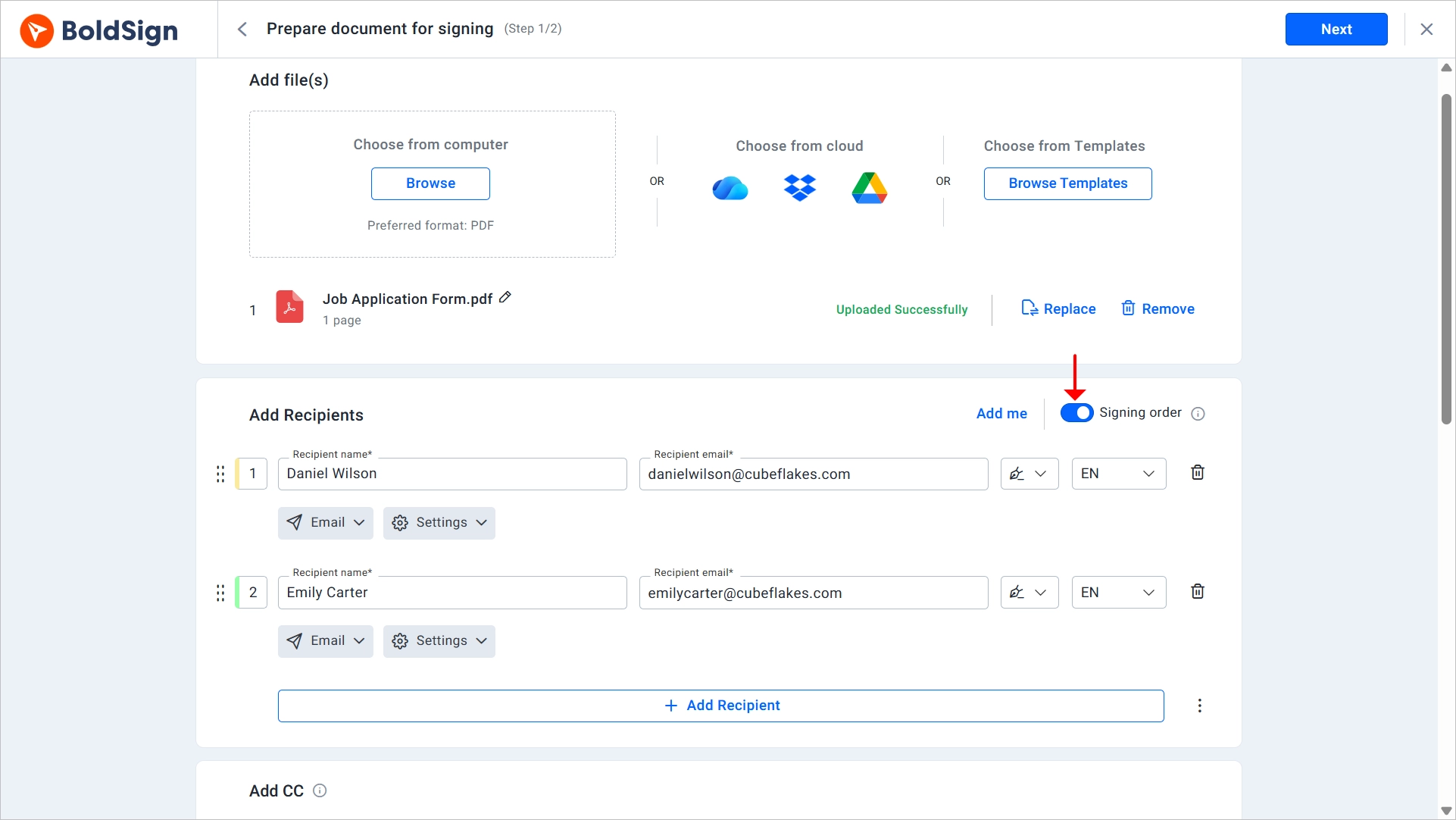
Set signing order
Match signer authentication to what the document is worth
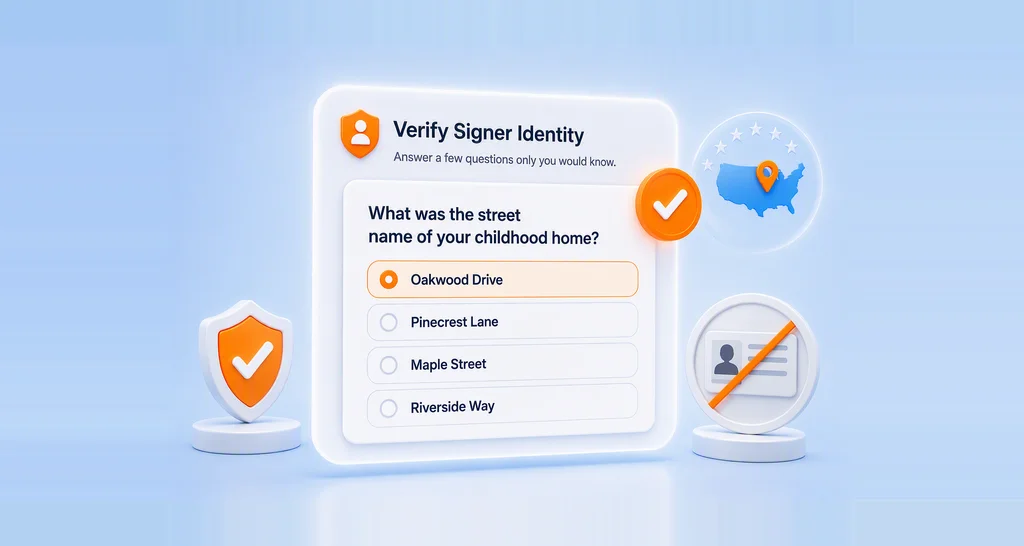
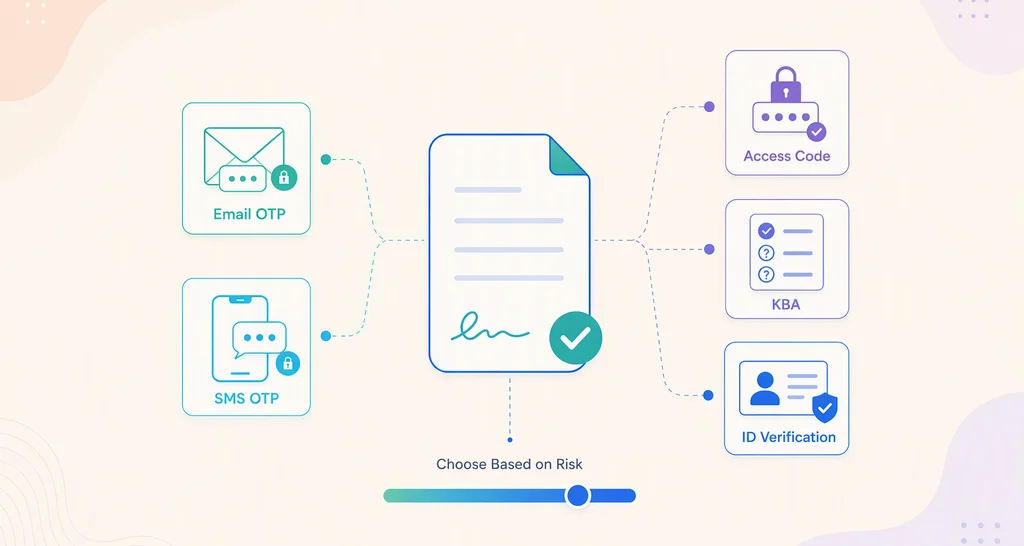
BoldSign supports email OTP, SMS OTP, access code, KBA and ID verification, chosen per signer rather than as one account-wide setting. This aligns with NIST guidance to use stronger identity checks when the risk is higher.
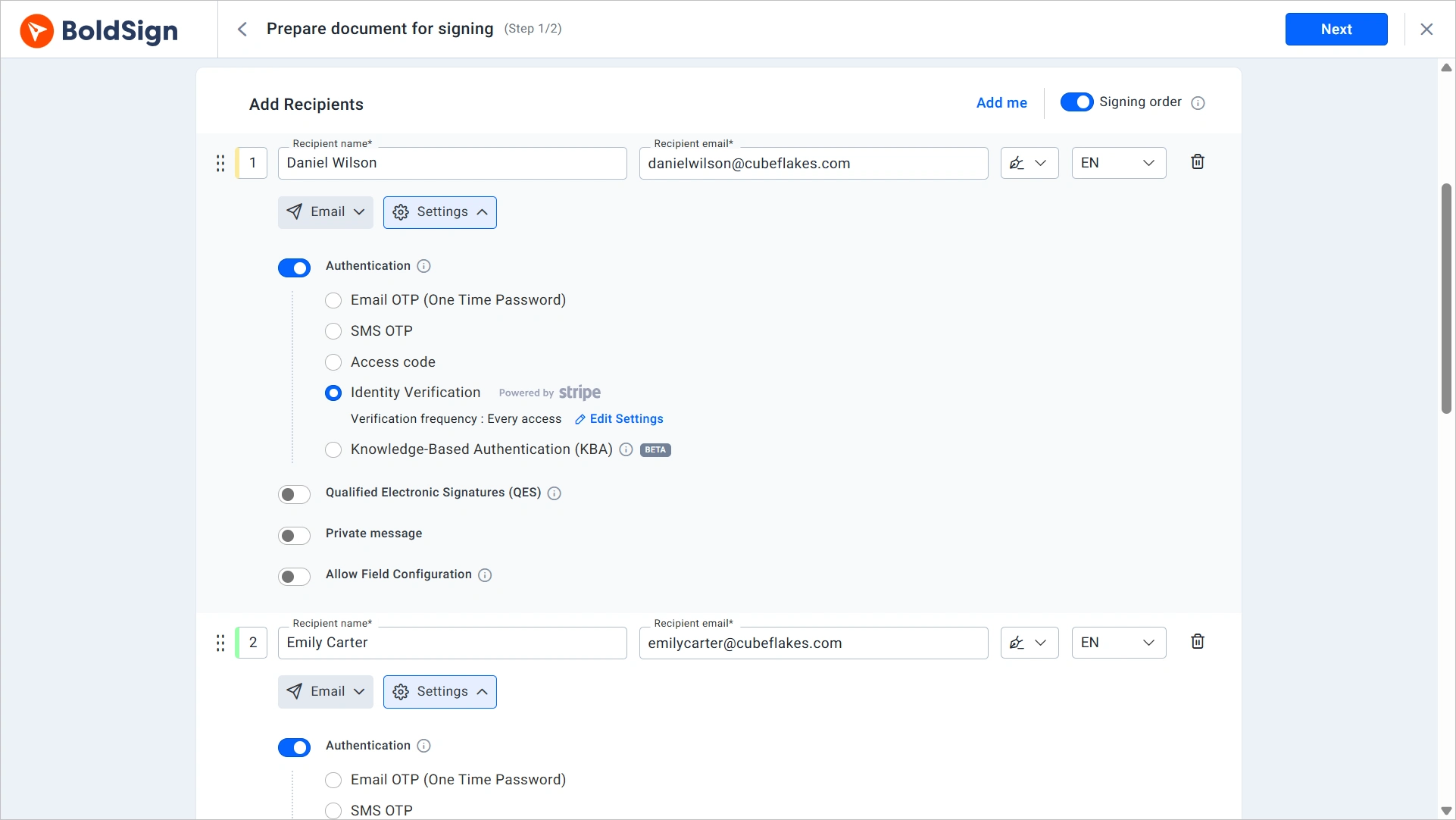
Enable authentication
A routine internal acknowledgment does not need ID verification. A loan agreement or a healthcare consent form probably does. Authentication events are recorded alongside the signature, so the extra step also strengthens your evidence, not just your gate.
Pick the delivery channel your signer actually checks
Email is the default delivery method. For signers who prefer mobile access, BoldSign also supports Email + SMS, which sends the secure signing link through both channels. One detail worth knowing before choosing this: signers on Email + SMS do not receive automatic reminders, so plan to send reminders manually if follow-up is needed.
BoldSign also offers WhatsApp as a dedicated delivery method for signers who are more responsive on that platform. Choose the channel your signer is most likely to actually check.
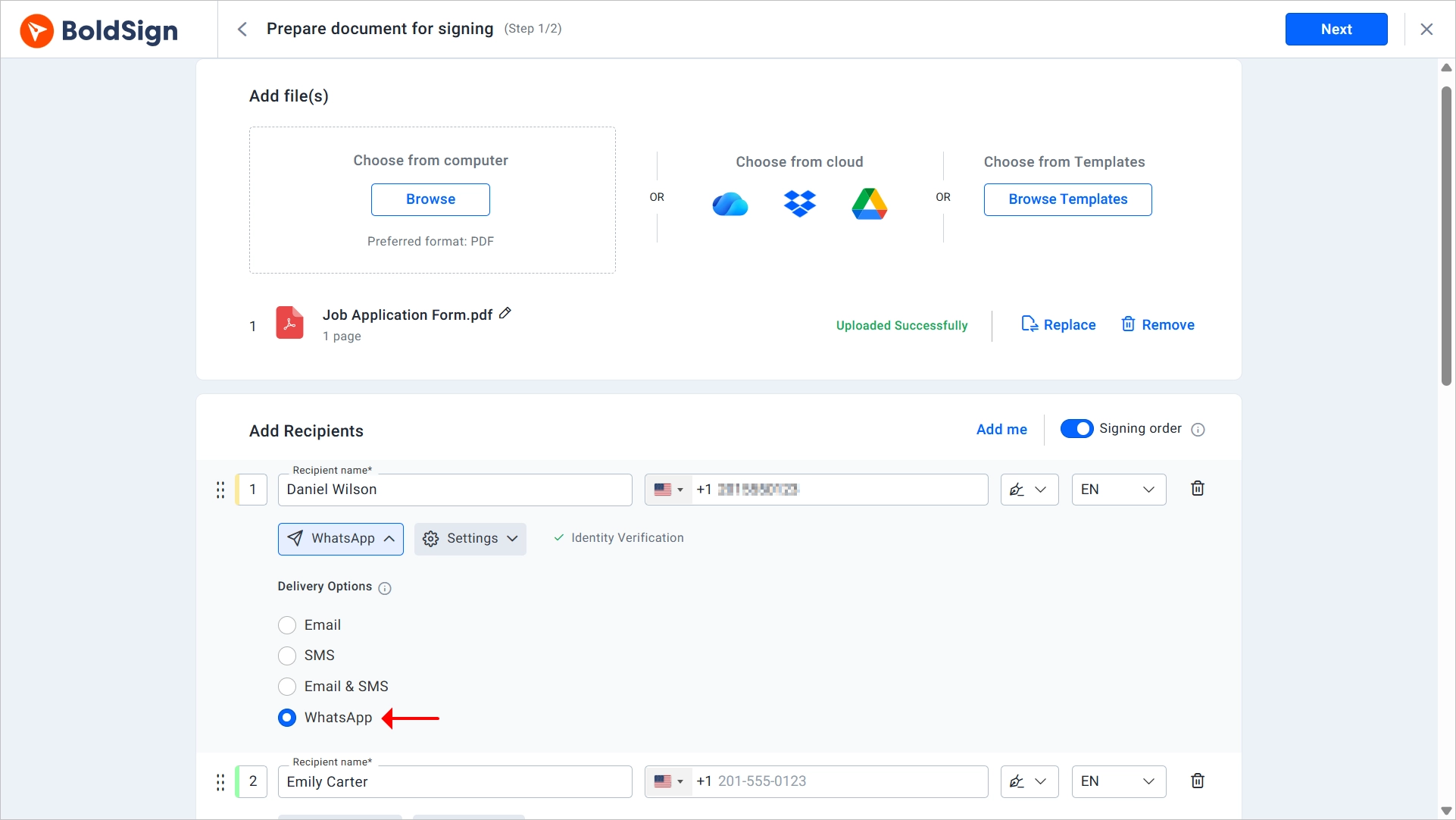
Select channel delivery
Send, then work from document status instead of memory
After sending, BoldSign’s document status shows what is waiting on whom. Set automatic reminders at an interval that fits the agreement, add an expiration date so stale requests do not sit open forever, and send a manual reminder for the one deal that cannot wait.
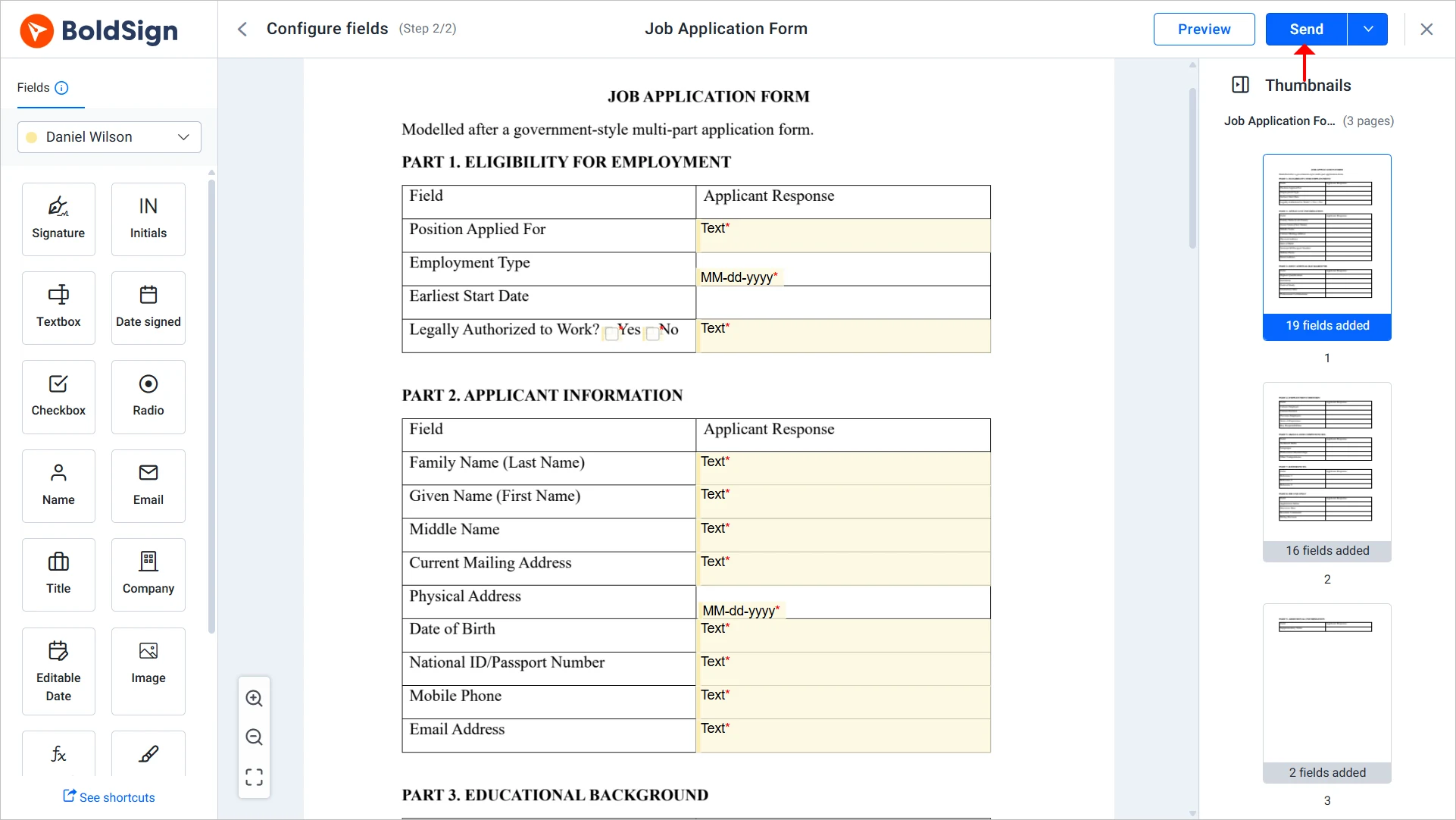
Send the document
When everything is signed, download the completed PDF alongside the audit trail, which logs document actions with user details, timestamps, and IP addresses. That is the evidence gap this guide opened with, closed by an actual record instead of a promise.
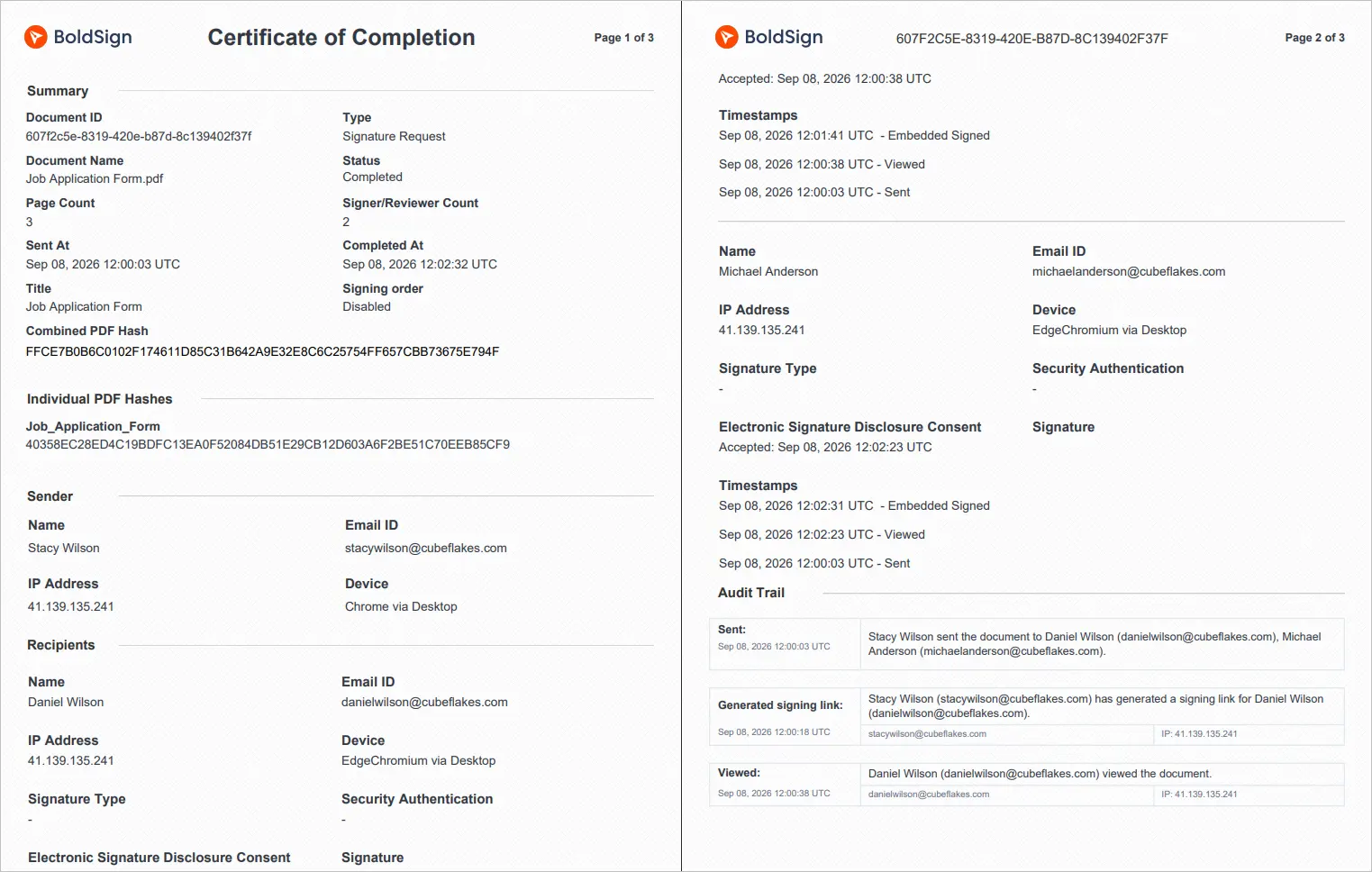
Audit trail
Conclusion
Requesting an electronic signature on a PDF is simple, but faster completion depends on how you prepare the document. Clear field placement, the right signing order, appropriate authentication, accessible delivery channels, and timely reminders can prevent unnecessary delays.
For recurring sends, save the prepared PDF as a template with fields, roles, and signing order already set, so an HR team sending offer letters weekly is not rebuilding the same document every time. Teams building signing into their own product instead of using the web app can work from the API for requesting signatures by email, which sends documents the same way, just from code instead of a form.
Signed PDFs are not really a document problem. They are a follow-up problem wearing a document costume. Get that part right and the turnaround mostly takes care of itself.
If you want to try this on your next PDF, BoldSign’s free plan covers templates, audit trails, and up to 25 sends a month at no cost.
Frequently asked questions
How do I request an electronic signature on a PDF?
Upload the PDF to an eSignature tool, add the signer’s details, place the required signature and date fields, and send the request. The signer receives a secure link and can sign from any device.
Can I send a PDF for signature for free?
Yes. BoldSign’s free plan allows you to send up to 25 signature requests per month and includes features such as templates and audit trails.
Are electronic signatures on PDFs legally binding?
Electronic signatures are generally legally binding under laws such as the ESIGN Act and UETA when the parties intend to sign and the required records are maintained. Some documents may have additional legal requirements.
Does the signer need an account to sign a PDF?
No. The signer can open the secure link, review the PDF, and complete the required fields without creating a BoldSign account.
How do I set a signing order for a PDF?
In BoldSign, enable the Signing Order option and arrange the recipients in the required sequence. BoldSign sends the PDF to the first signer, then automatically sends it to each subsequent signer after the previous person completes their part.
How do I track who signed a PDF and when?
Use the document status and audit trail to track who received, opened, and signed the PDF. The audit trail also records timestamps, IP addresses, and other signing activity.
What is the difference between signing a PDF and requesting an e-signature?
Signing a PDF means adding your own signature to the document. Requesting an e-signature means sending the PDF to someone else with assigned fields, tracking, reminders, and an audit trail.

Preethi Loganathan
Preethi is a Digital Marketing Executive at BoldSign who develops precise, research-driven content on eSignatures, compliance, and digital signing workflows. She works closely with product and engineering teams to ensure every article is accurate, validated, and aligned with industry best practices. Connect with her on LinkedIn.
More posts by Preethi Loganathan