Sign Documents on Your Phone Anytime with the BoldSign Mobile App
TL;DR: The BoldSign mobile app lets users securely review, sign, and manage documents from anywhere using their phone or tablet, helping them complete signing tasks faster without relying on a desktop.
Why mobile signing matters?
Imagine you’re about to close an important deal. The contract arrives and needs to be signed quickly, but you’re away from your desk and don’t have access to your laptop. Every minute of delay can slow down the process or even put the deal at risk.
Business documents often require immediate attention, especially when approvals, contracts, agreements, or onboarding forms are involved. Waiting until you return to your desk can delay decisions and disrupt important workflows.
With the BoldSign mobile app, situations like this are much easier to handle. Whether you are commuting, attending meetings, working remotely, or away from your computer, you can review, sign, and complete documents directly from your mobile device. The app helps signers act quickly, reduce delays, and keep business workflows moving without being tied to a desktop.
In this blog, we’ll explore how the BoldSign mobile app makes eSigning more convenient and helps you complete signing tasks faster from anywhere.
Key takeaways
- Sign documents securely from anywhere using your phone or tablet.
- Access signing requests instantly through email, notifications, shared links, or the BoldSign app.
- Complete documents quickly with mobile-friendly signing and support for stylus devices like Apple Pencil.
- Protect sensitive documents with authentication methods such as access codes, email OTP, and SMS OTP.
- Save progress, sign multiple documents efficiently, and download completed documents with audit trails.
Why Choose BoldSign for Mobile Signing?
BoldSign is one of the best mobile apps for signing documents, offering a secure, intuitive, and responsive experience for reviewing and signing documents on the go. It is designed to make document review and signing simple, convenient, and efficient on smaller screens.
- Device orientation: The app supports portrait mode on mobile phones and both portrait and landscape modes on tablets and iPads.
- Magic keyboard and stylus support: Sign documents using the Magic Keyboard and stylus devices, including Apple Pencil, for a natural and efficient signing experience.
- Feature: Rich Experience Access many of the powerful features available in the BoldSign web application, helping you manage and complete signing workflows with ease.
- Security: Protect sensitive documents with advanced signer authentication methods, including email OTP verification and access code authentication.
- Secure mobile app access: Protect access to the BoldSign mobile app with fingerprint, Face ID, Face Unlock, or your device passcode. Set the app to lock immediately, after a custom period, or each time it opens.
- Print and sign support: For recipients who prefer not to sign electronically, the app supports printing documents for manual signing and uploading the completed signed copies.
- Branded signing experience: Maintain brand consistency by displaying your configured branding elements and customizations throughout the signing experience.
The app is available for both iOS and Android devices and can be installed on mobile phones and tablets. You can download it from the Apple App Store or Google Play Store, then sign in using your existing BoldSign account credentials. If you are new to BoldSign, you can create a free account and start using the app without providing any credit card details.

Scan the QR code to download the BoldSign mobile app on your device.
Ways to open a document for signing
You can open a document for signing in several ways using the BoldSign mobile app.
Sign directly from an email notification
When a sender assigns a document to you for signing, you will receive an email notification. Open the email and tap the Review and Sign button to start signing the document.
If the BoldSign mobile app is installed on your device, the document will open directly in the app. If the app is not installed, the document will open in your mobile browser.
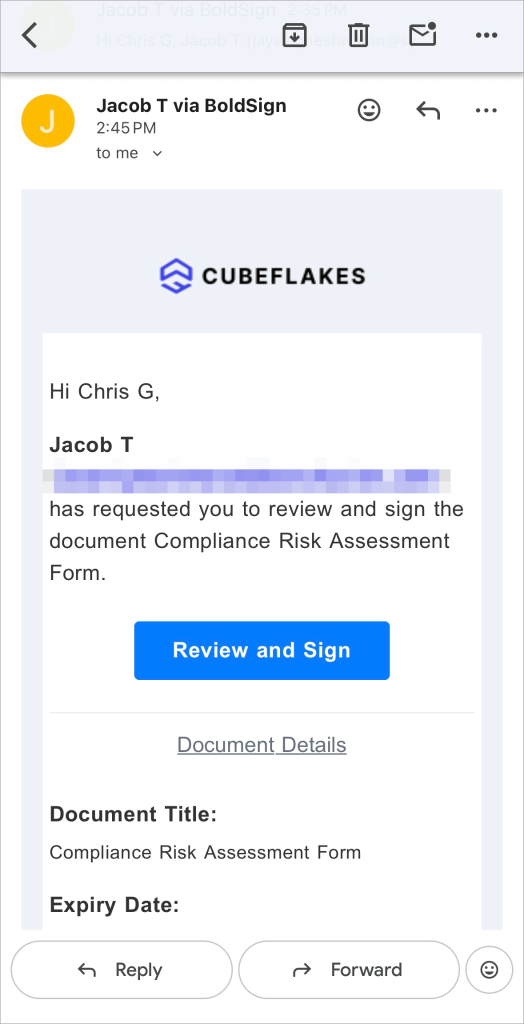
Signature request email
Sign from a push notification
If you have installed the BoldSign mobile app and enabled push notifications, you will receive a notification whenever a new signing request is assigned to you.
Simply tap the push notification to open the document and go directly to the signing screen. This works whether the app is open, running in the background, or closed.
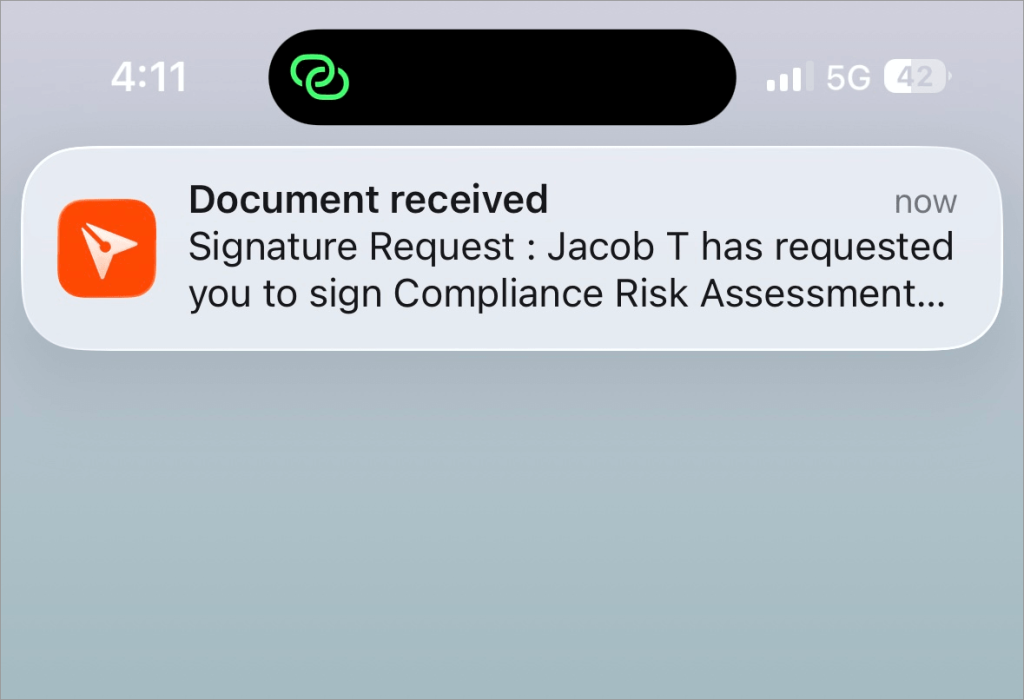
Signature request push notification
Sign using a shared signing link
A sender may also share the document signing link with you through messaging apps such as WhatsApp, Microsoft Teams, or other communication channels.
When you tap the shared signing link, the document will open in the BoldSign mobile app if it is installed on your device. If the app is not installed, the signing screen will open in your mobile browser.
Sample signing link: https://app.boldsign.com/document/sign/?documentId=049b0def-88a0-xxxx-xxxx-19374193ffacs\_fSE1V;a6bc6a09-xxxx-xxxx-xxxx-fec997a02974
Sign from your BoldSign account
You can also access pending documents directly from your BoldSign account via the mobile app.
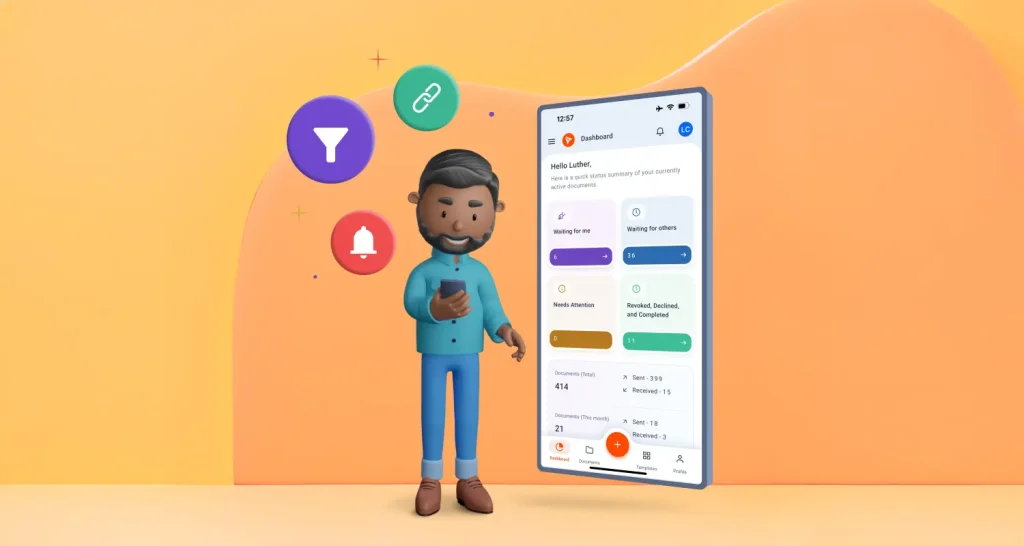
From the dashboard, tap the Waiting for Me card to view all documents that are waiting for your signature. Select the document you want to sign, then tap Sign Now to begin the signing process.
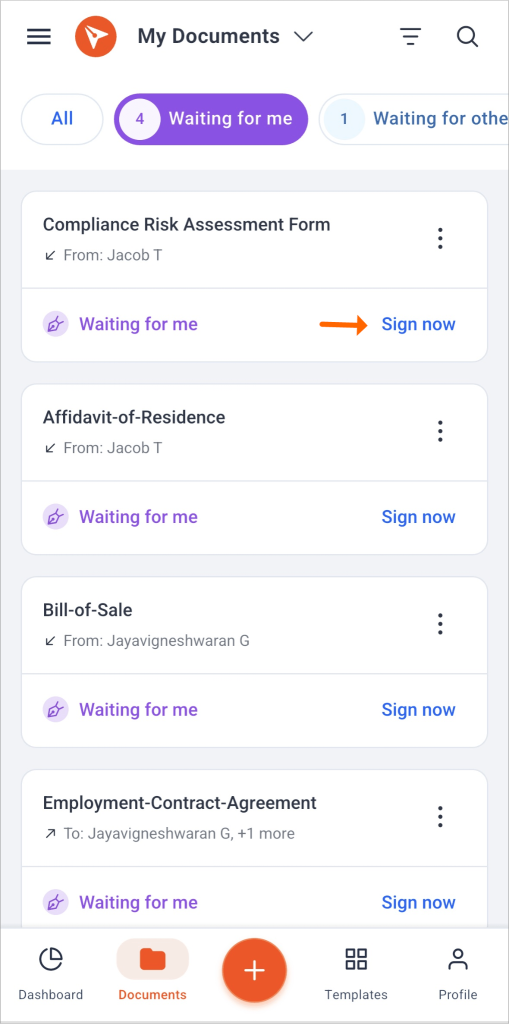
Waiting for me documents in mobile app
Completing the signing process
When the signing screen opens, you will be prompted to read and agree to the BoldSign Electronic Signature Disclosure. If the sender has added any common or private messages, they will also be displayed before you proceed.
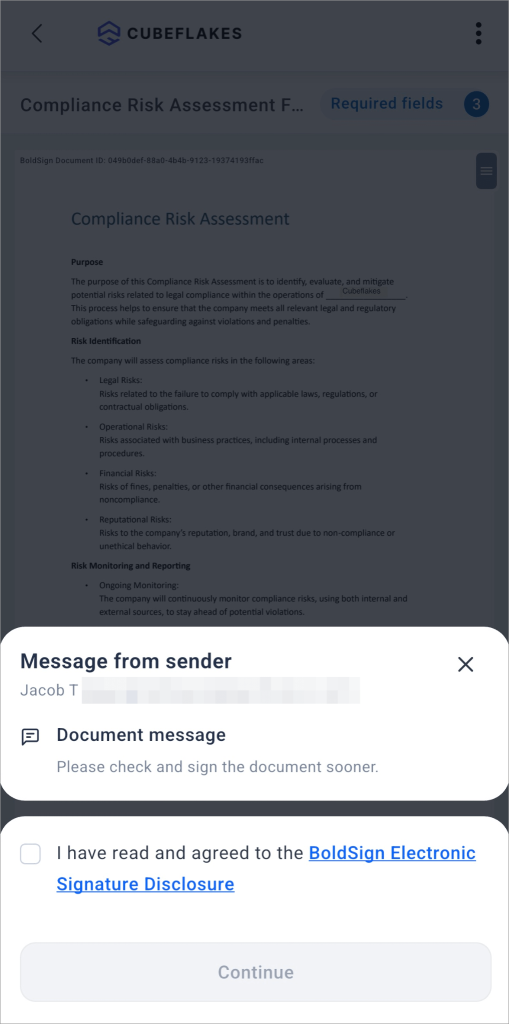
Signing screen with eSignature disclosure and document messages
Once you continue, you can view the complete document on your mobile device. At the top of the signing screen, you will see the brand logo and a More options button. This menu may include options such as:
- Print & Sign: Print the document and sign it manually.
- Download Document: Download a copy of the document.
- Reassign: Reassign the document to another person.
- Revoke: Revoke the document if you are the sender.
- Decline: Decline the document if you do not wish to sign it.
- Save: Save your current progress and exit.
- Finish Later: Move to the next pending document and complete this one later.
- More Info: View additional details about the document.
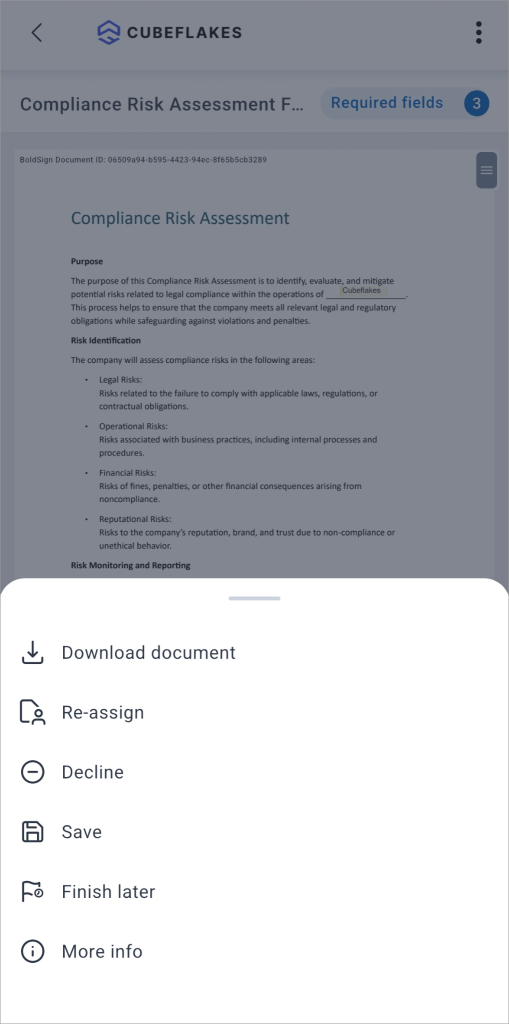
More options on the signing screen
However, some of these options may be visible or hidden depending on the document settings. Below that, the document name and the number of required fields will be displayed. You can zoom in for a closer look at the document by pinching out on the screen, and zoom out by pinching in.
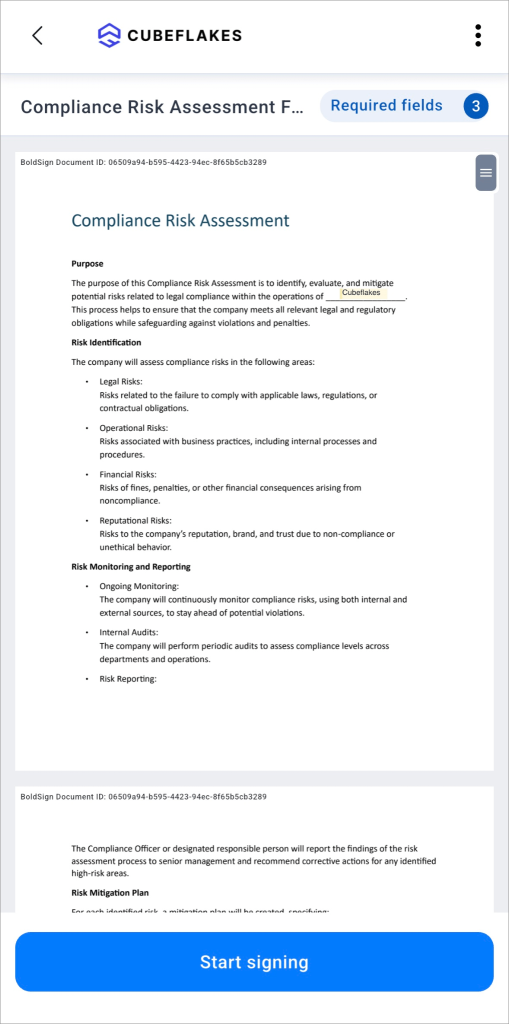
Signing screen
To begin signing, tap the Start Signing button at the bottom of the screen. The app will take you to the first field that needs to be completed. Tap the field and enter the required information based on the field type. For example, you may need to enter text in a textbox, add your signature in a signature field, or fill in initials, dates, checkboxes, and other required fields. When adding a signature, you can choose to draw it, upload an image of your signature, or select from the automatically generated signature styles provided by the app.
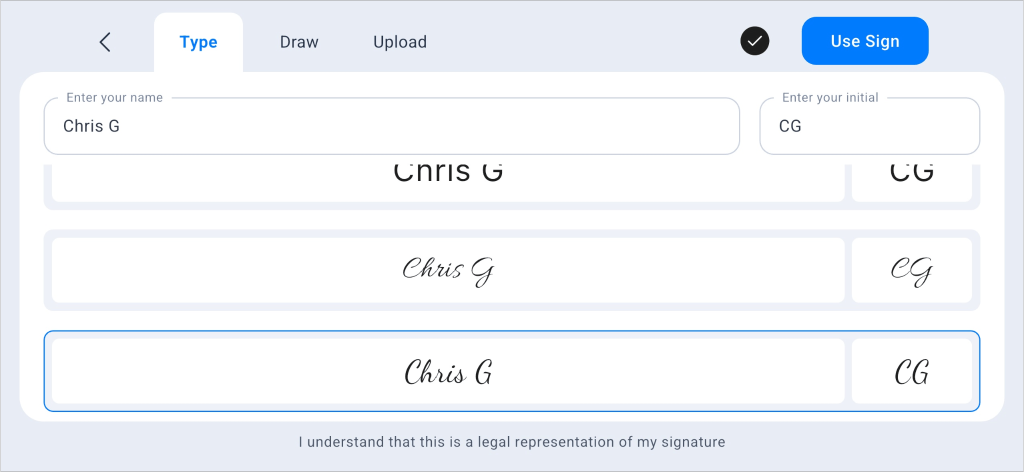
Signature selection screen
After completing a field, tap the Next Field button at the bottom of the screen to move to the next required field and fill. Continue this process until all required fields are completed.
Once every required field is filled, the Next Field button will change to Finish. Tap Finish to complete the signing process. A confirmation dialog will appear to let you know that the document has been signed successfully.
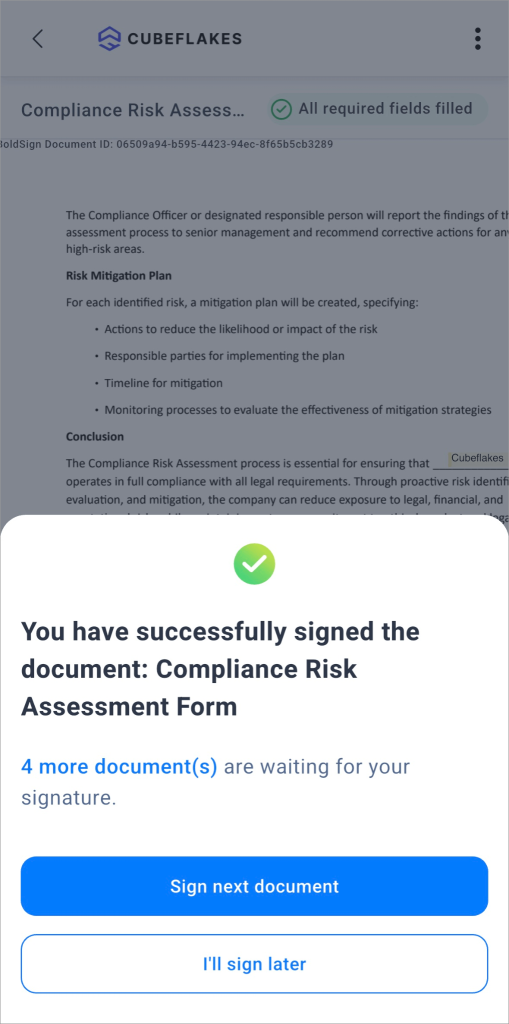
Signing confirmation dialog
With this, the document signing process is complete.
Smart signing features that enhance your workflow
BoldSign provides several smart features to make the mobile signing experience more convenient and efficient. These features help you complete documents faster, manage pending requests easily, and sign with confidence from your mobile device.
Sign all pending documents in one go
After you complete signing a document, the confirmation screen may prompt you to sign the next pending document, if any are available. This allows you to continue signing multiple documents one after another without manually opening each document from the dashboard.
This is especially useful when you have several documents waiting for your signature and want to complete them in a single flow.
Save Progress and move to the next document
If you have doubts or need to clarify something before completing a document, you do not have to start over later. You can use the Save option from the More options menu to save your current progress and exit the signing screen.
You can also choose Finish Later to move to the next pending document and come back to the current document when you are ready. This helps you continue working on other signing tasks without losing your progress.
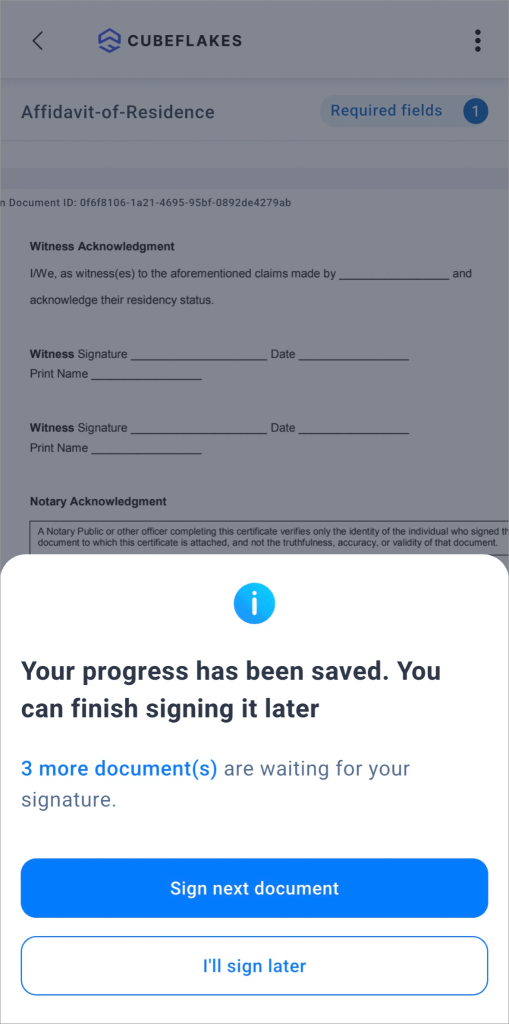
Finish later dialog
Verify signers with authentication
To protect documents and ensure they are accessed only by the intended signer, BoldSign supports signer authentication. The sender can add authentication methods such as:
- Access code
- Email OTP
- SMS OTP
Signers must complete the required authentication before they can access and sign the document. This adds an extra layer of security to the signing process.
Draw signatures using a stylus or apple pencil
The BoldSign mobile app supports stylus input, including Apple Pencil on supported devices. This makes it easier to draw your signature directly on the screen and create a signature that closely resembles your handwritten one.
This is especially helpful for users who prefer a more natural signing experience on tablets or iPads.
Use print and sign when needed
If the sender has enabled the Print & Sign option, you can download and print the document, sign it manually, and share it back with the sender.
The sender can then review the manually signed copy, upload it, and complete the signature request. This option is useful when a signer prefers or needs to sign the document physically instead of electronically.
Markdown-formatted document and private messages
The sender can add a common document message for all signers and a private message for specific signers. These messages support Markdown formatting, allowing senders to format content using elements such as bold text, italics, bullet lists, and more.
This helps make instructions clearer, improves readability, and allows important information to stand out before the signer begins the signing process.
Download completed documents and audit trail files
Once the signing process is completed, you can download the completed document and the audit trail file. Depending on the document settings, these files may be available for download individually or together as a combined file.
This makes it easy to keep a copy of the signed document and its signing history for your records.
Conclusion
The BoldSign mobile app makes document signing easier, faster, and more convenient. Whether you are commuting, working remotely, attending meetings, or away from your desk, you can review, sign, and complete documents securely from your mobile phone or tablet.
Its rich set of mobile-friendly features helps eliminate desktop dependency and allows you to complete important signing tasks anytime, anywhere. Beyond signing, you can also use the app to send signature requests, track document status, self-sign documents, and manage your eSignature workflows on the go.
If you haven’t tried it yet, download the app today and experience a simpler, more flexible way to sign and manage documents.
Start a free BoldSign trial, and for more details, visit the BoldSign documentation or contact support.

Jayavigneshwaran
Product Manager at BoldSign with a strong foundation in web and mobile development. Started as a web developer working with React, Angular, TypeScript, and Blazor, then moved into mobile development with Flutter and Dart. Now leading the BoldSign mobile app and support experience, combining technical depth with product strategy to deliver reliable releases and great customer outcomes. Connect with him on LinkedIn.
More posts by Jayavigneshwaran