How to Choose Authentication Levels for Internal vs External Approval Documents
TL;DR: Base the authentication level on the risk of an unauthorized signature and whether the signer is internal or external. Routine internal approvals can use email delivery or email OTP, while external and higher-risk approvals need stronger verification. For medium-risk approvals, use email OTP internally and SMS OTP or an access code externally. For high-risk approvals, use ID verification, or consider KBA for eligible U.S.-based external signers when appropriate.
A department head has to photograph their driver’s license to approve a routine software renewal. The same week, a request to change a vendor’s bank details goes out with nothing but an email link. It’s the same eSignature account, and the heaviest check landed on the document that needed it least.
This is what happens when document authentication levels are picked per send, by whoever is sending, instead of by policy. Internal approvers get slowed down by checks they don’t need, while the approvals most likely to be disputed or targeted by fraud end up with the thinnest evidence.
The better approach is a simple policy. Rate each approval workflow by risk, note whether the signer is inside or outside your organization, and apply the lightest authentication method that fits both. By the end of this guide, you’ll have a three-tier framework, a clear picture of what each authentication method actually proves, and a step-by-step way to put it into practice.
Where one-size-fits-all authentication breaks down
A single authentication setting for every approval fails in one of two directions, depending on where you set the bar.
Set it high for everything, and routine internal approvals slow down. Approvers who sign several requests a week start treating each code or ID scan as a hurdle, and requests sit until someone chases them. Stronger methods can also carry per-use charges, so you end up paying to verify documents that never needed it.
Set it low for everything, and your most sensitive approvals carry the weakest evidence. If a vendor contract or payment authorization is disputed later, the record shows that someone with access to an email address signed it. It says very little about who that someone was.
Often, nobody actually chose either setting. Each sender turns authentication on, or doesn’t, out of habit. Two senders can send the same approval with different protection, and nobody notices until an audit or a dispute forces the question.
Match authentication to document risk and recipient type
The fix is risk-based authentication applied to approval workflows: you make the decision once per workflow, not once per send. Two questions do most of the work.
Rate what a wrong signature would cost
Start with what the approval actually authorizes. Does it commit spend, change where money goes, grant access to sensitive data, or bind the company legally? Could you undo it quickly if the wrong person signed? Does a regulation set its own rules for identifying signers? The more yes answers, the higher the risk tier.
Give extra weight to documents that redirect payments, like vendor bank detail changes or payment authorization updates. They’re a common target for impersonation fraud, and a fraudulent approval can be hard to reverse once funds move.
Decide whether the signer is internal or external
Internal signers are employees signing from accounts your organization issued and manages. External signers are everyone else: customers, vendors, contractors, and partners.
The distinction matters because of what a one-time code actually proves. An email or SMS code confirms that someone controls a specific inbox or phone. It doesn’t confirm who that person is. For an employee on a routine approval, that’s usually enough, because your organization already established who owns that company inbox. For an external signer, the email address may be the only thing you know about them.
This mirrors how NIST’s digital identity guidelines think about authentication assurance. They treat identity proofing (confirming who someone is) and authentication (confirming they control a credential) as separate decisions, each scaled to risk. A good approval policy accounts for both.
Internal doesn’t automatically mean low risk, though. An internal approver releasing a large payment is still a high-risk approval, and a compromised company mailbox turns an email code into a formality. Recipient type adjusts the method. It doesn’t replace the risk rating.
Map each combination to a method
Put the two answers together and you get a simple document risk matrix.
| Document risk | Internal approver | External signer |
| Low: routine and easy to reverse, like policy acknowledgments or expense approvals under a set limit | No added check beyond email delivery, or email OTP | Email OTP |
| Medium: commits spend or terms, like purchase requisitions, vendor onboarding forms, or standard customer agreements | Email OTP | SMS OTP, or an access code shared through a channel you already trust |
| High: moves or redirects money, creates legal exposure, or falls under regulation, like vendor bank detail changes, loan documents, or high-value contracts | SMS OTP, or ID verification when the approval will face scrutiny | KBA for eligible U.S. signers, or ID verification for document-based proof |
Treat the table as a set of defaults, not fixed rules. A low-risk document for a long-standing vendor contact might get an access code you share by phone instead of an email OTP. An internal approval workflow that has already been targeted by a phishing attempt can move up a tier.
What matters more than any single cell is writing the decision down. A short approval policy that lists each recurring workflow, its risk tier, and the method for internal and external signers gives every sender the same answer. It also gives auditors something to check the records against.
What eSignature authentication adds to an approval
Authentication usually isn’t what makes an electronic approval valid. Under the ESIGN Act, a signature or contract can’t be denied legal effect just because it’s electronic, and the statute doesn’t prescribe a particular authentication method. What authentication changes is how convincingly you can show who approved, which is usually the real question in an audit or dispute.
If a regulation sets its own signer identification rules for a workflow, those rules set your minimum. Everything else is a judgment call your policy should make on purpose.
Here’s what each common eSignature authentication method proves and what it asks of the signer.
| Method | What it proves | Signer friction | Best fit |
| Email OTP | The signer can access the email address the request went to | Low: one code from the same inbox | Routine internal approvals, low-risk external documents |
| SMS OTP | The signer holds the phone number on file, a second channel beyond email | Low to moderate: needs a correct mobile number | Medium-risk external approvals, internal approvals that move money |
| Access code | The signer received a code you shared through a separate channel | Moderate: depends on how you deliver the code | Signers you already reach through a trusted channel |
| ID verification | The signer matches a government-issued photo ID, often backed by a selfie check | Higher: needs an ID and a camera-equipped device | High-value, regulated, or fraud-prone approvals |
| KBA | The signer can verify identity details and correctly answer questions generated from public records, with no ID upload required | Moderate: requires personal information and security questions, but no ID upload or camera | High-risk approvals involving eligible U.S.-based signers |
Email OTP vs SMS OTP for external signers
Email OTP has a quiet limitation with external signers: the code goes to the same inbox as the signing request, so anyone who can read the request can usually read the code. It still does a useful job. It stops a forwarded signing link from working for someone outside that inbox. But it adds little proof of identity.
SMS OTP forces a second channel. Someone who gains access to a signer’s email still needs their phone, which is why it’s the better default for medium-risk external approvals. The trade-off is that you need a correct mobile number for every signer before you send.
Knowledge-based authentication verifies eligible U.S. signers through public-record questions without an ID upload. Use ID verification when document-based proof, a face match, or broader geographic support is required.
Whichever method you choose, the authentication step should appear in the audit trail beside the signature. That’s what turns a policy into evidence. The record shows how each approver proved access before signing, which makes it much harder for anyone to later claim they never approved. It can support non-repudiation, but the strength of that evidence depends on the authentication method used.
Putting the policy into practice in BoldSign
BoldSign sets authentication per signer rather than per document, so one approval request can carry different checks for different people. An internal finance approver can sign with email OTP while the external vendor on the same request goes through ID verification. BoldSign supports five signer authentication methods (email OTP, SMS OTP, access code, KBA, and ID verification), which line up directly with the tiers above.
Apply the right check to each signer
- Check the workflow’s tier first. Look up the approval in your policy before you start, so the method isn’t picked from memory halfway through preparing the request.
- Create the request. Select Create New, then Create New Document, upload the file, and add each recipient.
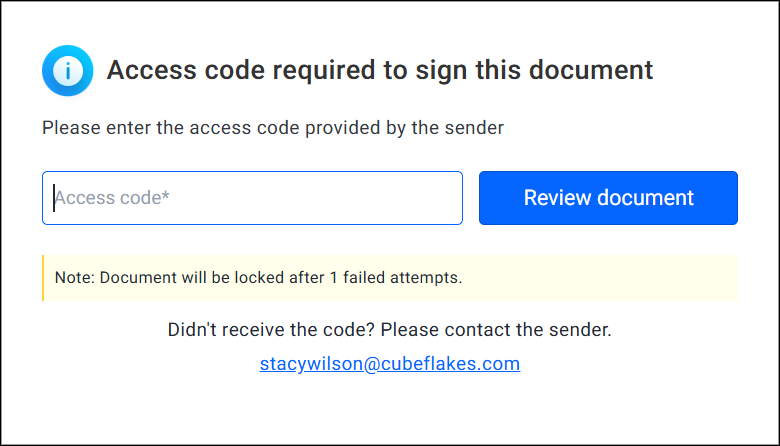
- Turn on authentication for the signer. Open Show settings below the recipient, enable authentication, and choose the method your policy calls for. For SMS OTP, add the signer’s phone number and country code. The help center has a short guide to adding authentication to a signer.
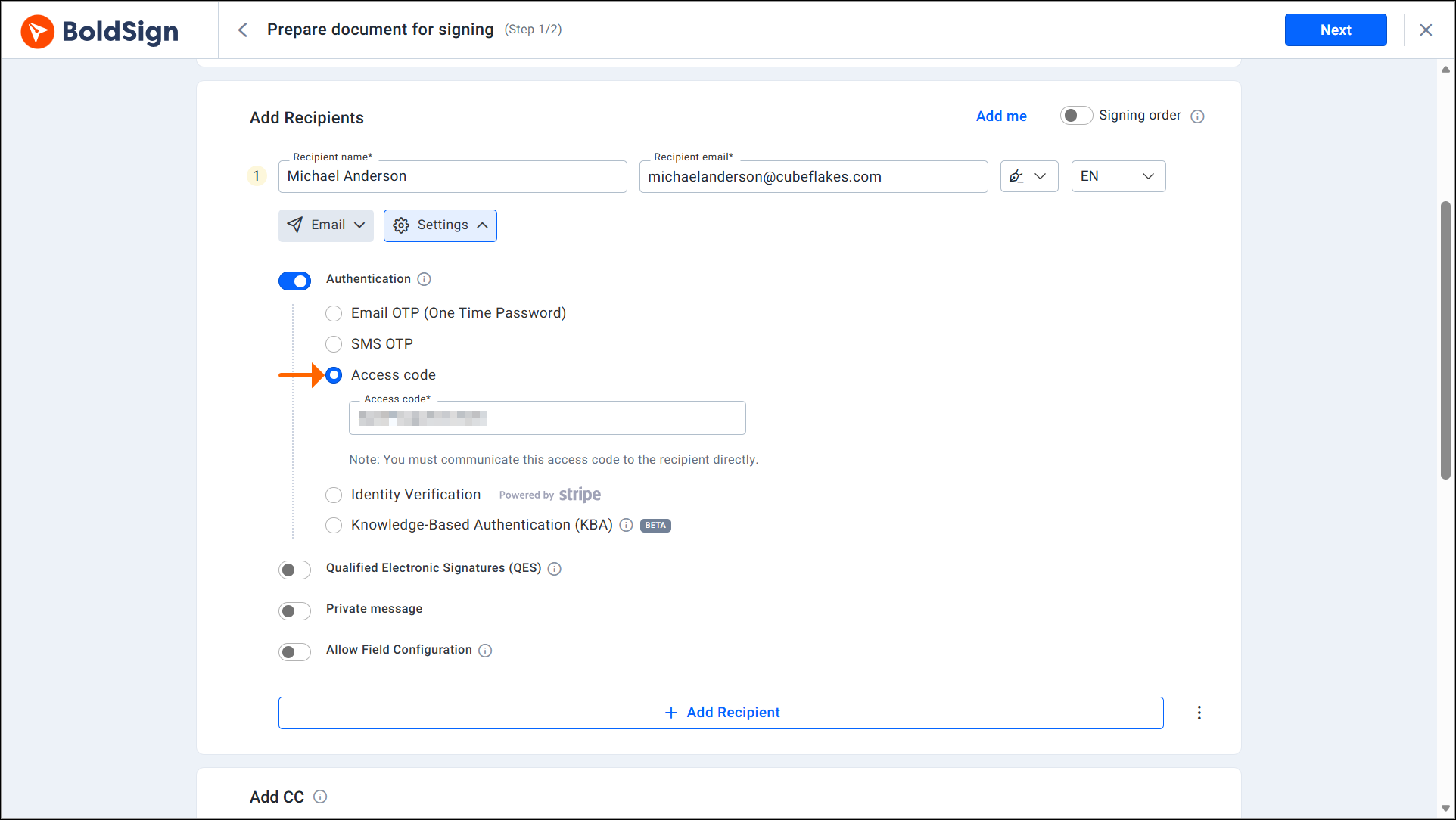
- Tier every signer separately. Each recipient can have a different method, so an internal approver and an external signer on the same request don’t have to share one setting.
- Send and monitor. Each signer must pass their check before they can open or sign the document. For SMS OTP, the document overview shows whether each code was sent, successfully delivered, or failed, so you can fix a bad number before the request stalls.
- Keep the audit trail. BoldSign records authentication events alongside signature details, which gives you the evidence to point to if an approval is questioned later.
If a request already went out without the right check, you don’t need to revoke and resend it. You can add authentication to a request that’s already been sent, as long as the signer hasn’t signed yet. Developers can do the same through the API, for example by adding an access code to a sent document.
Configure KBA for eligible U.S. signers
KBA verifies a signer using legal identity information and public-record questions instead of an ID upload. You can control how often the signer must complete KBA, set the maximum number of attempts, and choose how strictly the signer’s name must match their identity information.
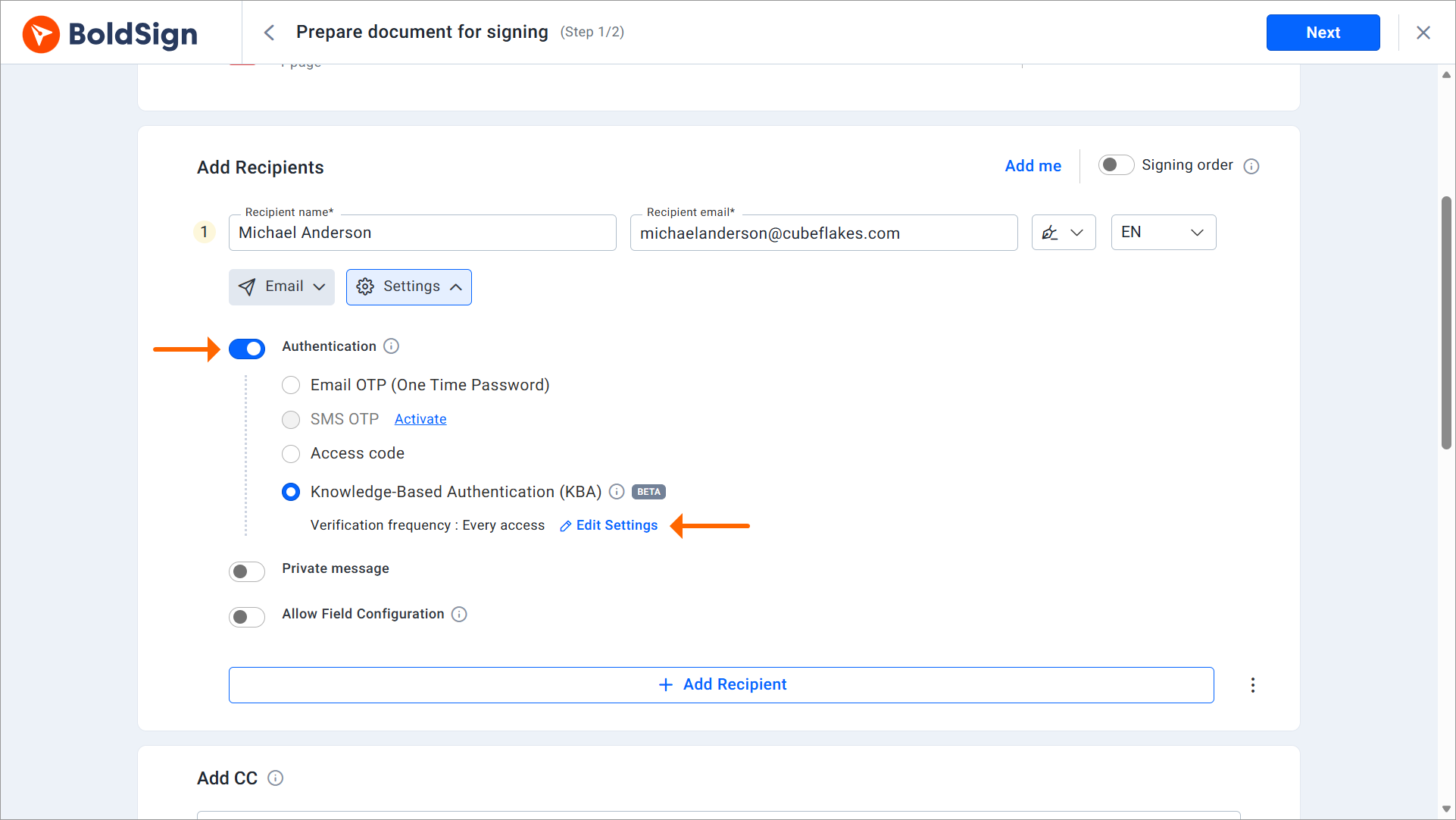
Use KBA when you need stronger identity assurance with less friction than an ID and selfie check. Because KBA is available only for U.S.-based recipients, use ID verification when the signer is outside the United States or when the workflow specifically requires document-based identity proof.
Tune identity verification for high-risk approvals
Signer identity verification asks signers to confirm who they are with a government-issued photo ID before they can access the document. For the top tier, the settings matter as much as turning it on.
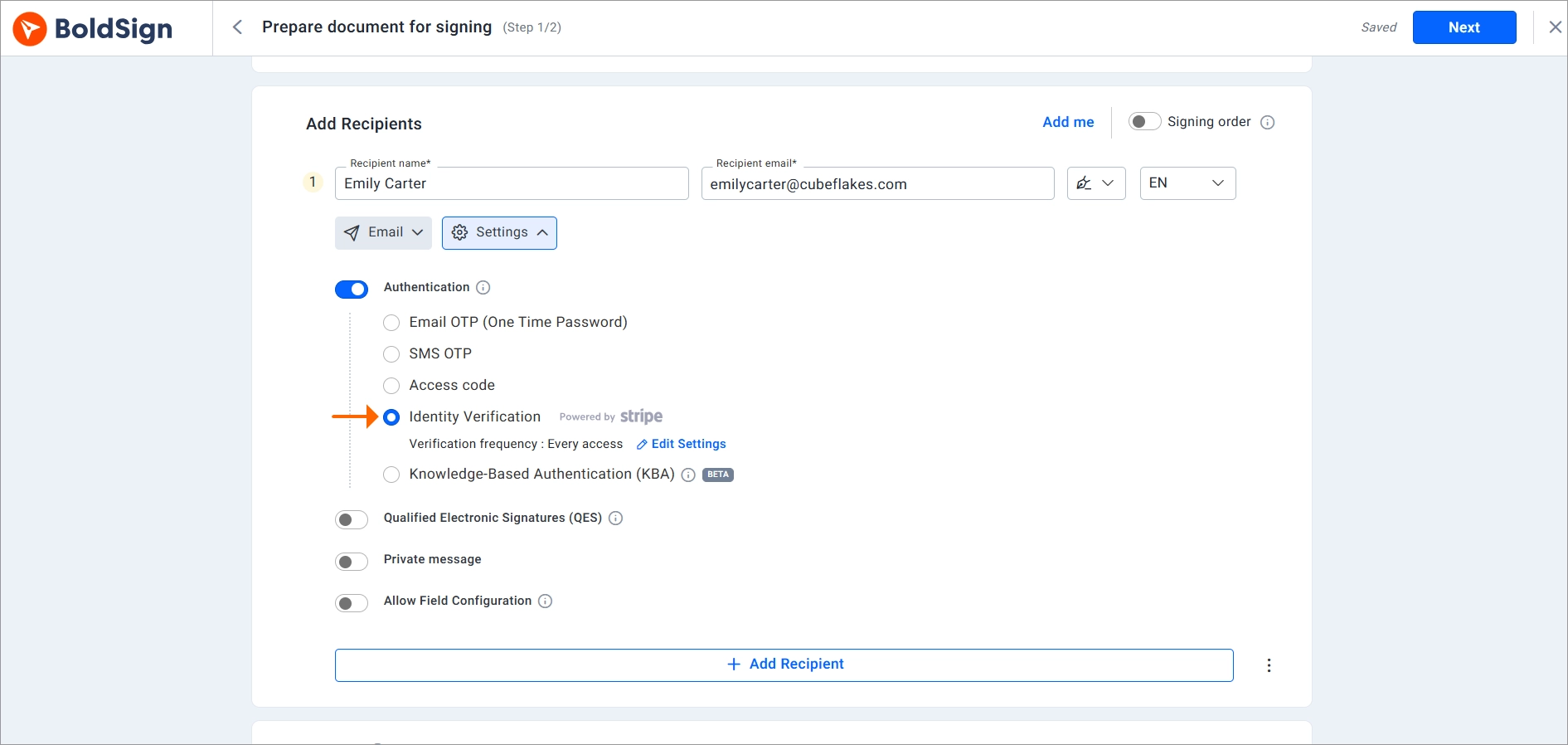
You can choose how often signers verify, whether on every view, once per document, or until signing is complete. You can also cap the number of attempts, require a selfie check and live document capture, and control how strictly the name on the ID must match the document.
Match those settings to the workflow. A regulated approval that signers may reopen later can justify verifying on every view. A one-time vendor contract usually only needs verification until signing is done. Frequency also affects cost: each successful verification is billed, and re-verifications triggered by your frequency setting are billed again, as the identity verification FAQ explains.
Strict name matching is the default. If a signer’s legal name might differ slightly from how the contract names them, moderate tolerance allows differences in middle names, prefixes, and suffixes, while lenient accepts minor spelling differences. Loosening the match is usually a better fix than dropping verification altogether.
Keep the policy consistent across senders
A policy only works if it doesn’t depend on every sender remembering it. These BoldSign capabilities help it hold up at scale.
- Templates for recurring high-risk approvals. Identity verification can be built into templates as well as individual documents, so every sender who uses the template applies the same check.
- API-enforced rules. The BoldSign API supports all five methods when creating a document request, so developers can tie authentication to each workflow’s tier in code. The guide to mandating signer authentication through the API covers each method, and the identity verification API guide shows the high-risk settings.
- Contact groups for shared internal approvals. Approvals that belong to a team rather than a person can go to a contact group, where any member can sign and the request completes once one of them does. Teams building their own apps can do the same with Group Signers via the API.
- Sender identity for delegated sending. When an assistant or ops coordinator sends approvals on a manager’s behalf, sender identity lets them send and manage requests through the API once the manager approves the delegation. The manager is notified as the request is sent, viewed, signed, and completed, and can revoke access at any time.
Mistakes that quietly undo a good policy
- Making ID verification the default. It’s the strongest check, but on routine approvals it mostly adds friction and cost. Keep it for the top tier.
- Collecting phone numbers late. If an SMS code can’t be delivered, the signer can’t continue. Confirm the number and country code before sending, or switch that signer to another method.
- Sending the access code with the request. An access code only works as a check if it travels through a separate channel, like a phone call or a message thread you already use with that signer.
- Using KBA without checking signer eligibility. KBA is available only for U.S.-based recipients. Use ID verification or another appropriate method when the signer is not eligible.
- Skipping the heads-up. BoldSign locks a document after three failed email OTP attempts. One line in the request message telling approvers to expect a code helps avoid lockouts.
- Assuming internal means safe. Rate the document before you look at the recipient. An internal approval that releases funds belongs in the top tier.
- Never revisiting the tiers. Review the policy when you add a new approval workflow, when a fraud attempt gets through, or when a regulation that applies to you changes.
Start with the approvals you send most
You don’t need to classify every document on day one. Pick the handful of approval workflows your team sends most often, assign each a risk tier and a method for internal and external signers, and run with those settings for a few weeks. The right level for each is the lightest check that still fits its risk, the signer’s relationship to you, and any compliance rules involved.
BoldSign lets you match signer authentication to document risk, signer by signer, from the first request you send. Start your free trial.
Frequently asked questions
What is signer authentication in an eSignature workflow?
Signer authentication checks that the intended recipient is accessing the document. BoldSign supports email OTP, SMS OTP, access code, KBA, and ID verification.
Is signer authentication required for an electronic signature to be legally valid?
Not generally. Authentication strengthens security and evidence, but specific regulations may require a particular identification method.
What’s the difference between signer authentication and identity verification?
OTP and access codes prove control of an inbox, phone, or shared code. KBA and ID verification provide stronger identity assurance using public-record questions or a government-issued ID.
What is knowledge-based authentication?
KBA verifies a signer using legal identity information and questions generated from public records, with no ID upload required. In BoldSign, KBA is available only for eligible U.S.-based recipients.
When should I use KBA instead of ID verification?
Use KBA for eligible U.S.-based signers when you need stronger verification without an ID upload. Use ID verification when document-based identity proof or broader geographic support is required.
Do all signers need the same authentication method?
No. BoldSign lets you select a different authentication method for each signer in the same document.
What happens if a signer fails authentication?
The signer cannot access or sign the document. Depending on the method, the sender can resend a code, reset authentication, or choose another method.
Can authentication be added after sending?
Yes. You can add or change authentication before the signer completes the document.
How does authentication appear in the audit trail?
Authentication events are recorded with the document activity, providing stronger evidence of how the signer was verified.

Preethi Loganathan
Preethi is a Digital Marketing Executive at BoldSign who develops precise, research-driven content on eSignatures, compliance, and digital signing workflows. She works closely with product and engineering teams to ensure every article is accurate, validated, and aligned with industry best practices. Connect with her on LinkedIn.
More posts by Preethi Loganathan