Top Electronic Signature Features for Business Growth
 Ben Jacob Ngoya Ouma
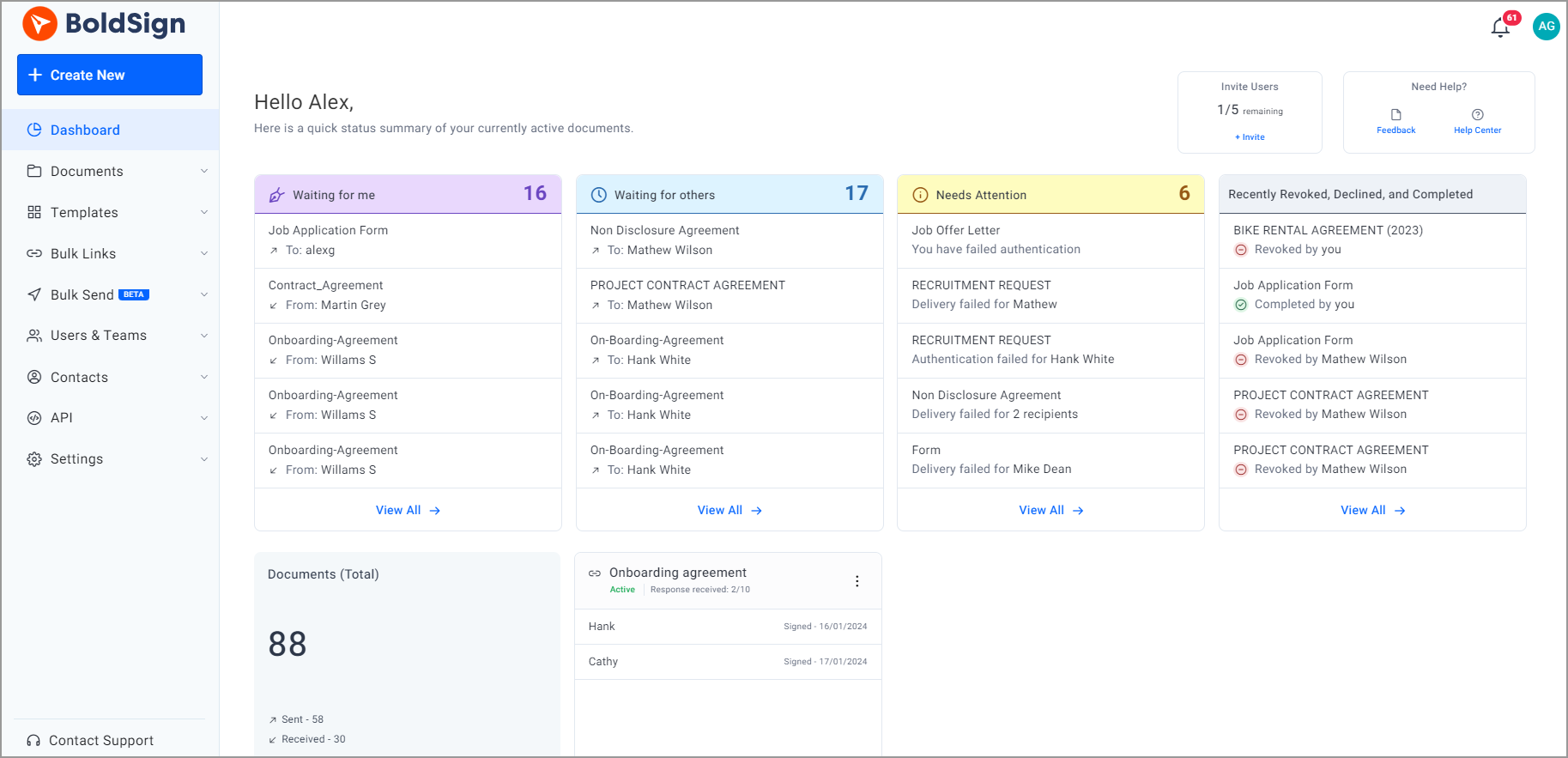
With BoldSign, there are lots of in-app features to help you to manage your eSigning tasks with ease. The platform offers a variety of capabilities that enable businesses to scale up their document processing. This article aims to highlight and give clear illustrations of the best of these features.
Dashboard Overview Details
eSignature requests
With BoldSign, you can easily send signature requests and configure every part of it to suit your needs. The application makes it possible to send eSignature requests to more than one person and by just dragging the names of the signers, you can organize the sequence in which the requests are to be received and signed. This means that the signing order is something you can plan, sending eSignature requests to multiple signers in a sequential manner or in a parallel manner.
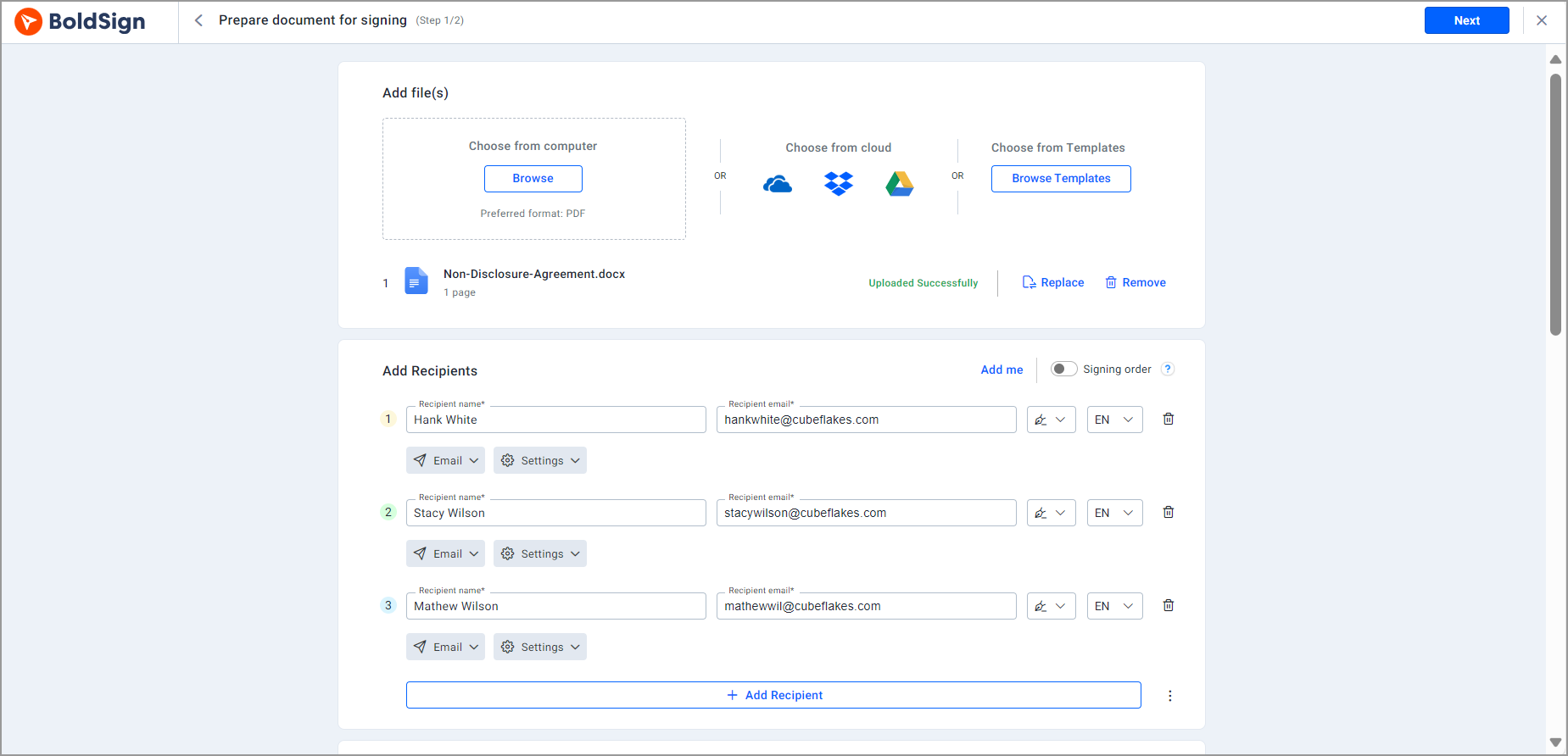
Prepare Document for eSignature request
Private message to signers
When sending signing requests, you can also include a private message to your signers. You can give your signers extra or personal information to help them understand the document and the need for signing it.
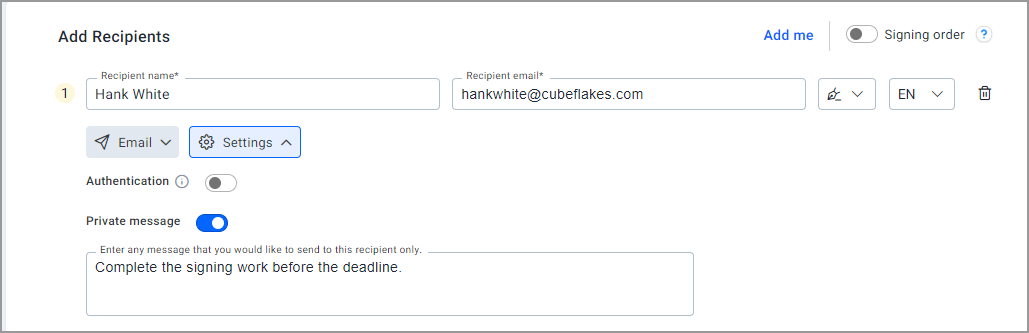
Private message for the signer
Signer authentication
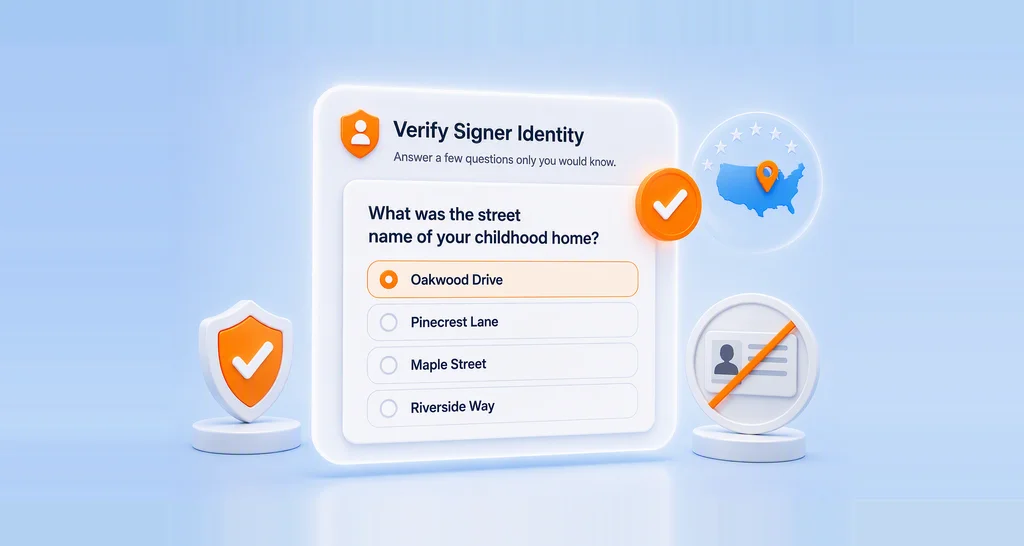
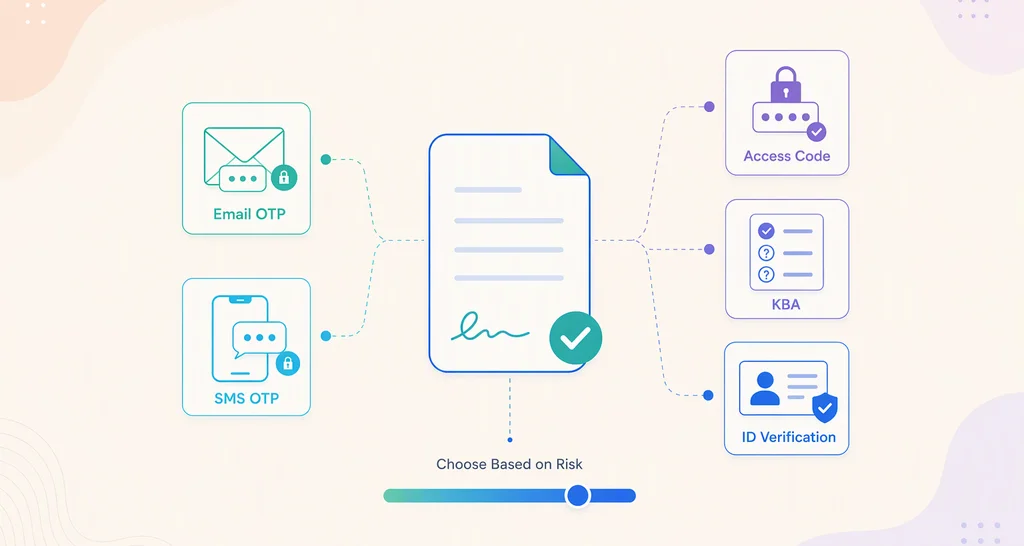
To ensure that your business documents remain secure and are reviewed and signed only by the intended recipients, BoldSign offers multiple signer authentication methods. You can set an access code and share it securely with the signer, send a one-time password through email OTP, or verify the signer using an SMS OTP sent to their mobile phone.
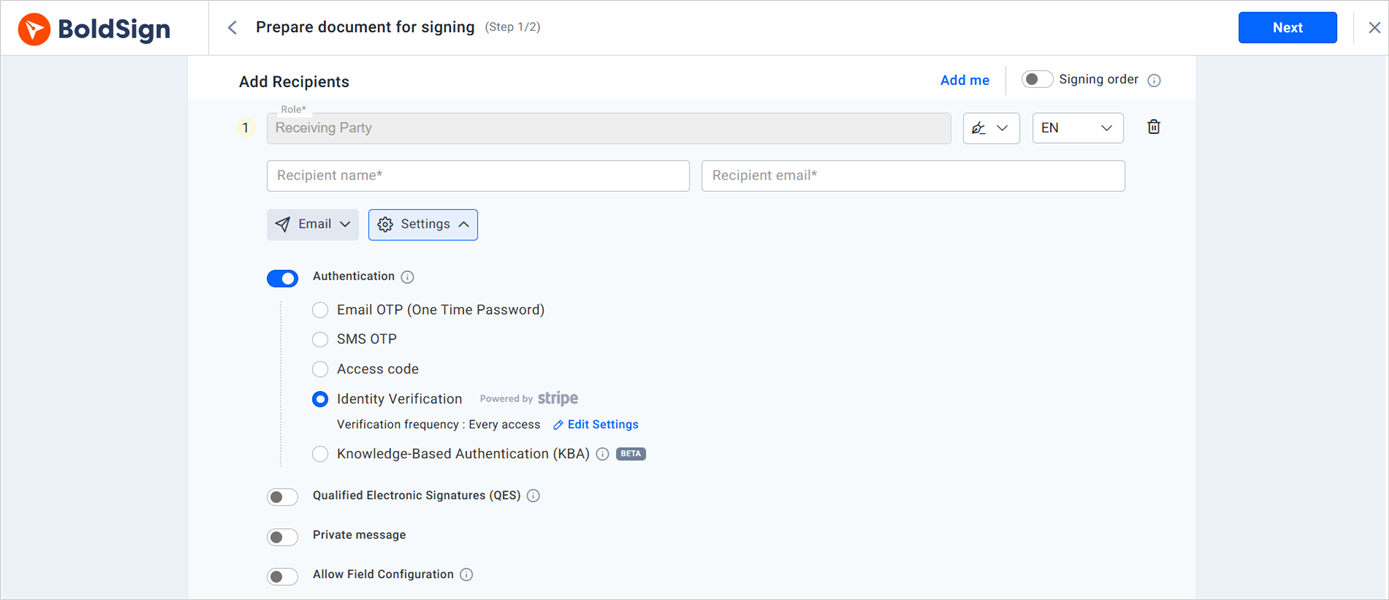
Add the authentication type
Document management features
BoldSign offers a wide range of document management features that enable users to streamline the document signing process. These features will also help in enhancing document security and compliance.
Team document view
BoldSign makes it simple for you and your business to manage and track the documents sent out for eSigning by you and your team members. Through a dedicated team document view, team and account admins can easily track and manage documents for the team.
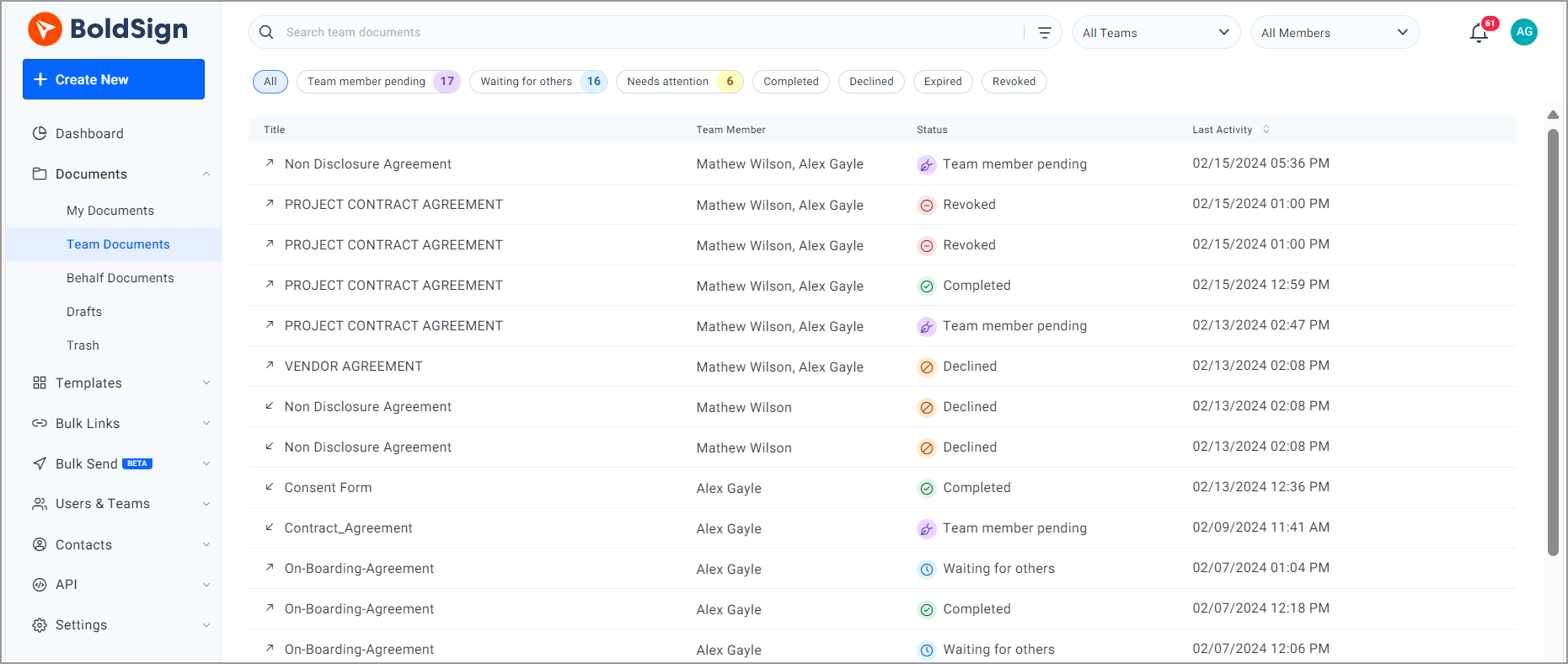
Track and manage team documents
Add or remove tags
BoldSign lets you categorize and find the documents easily from your BoldSign account. All you need to do is just to add tags when you create a document or later when sending it, and filter by those tags to quickly locate the relevant ones. Anyone involved with the document, including the author, approvers, and administrators, can add or remove tags to keep things organized throughout the signing process.
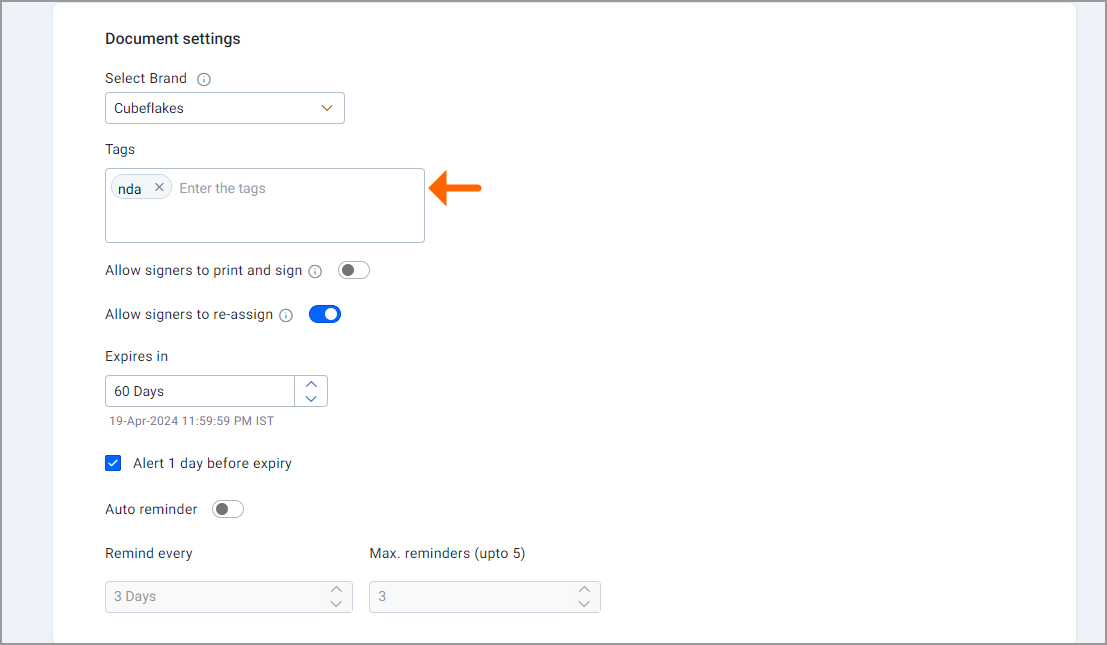
Add/remove tag option
Search filters
There are two types of filters. First, you can filter your documents based on their status through a dedicated quick filter bar. Second, advanced filters let you search for documents based on the sender, the date range of when they were sent, the recipients, or other aspects. You can pin the advanced filters you find most useful on your home page to access them easily.
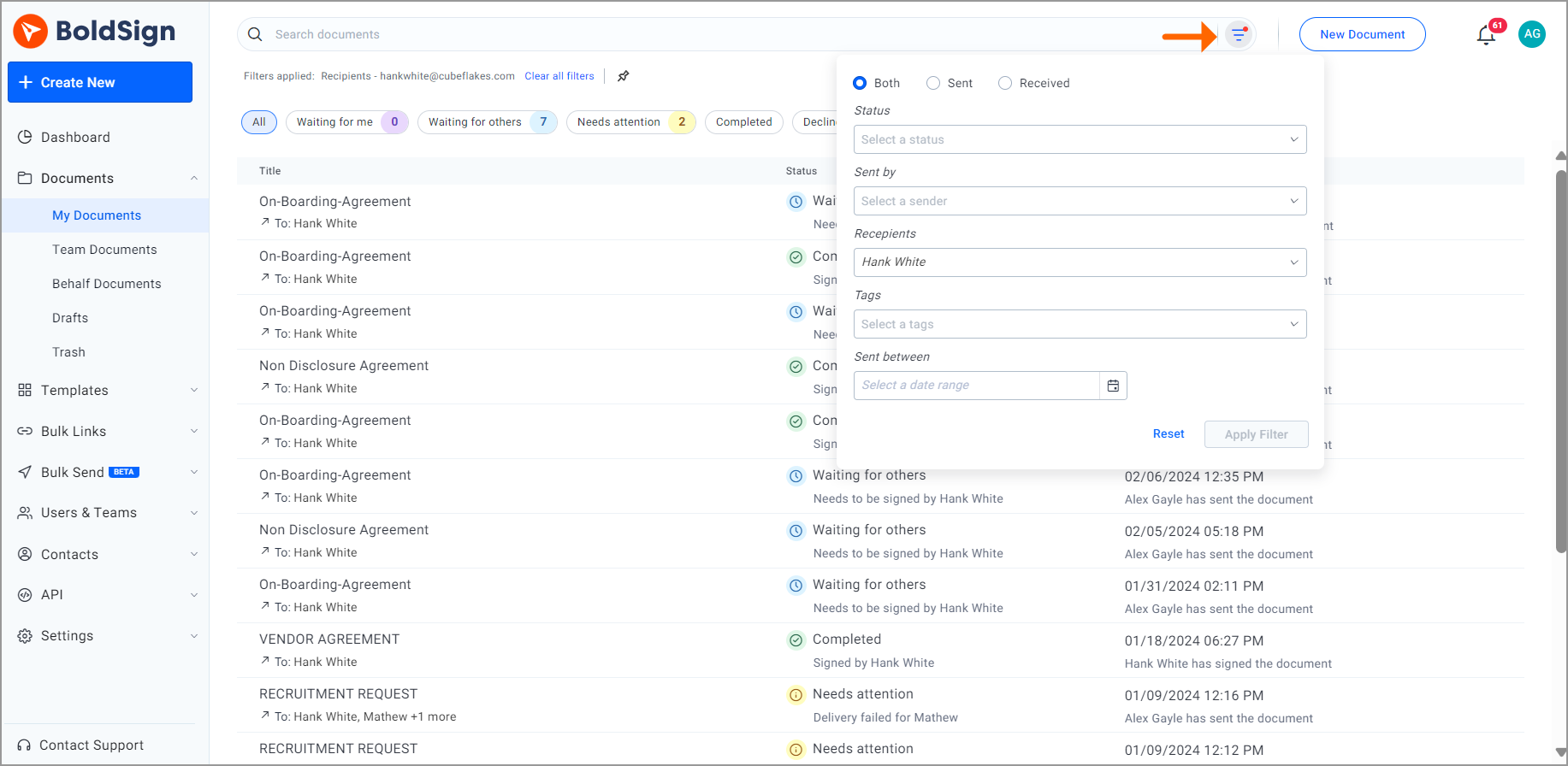
Search documents using filters
Templates
Some documents you need to send frequently for signatures. In BoldSign, you can turn these frequently used documents into templates to save time uploading them and configuring their form fields over and over. You can configure the default settings in these templates, like the brand and expiration date, as well as authentication for signers. You can also set templates to read-only mode to prevent signers from making modifications to the documents. You can then share these templates with your team.
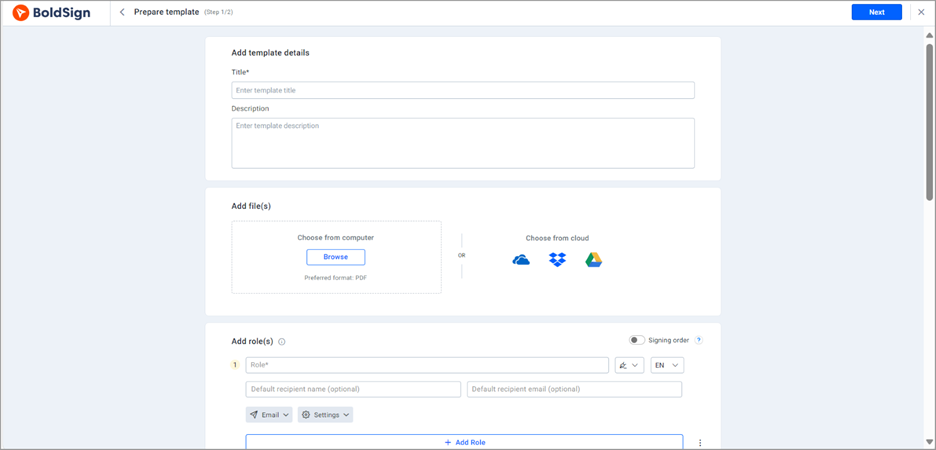
Create a template
Delegating signing responsibility
With BoldSign, you can allow signers to reassign a signature request document, transferring the signing responsibility to another person. This can be important for various reasons, such as delegating signing responsibility to a more appropriate person or when absenteeism issues arise.
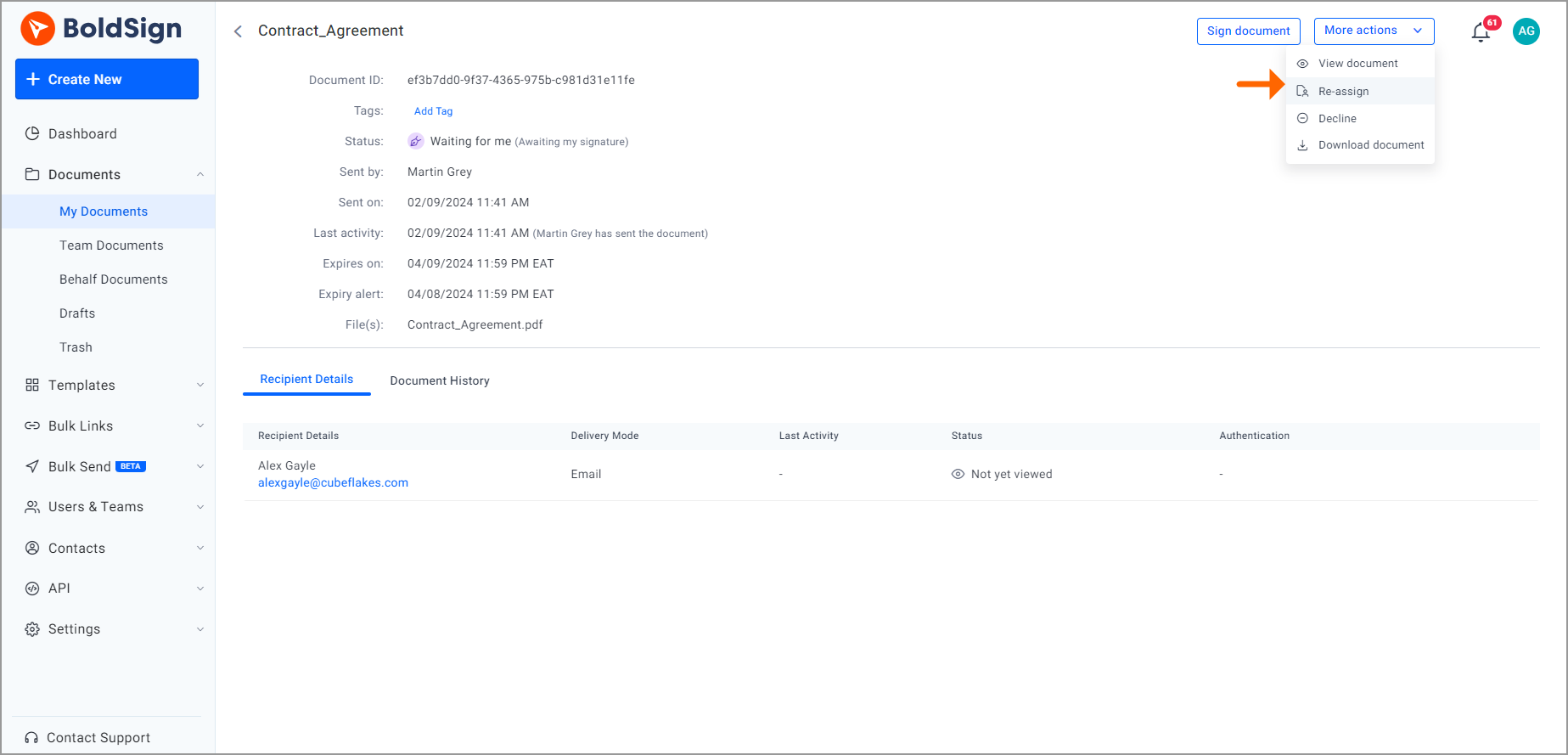
Re-assign the document to the signer
Bulk links
In BoldSign, bulk links are used in instances where you would like to share an identical document with many people for signing. You can specify the actual number of signatures you intend to collect from these bulk links, so that when your set quota is reached, no one else can sign. BoldSign also allows you to set and make modifications to the expiration dates for shared links. Finally, you can export your signers’ data to an Excel file for sharing and for purposes of tracking your signing progress.
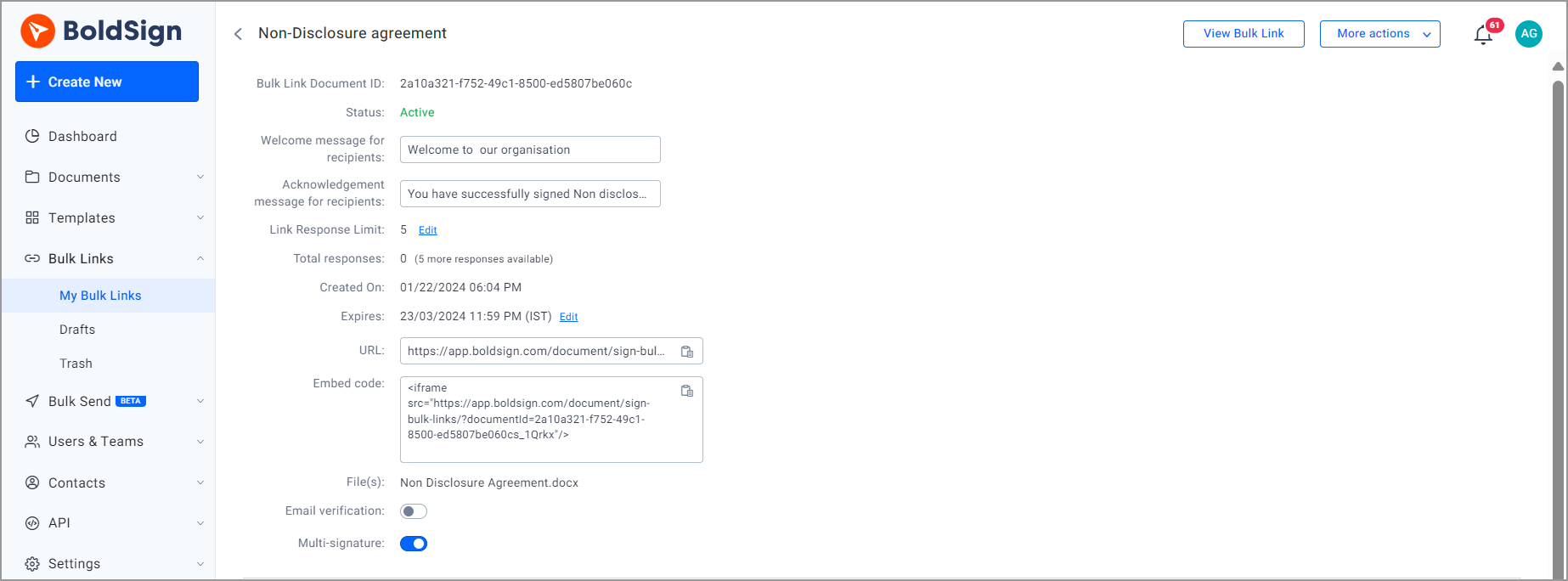
Create a Bulk link
Multi-channel delivery
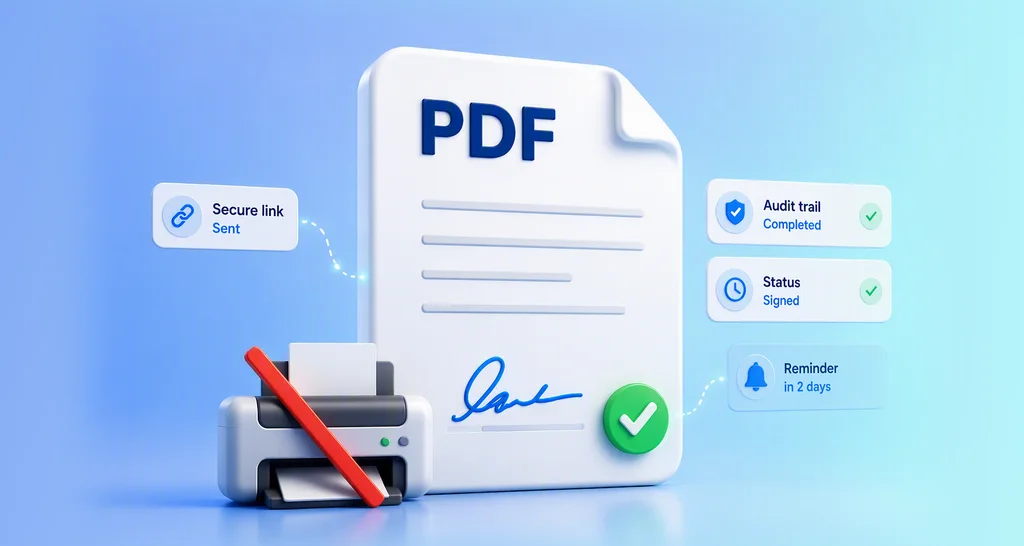
Multi-channel delivery: BoldSign lets businesses send secure signature requests through Email, SMS, Email + SMS, or WhatsApp. Senders can choose the most appropriate delivery channel for each recipient, helping improve visibility, reach mobile-first signers, reduce delays, and accelerate document completion. Each notification includes a secure link that allows the recipient to review and sign the document from a mobile device or desktop.
AI- powered workflows
AI-powered workflows: BoldSign uses AI to streamline document preparation, agreement search, and everyday eSignature tasks. AI Field Detection automatically identifies and places common form fields in templates, while AI Search helps users locate agreements using natural-language queries. With BoldSign MCP, businesses can connect compatible AI assistants and agents to send documents, check signing status, retrieve document details, and send reminders through conversational prompts.
Contact management features
BoldSign helps you save time and saves you from sending documents to unintended recipients. The following are some of BoldSign’s contact management tools.
Auto-add signers to contacts
This feature ensures that every time you send a document to a new signer, the new signer is automatically added to your contacts. This saves you time the next time you need to send them a signature request. BoldSign’s autocompletion tool shows all the matching contacts from your contact list whenever you begin typing an email address into the To field. This helps you avoid the mistakes possible with manual entry.
CSV file for bulk adding of contacts
This feature allows its users to import contacts in bulk using a CSV file instead of adding contacts one by one, making the process simple.
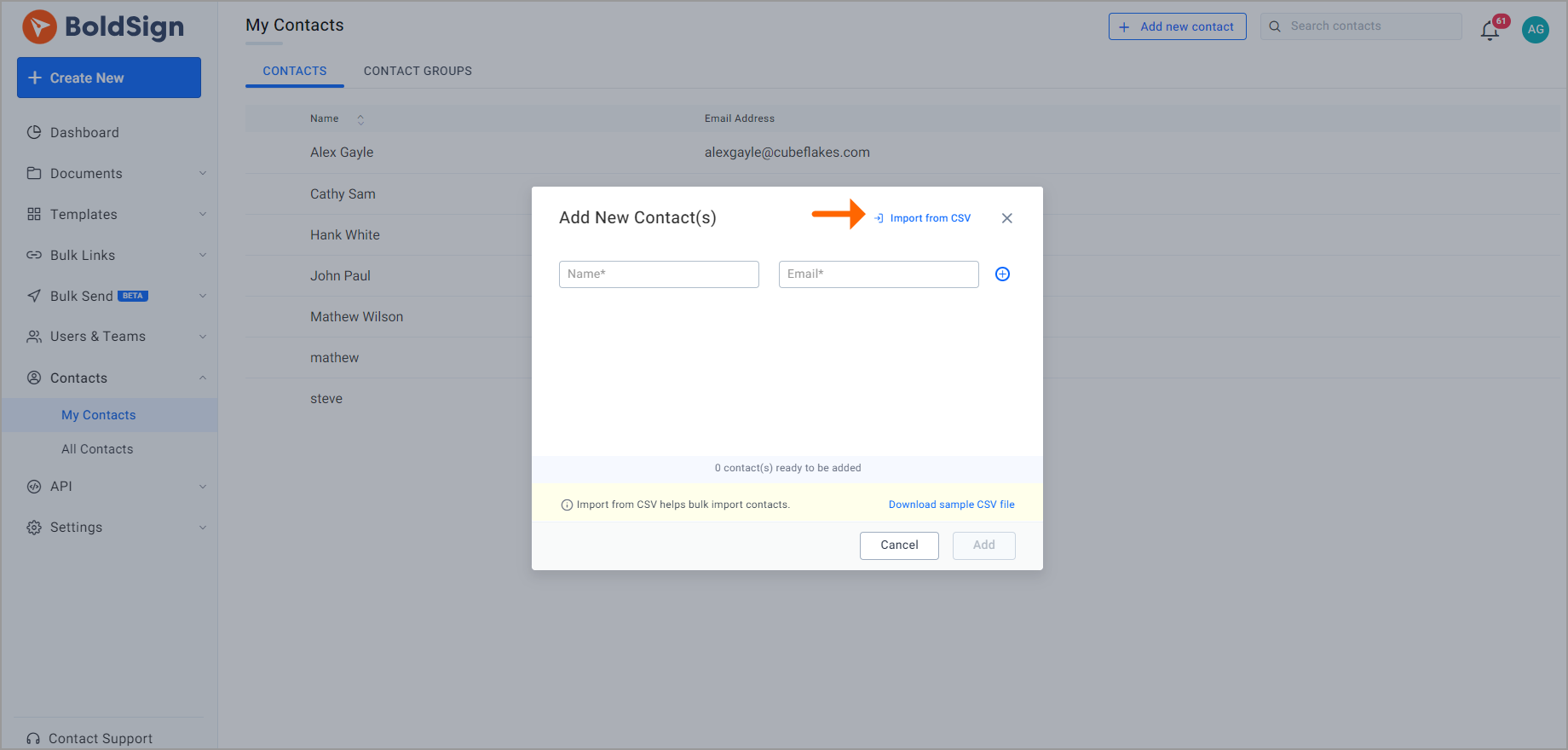
Import contact from the CSV file
Contact groups
This feature enables you to create contact groups for your organization. This saves time, since one group can be entered instead of each person individually.
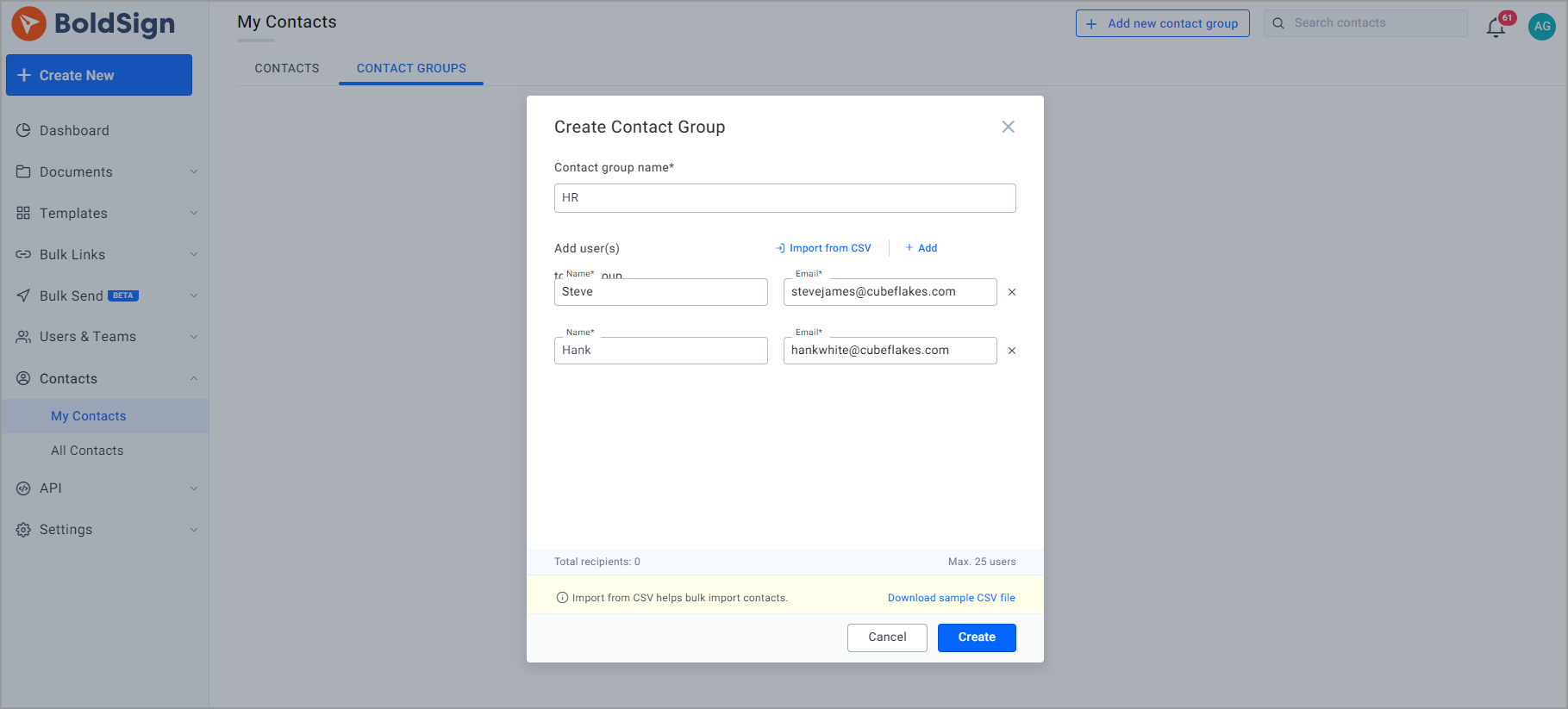
Create contact group
Custom permissions
By default, team administrators or members don’t have access to other team documents. But with BoldSign’s Custom Permissions feature, account admins can grant any team admin or member to access other team documents. The account administrator can also track the permission history for each member using the Filter option, ensuring secure and controlled document access.
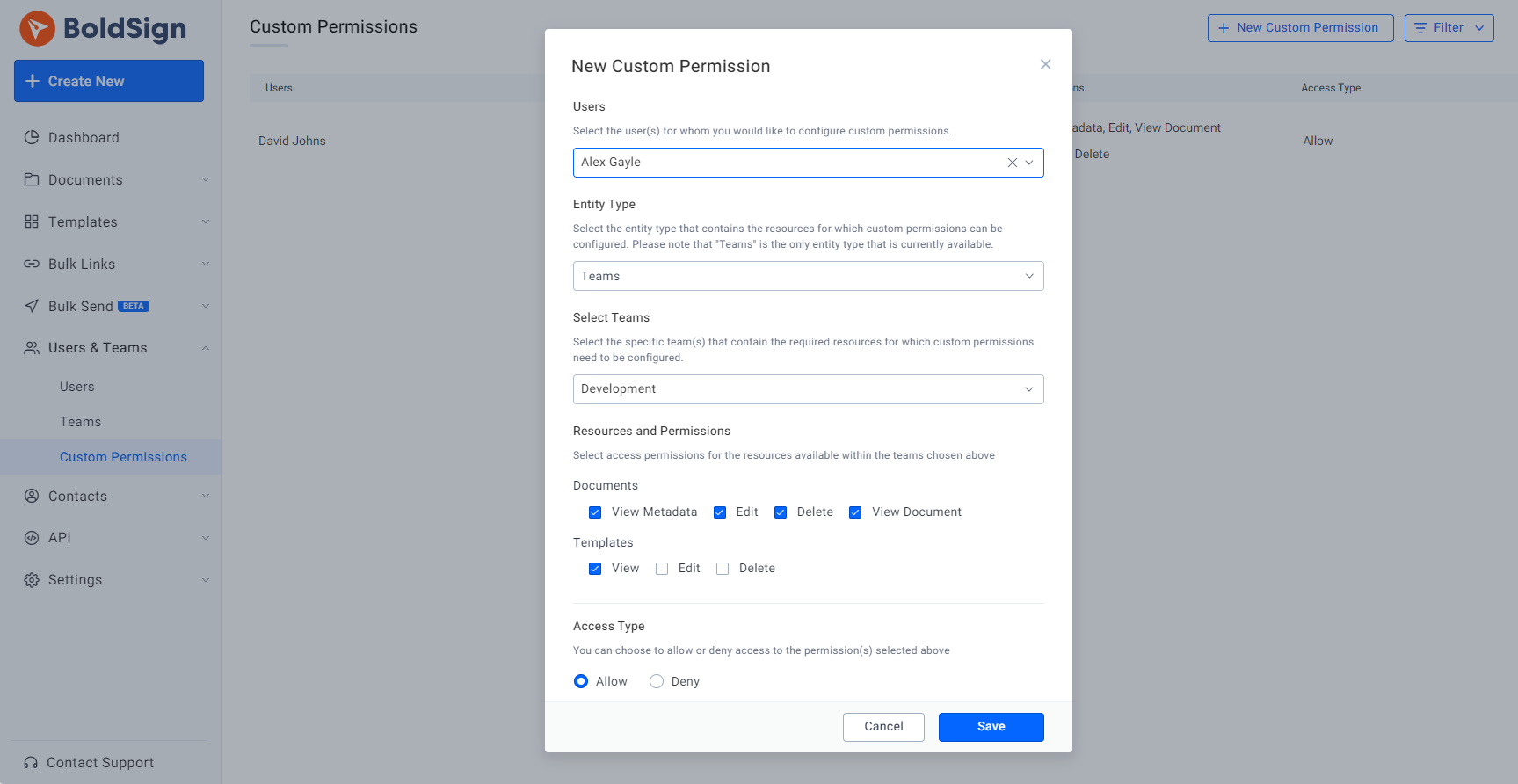
Custom permission option
Team management
You can create teams in BoldSign and allow or restrict access to your users based on the teams they are in.
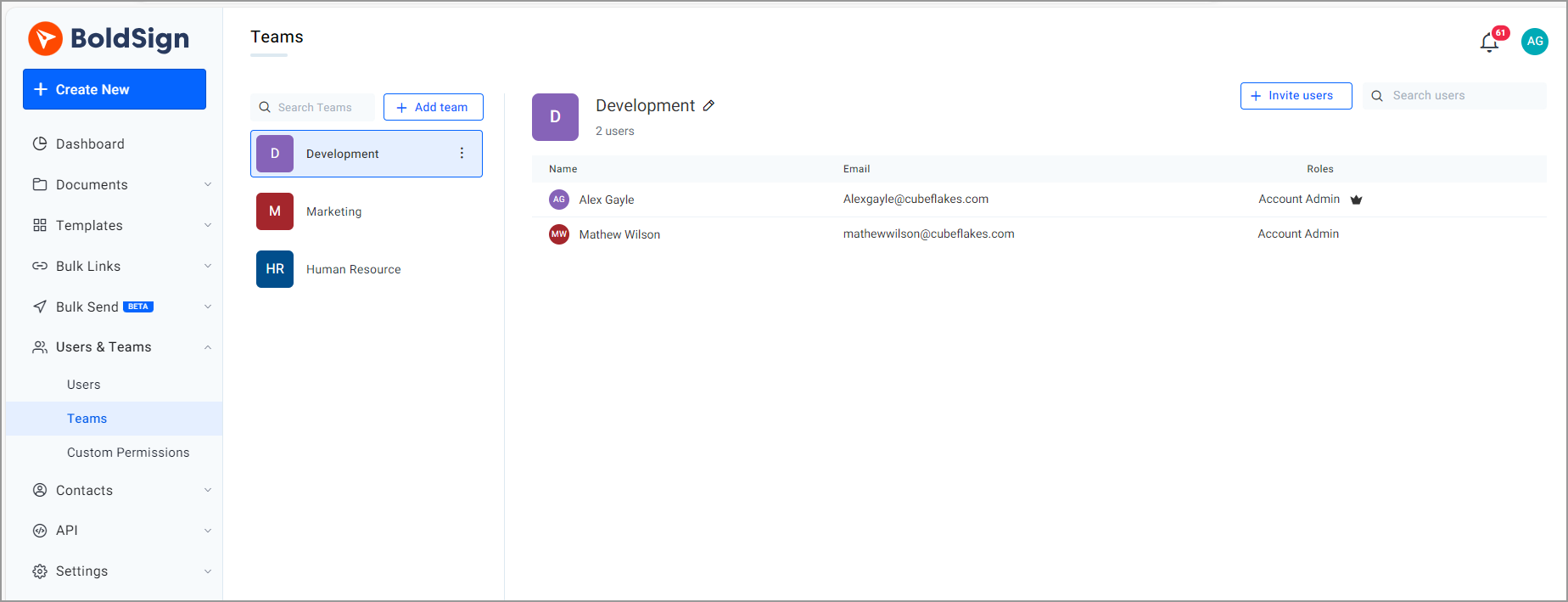
Team management
Branding features
BoldSign makes it simple to manage multiple brands from a single account. The application allows you to create multiple brands and select one before sending a document to a signer. You can also set a default brand to make the sending process easier.
Typically, you want to have your documents reflect a specific brand. You can set logos, your email domain, and brand colors to ensure your signers feel their experience is authentic.
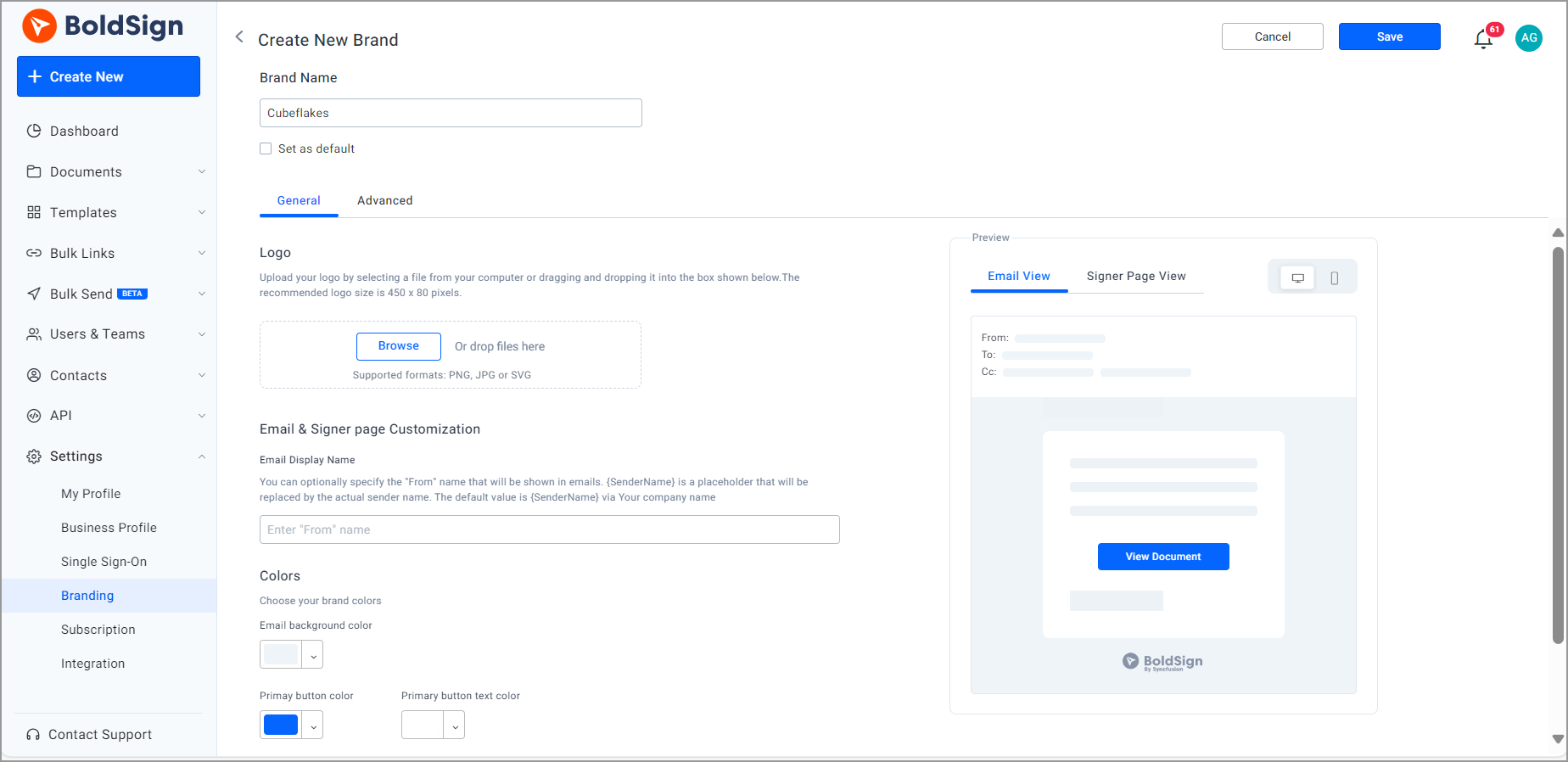
Create a new brand
Localization
BoldSign supports localized signing experiences in English, Spanish, German, French, Romanian, Norwegian, Bulgarian, Italian, Danish, Polish, Portuguese, Czech, Dutch, Russian, Swedish, Simplified Chinese, Traditional Chinese, Japanese, Thai, and Korean. Senders can select a signer’s preferred language when preparing the document, and signers can also change the language from the signing page.
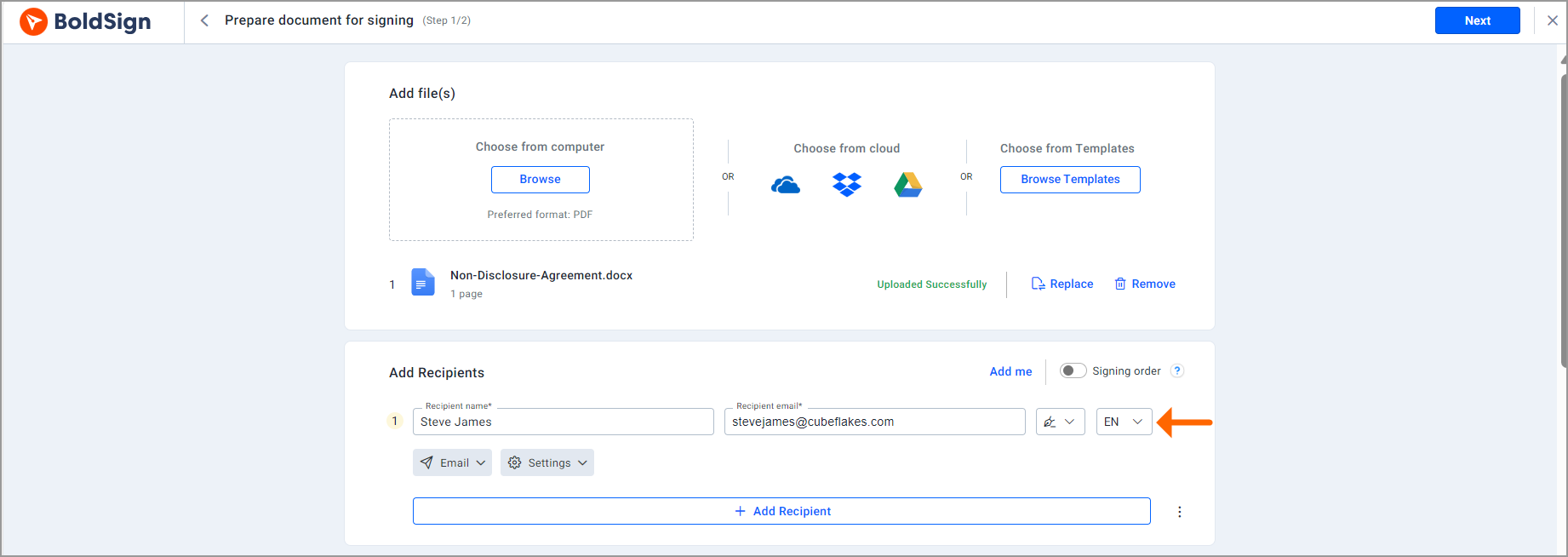
Add localization
Conclusion
In summary, BoldSign offers outstanding features to make your business’s eSignature process a breeze. Try it today by signing up for a free trial or scheduling a demo to see how it can improve your eSigning tasks.

Ben Jacob Ngoya Ouma
Ben Jacob Ngoya is a technical writer at BoldSign with state-of-the-art prowess in elucidating technical intricacies into plain presentations for every software user. Apart from software applications, he has an expressive love for cars, photography, and automotive technology.
More posts by Ben Jacob Ngoya Ouma