How to Collect Signer Images Easily with Form Fields
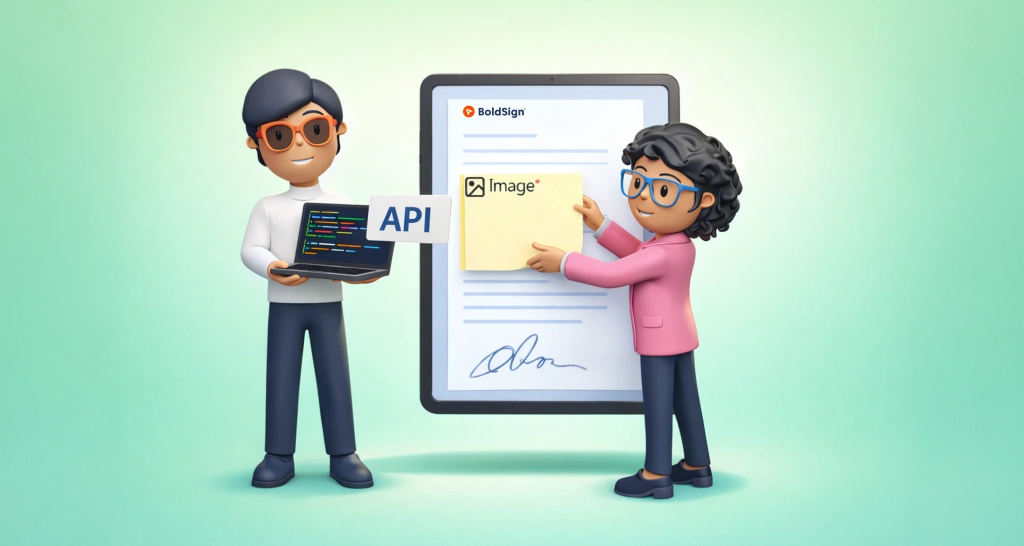
BoldSign simplifies the collection of images during the signing process through the image form field. A single document can contain multiple image fields, and BoldSign supports multiple file formats, such as JPG, JPEG, SVG, PNG, and BMP.
In this blog post, we’ll explore how you can use BoldSign’s image attachment feature to create a seamless experience for those signing your documents.
Create a new document
First, access the BoldSign application page and click Create New.
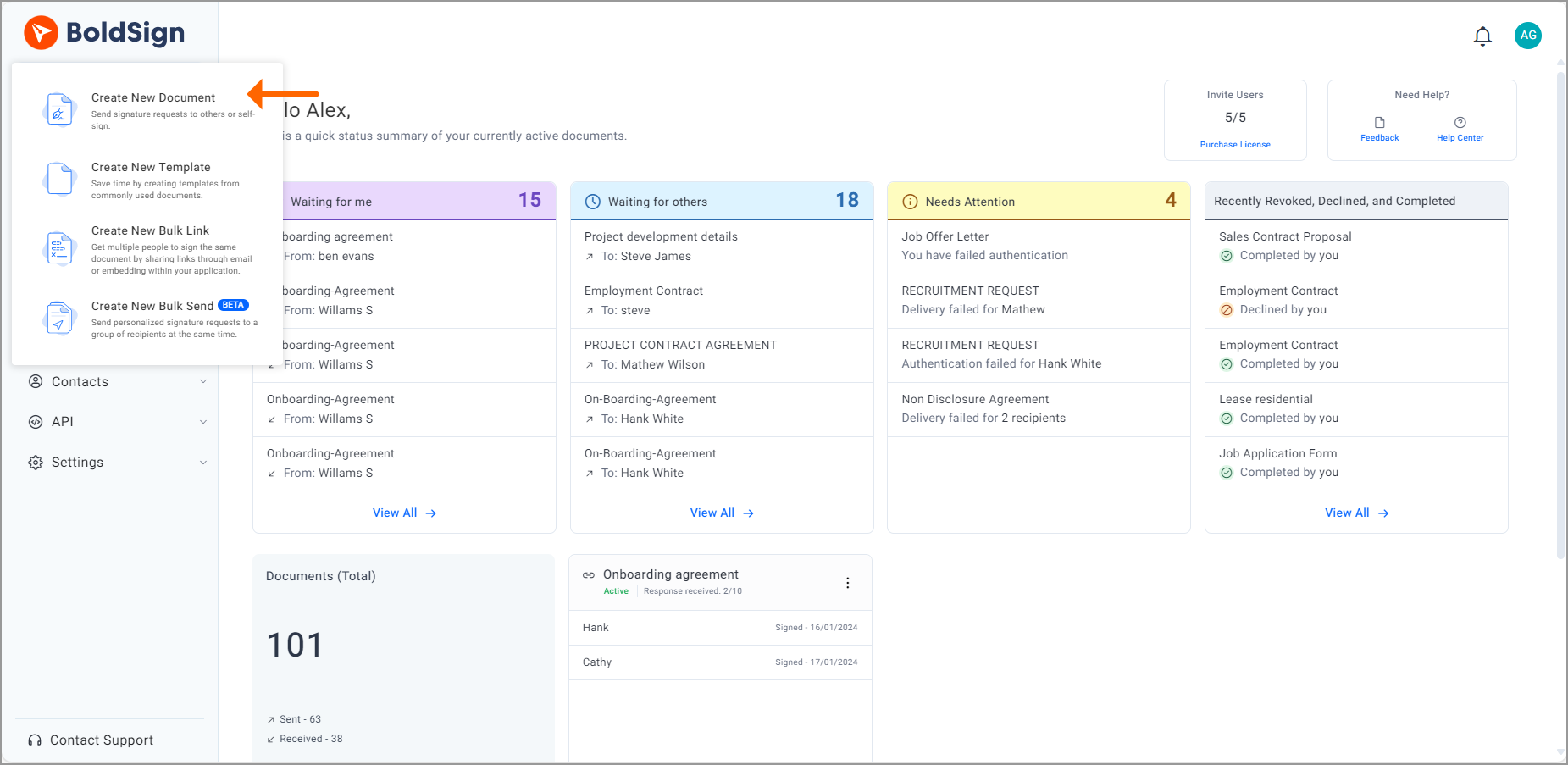
Then, choose Create New Document to navigate to the Prepare Document page. On the page, upload the document you need in the Add file(s) section.
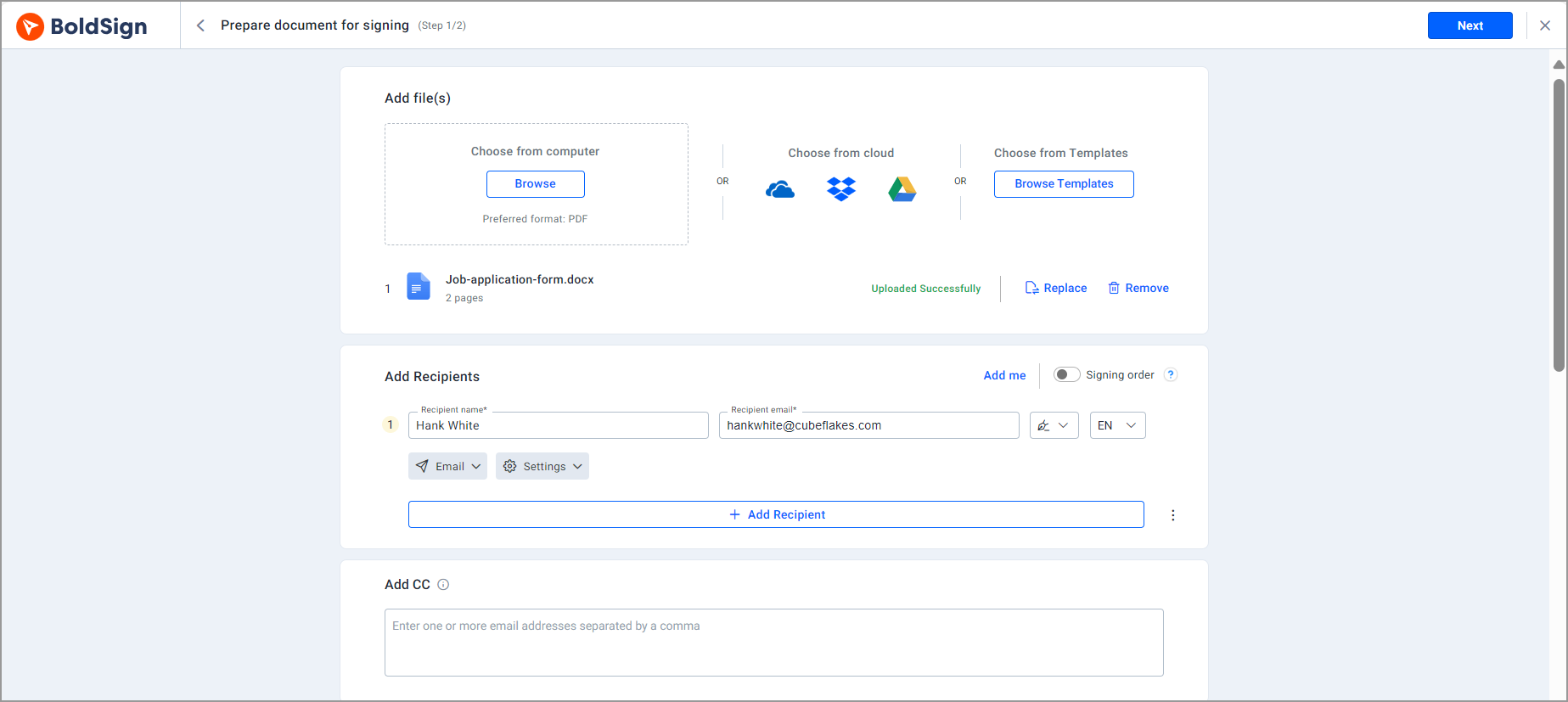
Add the recipient details in the Add Recipients section then click Next. You will be redirected to the Configure Fields page. On this page, you can set form fields by dragging them into the desired location on your document.
Add and customize the image form field
Drag the image field to the desired location on your document, allowing the signer to upload a photo. The Image settings panel will be displayed on the right side of the screen, where the image title is a mandatory field. Enter a title in the Image Title field.
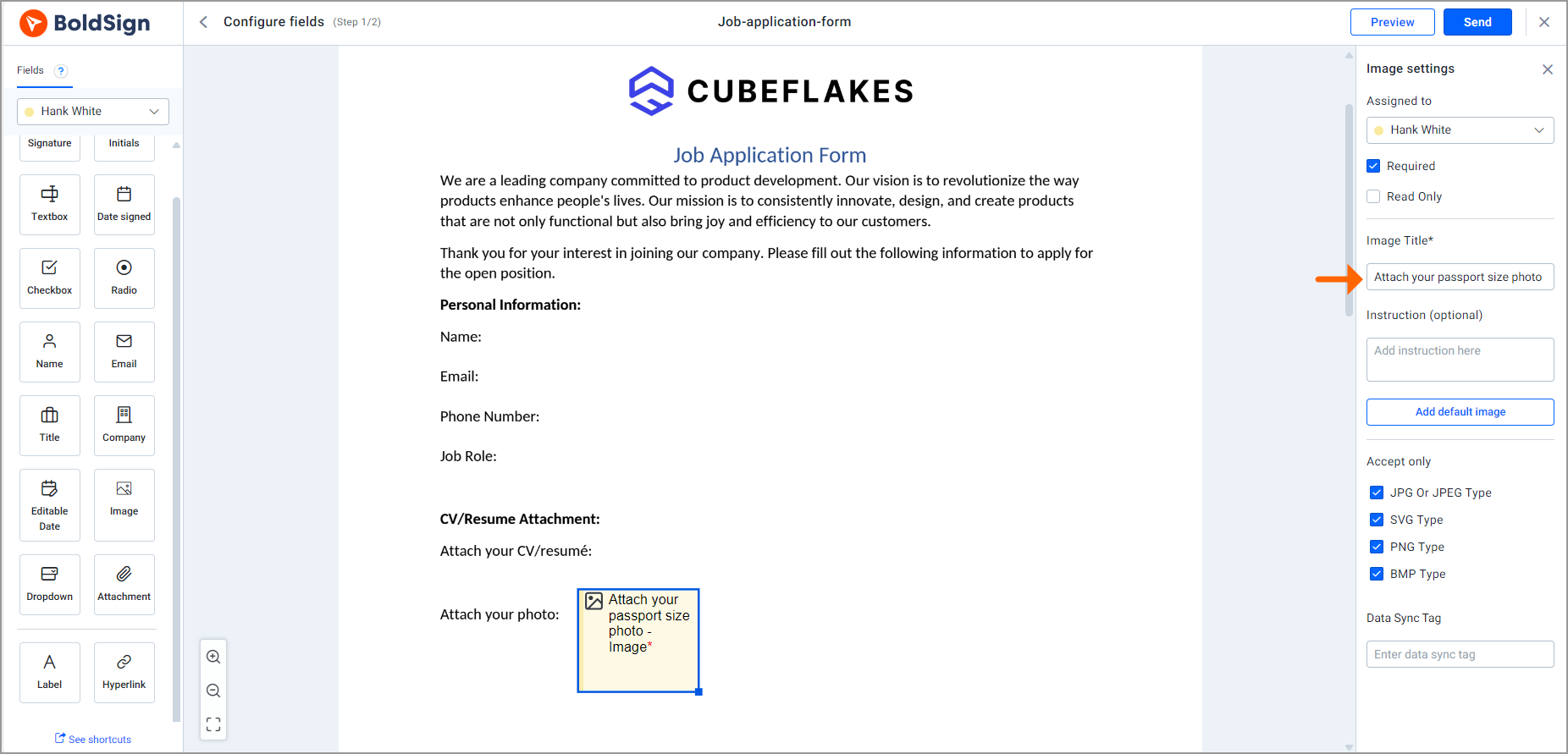
In the Instruction (optional) section, add further instructions in the text box if you wish to guide or provide further information about the required image to the signer.
You can add a default image, which signers can change if necessary during the document signing process. If you prefer to keep the default image unchanged by signers, you can set it as read-only.
Then, in the Accept only section, select the image formats you want from the available options. Send the document out for signature. During the signing process, the signer can only upload an image with the formats you have selected.
Conclusion
We sincerely thank you for investing your time in discovering how to request image attachments from your signers in BoldSign. Check out all BoldSign’s features by signing up for a 30-day free trial, experience firsthand the seamless efficiency of eSignatures with BoldSign.
Check out our video on how to collect attachments from signers for a more detailed guide.
Your feedback is valuable to us. Feel free to share your thoughts and experiences in the comments section below. Whether you have questions, suggestions, or an interest in delving deeper into what BoldSign offers, our dedicated support team is prepared to assist you. Schedule a personalized demo or connect with us through our support portal.

Evans Omondi Otieno
Evans Omondi Otieno is a customer support representative and writer at BoldSign, specializing in creating clear, insightful content to help users navigate eSignature solutions. As a blog author, Evans writes well-researched articles that simplify technical concepts, helping businesses and professionals understand how to use BoldSign effectively. With expertise in technical support and content creation, he ensures users have a seamless experience and gain valuable knowledge from his articles. Connect with him on LinkedIn.
More posts by Evans Omondi Otieno