Knowledge-Based Authentication (KBA): Verify Signers Without an ID Upload
TL;DR: Knowledge-based authentication (KBA) helps verify signer identities using personal information and security questions instead of ID uploads or selfie checks. It provides stronger security than OTP authentication while keeping the signing experience simple and friction-free for U.S.-based recipients.
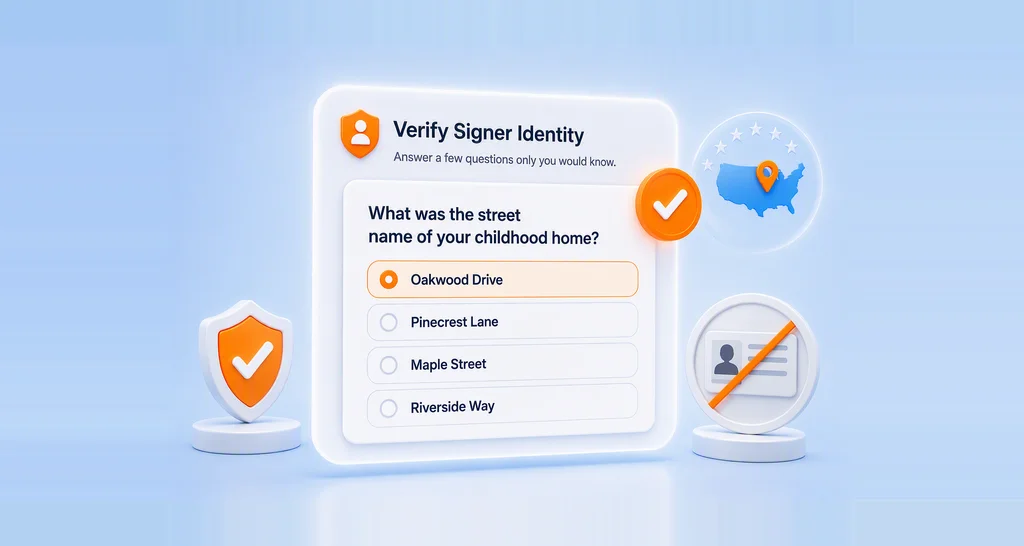
Without an ID check, can you still verify a signer to the same level of security? That’s the question knowledge-based authentication answers. Knowledge-based authentication (KBA) confirms who someone is using what they know, not a document they upload, not a selfie they take, not a code sent to a phone they might not be holding. It’s a signer verification method stripped down to the one thing that’s genuinely hard to fake: personal knowledge only the real signer would have.
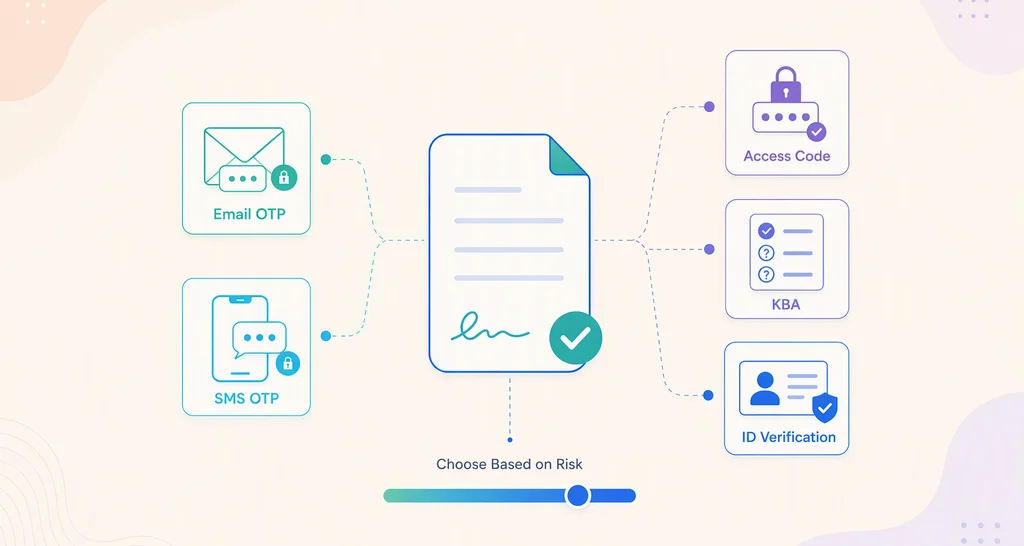
BoldSign has added KBA to its signer authentication lineup, joining Email OTP, SMS OTP, Access Code, and ID Verification. When KBA is enabled for a signer, they must provide their legal identity information and correctly answer security questions generated from public record data before they can access and sign the document. This adds real document access protection to every signing request.
Key takeaways
- KBA verifies signer identities without requiring ID uploads or selfie checks.
- Provides stronger identity assurance than OTP authentication.
- Available for U.S.-based recipients using public record-based verification.
- Offers flexible controls, including frequency, retries, and name matching.
- Delivers a lower-friction alternative to ID Verification for high-assurance signing.
What makes KBA different from ID verification
BoldSign already has a strong identity-proofing option: ID Verification, powered by Stripe Identity, which asks signers to upload a government-issued ID (passport, driver’s license, or national ID card) and take a live selfie that’s matched against the document. It’s thorough, but it asks a lot of the signer: a document, a camera, and a few minutes of setup.
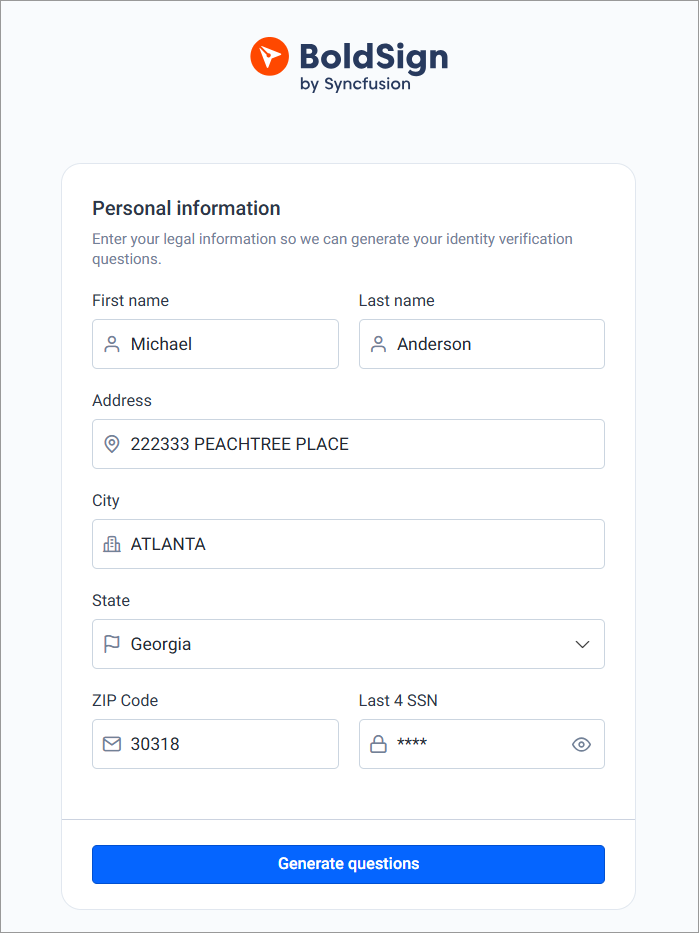
Knowledge-based authentication takes a different path. KBA verifies signers through legal identity details and personal security questions instead of a document upload. To complete KBA, a signer enters their first name, last name, address, city, state, ZIP code, and the last four digits of their SSN. BoldSign uses that information to generate a set of security questions from public record data, and the signer must answer all of them correctly to move forward. No document upload. No camera. No biometric match.
Is KBA safer and easier than ID verification?
Easier, yes, clearly. KBA removes the biggest sources of friction in ID Verification: no document to photograph, no lighting-dependent selfie, no waiting on document-matching algorithms, and no concern about scripts not supporting certain languages or ID formats. For a signer, it comes down to entering identity details and answering a short set of questions.
Safer, on comparable footing. ID Verification and KBA verify identity in different ways: ID Verification confirms what a signer has (a government ID) and is (a biometric match), while KBA confirms what a signer knows (personal information linked to public records). Both provide stronger identity assurance than OTPs and serve as effective fraud prevention within a document workflow. The key difference is that ID Verification requires an ID document, whereas KBA relies on security questions. Choose ID Verification for a document-backed identity trail, or KBA for strong recipient verification without requiring IDs or selfies.
Who should use KBA
KBA is a good fit for any organization that needs stronger identity verification than an OTP but wants to avoid the extra steps of ID uploads or selfie checks. Common examples include:
- Financial services teams sending loan documents, account openings, or disclosures where OTP alone feels too weak but a full ID/selfie flow feels like overkill.
- Insurance and healthcare organizations collecting consent or claims forms, where privacy-conscious signers may be uncomfortable uploading a government ID.
- HR and legal teams sending offer letters, NDAs, or benefits paperwork to external signers who need stronger-than-OTP assurance without added onboarding friction.
- Any sender who has previously used ID Verification but found the drop-off rate too high. KBA offers a lighter-weight alternative that still adds real identity assurance.
Note: KBA is available only for U.S.-based recipients, since it relies on legal identity details and SSN-linked public record data. For signers outside the U.S., ID Verification or one of BoldSign’s OTP methods remains the better fit. It’s also less necessary for low-stakes internal approvals, where Email OTP or Access Code is usually sufficient.
How to enable KBA in BoldSign
To send a document with KBA:
1. Click Create New and select Create New Document, then upload the file.
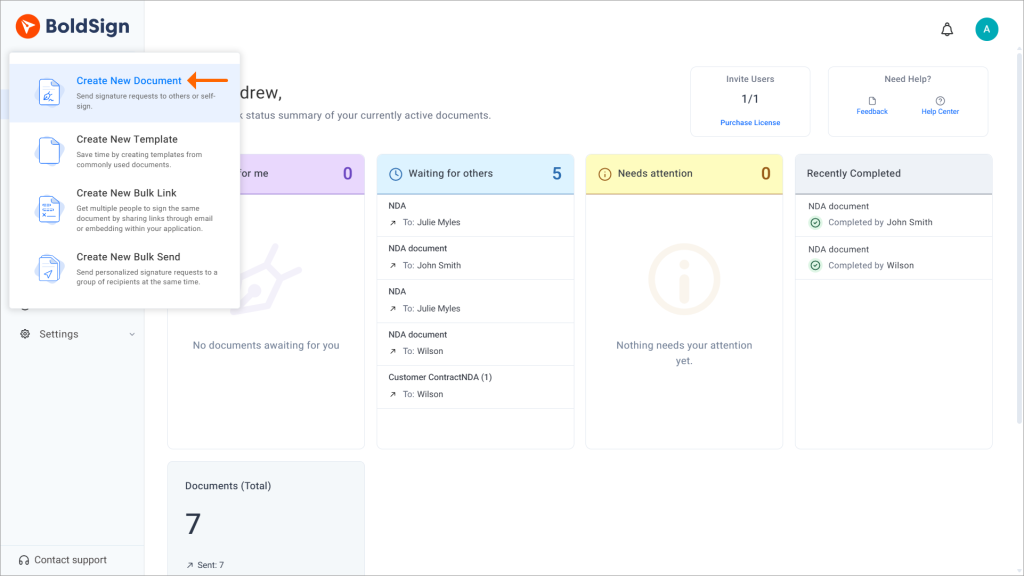
Create new document
2. Enter the signer’s name and email. Make sure the name matches their legal identity details, since KBA compares it against the information the signer provides during authentication.
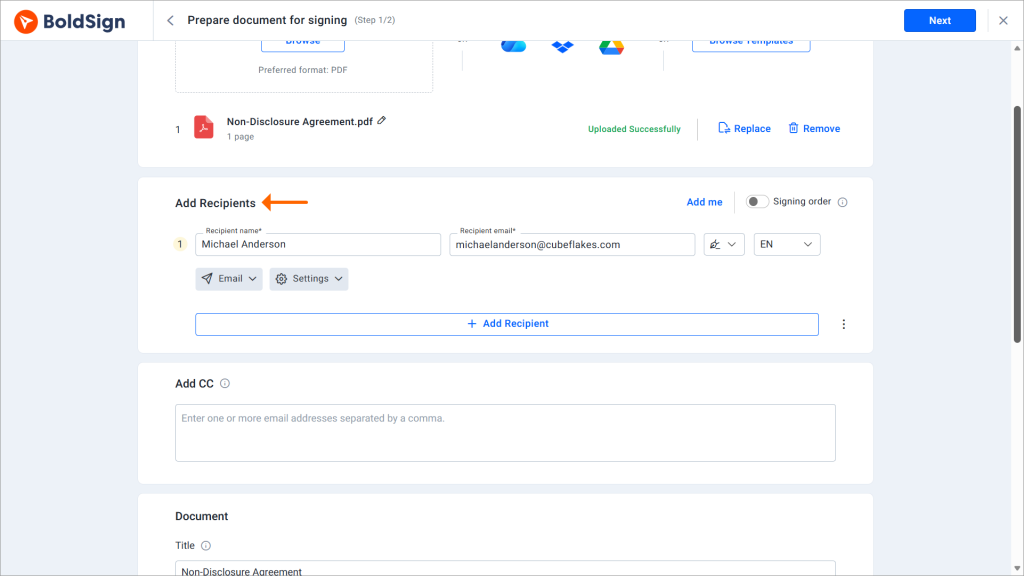
Add recipients
3. Open the signer’s settings, enable Authentication, and select KBA authentication.
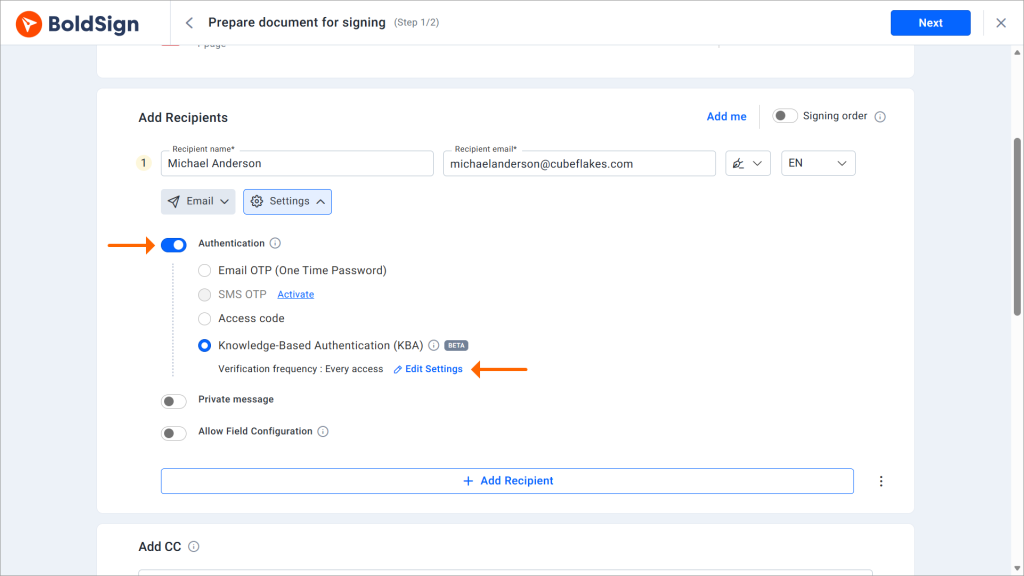
Add KBA authentication
4. Review the KBA settings for that signer (frequency, number of retries, and name-match tolerance).
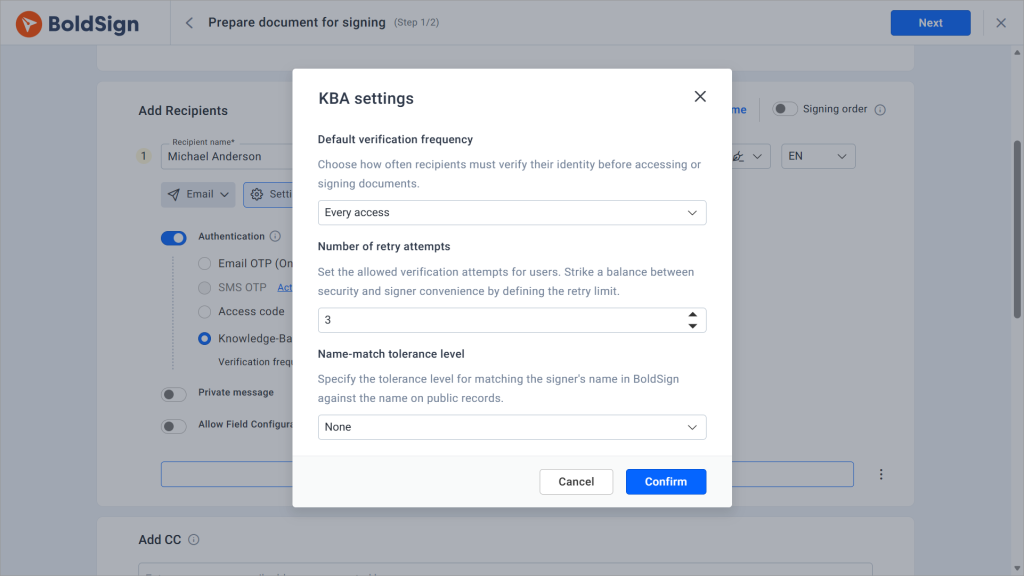
KBA settings
5. Click Next, add the required fields, and click Send.
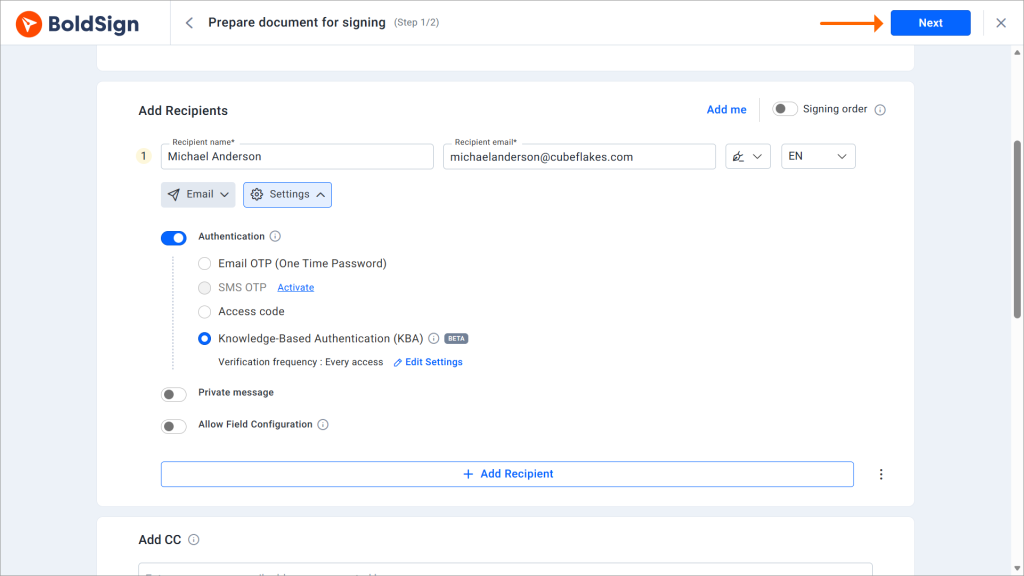
Navigate next page
If a document has already been sent, you can also add KBA to an existing signer. If the signer already has the signing email, they can use their existing link, and BoldSign will prompt them for KBA the next time they access the document.
What the signer sees
Here’s what that signing workflow looks like from the signer’s side:
1. The signer opens the signing email and clicks into the document. Before they can view it, BoldSign shows the KBA consent screen.
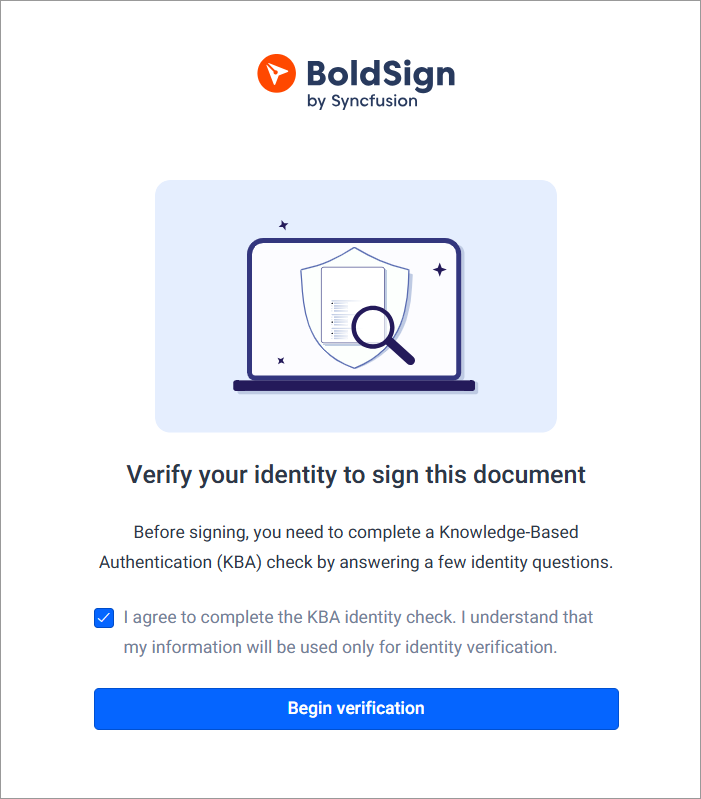
2. The signer checks the consent box and enters their legal identity details, first name, last name, address, city, state, ZIP, and the last four digits of their SSN.
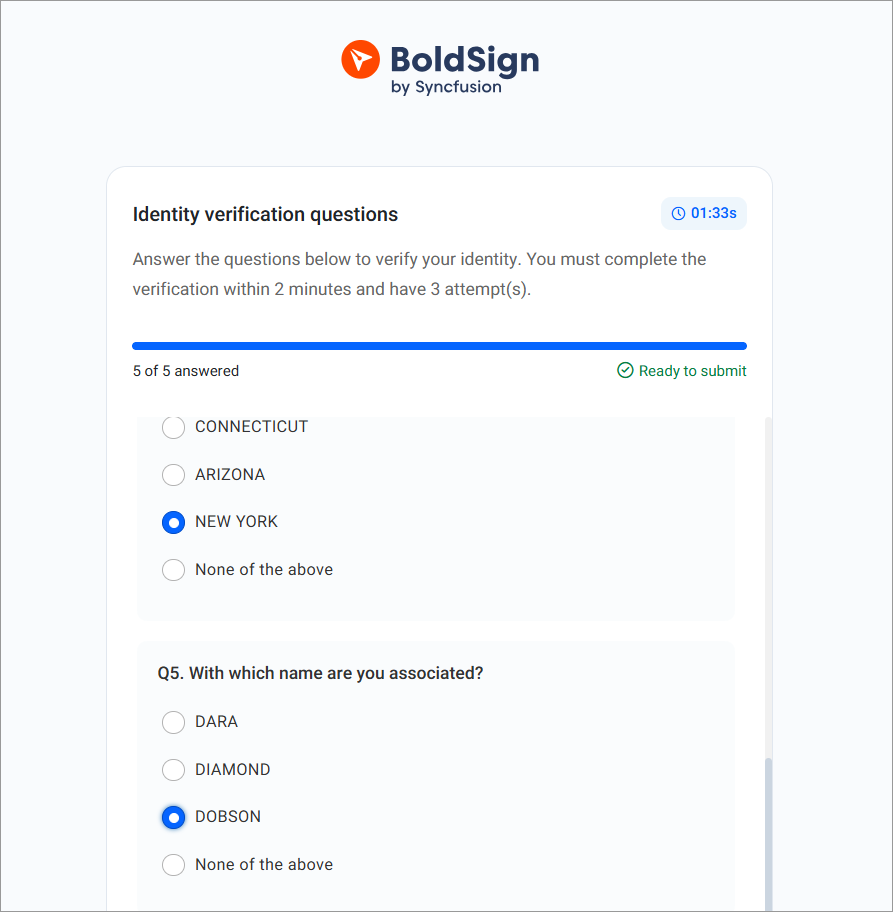
3. BoldSign generates a set of security questions from public record data. The signer answers all of them within the session time limit.
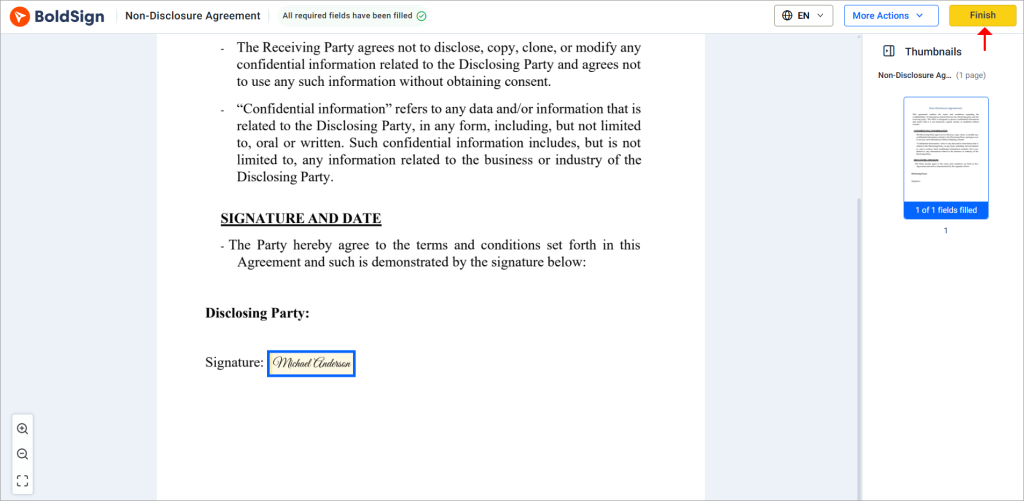
4. If all answers are correct, the signer is taken straight into the document to review, fill in fields, and sign.
Options you can configure
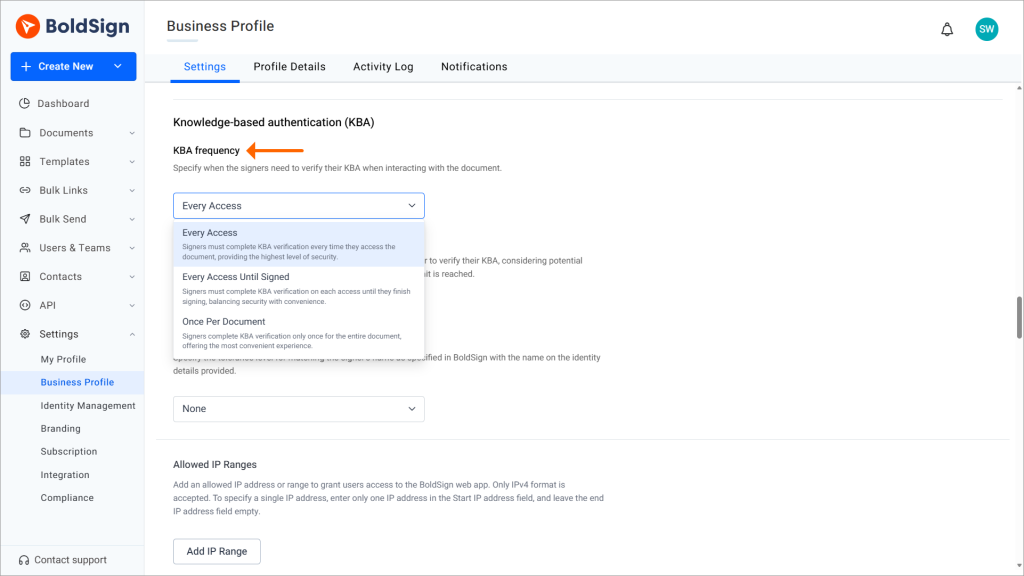
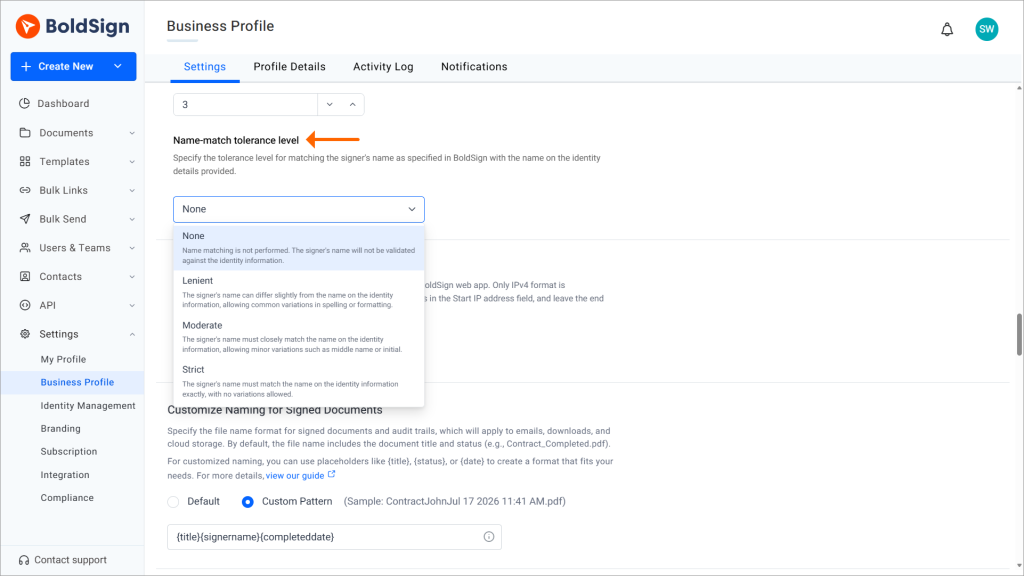
BoldSign gives senders and admins three core KBA settings, configurable by default from Business Profile settings and reviewable per signer when Knowledge-based authentication is added:
- KBA frequency allows you to choose whether KBA is required every access, every access until signed, or once per document.
KBA frequency
- Retry Attempts can be set anywhere from 1 to 3, based on the sender’s preference.
- Name Match Tolerance controls how closely the signer’s name must match their identity records using None, Strict, Moderate, or Lenient matching. BoldSign recommends keeping name matching enabled for better security.
Name match
For detailed configuration guidance, see the KBA Settings article.
What happens if KBA fails
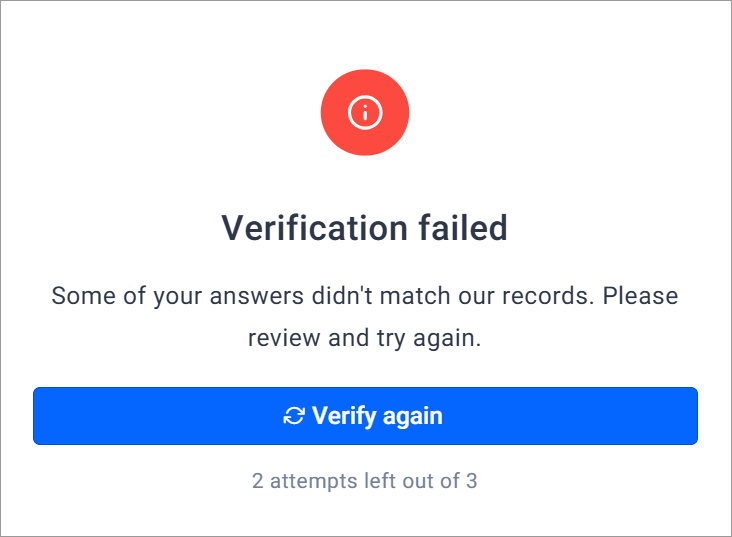
If a signer can’t complete Knowledge-based authentication, BoldSign restricts access until the issue is resolved. Common causes include incomplete or invalid identity information, a name mismatch, unanswered questions, incorrect answers, an expired session, insufficient public record data to generate questions, or hitting the maximum retry count.
If retries remain, the signer can try again. Once the maximum attempts are used up, the signer is locked out and needs to contact the sender. From there, the sender can:
- Reset KBA authentication to allow another attempt while keeping existing settings.
- Remove Authentication if KBA is no longer required.
- Review Signer Details to ensure the signer’s name matches their legal identity.
How KBA verifications are charged
KBA usage is tracked and billed separately from ID Verification. A charge is recorded whenever a signer starts a billable KBA challenge and security questions are generated, shown in transaction records as Challenge Started. This means a charge can occur even if the signer ultimately fails the verification. Simply adding KBA to a signer, or resetting KBA without the signer starting a new attempt, does not create a charge. Depending on your subscription, usage is deducted from included plan credits or billed as pay-as-you-go once those credits run out.
Because retries can each count as a separate billable challenge, the retry limit you configure doubles as a lever for controlling cost, not just security and convenience.
Comparison: KBA vs. ID verification
| ID Verification | KBA | |
| What it checks | Something the signer has (a government ID) plus is (a live selfie match) | Something the signer knows (legal identity details plus security questions from public records) |
| Signer effort | Upload an ID document, take a live selfie | Enter identity details, answer security questions |
| Equipment needed | Camera-enabled device for document capture and selfie | None; works on any device with a keyboard or touchscreen |
| Region availability | Broader regional support | U.S.-based recipients only |
| Configurable frequency | Every access, Every access until signed, Once per Document | Every access, Every access until signed, Once per document |
| Retry control | Configurable maximum attempts | Sender-defined limit, 1 to 3 attempts |
| Name-match tolerance | Strict, Moderate, Lenient | None, Strict, Moderate, Lenient |
| Billing trigger | Per verification | Per billable challenge started (charged even on failure) |
| Best suited for | Highest-assurance cases needing document-backed proof | High-assurance cases where you want strong identity signal without document/selfie capture |
Getting started
Knowledge-based authentication gives BoldSign senders another strong option for verifying signers, one that trades document capture and biometric matching for legal identity details and a set of personal questions. For U.S. documents where OTP alone isn’t quite enough, but a full ID Verification flow feels like more friction than the situation calls for, KBA is worth adding to your signing workflow. Explore the full KBA support articles for step-by-step guides on every part of the feature.
Ready to try it? Start your free BoldSign trial, request a demo, or contact our support team to find the right authentication method for your workflows.
Frequently asked questions
What is KBA in BoldSign?
A signer authentication method that verifies identity using legal identity information and security questions generated from public record data, without requiring an ID document upload.
How is KBA different from ID Verification?
ID Verification requires the signer to submit a government-issued ID document (and optionally a selfie match). KBA instead asks for legal identity details and security questions, no document upload needed.
What happens if a signer fails KBA?
If retries remain, they can try again. If attempts run out, they must contact the sender, who can reset KBA (allow a retry, keep it enabled) or remove authentication (drop the requirement).
When is KBA charged?
When a signer starts a billable challenge and questions are generated, logged as Challenge Started, regardless of whether they pass. Simply adding KBA to a signer, or resetting it without a new attempt, doesn't trigger a charge.
Where can I track KBA usage?
Under Settings > Subscription > View transactions, filtered by the KBA feature type. Records show document ID, date, action, credit type (Plan or Pay As You Go), and signer.
Can I enable KBA for only specific signers?
Yes. Authentication is configured per signer, so you can enable KBA for selected recipients while using different authentication methods for others on the same document.

Caroline Dolly
Caroline Dolly is a technical writer at BoldSign who simplifies complex concepts into clear, engaging content. She creates tutorials, help articles, and product documentation, ensuring information is accurate and accessible. Connect with her on LinkedIn.
More posts by Caroline Dolly