Introducing the BoldSign eSignature Browser Extension
TL;DR: The new BoldSign eSignature browser extension allows you to receive document updates, perform actions such as sending reminders, filter documents, download documents, and use templates directly within your browser without switching tabs. It also provides updates on the number of documents that require your signature, without needing to open the BoldSign web app.
We’re excited to introduce the new BoldSign Signature browser extension, which provides an easy and convenient method to access documents directly from your browser. With quick sign-in, real-time updates, and simple access to tasks like sending reminders, filtering documents, downloading completed documents, and using templates, everything can be done in your current tab without switching tabs.
The extension works seamlessly on both Chrome and Edge browsers, ensuring a consistent and smooth experience across platforms. It is available on the Chrome Web Store, and you can download it.
If you work with eSignature documents every day, this extension will be a valuable asset, helping you complete your eSignature workflows quickly and efficiently.
Why do you need this extension?
Here’s what makes the BoldSign eSignature browser extension especially useful.
- Open BoldSign directly from the Chrome toolbar instead of switching tabs every time.
- Check document status, filter documents, and perform common actions directly from the extension.
- The extension is designed to make authentication simple and seamless.
- Get badge updates for documents that you need to sign or review.
- Access templates and sign or send documents in fewer clicks.
Key features
The following are some of the key features available in the BoldSign eSignature browser extension.
- Real-time document tracking – Easily monitor the status of every document, with clear updates such as Waiting for you, Waiting for others, Completed, and more.
- Never miss a signing request – Receive instant browser notifications as soon as a document is sent to you, ensuring you stay on top of every task without delays.
- Send documents for signature – Start a signing request in seconds. Simply open the extension, click send, and quickly upload your document, add recipients, and send it.
- Use templates for faster sending – Save time by using pre-created templates for frequently sent documents, eliminating the need to recreate requests each time.
- Sign documents instantly – Access and sign documents directly from your browser toolbar in just a few clicks, no need to search through emails or dashboards.
- Send reminders effortlessly – Prompt recipients with timely reminders to keep your signing process moving smoothly, all without leaving the extension.
- Download documents anytime – Quickly access and download completed or pending documents directly from your extension.
How to install the extension?
The extension is available in the Chrome Web Store. You can follow the steps below to install it in your browser.
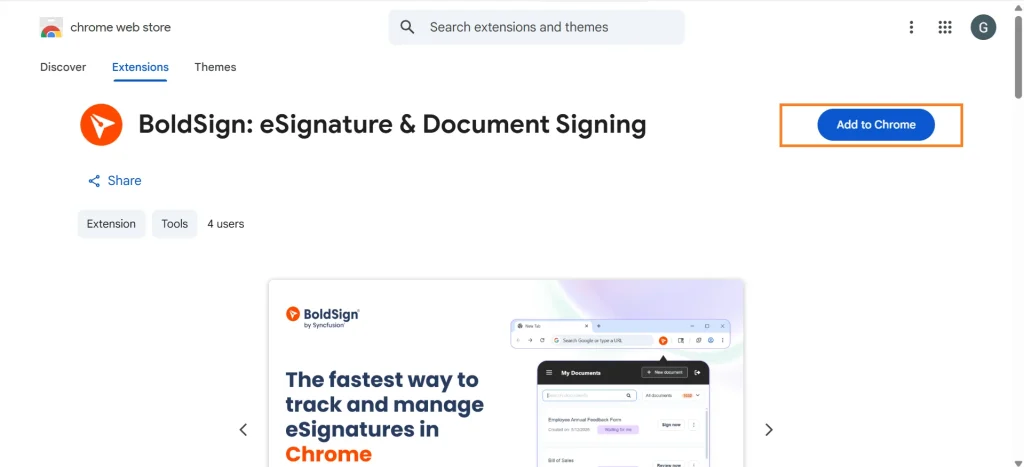
1. Visit the Chrome Web Store page.
2. Click the “Add to Chrome” button on the Extension page.
3. When prompted, review the permissions and click “Add extension”.
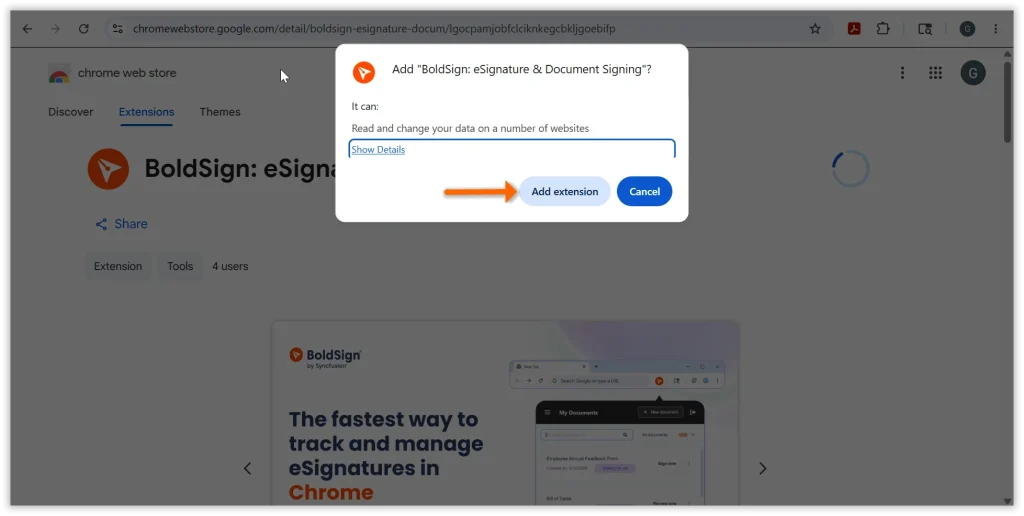
4. The extension will be installed in your browser.
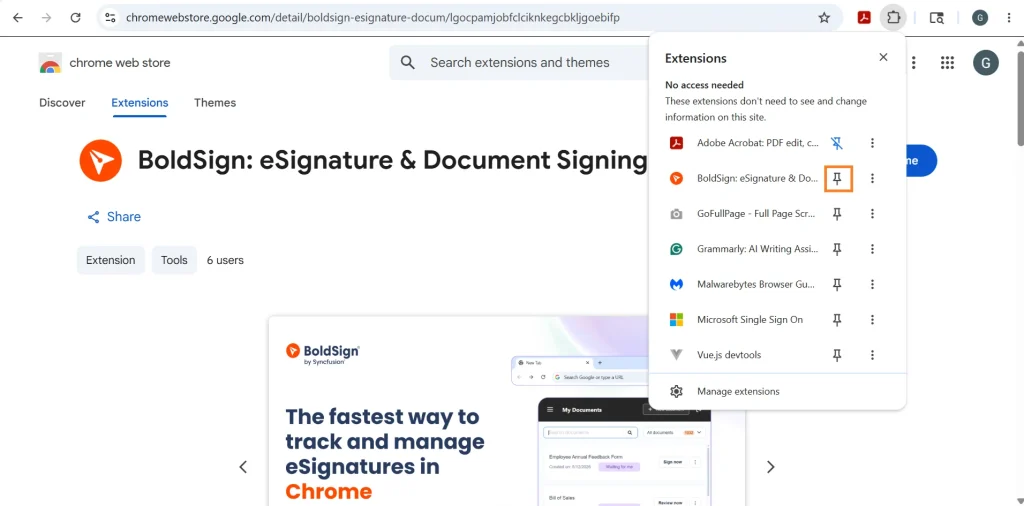
5. Click the Extensions icon in the toolbar to view the installed extensions.
6. Locate the BoldSign extension and click the pin icon to keep it visible in the toolbar for quick access.
7. Click the BoldSign extension icon. If you do not have a BoldSign account, click Sign Up as shown in the screenshot. Otherwise, Sign In using your existing account credentials.
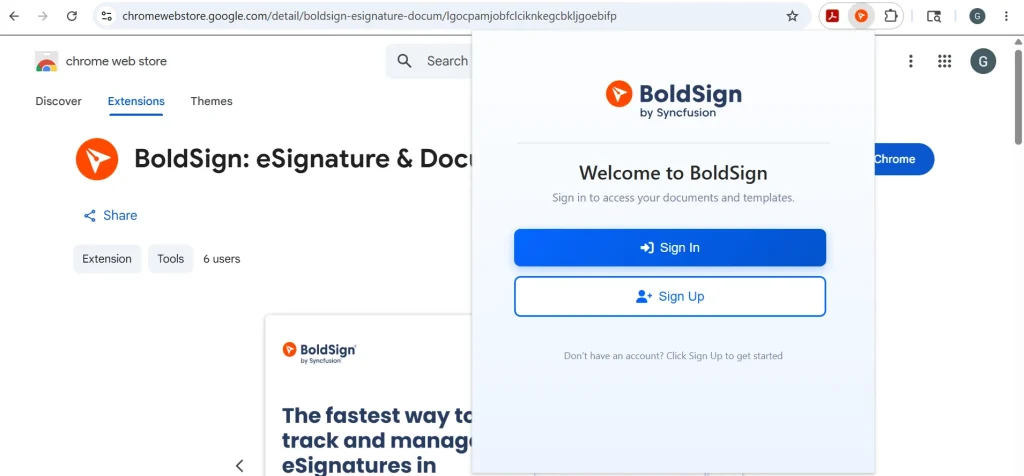
8. If you are already signed in to the BoldSign web app in Chrome, the extension will prompt for authorization. Click “Allow” to sign in with the extension.
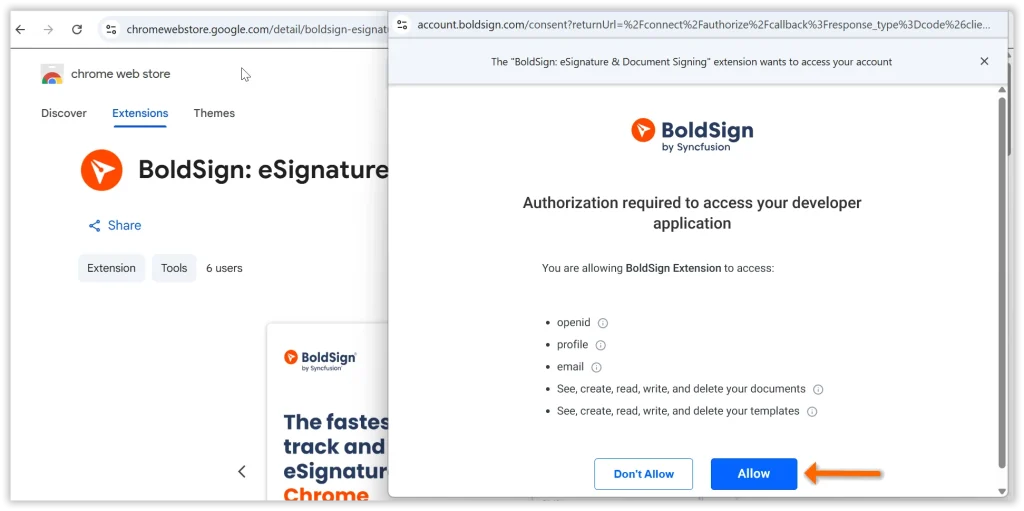
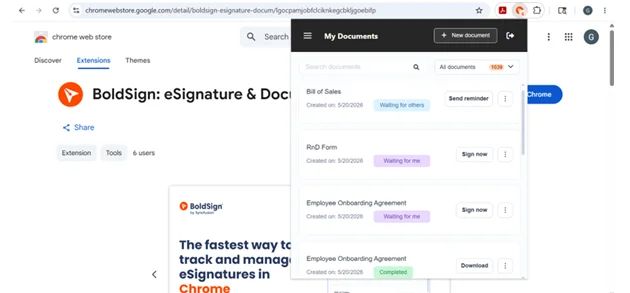
9. After signing in, you can access the documents and do the necessary actions.
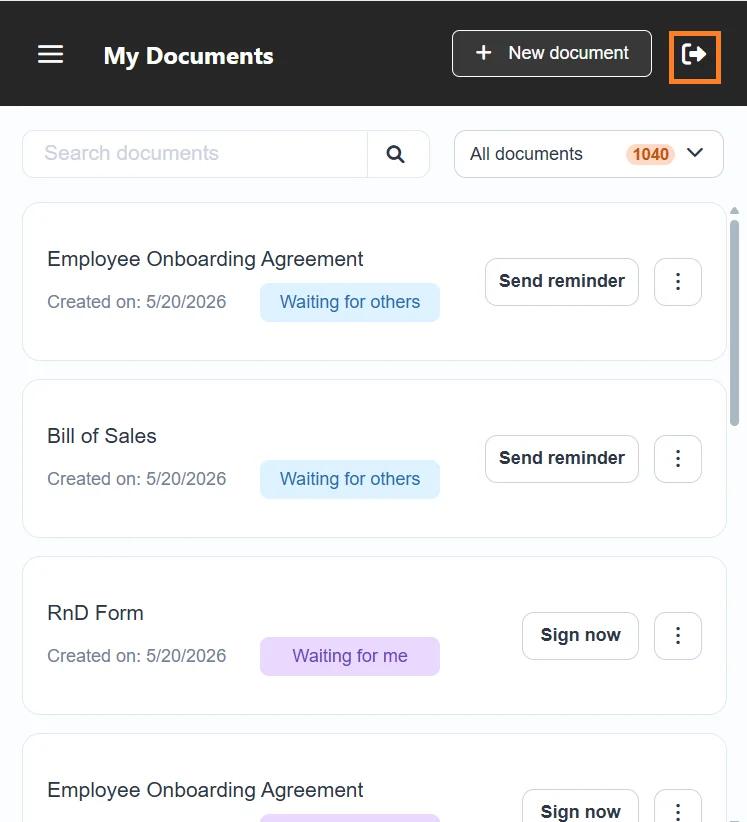
10. Once you’ve completed your work and want to log out of the extension, use the logout icon to safely sign out of your account.
What actions can be performed in this extension?
In this extension, you can perform several important actions. Below are some of the key actions you can take, along with how to use them.
Search for documents:
In the search box, you can search for documents by using the document name, signer name, email address, document ID and more.
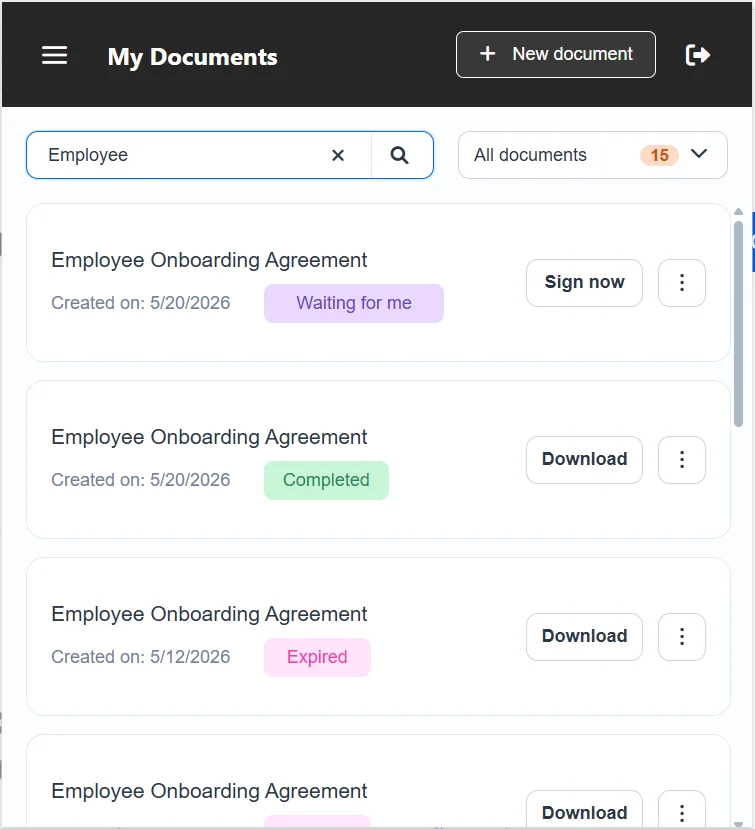
Filter documents:
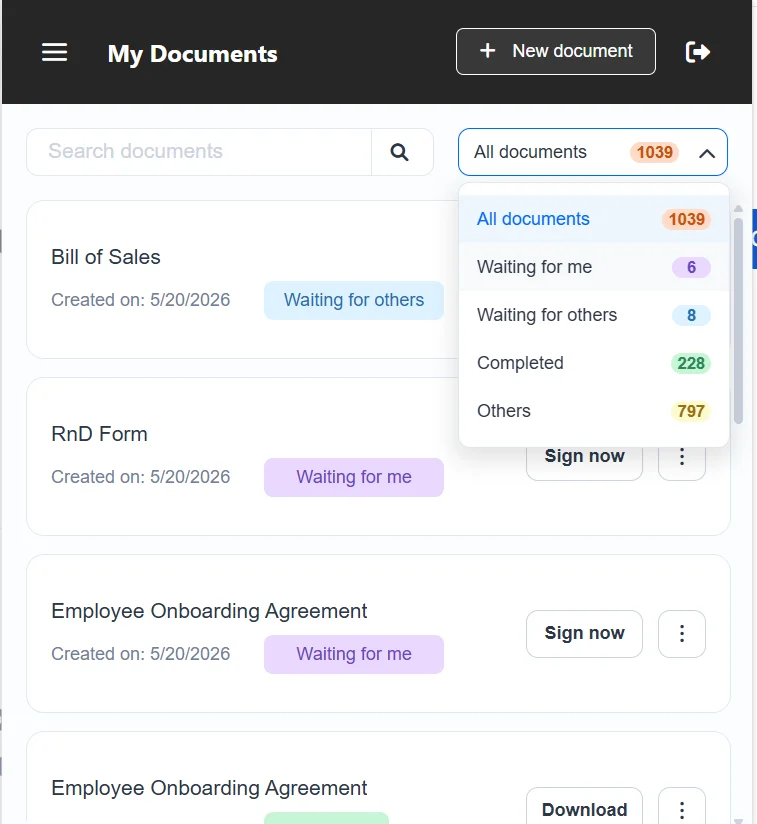
You can filter the documents based on their status such as Waiting for you, Waiting for others, Completed, and more.
Send reminder:
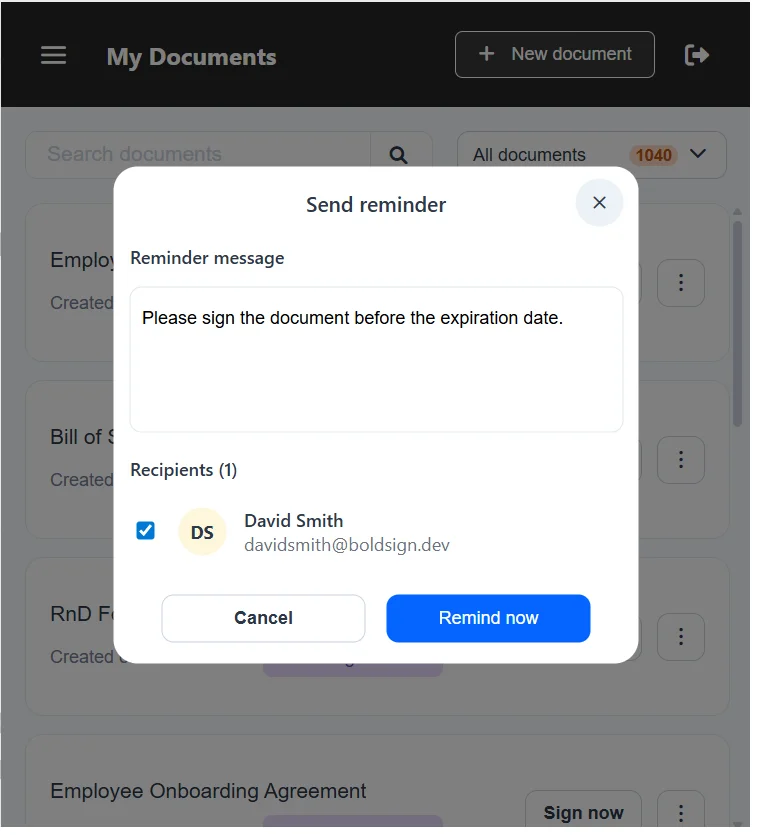
You can send manual reminders to the documents that need to be signed by the signers.
Download documents:
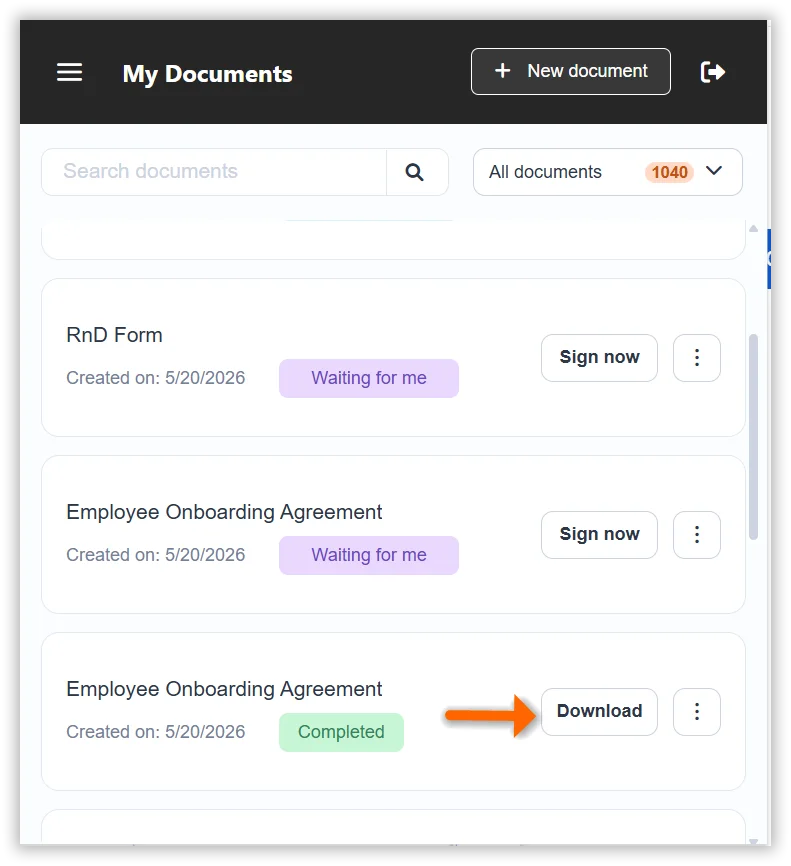
You can download completed or pending documents directly from your extension by just clicking the “Download” button.
Add tags:
You can also add tags to the documents to filter the documents based on them in the extension.
Access templates:
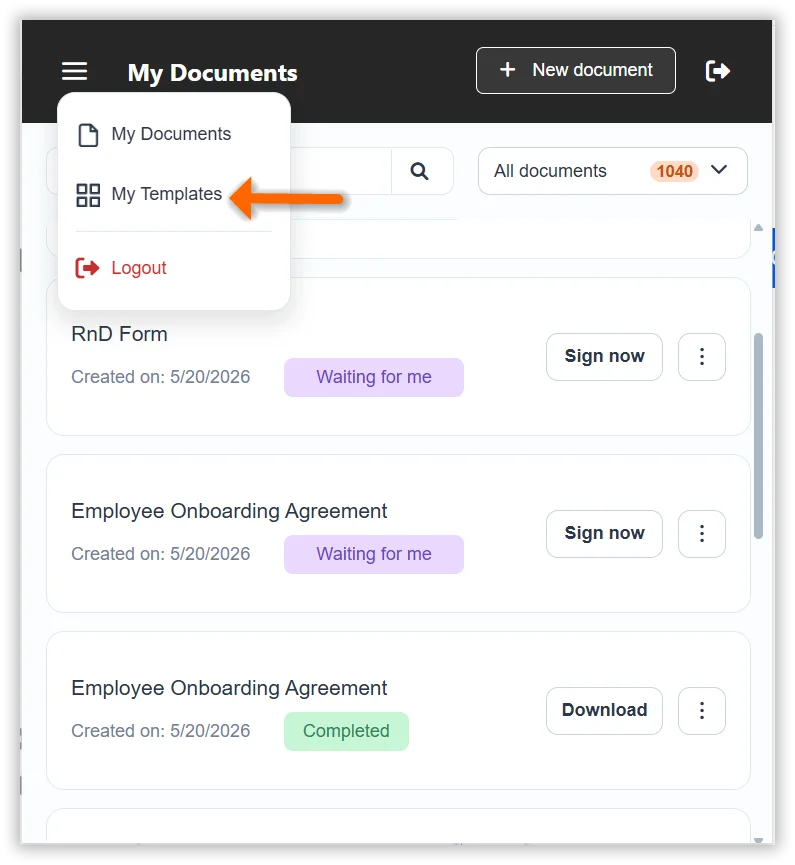
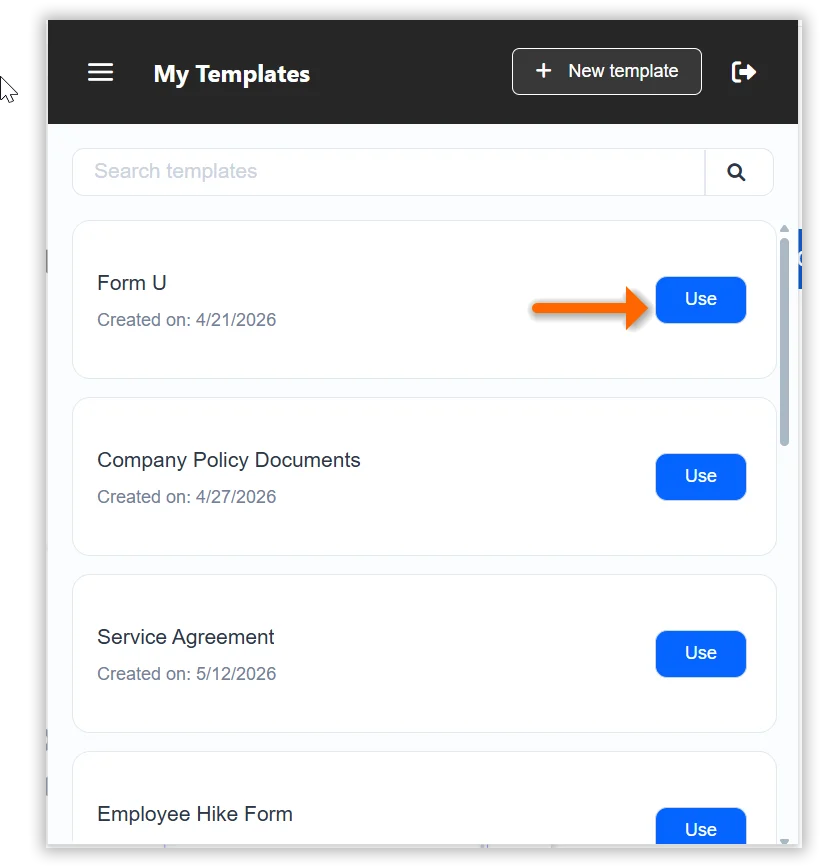
You can click the Navigation menu and click on the “My Templates” option to access the templates in your account.
Use templates to send documents:
You can click the “Use” button of a template, to send a document for signature using that template.
Conclusion
The BoldSign eSignature browser extension gives you a more convenient way to access your documents from anywhere in Chrome. If you want quicker access to document updates, a simpler sign-in experience, and an easier way to handle common tasks, the extension is a good addition to your daily workflow.
We’re continuously working on adding more features in future releases; this is only the beginning. Our first release sets the groundwork. Stay tuned for what’s next!
For detailed step-by-step guidance, explore the BoldSign Browser Extension KB articles.
If you have any queries, or feedback, we’d love to hear from you. Please reach out to us at support@boldsign.com.
Experience BoldSign now. Start free or schedule a personalized demo.
Frequently asked questions
What does the BoldSign eSignature browser extension do?
It brings key BoldSign workflows into the browser, so you can quickly access documents and perform common actions.
Do I need to open the BoldSign app every time?
No. The extension is built to give you faster access to the documents without constantly switching back to the web app.
Can I see document updates from the extension?
Yes. The extension can show document-related activity, including badge-based updates for documents that need to be signed by you.
Is it useful for people handling documents every day?
Yes. It is especially helpful for people who frequently send, track, review, and follow up on documents throughout the workday.
How long does my login stay active in the extension?
Your login remains active as long as you continue using the extension. Each time you use it, the activity period resets.
Will I be logged out automatically?
Yes. If the extension is not used for 44 consecutive days, you will be automatically logged out.
Does the extension support all regions?
Yes, the extension works with accounts across all supported regions.
Does it work with the Edge browser?
Yes. To use the extension in Edge, enable “Allow extensions from other stores” in the Extensions settings page.

Gopinath Kannusamy
Gopinath is a passionate software developer with 2 years of experience at BoldSign. He is an avid writer and enjoys sharing his insights on technology and development. In his free time, he enjoys exploring new technologies and learning new things. Connect with him on LinkedIn.
More posts by Gopinath Kannusamy