How to Send E-Signature Documents from OutSystems via API
In this step-by-step guide, I’ll guide you through the process of using BoldSign APIs in OutSystems. This integration grants you access to a premium eSignature solution, achieved with minimal coding. With these instructions, you’ll quickly set up document signing with BoldSign in OutSystems.
Whether you’re a business owner aiming to streamline your document signing process or just someone in need of remote document signing capabilities, this tutorial will guide you in using the powerful combination of BoldSign and OutSystems for efficient and effective results with very little code.
Getting started
In this section, we’ll go through the initial steps to start using BoldSign APIs with OutSystems. You’ll create a BoldSign account, obtain an API key, and set the stage for integrating eSignature functionality into your OutSystems application:
- To use BoldSign APIs, you’ll need a BoldSign account, which can be either a paid account or free sandbox account. If you haven’t created one yet, you can sign up for a free account to follow along.
- Next, you’ll need an API key to authenticate your access. You can find the API key on the API Key – BoldSign page. Keep this API key handy; we’ll use it in our Python code later.
- Log into your OutSystems account. You can either create a new app or use an existing one where you want to integrate eSignature functionality.
Setting up OutSystems for API integration
In OutSystems, you’ll set up the necessary structures to make API calls to BoldSign.
Create a new module
- In your OutSystems environment, create a new module or open an existing one where you want to add the BoldSign integration.
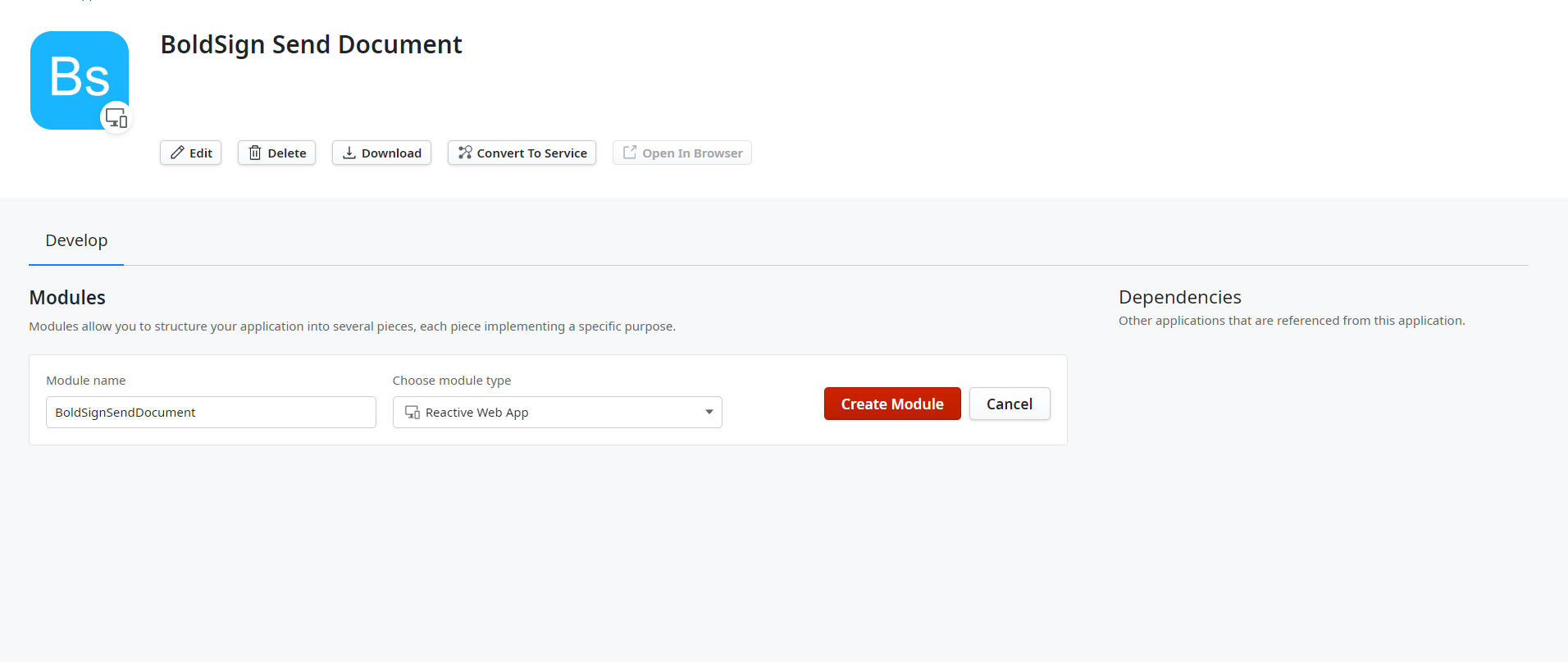
Create module option
- Go to Logic and expand the Integrations section.
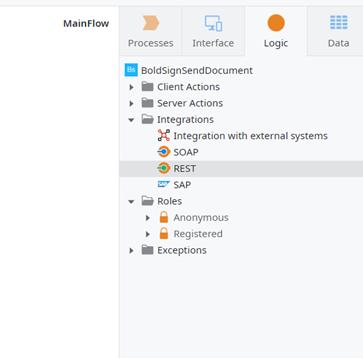
Integrations section
- Right-click on REST and select Consume REST API.
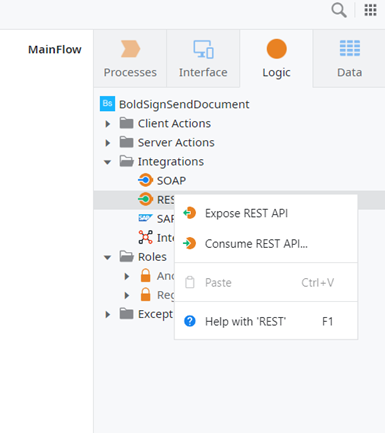
Consume REST API option
- Select Add Single Method or Add Multiple Methods, based on your need.
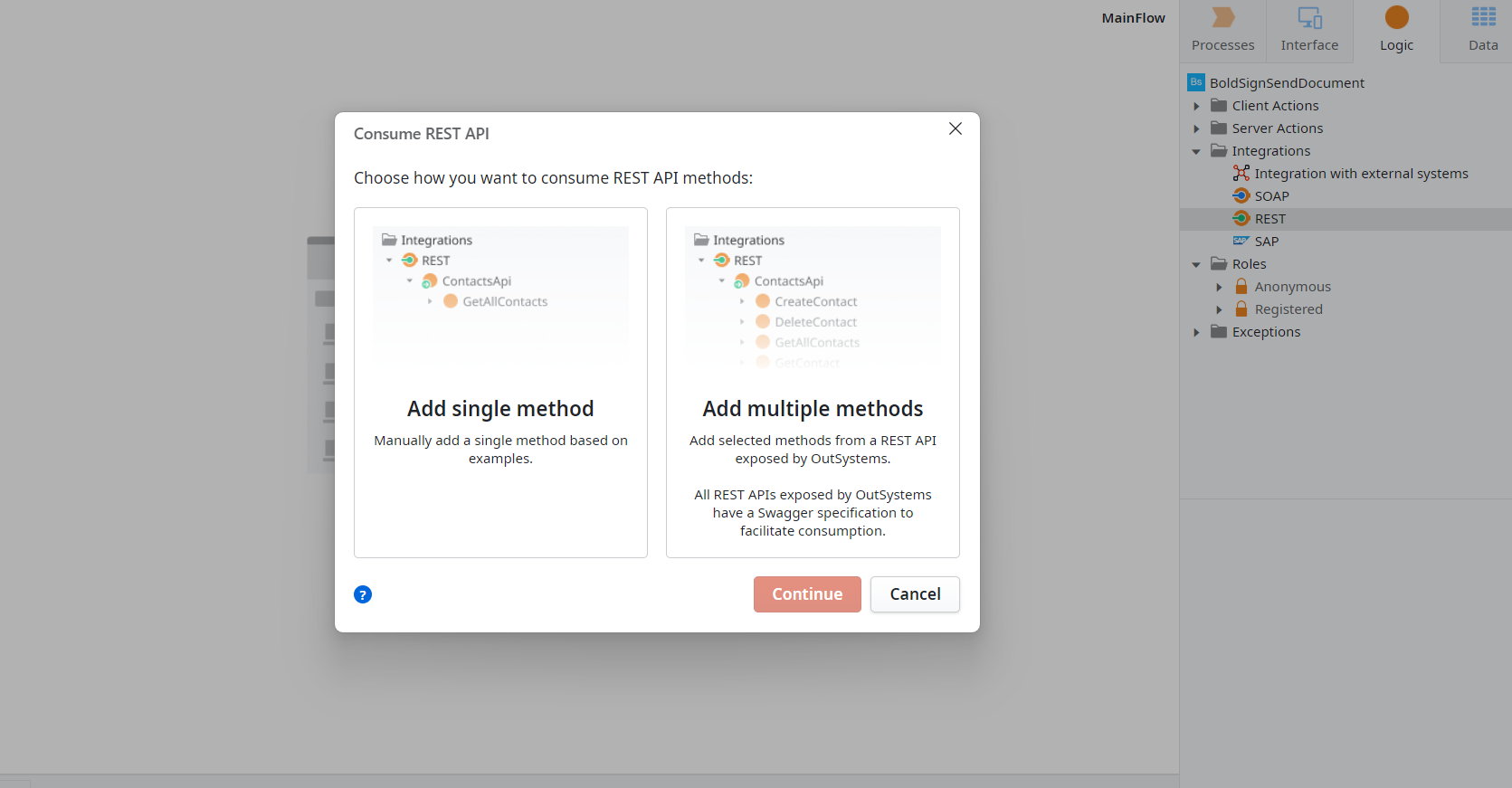
REST API methods
- Here, use the BoldSign Swagger JSON path to import all the endpoints.
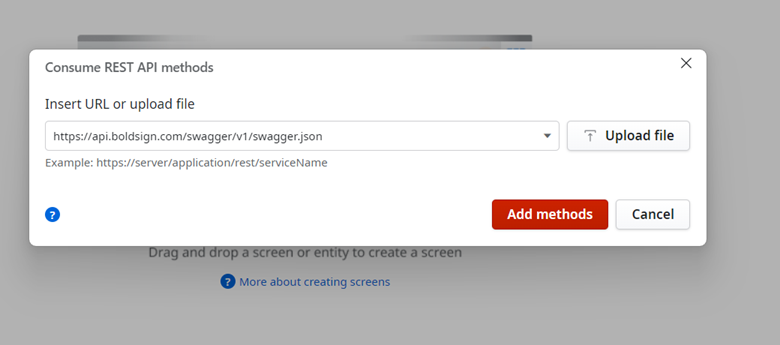
Insert URL or upload file
- If you want specific endpoints, you can choose them. For this demo, we are selecting only the SendDocument endpoint.
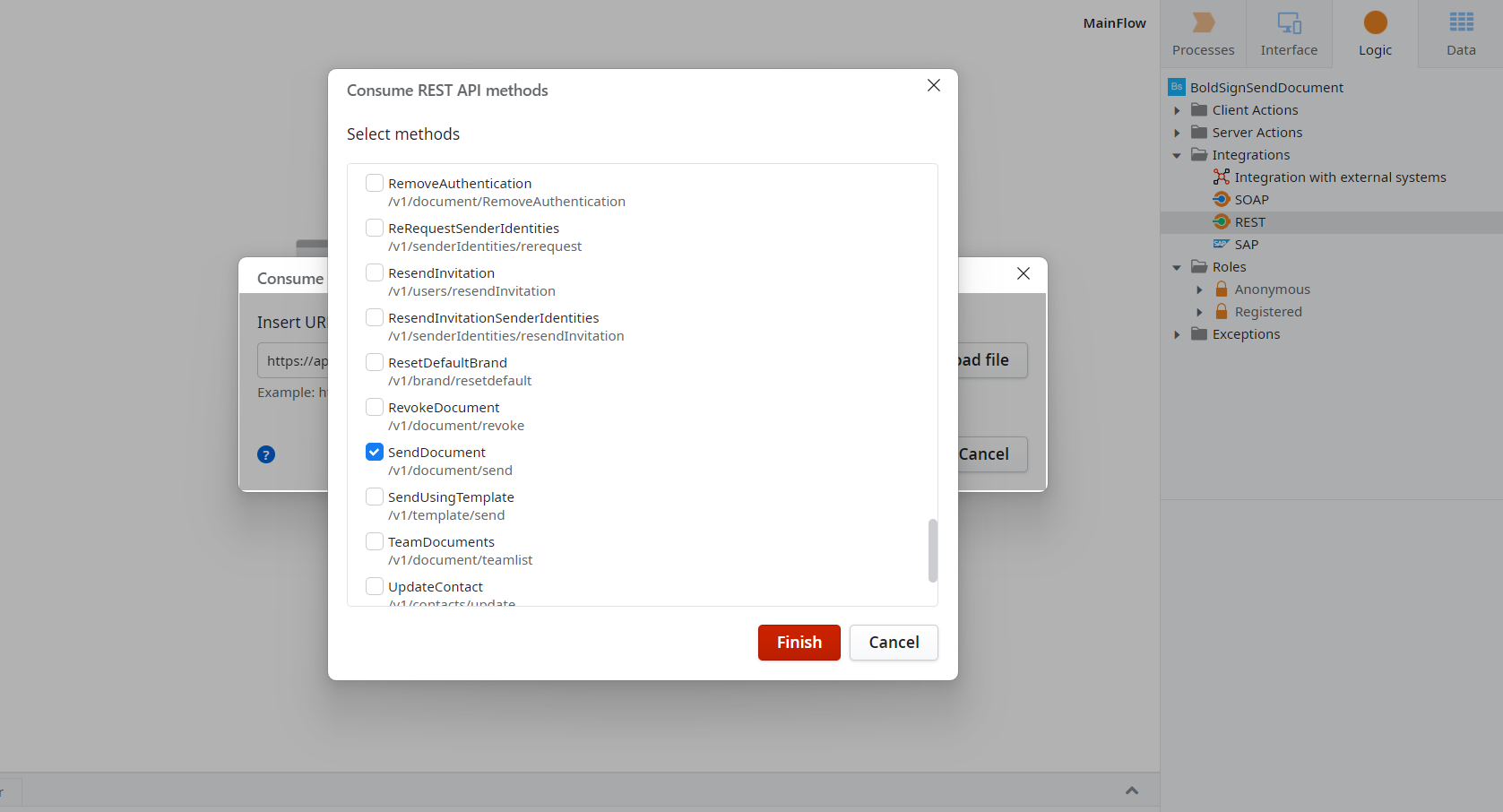
Select endpoints
- Click Finish. You can see the BoldSign SendDocument method added.
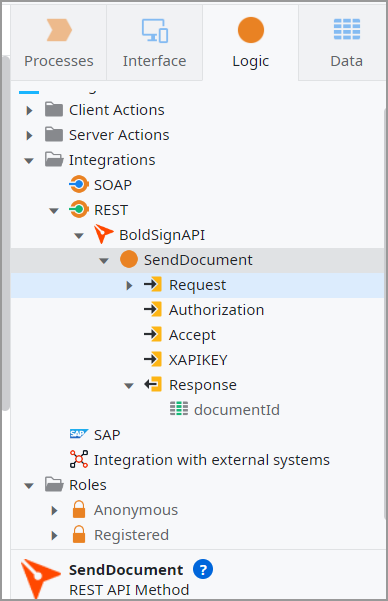
Send Document method added
- Right-click the SendDocument method and choose Open.
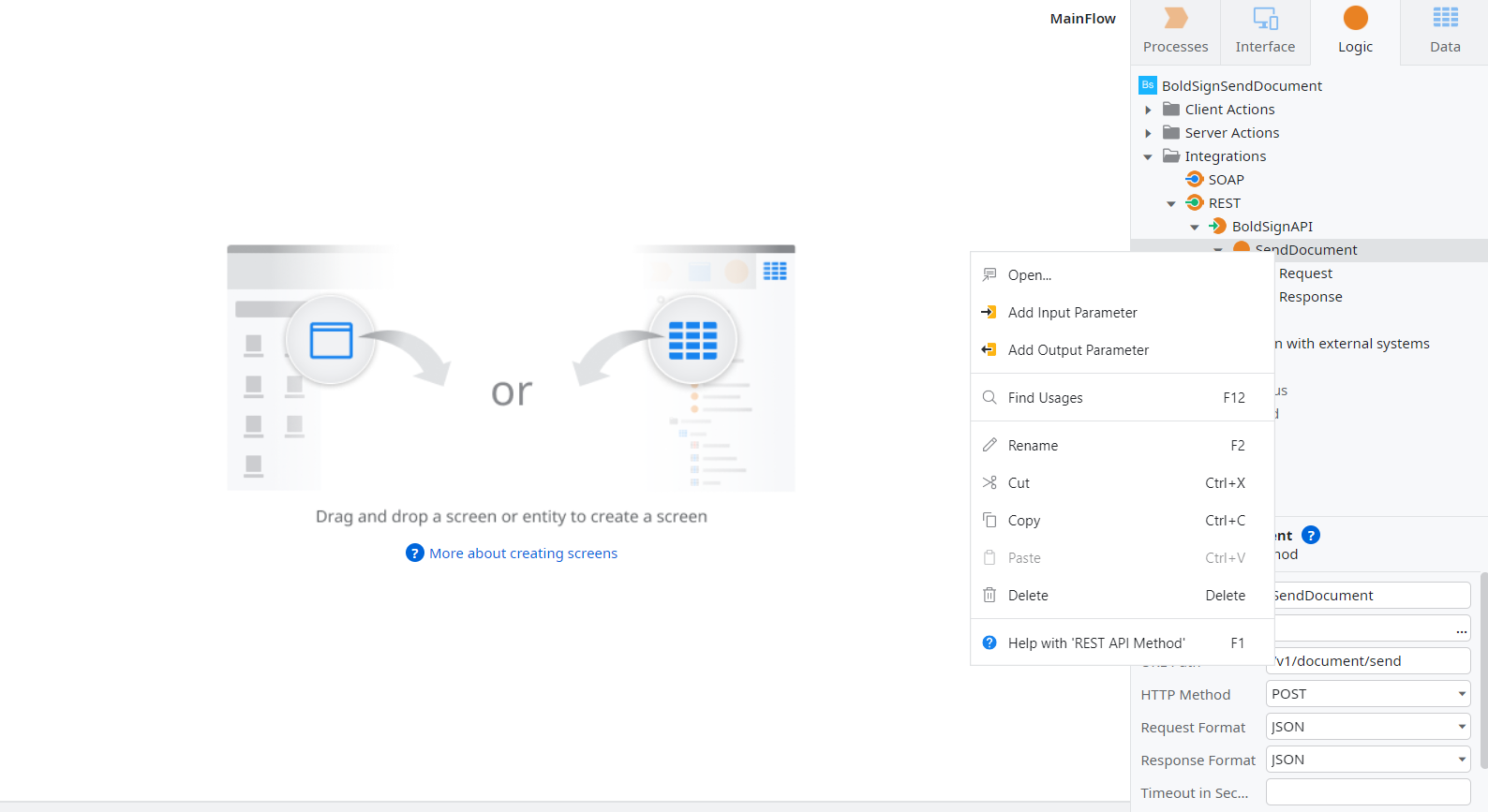
Open Option
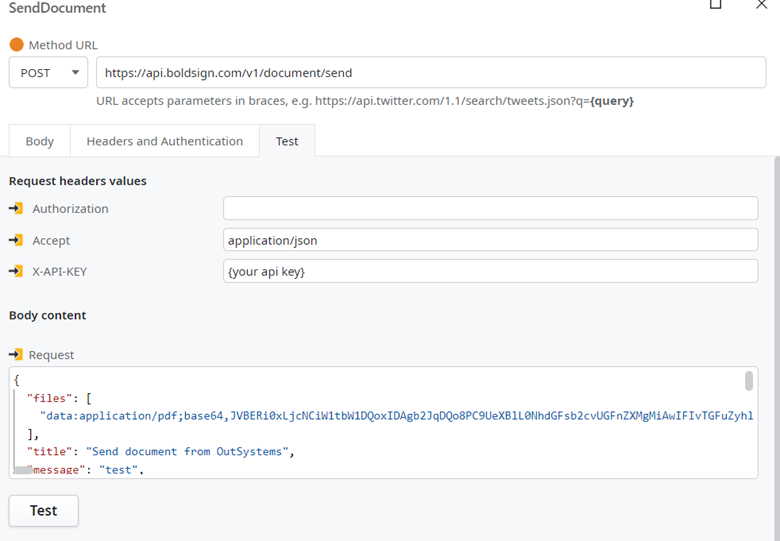
Send Document page
Finish button
Configure the API request
Add the following headers for the SendDocument API.
| Key | Value |
|---|---|
| accept | Application/json |
| X-API-KEY | Your-API-KEY |
Replace Your-API-KEY with the API key you obtained earlier.
Next, you’ll need to set up the request body:
- Provide a title and message for the signer.
- Input the signer’s name and email address.
- Specify the form field where the signer will provide their signature.
- Include the document you want signed, encoded in Base64 format.
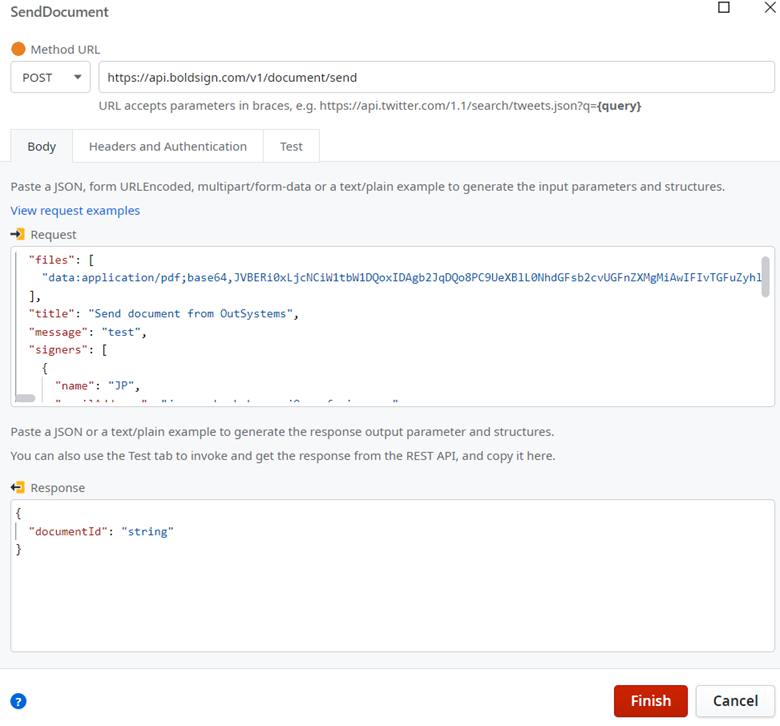
Configure API request
Following is an example of the JSON request body.
{
      "files": [
        "data:application/pdf;base64,JVBERi0xLjcNCiW1tbW1DQoxIDAgb2JqDQo8P..."
      ],
      "title": "Send document from OutSystems",
      "message": "test",
      "signers": [
        {
          "name": "JP",
          "emailAddress": "alexgayle@cubeflakes.com",
          "signerOrder": 1,
          "signerType": "Signer",
          "formFields": [
            {
              "id": "sign",
              "fieldType": "Signature",
              "pageNumber": 1,
              "bounds": {
                "x": 100,
                "y": 200,
                "width": 200,
                "height": 50
              },
              "isRequired": true,
              "isReadOnly": false,
                  }
          ]
        }
      ]
     }
Note: Replace Recipient Name and recipient@example.com with the actual name and email address of the signer. Also, replace the files content with your actual, Base64-encoded PDF data.
Checking the API response
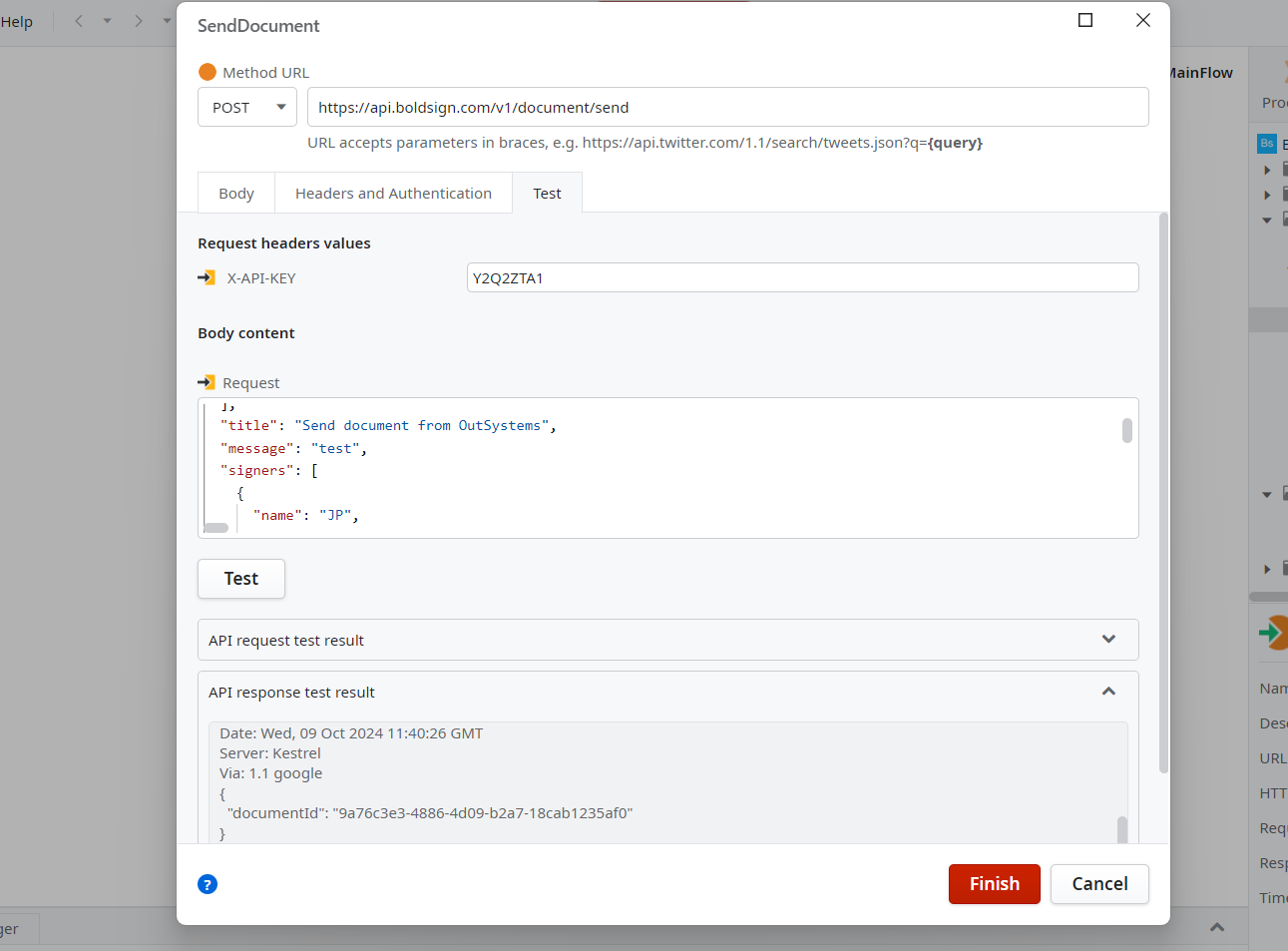
This step ensures you’re on the right track. Click the Test button to make sure your app can call the BoldSign API properly.
Check API response
You’ll receive a documentId in the response, which means the document has been sent to the signer. The signer will receive an email with a link to sign the document. That’s all there is to it!
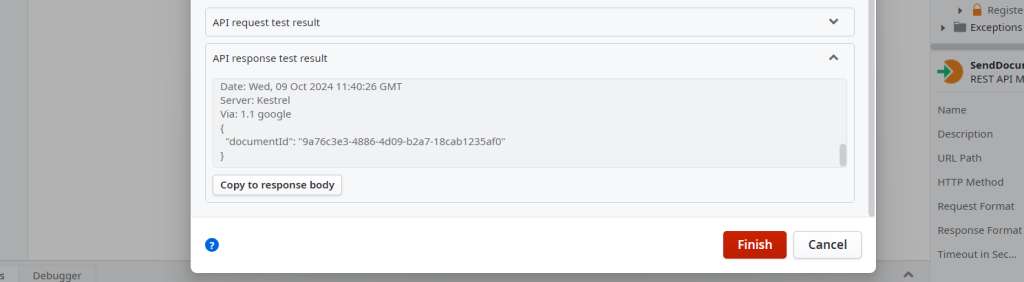
API response test result
Reference links
The following links will help you learn more about BoldSign and how to integrate it with OutSystems:
- Getting started – API Documentation
- eSignature API – Free Developer Sandbox
- Explore all eSignature Features
Conclusion
Start integrating BoldSign with OutSystems today and deliver modern document signing to your users. The best way to experience BoldSign is to sign up for a free sandbox account and try sending a few signature requests yourself.
To get started with BoldSign, check out the BoldSign API documentation. Explore all the BoldSign features in the BoldSign features page.
If you have questions, you can contact us through our support portal. We are always happy to assist you!

Jayaprakash Kamaraj
Jayaprakash Kamaraj is a Product Manager at Syncfusion. He is passionate about front-end technologies and has been active in web development since 2014. Connect with him on LinkedIn.
More posts by Jayaprakash Kamaraj