TL;DR: Sends and tracks contracts in Salesforce using BoldSign templates and mapped fields, reducing manual work and keeping signing status visible in the CRM.
Sending contracts from Salesforce should not require reps to download files, copy customer details, or track signatures in a separate tool. With BoldSign’s Salesforce integration, teams can send documents for signature from Salesforce records, use templates with mapped Salesforce fields, and track signing status from the CRM.
This guide explains how the workflow works, what admins need to configure, and how reps can send contracts from an opportunity with fewer manual steps.
Note: In this guide, “contracts” refers to sales agreements, order forms, NDAs, and other documents sent for signature from Salesforce.
Quick steps to send a contract from Salesforce using BoldSign
If you want the steps upfront, start here.
- Open a Salesforce record, such as an opportunity.
- Click the BoldSign send button or quick action.
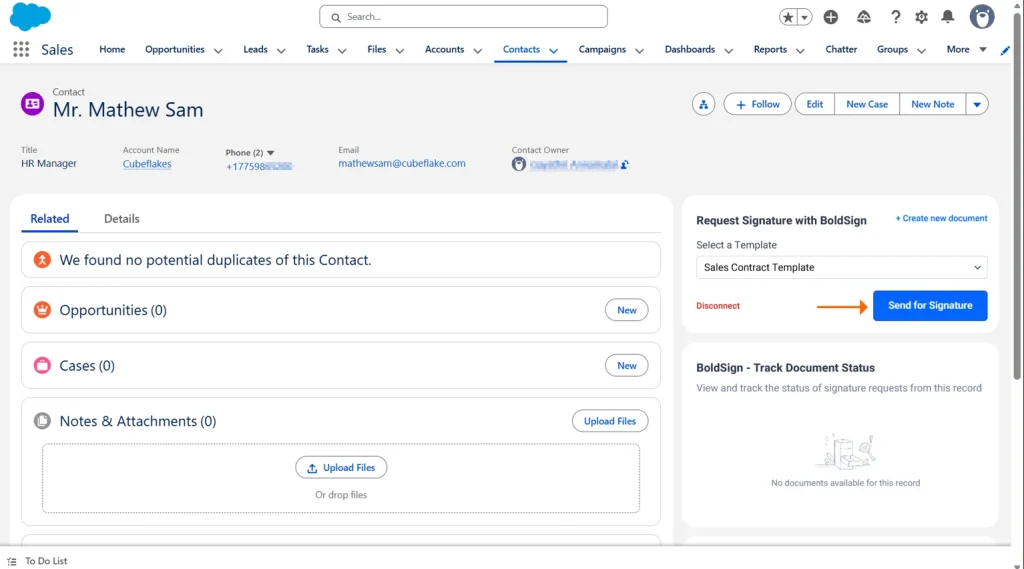
- Select a BoldSign template or upload a document.
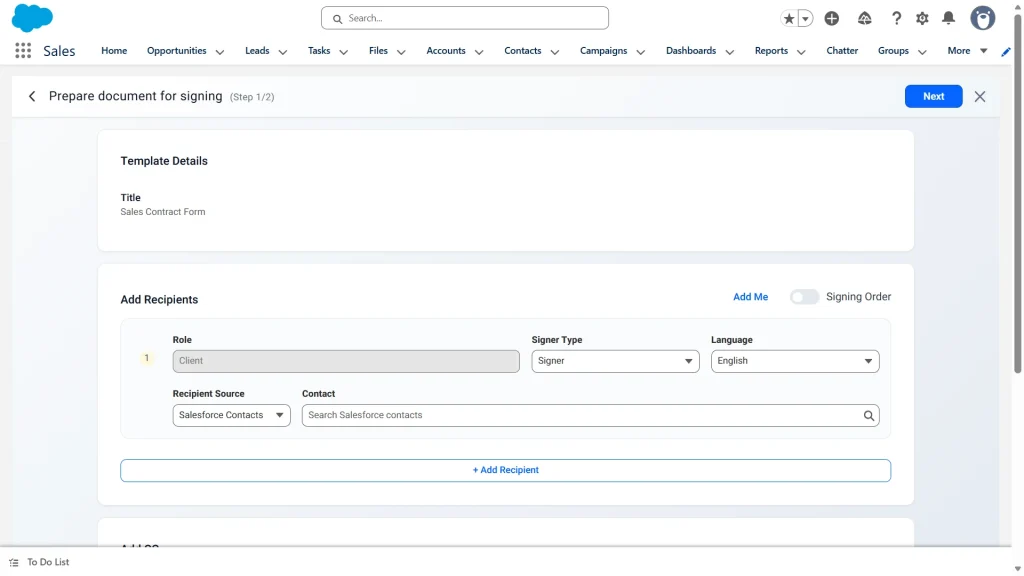
- Confirm mapped fields and signer details.
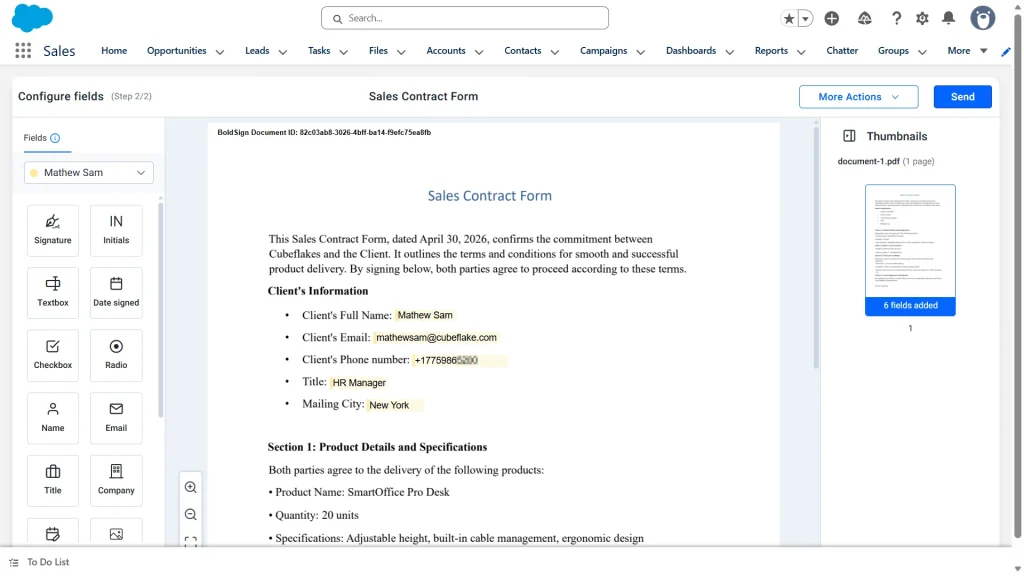
- Send the document for signature.
- Track the document status from Salesforce.
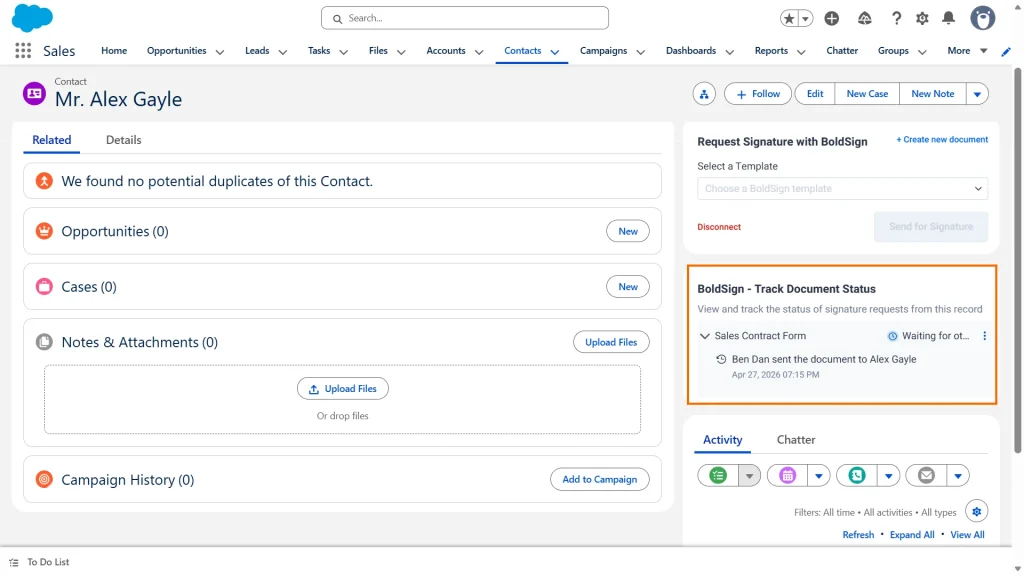
This workflow aligns with BoldSign’s standard Salesforce integration experience: send, track status, and manage signed documents from Salesforce records.
Admin setup requirements (one‑time)
Before reps can send contracts smoothly, admins typically configure:
- Salesforce and BoldSign connection (authentication and org-level settings)
- User access and permissions (who can send which templates)
- Template availability (approved templates exposed in Salesforce)
- Field mapping (Salesforce fields → BoldSign template fields)
- Status syncing rules (what updates on Sent, Viewed, Completed, etc.)
- Document handling (how executed files are linked or stored)
Once the integration is configured and users have the required permissions, reps can start signature requests from Salesforce without manually downloading and re‑uploading contracts.
Template and field mapping setup
Templates are the foundation of a reliable Salesforce eSignature workflow.
A production‑ready template should be:
- Standardized and version‑controlled
- Built around reusable fields (not manual edits)
- Clear about signer roles and signing order
Best first template to automate:
Start with one high‑volume, low‑variance agreement, such as an order form, standard services agreement, or NDA.
Map Salesforce fields to BoldSign contract fields
Field mapping is where most time savings come from.
Common fields to map first:
- Company legal name
- Customer address
- Signer name and email (from contact)
- Amount and currency
- Term start and end dates
- Product or plan name
When not to auto‑populate:
Avoid auto‑filling fields that change late in the deal, require legal review, or depend on systems that are not reliably synced. In those cases, route the agreement through an approval step before sending.
How reps send contracts from an opportunity
Once setup is complete, the rep workflow is straightforward.
Opportunity as the system of record
The opportunity stores deal‑critical data such as amount, dates, products, and the primary signer. Validation rules can ensure required fields are complete before sending.
Launch the BoldSign send action
A button or quick action opens the BoldSign send experience from the opportunity.
Reps can send directly from Salesforce after the integration and permissions are configured. External downloads and manual uploads are not required.
Select a template and confirm fields
Mapped Salesforce fields prefill the contract automatically, reducing retyping and errors.
Select signers and enforce routing
Signers are pulled from Salesforce Contacts. Signing order and internal counter‑signing rules are enforced based on your configuration.
Send and track status
The document is sent through BoldSign’s signing workflow.
Once status sync is configured, Sent, Viewed, and Completed updates can appear on the Salesforce record, keeping reps and managers aligned.
Tracking contract status in Salesforce
To prevent deals from going dark, teams typically track:
- Contract status (Draft, Sent, Viewed, Completed, Declined, Expired)
- Sent and signed dates
- Link to the executed document
- Link or reference to the audit trail
Common reports include:
- Opportunities with contracts sent but not completed
- Average time from Sent to Completed
- Contracts stuck in Sent or Viewed
Automation: Keep it explicit
Some outcomes are native integration behavior, while others depend on Salesforce configuration.
Native integration:
- Send documents for signature
- Track document status in Salesforce
- Link completed agreements to Salesforce records
Requires Salesforce automation (Flow or rules):
- Updating Opportunity stage on completion
- Triggering handoff, provisioning, or invoicing tasks
- Sending reminders or internal notifications
When describing automation, be explicit:
Salesforce Flow can be configured to trigger tasks and notifications based on BoldSign status updates.
Common mistakes to avoid
- Letting reps freely edit templates (breaks mapping and governance)
- Mapping too many fields at once, start with the top 10–15
- No owner for exceptions or legal review
- Not surfacing contract status on the Opportunity
- Storing executed documents inconsistently
Conclusion
Sending contracts from Salesforce does not have to be slow or manual. With BoldSign’s Salesforce integration, teams can standardize agreements, auto‑fill key deal data, and track signing progress without leaving the CRM. By setting up templates, field mapping, and clear automation rules, sales reps spend less time on paperwork and more time closing deals, while leaders gain better visibility into every contract’s status from start to finish.
Want to send and track contracts directly from Salesforce?
Try BoldSign for free, get help through our support portal, or book a demo to find the right signing approach for your documents.

Stephen Otieno Okoth
Stephen is a Technical Assistant at BoldSign who specializes in creating clear documentation and engaging videos. He combines his technical skills and creativity to deliver user-focused solutions. Connect with him on LinkedIn.
More posts by Stephen Otieno Okoth