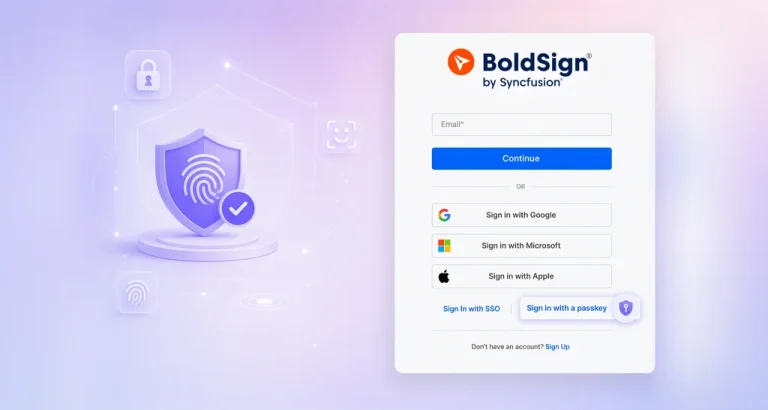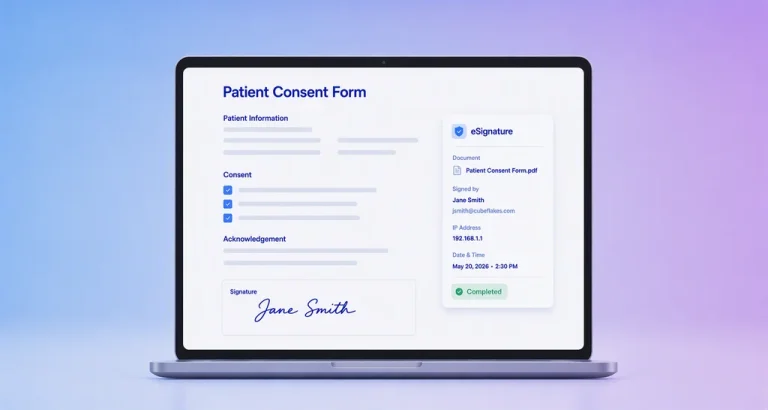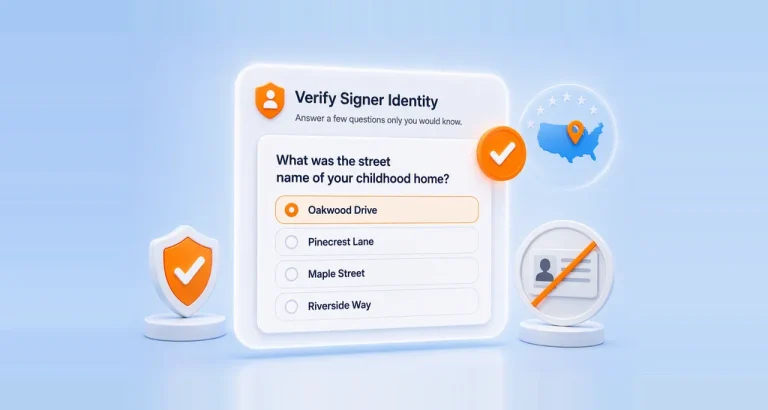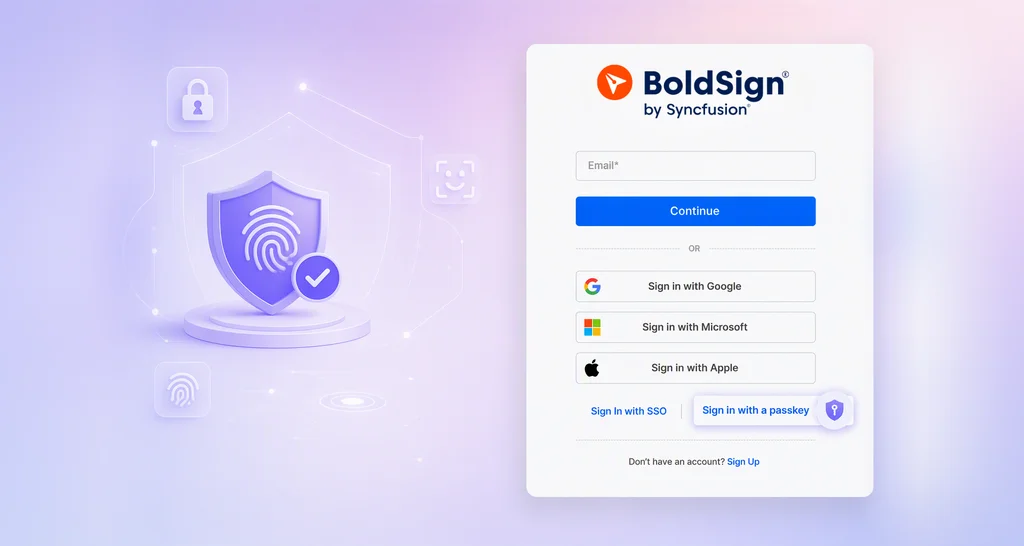




TL;DR: BoldSign now supports passkeys, a WebAuthn-based credential stored on your device or in your password manager that signs you in with a fingerprint, face scan, device PIN, or security key instead of a password. You can use a passkey two ways: as passwordless sign-in from the login page, or as a two-factor option after your password or SSO login. Register one under Settings > My Profile > Passwordless login. The gain is a phishing-resistant sign-in: when you sign in with a passkey, you do not type a reusable secret.
Think about how much work your BoldSign account actually guards. It holds the templates that decide what your organization sends, the live signature requests you can void or re-route, the recipient lists, and the archive of executed agreements. Then think about what stands in front of all of it: a password you type, plus a code you copy off your phone.
You can already make a signer prove who they are with an emailed code, an SMS code, an access code, ID verification, or knowledge-based authentication. The person originating the agreement gets in with a string of characters that can be typed into the wrong website.
Passkeys offer a way to close that gap. Below: what a passkey is, how BoldSign uses it both as passwordless sign-in and as a second factor, which devices support it, and how the session screen differs across passwordless, password-plus-passkey, and SSO sign-ins.
What is a passkey
A passkey is a digital credential built on the W3C WebAuthn specification. When you create one, your device generates a public-private key pair. The private key stays on your device or in your password manager. The public key goes to BoldSign and sits on your account.
At sign-in, BoldSign sends your device a challenge. Your device signs that challenge with the private key, and BoldSign verifies the signature against the stored public key. No password travels. Nothing reusable travels at all.
The FIDO Alliance defines a passkey as a credential you can keep on your phone, your computer, or a hardware security key, used with the same gesture that unlocks the device: a fingerprint, a face scan, or a PIN. If you have signed in to a bank or a Google account with Touch ID recently, you have already used one.
You will occasionally see passkeys called discoverable credentials or resident keys. Same thing, older vocabulary.
Why this matters for the person sending agreements
Here is the part specific to eSignature work.
Credential phishing works by looking normal. Your inbox, as someone who sends signature requests, is full of legitimate document notifications with sign-in links. That is exactly the cover a fake login page needs. You are not careless for being a plausible target; you are a plausible target because of what your job looks like.
A compromised sender account is worse than a compromised signer. An attacker inside it can originate signature requests carrying your organization’s genuine identity, so every Reviewer, Approver, and Signer downstream sees a request that is, as far as they can tell, real.
When you sign in with a passkey, the mechanism this attack depends on is removed. Per the WebAuthn specification, a credential is bound to the entity it was registered with and can only be used for authentication with that same entity. A passkey created for boldsign.com will not be released to a lookalike domain, no matter how convincing the page is. The browser enforces it, so you are no longer the control.
That sits on top of BoldSign’s platform security and compliance posture. Passkeys add a phishing-resistant option for the one part of the chain that was still a typed secret.
Registering, naming, and deleting a passkey
Follow these steps to register a passkey in BoldSign.
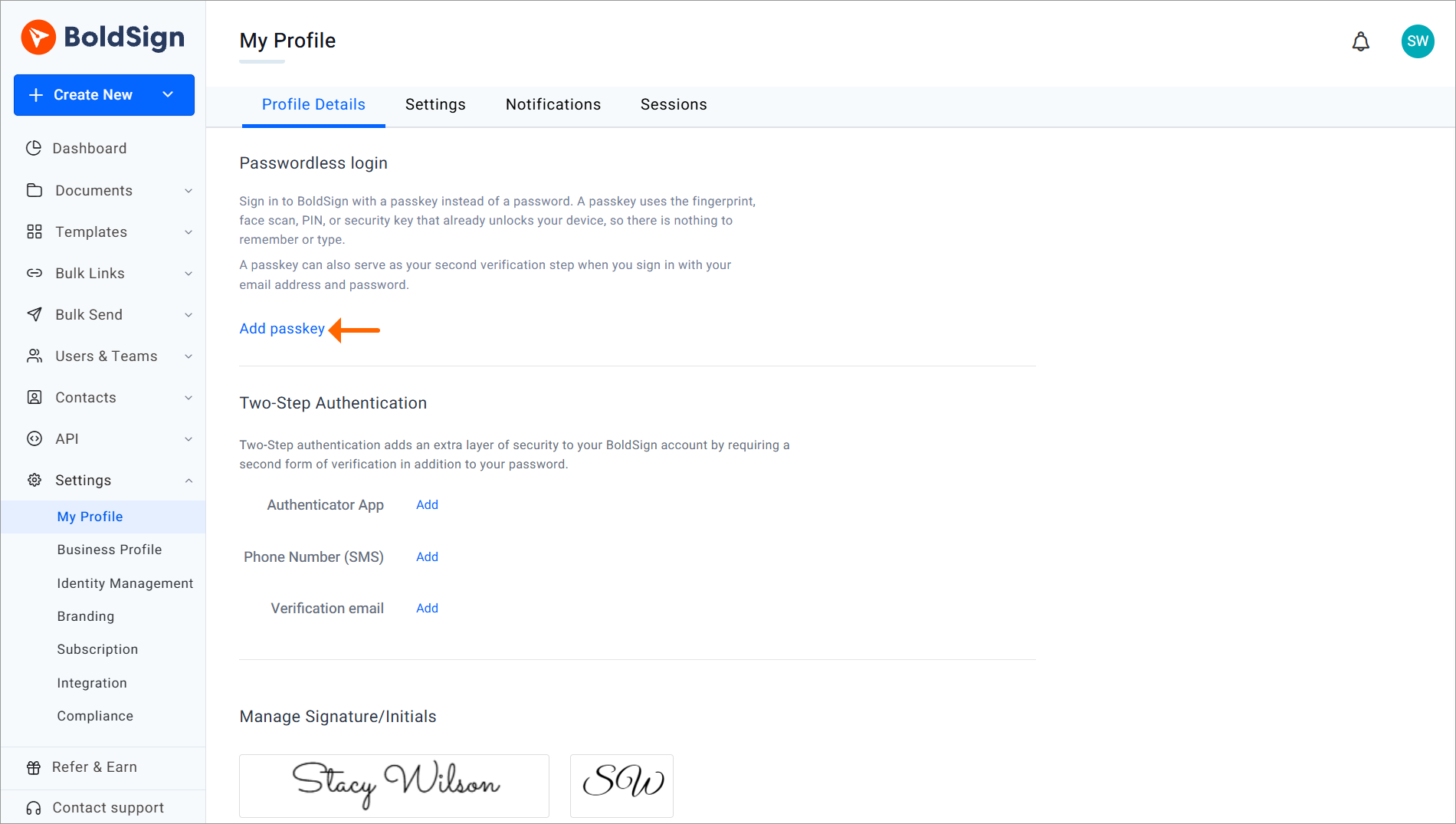
- Sign in to BoldSign, then go to Settings > My Profile > Passwordless login.
- Click Add passkey.
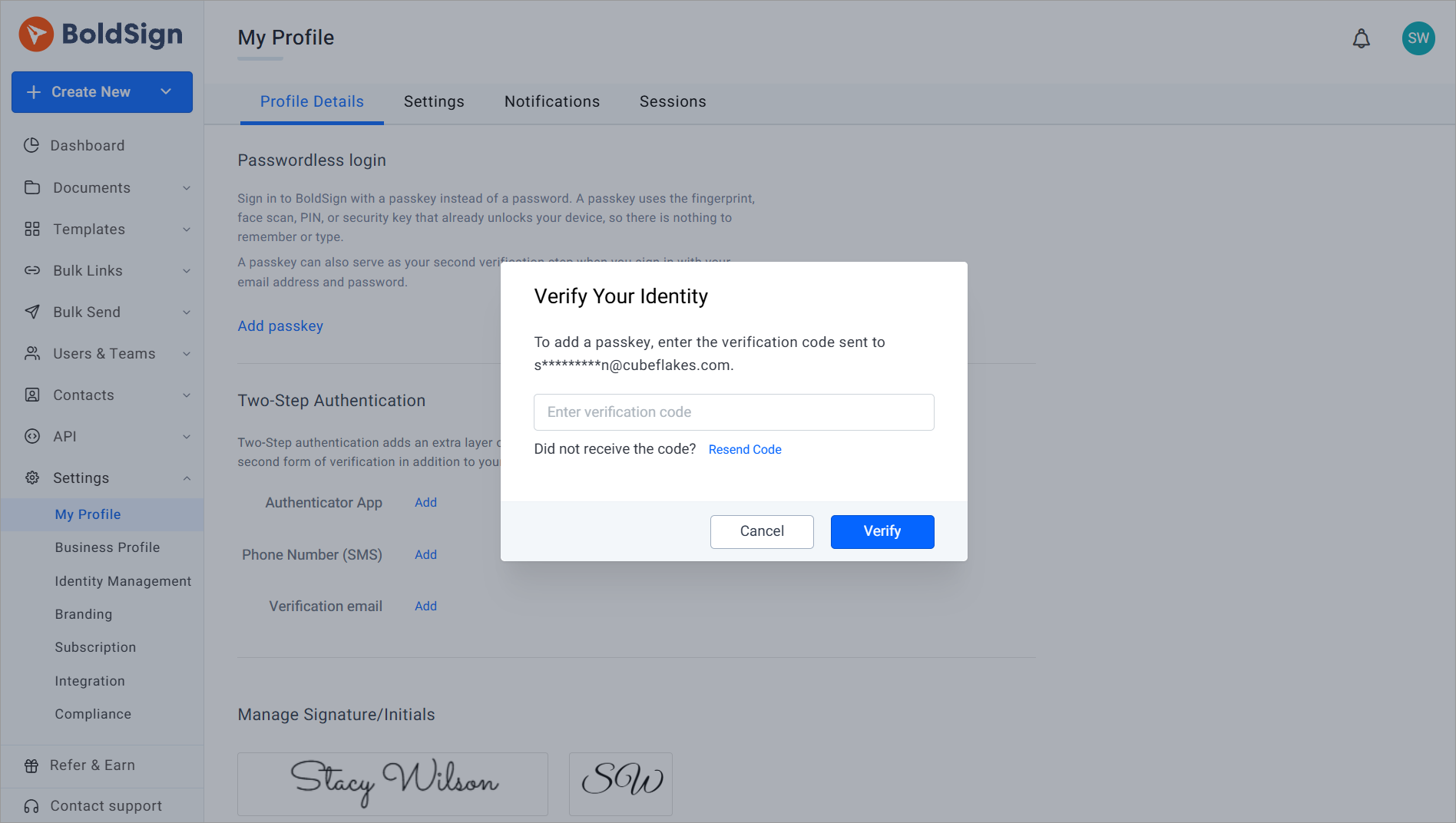
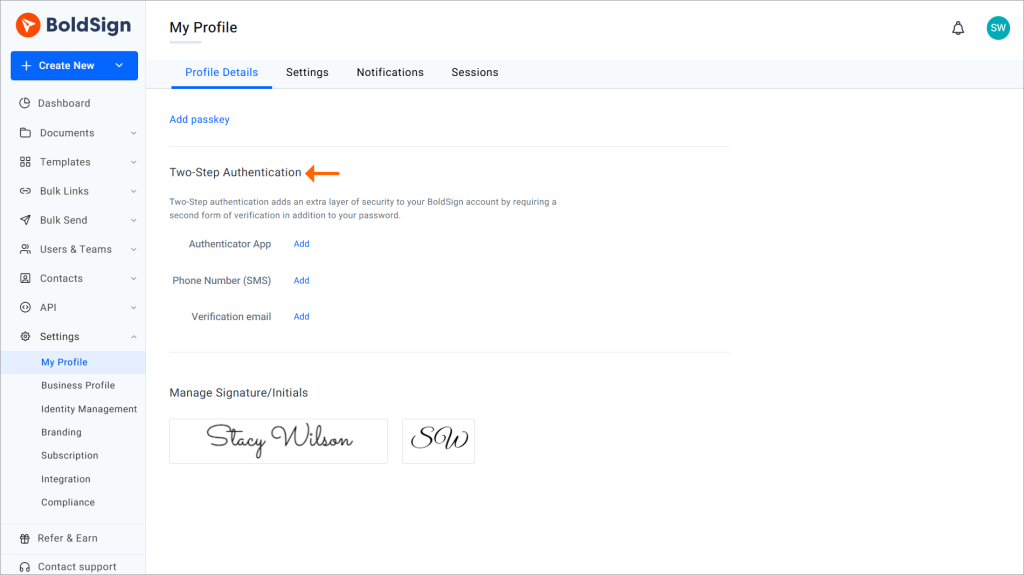
- Verify your identity using your Two-Step Authentication method. If it is not enabled, enter the code sent to your account email.
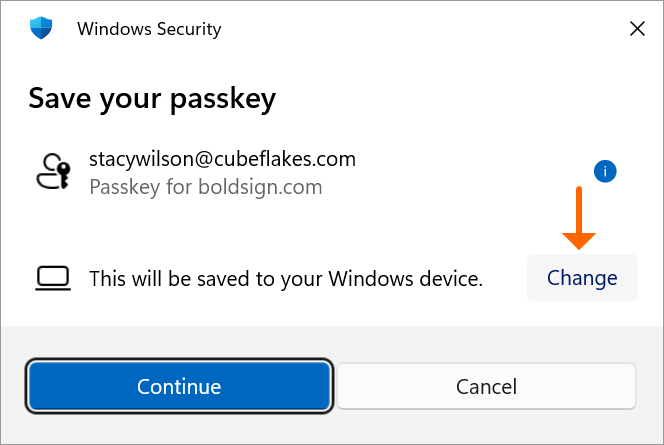
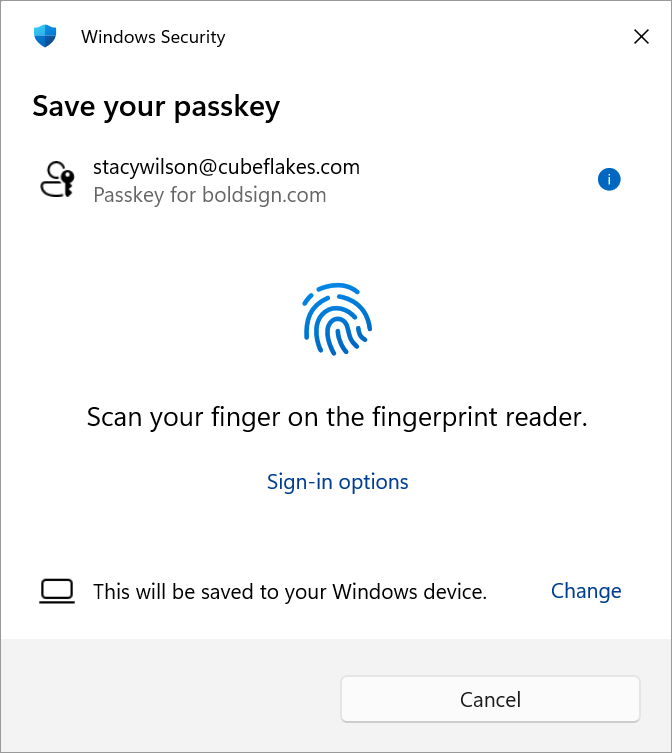
- When the Save your passkey prompt appears, choose where to save the passkey and click Continue.
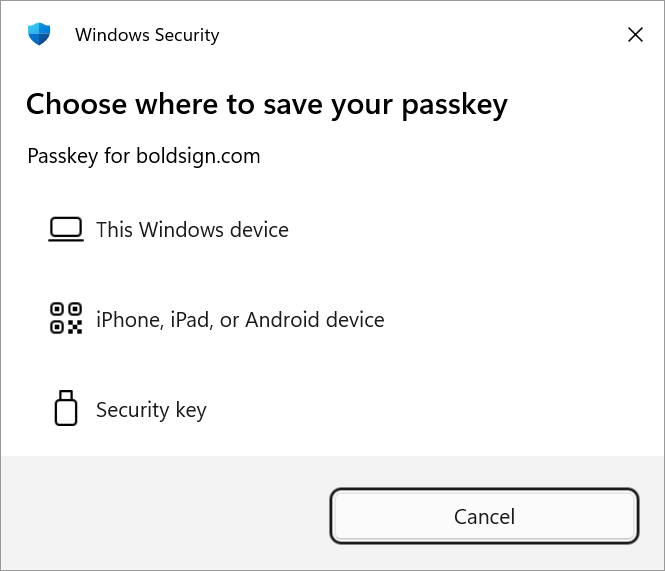
- Then verify using your fingerprint, face recognition, device PIN, mobile device, or security key to create the passkey.
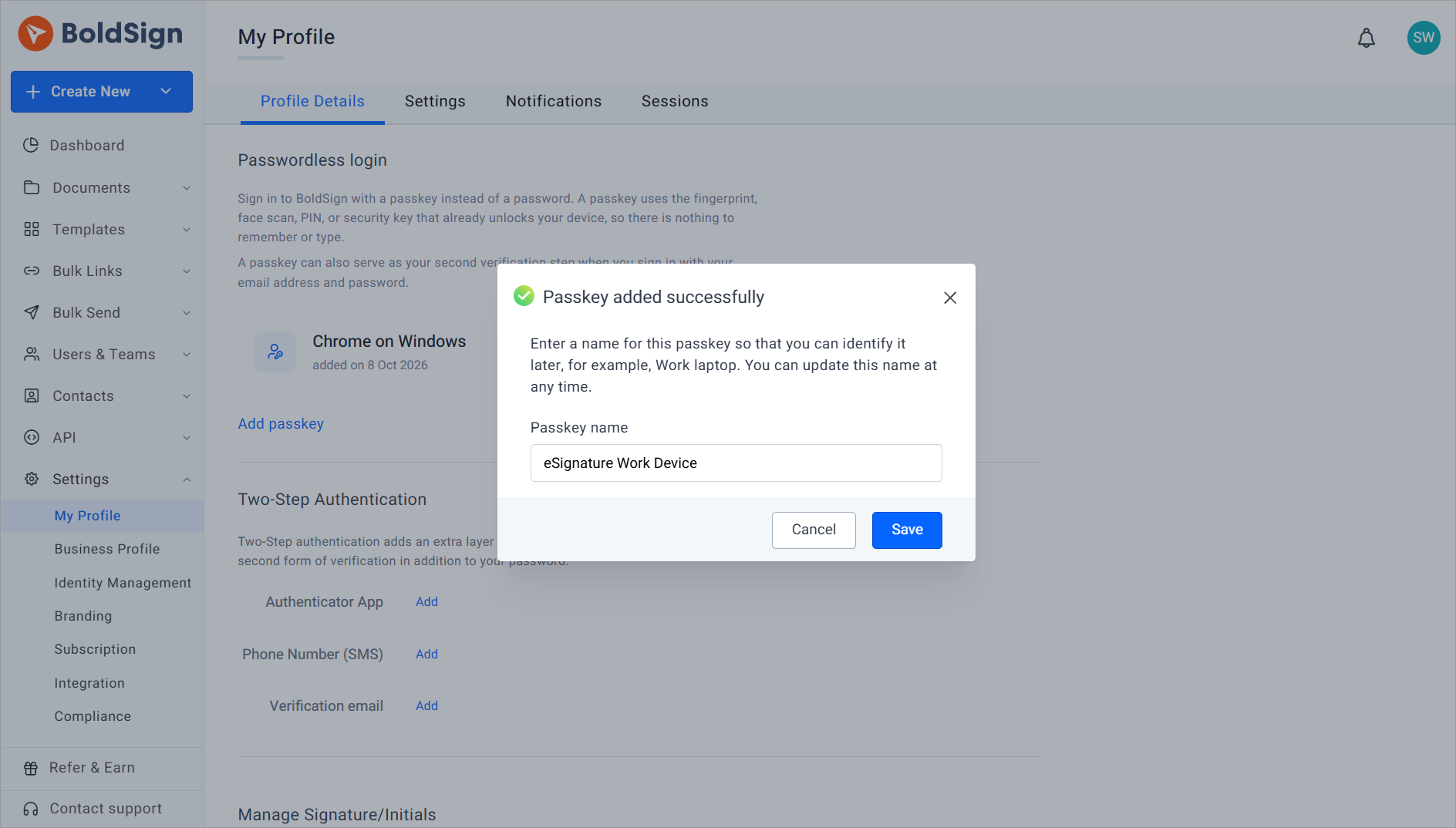
- After the passkey is created, name it. BoldSign suggests a default name such as Chrome on Windows. Replace it with a clear, unique name. You can rename it later without identity verification.
- Click Save.
To delete a passkey, go to the same section, click the Delete passkey icon, verify your identity, and confirm. Deleting one passkey leaves every other passkey and authentication method untouched.
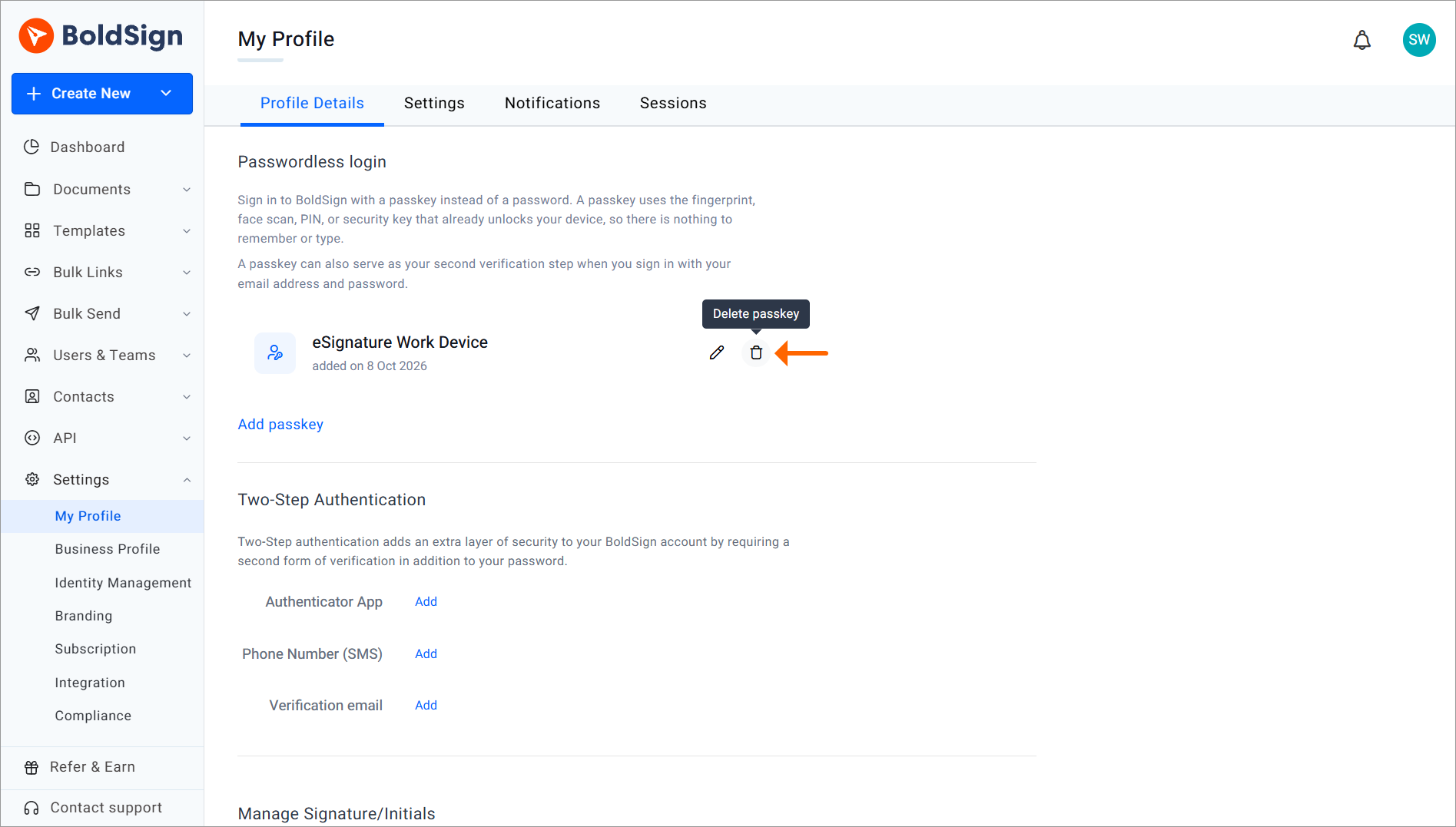
Deleting a passkey in BoldSign unlinks it from your BoldSign account only. The credential still sits in your device keychain, browser, or password manager, such as Apple Keychain, Google Password Manager, or 1Password, until you delete it there too.
The two ways BoldSign uses a passkey
Passwordless sign-in
Use your passkey for a quick and secure BoldSign sign-in.
- On the BoldSign login page, click Sign in with a passkey.
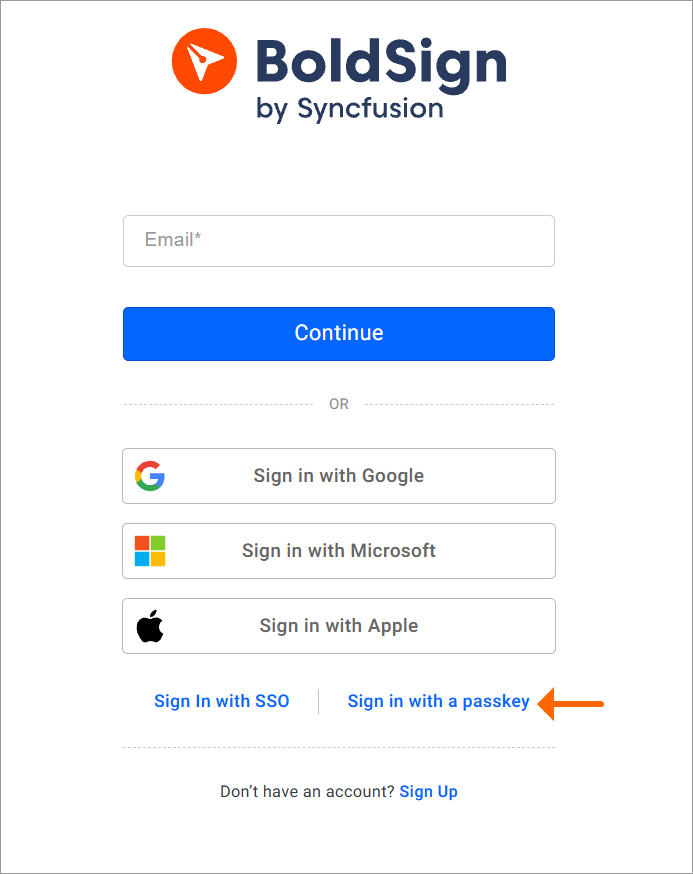
- Select your BoldSign account when the passkey prompt appears.
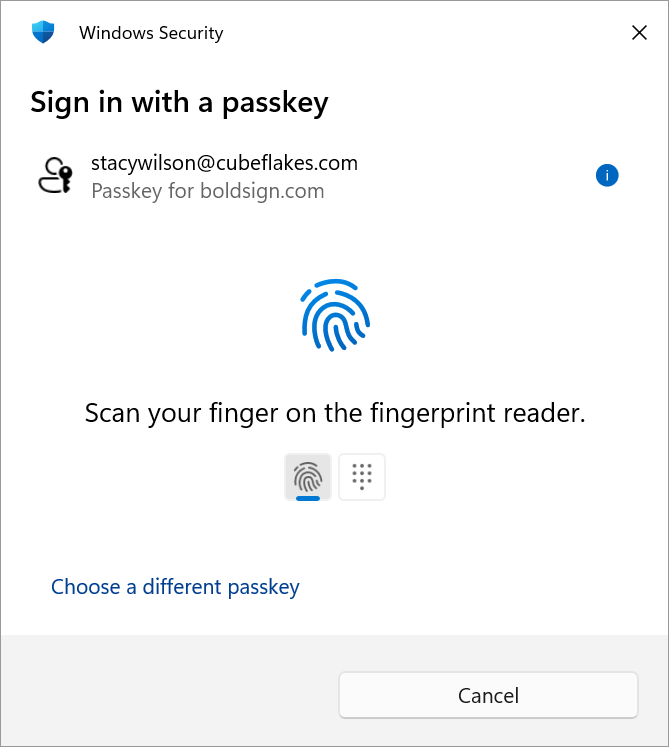
- Verify your identity using Windows Hello, Touch ID, Face ID, your device PIN, or a security key.
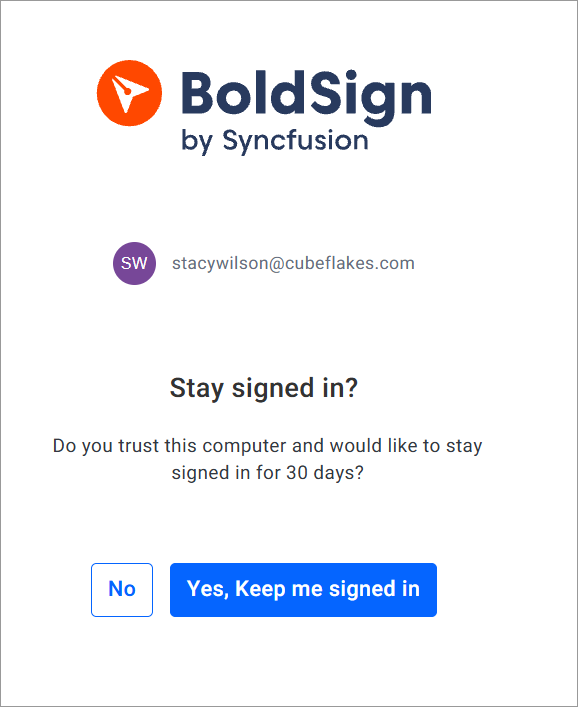
After verification, BoldSign asks how long the session should last. Choose Yes to keep it active for 30 days, or No to have it expire after 30 minutes of inactivity.
Passkey as a two-factor option
If you sign in with your email and password first, what happens next depends on your account setup:
| Your account setup | What happens next |
| Two-Step Authentication enabled, passkey registered | Two-Step Verification screen, with Passkey selectable alongside Authenticator App, SMS, and Recovery Email |
| Two-Step Authentication enabled, no passkey registered | The Two-Step Verification screen appears with the configured verification methods (Authenticator App, SMS, or Recovery Email) |
| No Two-Step Authentication, passkey registered | The Verify your identity page appears. Choose Passkey, or choose Verification email to receive a code at your account email |
| No Two-Step Authentication, no passkey | Signed in directly |
If you log in through Google, Microsoft, Apple, or your organization’s SSO and you have a passkey registered, BoldSign adds a passkey challenge after the provider confirms your identity. On that route the passkey is a layered confirmation step, not one option among several.
A passkey does not switch off your existing two-step authentication setup. Instead, it adds another verification option to your existing setup. Admins who already use authenticator apps or SMS codes can introduce passkeys without changing their existing setup.
The session screen difference that trips people up
This is the detail most likely to make a new passkey user assume something broke.
Passwordless sign-in asks you to pick a session duration. Passkey-as-two-factor, where you entered your password first, does not: you are signed in immediately, because your session preference was already captured at the password step. External SSO login with a passkey does show the session screen, after the passkey challenge.
Same credential, three routes, two different screens. It is designed that way. Knowing it in advance is the difference between a passkey you keep using and one you register once and abandon.
Where your passkeys will and will not work
| Platform | Support |
| Windows 10 (1903 or later), Windows 11 | Supported, via Windows Hello PIN, fingerprint, or facial recognition |
| macOS Ventura 13.0 or later | Supported, via Touch ID and iCloud Keychain |
| iOS / iPadOS 16.0 or later | Supported, via Face ID, Touch ID, or device passcode |
| Android 9.0 or later | Supported, via fingerprint, face unlock, PIN, or screen lock |
| ChromeOS | Supported, via device PIN or fingerprint |
| Linux | Partial, depending on your browser and platform-level credential manager |
Current versions of Chrome, Firefox, Safari, Edge, Opera, and Samsung Internet support passkeys, though compatibility varies by device and operating system. Compatible FIDO2 USB and NFC security keys can also store passkeys.
To sign in on another computer, select Sign in with a passkey, choose the phone or tablet option, scan the QR code with the device holding your passkey, and verify with biometrics or a PIN. Keep both devices nearby with Bluetooth enabled.
Passkeys are not signer authentication
The two phrases sound similar, but the features do not overlap.
| Passkeys | Signer authentication | |
| Who it verifies | You, the account holder sending and tracking requests | The recipient opening your document |
| When | At sign-in, before any document work | At document access, before signing |
| Where configured | Settings > My Profile > Passwordless login, once per device | Per recipient, per document, when you prepare the request |
| Methods | Biometrics, device PIN, FIDO2 security key | Email OTP, SMS OTP, access code, ID verification, knowledge-based authentication |
Registering a passkey changes nothing about how your signers prove who they are. If you need that, signer authentication in BoldSign is the control you want. The two protect opposite ends of the same workflow, and you want both.
Register one on the device you actually send from
Open Settings > My Profile > Passwordless login, add a passkey on your work laptop, then add a second on your phone. The phone passkey lets you sign in with a passkey when your laptop is not available.
If you are not on BoldSign yet, start a free BoldSign trial and add a passkey from Settings > My Profile > Passwordless login after you sign in.
FAQs
What happens if I lose the device that has my passkey?
You can still sign in and remove the lost passkey. Sign in with your email and password, then choose Verification email on the Verify your identity page. BoldSign sends a code to your account email, and you enter it to sign in. If SSO is enabled for your account, you can sign in with SSO instead, or you can use another registered passkey if you have one. After you sign in, go to Settings > My Profile > Passwordless login and delete the lost device’s passkey. That stops it from signing in to your account.
Can I have more than one passkey on the same BoldSign account?
Yes, across different devices and platforms. Each one needs a unique name. Registering at least two is the practical recommendation, so a single lost or replaced device never locks you out.
Do passkeys sync across my devices?
That depends on the platform or password manager storing the passkey, not BoldSign. Services such as iCloud Keychain and Google Password Manager may sync passkeys across devices connected to the same account. Device-bound passkeys, including some stored through Windows Hello or physical security keys, may not sync.
Does deleting a passkey from BoldSign delete it from my device?
No. Deleting it in BoldSign unlinks the passkey from your BoldSign account so it can no longer sign you in. The credential remains stored in your device keychain, browser, or password manager until you delete it from that system’s settings.
Why do I not see Passkey on my verification screen?
The Passkey option only appears once you have registered at least one passkey under Settings > My Profile > Passwordless login. If you have not registered one yet, the screen shows only your configured Two-Step Authentication methods.
What if the passkey prompt fails or I close it by accident?
On the login page, you stay where you are. Click Sign in with a passkey again, or use email and password or SSO instead. On a verification screen, click Choose a different verification method to pick a different method. Depending on your setup, that is your Authenticator App, SMS code, Recovery Email, or Backup Code. If you do not have Two-Step Authentication enabled, you can use the verification code sent to your account email address instead.
Can I use a passkey on an older browser?
No. Passkeys depend on WebAuthn, which only modern browsers implement. If yours is out of date, update it to a current version of Chrome, Firefox, Safari, Edge, Opera, or Samsung Internet.
What is the difference between a passkey and a password?
A password is a shared secret: you remember it, you type it, and it can be guessed, phished, or reused somewhere else. A passkey is a cryptographic key pair whose private key stays on your device or in your password manager. Authentication happens by signing a challenge, so no reusable secret is sent to BoldSign.
Can I use passkeys with SSO, OAuth, or API-based authentication?
Passkeys can be used with SSO sign-ins. After you authenticate through Google, Microsoft, Apple, or your organization’s SSO provider, BoldSign can prompt you to verify your identity with a registered passkey. Passkeys are not used for API authentication and do not replace OAuth access tokens or API keys.
Can I use passkeys in the BoldSign mobile app?
Yes. Passkeys can be used on supported mobile devices running recent versions of iOS, iPadOS, or Android. Authentication is performed using the device’s built-in verification methods, such as Face ID, Touch ID, fingerprint recognition, or a device PIN.