How to Build a Better Client Intake Form With eSignature Form Fields
 Preethi Loganathan 9 min read
 TL;DR: A better client intake form asks only what you will actually use, matches each question to the right kind of answer (choice, date, number, upload) instead of a blank line, shows follow-up questions only when they apply, and collects the client’s agreement in the same sitting as their information. Get those four things right and most of the back-and-forth disappears. eSignature tools make this easy to build because form fields and the signature live in one document, which is what the second half of this guide covers.
You send a new client an intake form as a PDF. Two days later it comes back with the phone number typed into the address line, a start date written as 03/04 that could be March or April, and the referral question left blank. So you email again. Then you email once more about the consent form nobody signed.
That is the part nobody budgets for. The form itself takes ten minutes to fill. The cleanup takes three days, and it lands on whoever owns onboarding.
None of this is a client problem. People fill out forms the way the form lets them. Fix the design and most of the chasing stops on its own.
Key takeaways
- A better intake form is a design decision, not a tool decision. The same four principles apply whether you build it on paper, in a form builder, or in an eSignature document.
- Every question should map to a specific kind of answer. A blank line is the wrong choice for anything that needs to be a date, a number, or one of a fixed set of options.
- Required fields should be the ones you truly cannot proceed without. Marking everything required produces junk answers, not better data.
- Signature and data collection belong in one document. Splitting them into two requests doubles your follow-up.
- eSignature platforms are built around exactly this pattern, which is why they are the practical way to put these principles into practice at scale.
How to build a better client intake form
Four decisions separate a form that gets completed correctly the first time from one that comes back needing three follow-ups.
Ask only for what you will actually use
Before you write a single question, decide what each answer feeds into. If a value never gets read, used, or entered anywhere, it does not belong on the form. Every extra question is one more place a client can stall, skip, or answer badly.
A useful test: for each question, name the specific place the answer goes. A CRM field, a scheduling decision, a compliance file. If you cannot name it, cut the question.
Match each question to the right kind of answer
This is where most forms lose control of their own data. A blank line accepts anything, including the wrong thing.
- If the answer has to be one of a small, fixed set of options, like a state or a service type, give the client a list to choose from instead of a line to type into. That removes every spelling variant you would otherwise have to clean up by hand.
- If the answer is a date, give them a calendar to pick from, with a sensible earliest and latest date already set. A typed line invites “03/04” or “ASAP,” and you cannot tell what either one means.
- If the answer is a number, a phone number, or an amount, make sure only that kind of entry can go into the box. A line that accepts anything will eventually get anything.
- If the answer is a document, a photo, or an ID copy, give the client a specific place to upload it, with the file types you can actually accept. Do not ask them to “attach separately” in an email.
- Save open, freeform space for what genuinely needs it, like a project description or special instructions. Not everything does.
Choosing the right kind of answer for each question is the single biggest lever you have. It is the difference between data you can use immediately and data you have to interpret, call about, or throw out.
Show only the questions that apply
Long forms get abandoned partway through, and the questions that cause the most drop-off are usually the ones that do not apply to that particular client.
Group your questions by scenario before you build anything. A returning client does not need the same questions as a brand new one. A question that only matters “if yes” should only show up after the client answers yes to the one before it. Keeping each client’s version of the form short, even when the full form covers many situations, is what actually prevents abandonment.
Collect agreement in the same sitting as the information
The most common structural mistake is treating data collection and signature as two separate tasks. The client fills in their details in one document or form, and then receives a second request days later for the actual consent or engagement signature.
Every gap between those two steps is a chance for the client to lose the email, forget, or simply take longer than you need them to. The fix is structural, not a matter of writing a better reminder: put the signature and any consent acknowledgments in the same document as the information you are collecting, so there is one action to complete instead of two.
Those four principles apply regardless of what you build the form in. A paper form redesigned around them will perform better than one that is not. But there is a reason most teams end up implementing this with an eSignature tool rather than a standalone form builder, and it comes down to the last principle: getting the signature into the same document as the data.
Why eSignature tools are the natural way to build this
Every idea above has a name once you start building it inside a tool. A list of options to choose from is usually called a dropdown. A calendar with a set range is an editable date field. A restricted upload spot is an attachment field. Showing a follow-up question only after a client answers a certain way is called conditional logic. None of that changes the idea; it just gives you the vocabulary you will see once you open the builder.
A standalone web form builder can handle most of this reasonably well. What it cannot do on its own is close the loop on the fourth principle: it collects information, but it does not carry legal signing weight, and it does not produce a signed record.
An eSignature document does both jobs in one file. The same document that holds your structured form fields also holds the signature field, so the client completes their information and signs without leaving that session. There is no export step, no separate agreement to draft and send, and no window where you have the client’s information but not their consent.
It also produces something a form submission cannot: an audit trail. That record typically shows who opened the document, what they filled in, how they were verified, and when each action happened, with timestamps and identifying details. For any intake packet that includes consent or an authorization, that record often matters as much as the signature itself.
This is where a platform like BoldSign fits in. It is built around the same pattern described above: one document, structured fields, and a signature, instead of a form and a separate signing step.
How BoldSign supports each part of a better intake form
BoldSign gives you a way to put the four principles into practice without building anything from scratch.
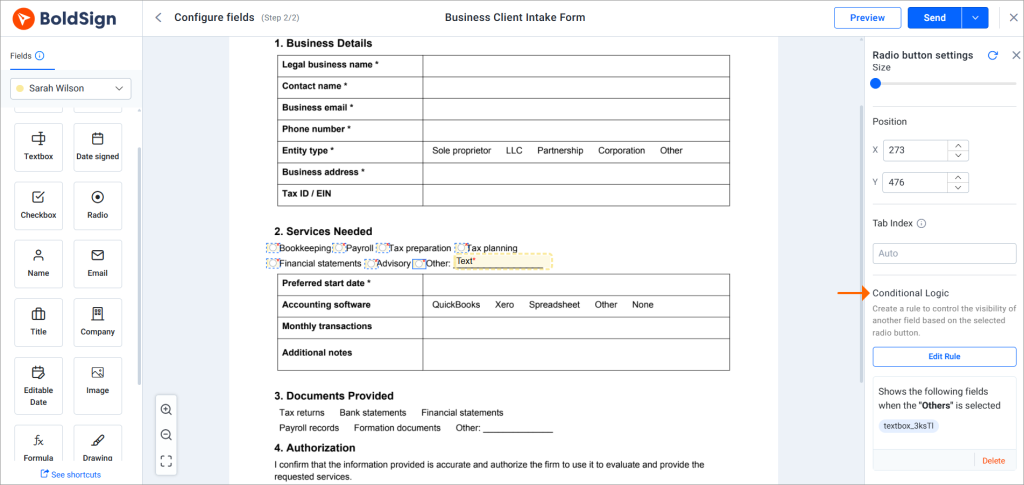
A field for every kind of answer. The available form fields include text box, dropdown, radio, checkbox, editable date, attachment, image, and formula fields, alongside signature, initials, name, email, title, and company fields that prefill where possible. Each maps directly to the “right kind of answer” principle above.
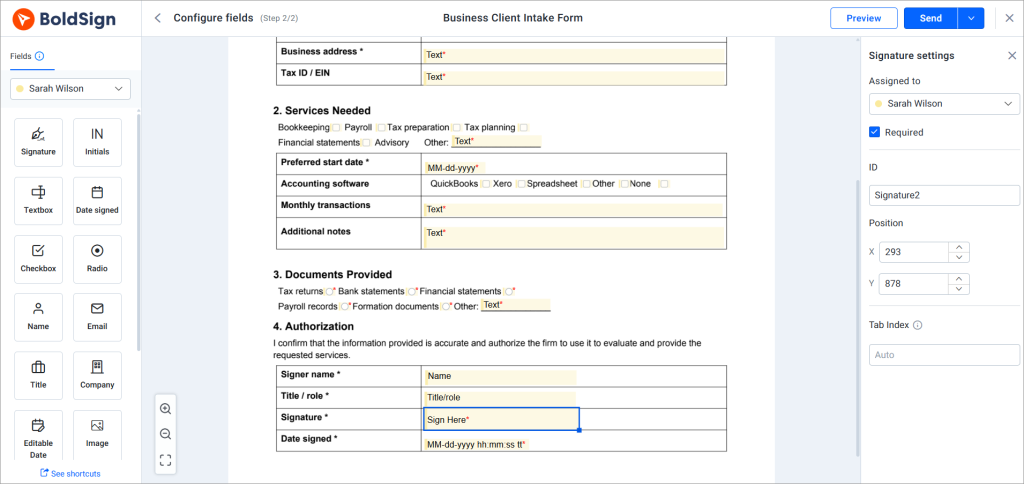
Validation on every text field. Text boxes carry a validation setting for numbers only, currency, email, or a regex pattern you define, plus hint text and a default value. This is what keeps a phone number field from accepting a sentence.
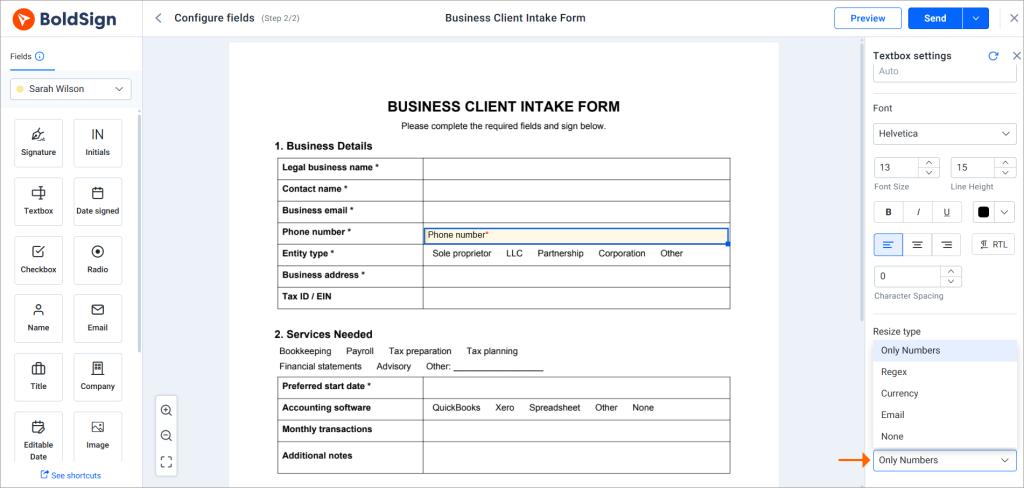
Ranges on date fields. Editable date fields accept a sender-defined range and a default date, so a start date outside what you can actually accommodate is never an option in the first place.
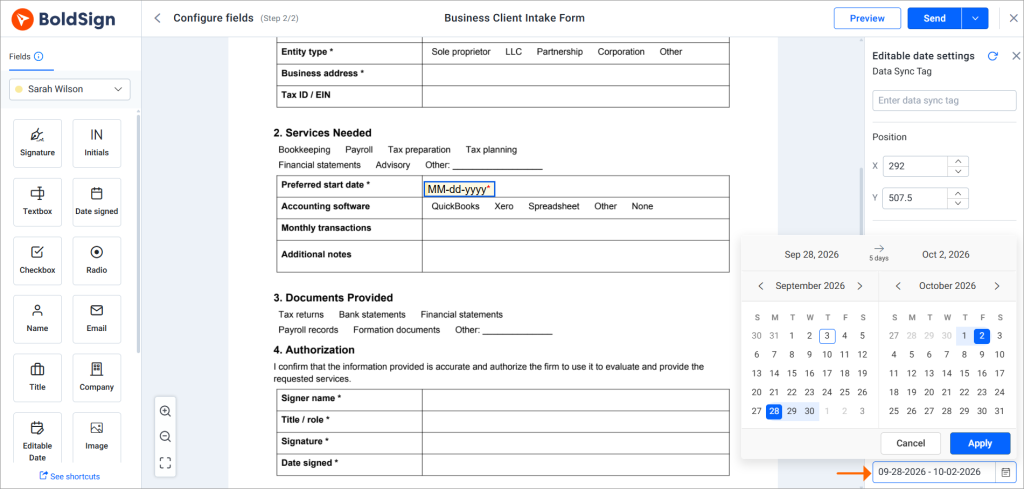
Conditional logic for branching questions. Conditional rules show or hide fields based on a checkbox, radio button, or dropdown selection. Any question you want to branch on needs to be one of those three field types rather than free text.
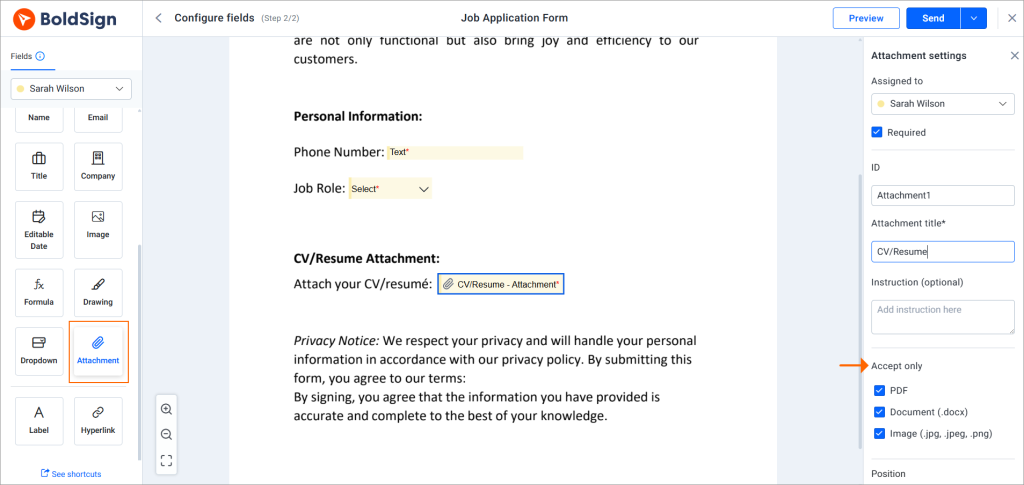
Restricted file types on uploads. Attachment fields accept PDF, DOCX, JPG, JPEG, and PNG, and can be narrowed further. Image fields accept JPG, JPEG, SVG, PNG, and BMP, with optional instructions shown at upload.
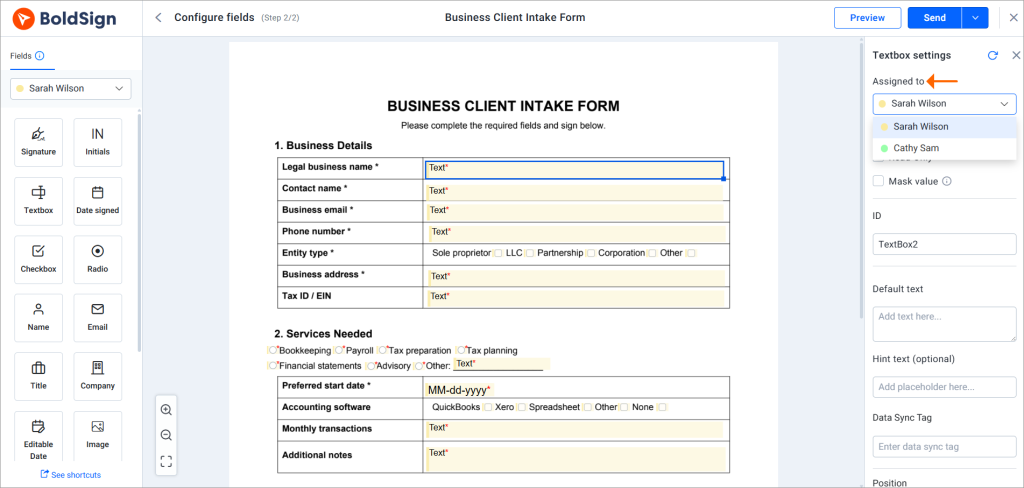
Fields assigned by role, not free-for-all. Every field is assigned to a specific recipient. A signer completes what is assigned to them and then signs or declines. They cannot add or edit other fields, which is why anything internal, like a case number or agreed fee, has to sit with an internal recipient instead.
Prefill via API for data you already have. If intake starts somewhere else, you can prefill form fields through the API on a document already in progress, covering text boxes, checkboxes, radio buttons, dropdowns, editable dates, and images. Signature, initials, attachment, and date signed fields stay excluded, since those have to come from the signer directly.
Templates so the design does not drift. Templates assign fields to roles instead of named people, so the form is built once and reused with real names swapped in each time. Field placement, validation, and conditional rules all carry over automatically.
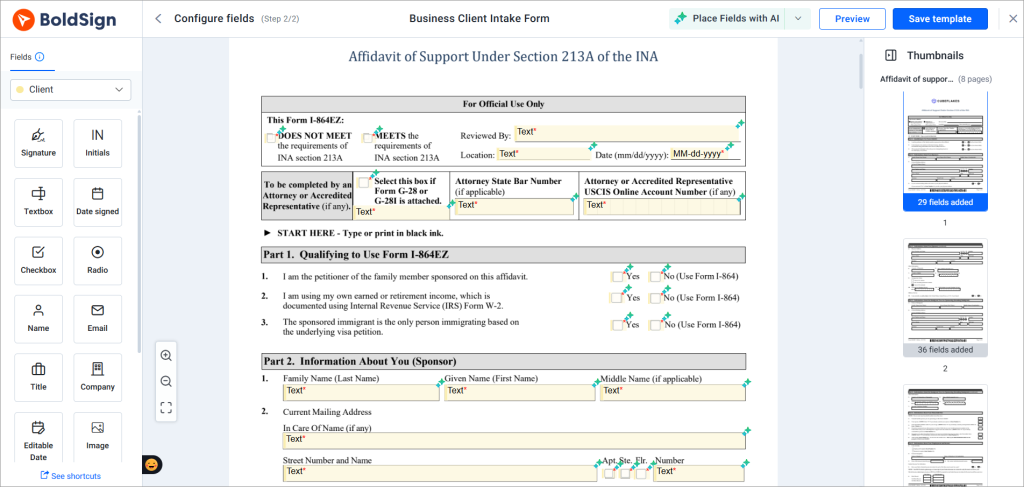
AI-assisted field placement for existing forms. When you create a template from a PDF or Word file, AI form field detection places an initial set of fields by reading layout patterns like underlines and boxes. It needs a document with real text, so scanned image-only PDFs will not work, and the placed fields are worth reviewing before you save.
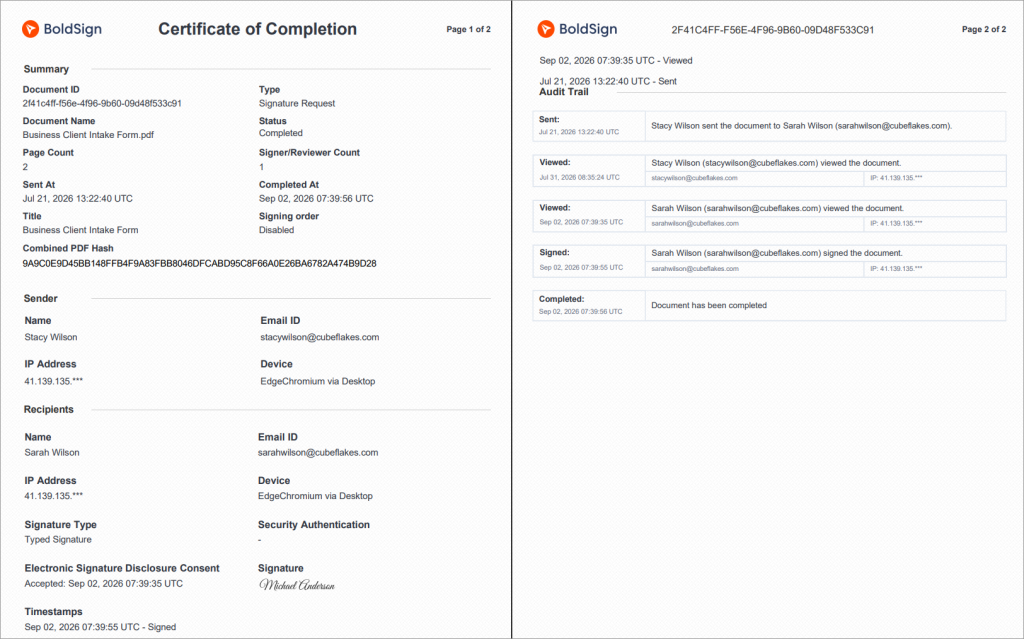
An audit trail on every completed document. The audit trail captures participant details, action timestamps, IP and device information, the authentication method used, and whether consent was accepted.
Building your intake form in BoldSign
Creating a structured, sign-ready intake form in BoldSign is quick and easy.
- Create a reusable template to ensure a consistent intake experience for every client.
- Upload your PDF or Word document and accelerate setup with AI-Powered Field Detection.
- Add the right form fields such as text boxes, dropdowns, date pickers, attachments, and signature fields to capture accurate information.
- Apply field validation and conditional logic to reduce errors and display only relevant questions.
- Send the intake form for eSignature through email, SMS or WhatsApp for convenient client access.
- Monitor progress in real time and download the completed document along with its audit trail for secure recordkeeping.
See the BoldSign Help Center for a detailed guide on building, sending, and tracking intake forms.
The short version
A better client intake form comes from four decisions: ask only what you need, match each question to the right kind of answer, show only what applies, and collect the signature in the same sitting as the information. Those hold regardless of the tool.
An eSignature document is simply the easiest place to put all four into practice at once, since the form and the signature live in the same file. Pick the intake form your team complains about most, rebuild it around these principles, and save it as a template so every client after that goes through the same tested version.
Try BoldSign for free and build your first intake template.
Frequently asked questions
What should a client intake form include?
Include contact details, project scope, dates, required uploads, and consent or engagement acknowledgment. Only ask for information you will actually use.
What is the difference between a client intake form and a client onboarding form?
An intake form gathers information for a specific engagement. Onboarding is broader and may include intake, account setup, scheduling, and internal handoffs.
Is an electronically signed client intake form legally binding?
Generally, yes. The ESIGN Act and state UETA laws support electronic signatures in the United States, though some document types are excluded. Consult legal counsel for unusual cases.
Can I use the same intake form for every client?
Yes, in many cases. Conditional logic can display relevant questions based on client or service type. Use separate templates when requirements differ significantly.
How long should a client intake form be?
Keep it as short as possible while collecting the necessary information. Use conditional logic to hide questions that do not apply.
Do clients need a BoldSign account to complete an intake form?
No. Recipients can open the request from an email, SMS or WhatsApp, complete the fields, and sign without creating an account.
Preethi Loganathan
Preethi is a Digital Marketing Executive at BoldSign who develops precise, research-driven content on eSignatures, compliance, and digital signing workflows. She works closely with product and engineering teams to ensure every article is accurate, validated, and aligned with industry best practices. Connect with her on LinkedIn.
More posts by Preethi Loganathan