Eliminate Approval Delays in Multi-Signer Workflows with Group Signers
TL;DR: Group signers in the BoldSign API let you assign a signing step to a group instead of a single person. Any member of the group can sign, eliminating delays and keeping multi-signer workflows moving even when some individuals are unavailable.
Many approval workflows depend on specific individuals. When that person is unavailable, everything slows down:
- Finance approvals wait because the approver is on leave
- HR onboarding stalls during busy hiring periods
- Legal reviews are delayed due to handoffs
- Admin teams spend time reassigning signers instead of doing real work
The result? Missed deadlines, frustrated teams, and unnecessary follow-ups.
Introducing group signers
Group signers change how approvals work. Instead of assigning a document to one named person, you assign it to a team such as Finance, HR, Legal, or Operations. When the document reaches that step, any authorized member of the group can sign.
No reassignment. No manual intervention. No waiting.
What are the benefits of group signers?
Group signers simplify workflows in several ways:
- Faster approvals: Work moves forward as soon as any team member is available. There’s no bottleneck caused by a single individual.
- Fewer interruptions: Documents don’t get stuck because someone is sick, on leave, or tied up in meetings.
- Less admin effort: No need to update workflows every time team members change roles or responsibilities.
- Clear accountability: Even though the signer is a group, BoldSign records exactly who signed, when they signed, and the associated audit details such as IP address.
- Strong security: All existing authentication and verification rules still apply. You get flexibility without compromising trust or compliance.
When do group signers make the biggest impact?
Group signers are ideal whenever the requirement is “someone from this team must approve a document.”
Common examples
- Finance teams: Expense approvals, vendor payments, and budget sign-offs completed by the first available finance officer.
- HR teams: Offer letters, onboarding documents, and policy acknowledgments stay on track even during peak hiring.
- Legal teams: Contracts move faster without waiting for a specific legal reviewer.
- Operations & admin: Facility approvals, procurement confirmations, and internal requests are handled efficiently.
- Customer success & support: Service confirmations and customer acknowledgments don’t stall due to individual availability.
How do group signers improve reliability and trust?
Even though approvals are more flexible, nothing is lost in terms of control or compliance:
- Only authorized group members can sign
- The audit trail captures the actual signer’s identity
- All timestamps, IP addresses, and verification details are preserved
- The process remains secure and fully auditable.
What prerequisites must be met before using group signers?
Before you send a document or create a template with a group signer, you must:
- Create a contact group and add members.
- Retrieve the GroupId.
- Assign at least one directory to the contact group (required).
Contact groups can be managed in the BoldSign web app or via API, but directories are managed only through the API.
Which API endpoints manage contact groups for group signers?
Contact groups are managed through the contact group API endpoints, which allow you to create and manage contact groups.
| Endpoint | Description |
| POST /v1/contactGroups/create | Create a contact group by providing member names, unique email addresses, and directories. |
| PUT /v1/contactGroups/update | Update the group name, directories, and contacts in an existing contact group. |
| GET /v1/contactGroups/list | Gets a list of contact groups that have access to the specified account. |
| DELETE /v1/contactGroups/delete | Deletes a contact group based on the contact group ID provided. |
| GET /v1/contactGroups/get | Gets contact group details for the specified contact group ID. |
How do you create a contact group via API?
To create a contact group associated with directories using the API, define your request payload as shown below:
group_contact = boldsign.GroupContactDetails(
      groupName= "Add the contact group name",
      contacts= ["Add the list of contacts, i.e., Name and email"],
      directories= ["Add the list of directories to associate with the contact group"]
  )
The code examples below demonstrate how to create a contact group using the BoldSign API.
curl -X POST 'https://api.boldsign.com/v1/contactGroups/create' \
-H 'accept: application/json' \
-H 'X-API-KEY: {Your_API_Key}' \
-H 'Content-Type: application/json' \
-d '{
    "GroupName": "Grouptest1",
    "Contacts": [
        {
            "Name": "Luther Cooper",
            "Email": "luthercooper@gmail.com"
        },
        {
            "Name": "Hank White",
            "Email": "hankwhite@gmail.com"
        }
     ],
    "Directories": ["Sales","Legal"]
}'
var apiClient = new ApiClient("https://api.boldsign.com","Your_API_Key");
var groupContactClient = new GroupContactClient(apiClient);
var groupContact = new GroupContactDetails ()
{
  GroupName = "Grouptest1",
  Contacts = new List<Contacts>()
  {
    new Contacts
    {
      Name = "Luther Cooper",
      Email = "luthercooper@gmail.com"
    },
      new Contacts
      {
        Name = "Hank White",
        Email = "hankwhite@gmail.com"
      }
  },
  Directories = new List<string> {"Sales", "Legal"}
};
var createGroupContactResponse = await groupContactClient.CreateGroupContactAsync(groupContact).ConfigureAwait(false);
import boldsign

configuration = boldsign.Configuration(host="https://api.boldsign.com", api_key="Your_API_Key")

with boldsign.ApiClient(configuration) as api_client:

    group_contacts_api = boldsign.GroupContactsApi(api_client)
    contact1 = boldsign.GroupUser(
        name="Luther Cooper",
        email="luthercooper@cubeflakes.com",
    )
    contact2 = boldsign.GroupUser(
        name="Hank White",
        email="hankwhite@cubeflakes.com",
    )

    group_contact = boldsign.GroupContactDetails(
        groupName="Grouptest1",
        contacts=[contact1, contact2],
        directories=["Sales", "Legal"]
    )

    group_contacts_api.create_group_contact(
        group_contact_details=group_contact
    )
<?php
require_once "vendor/autoload.php";

$config = new BoldSign\Configuration();
$config->setApiKey('Your_API_key');

$apiInstance = new BoldSign\Api\GroupContactsApi($config);
$contact1 = new BoldSign\Model\GroupUser();
$contact1->setName("Luther Cooper");
$contact1->setEmail("luthercooper@cubeflakes.com");

$contact2 = new BoldSign\Model\GroupUser();
$contact2->setName("Hank White");
$contact2->setEmail("hankwhite@cubeflakes.com");

$group_contact = new BoldSign\Model\GroupContactDetails();
$group_contact->setGroupName("Grouptest1");
$group_contact->setDirectories(["Sales", "Legal"]);
$group_contact->setContacts([$contact1, $contact2]);
$result = $apiInstance->createGroupContact($group_contact);
ApiClient apiClient = Configuration.getDefaultApiClient();
apiClient.setApiKey("Your_API_Key");
GroupContactsApi groupContactApi = new GroupContactsApi(apiClient);

GroupUser contact1 = new GroupUser();
contact1.setName("Luther Cooper");
contact1.setEmail("luthercooper@cubeflakes.com");

GroupUser contact2 = new GroupUser();
contact2.setName("Hank White");
contact2.setEmail("hankwhite@cubeflakes.com");

GroupContactDetails groupContactDetails = new GroupContactDetails();
groupContactDetails.setGroupName("Grouptest1");
groupContactDetails.setContacts(Arrays.asList(contact1, contact2));
groupContactDetails.setDirectories(Arrays.asList("Sales", "Legal"));

CreateGroupContactResponse response = groupContactApi.createGroupContact(groupContactDetails);
import { GroupContactsApi, GroupContactDetails, GroupUser } from 'boldsign';

const contactGroupApi = new GroupContactsApi();
contactGroupApi.setApiKey("Your_API_Key");

var contact1 = new GroupUser();
contact1.name = "Luther Cooper";
contact1.email = "luthercooper@cubeflakes.com";

var contact2 = new GroupUser();
contact2.email = "hankwhite@cubeflakes.com";
contact2.name = "Hank White";

var groupContactDetails = new GroupContactDetails();
groupContactDetails.contacts = [contact1, contact2];
groupContactDetails.groupName = "Grouptest1";
groupContactDetails.directories = ["Sales", "Legal"];
contactGroupApi.createGroupContact(groupContactDetails);
How do you send a document with a group signer in BoldSign?
To send documents with a group signer:
- Set recipient SignType = “Group”
- Provide GroupId
- Enable GroupSignerSettings.enabled = true
- (Recommended) Set AllowedDirectories to constrain eligible groups
Below are code examples that show how to send a document in BoldSign using a group signer via API.
curl --location 'https://api.boldsign.com/v1/document/send' \
    --header 'X-API-KEY: {Your_API_Key}' \
    --form 'Title="NDA Agreement"' \
    --form 'Message=" Testing document from SDK integration test case "' \
    --form 'GroupSignerSettings[AllowedDirectories][0]="Sales"' \
    --form 'GroupSignerSettings[AllowedDirectories][1]="Legal"' \
    --form 'GroupSignerSettings[Enabled]="true"' \
    --form 'Signers[0][SignType]="Group"' \
    --form 'Signers[0][GroupId]="{GROUP_ID}"' \
    --form 'Signers[0][FormFields][0][Type]="Signature"' \
    --form 'Signers[0][FormFields][0][Name]="Sign"' \
    --form 'Signers[0][FormFields][0][PageNumber]="1"' \
    --form 'Signers[0][FormFields][0][Bounds][X]="50"' \
    --form 'Signers[0][FormFields][0][Bounds][Y]="50"' \
    --form 'Signers[0][FormFields][0][Bounds][Width]="200"' \
    --form 'Signers[0][FormFields][0][Bounds][Height]="30"' \
    --form 'Signers[0][FormFields][0][IsRequired]="true"' \
    --form 'Files=@"YOUR_FILE_PATH"'
var apiClient = new ApiClient("https://api.boldsign.com", "Your_API_Key");

var documentClient = new DocumentClient(apiClient);

List<FormField> formField = new List<FormField>
{
    new FormField(
        id: "Signature",
        type: FieldType.Signature,
        pageNumber: 1,
        bounds: new Rectangle(x: 50, y: 50, width: 200, height: 30))
};

// Group signer settings
var groupSignerSettings = new GroupSignerSettings
{
    Enabled = true,
    AllowedDirectories = new List<string> { "Sales", "Legal" }
};

var documentDetails = new SendForSign
{
    Title = "NDA Agreement",
    Signers = new List<DocumentSigner>
    {
        new DocumentSigner
        {
            GroupId = "GROUP_ID",
            SignType = SignType.Group,
            FormFields = formField
        }
    },
    Files = new List<IDocumentFile>
    {
        new DocumentFilePath
        {
            ContentType = "application/pdf",
            FilePath = "YOUR_FILE_PATH",
        }
    },

    // Attach group signer settings
    GroupSignerSettings = groupSignerSettings
};

var documentCreated = documentClient.SendDocument(documentDetails);
import boldsign

configuration = boldsign.Configuration(
    api_key="Your_API_Key"
)

with boldsign.ApiClient(configuration) as api_client:

    document_api = boldsign.DocumentApi(api_client)

    form_fields = [
        boldsign.FormField(
            fieldType="Signature",
            pageNumber=1,
            bounds=boldsign.Rectangle(x=50, y=50, width=200, height=25),
        )
    ]

    document_signer = boldsign.DocumentSigner(
        groupId="GROUP_ID",
        signType="Group",
        formFields=form_fields,
        locale="EN"
    )

    send_for_sign = boldsign.SendForSign(
        title="NDA Agreement",
        files=["YOUR_FILE_PATH"],
        signers=[document_signer],
        groupSignerSettings=boldsign.GroupSignerSettings(
            enabled=True,
            allowedDirectories=["Sales", "Legal"]
        )
    )

    document_created = document_api.send_document(send_for_sign)
<?php
require_once "vendor/autoload.php";

use BoldSign\Configuration;
use BoldSign\Api\DocumentApi;
use BoldSign\Model\{
    Rectangle,
    FormField,
    DocumentSigner,
    SendForSign,
    GroupSignerSettings
};

$config = new Configuration();
$config->setApiKey('Your_API_Key');

$documentApi = new DocumentApi($config);

$signatureField = new FormField();
$signatureField->setFieldType('Signature');
$signatureField->setPageNumber(1);
$signatureField->setBounds(new Rectangle(['x' => 50,'y' => 50,'width' => 200,'height' => 2]));

$document_signer = new DocumentSigner();
$document_signer->setSignType("Group");
$document_signer->setFormFields([$signatureField]);
$document_signer->setGroupId('Group_ID');

$groupSettings = new GroupSignerSettings();
$groupSettings->setEnabled(true);
$groupSettings->setAllowedDirectories(['Sales', 'Legal']);

$send_for_sign = new SendForSign();
$files = 'YOUR_FILE_PATH';

$send_for_sign->setFiles([$files]);
$send_for_sign->setSigners([$document_signer]);
$send_for_sign->setTitle('NDA Agreement');
$send_for_sign->setGroupSignerSettings($groupSettings);

$created = $documentApi->sendDocument($send_for_sign);
ApiClient apiClient = Configuration.getDefaultApiClient();

apiClient.setApiKey("Your_API_Key");
DocumentApi documentApi = new DocumentApi(apiClient);

List<File> files = new ArrayList<File>();
File file = new File("YOUR_FILE_PATH");
files.add(file);

List<FormField> formFields = new ArrayList<FormField>();

FormField signatureField = new FormField();
signatureField.setFieldType(FieldTypeEnum.SIGNATURE);
signatureField.setPageNumber(1);

Rectangle rectangle = new Rectangle().x(100f).y(100f).width(100f).height(50f);

signatureField.setBounds(rectangle);

formFields.add(signatureField);

GroupSignerSettings groupSignerSettings = new GroupSignerSettings();
groupSignerSettings.setEnabled(true);

List<String> allowedDirectories = new ArrayList<String>();
allowedDirectories.add("Sales");
allowedDirectories.add("Legal");

groupSignerSettings.setAllowedDirectories(allowedDirectories);

List<DocumentSigner> signers = new ArrayList<DocumentSigner>();

DocumentSigner signer = new DocumentSigner();
signer.setSignType(DocumentSigner.SignTypeEnum.GROUP);
signer.setGroupId("GROUP_ID");
signer.setFormFields(formFields);

signers.add(signer);

SendForSign sendForSign = new SendForSign();
sendForSign.setTitle("NDA Agreement");
sendForSign.setFiles(files);
sendForSign.setSigners(signers);
sendForSign.setGroupSignerSettings(groupSignerSettings);

DocumentCreated document = documentApi.sendDocument(sendForSign);
import { DocumentApi, DocumentSigner, FormField, Rectangle, SendForSign, GroupContactsApi, GroupSignerSettings } from "boldsign";
import * as fs from "fs";

const documentApi = new DocumentApi();
documentApi.setApiKey("Your_API_Key");

const bounds = new Rectangle();
bounds.x = 100;
bounds.y = 50;
bounds.width = 100;
bounds.height = 100;

var formField = new FormField();
formField.fieldType = FormField.FieldTypeEnum.Signature;
formField.pageNumber = 1;
formField.bounds = bounds;

var documentSigner = new DocumentSigner();
documentSigner.groupId = "GROUP_ID";
documentSigner.signType = DocumentSigner.SignTypeEnum.Group;
documentSigner.formFields = [formField];

var groupSettings = new GroupSignerSettings();
groupSettings.enabled = true;
groupSettings.allowedDirectories = ["Sales", "Legal"];

var sendForSign = new SendForSign();
sendForSign.title = "NDA Agreement";
sendForSign.signers = [documentSigner];

var files = fs.createReadStream("YOUR_FILE_PATH");
sendForSign.files = [files];
sendForSign.groupSignerSettings = groupSettings;

async function sendDocument() {
    try {
        var sendDocumentResponse = await documentApi.sendDocument(sendForSign);
        console.log("Document sent successfully:", sendDocumentResponse.documentId);
    } catch (error) {
        console.error("Error occurred while calling the API:", error.message);
    }
}

sendDocument();
How do group signers behave during signing?
When a group is assigned as the signer:
1. Each group member receives an email asking them to review and sign the document on behalf of the recipient group.
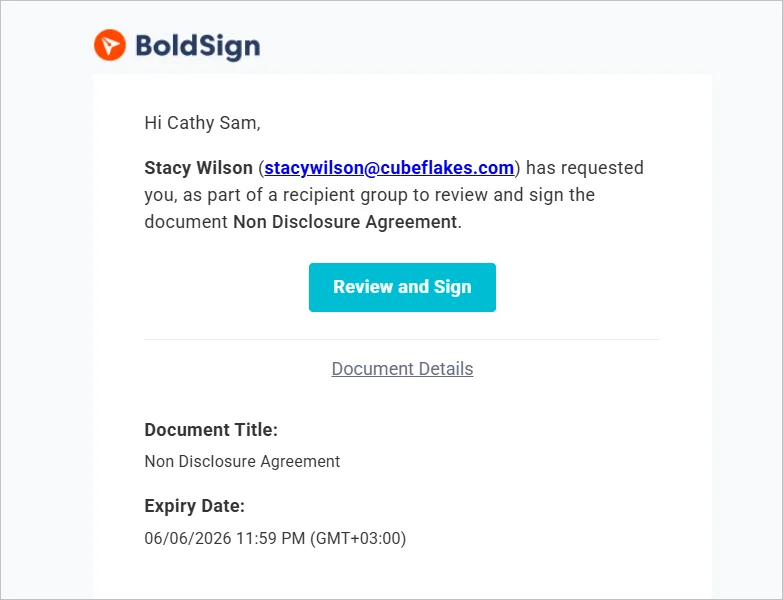
Signature request email
2. When one member of the group signs the document, the signing process is considered complete, and no further action is required from the remaining group members.
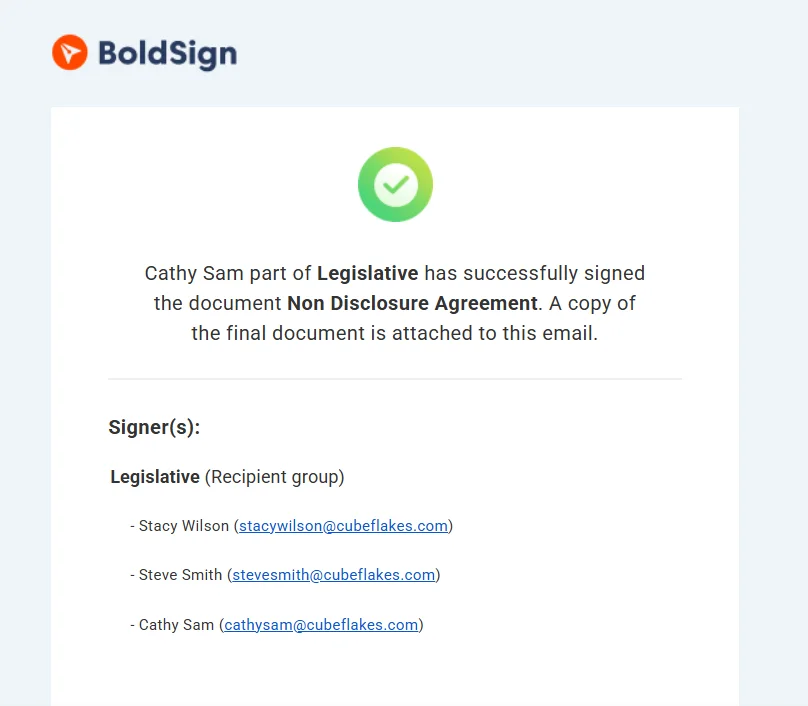
Completion email
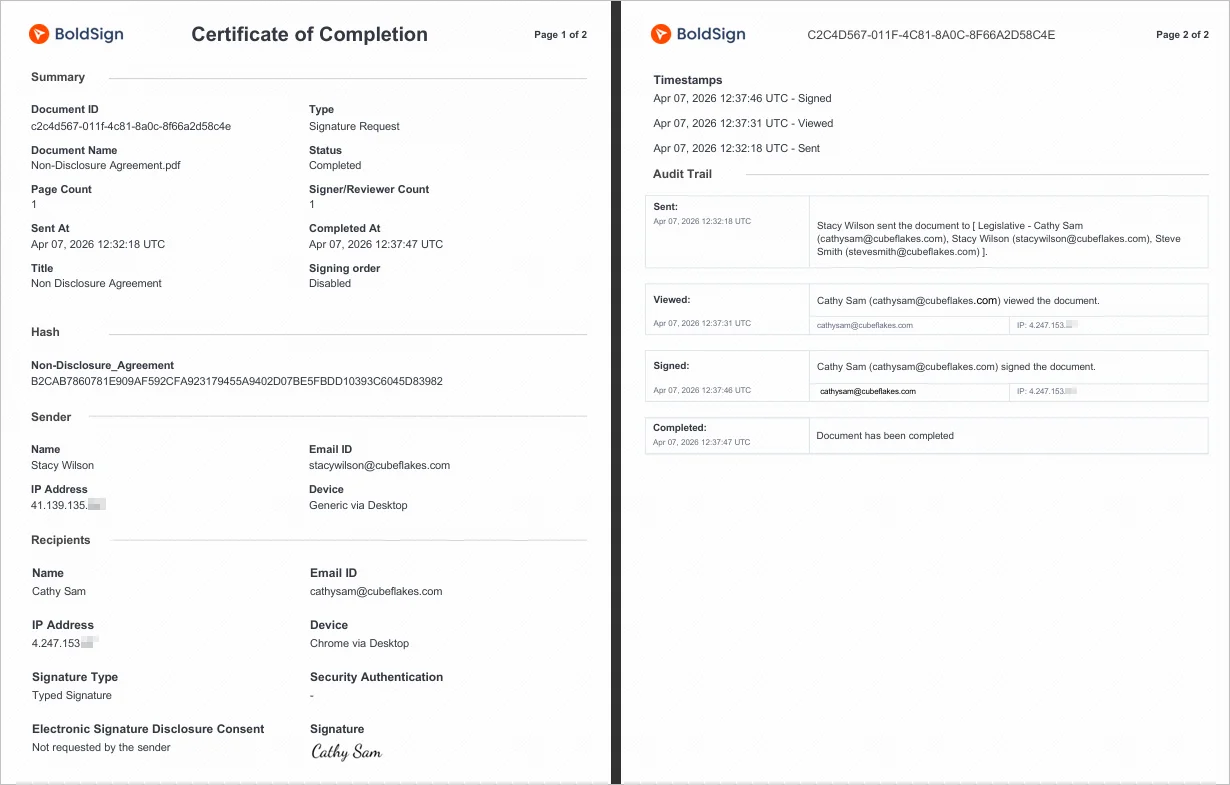
3. Once the signing process is complete, BoldSign automatically generates an audit trail that records all critical events, including signer information, timestamps, IP addresses, etc. This audit trail serves as verifiable and legally defensible proof of the signing process.
Audit trail
How do verification and audit trails work for group signers?
Group signers do not reduce security. Instead:
- Any configured authentication applies to the member who signs.
- The audit trail records the identity of the specific group member who signed the document.
What are the real-world use cases for group signers?
| Use Case | Description |
| 1. Department‑based approvals | Prevents delays when specific individuals are on leave, ensuring continuous processing of expenses and financial workflows. |
| 2. Operations & admin teams | Assign routine internal documents (such as facility requests, vendor confirmations, maintenance approvals) to the Operations group, so the first available admin finalizes the step without escalations. |
| 3. Customer support & success | Allow Support or Customer Success teams to sign customer acknowledgments or service confirmations. Prevents tickets and escalations from stalling while waiting for one assigned person. |
| 4. HR onboarding compliance | Let HR act as a signer group for offer letters, onboarding checklists, policy acknowledgments, etc. Ensures smooth operations during peak hiring periods or when team members rotate responsibilities. |
| 5. Multi‑department corporate workflows | Create workflows where Legal, Finance, HR, Operations, and Client Services each act as group signers. Avoid internal delays by allowing any member of each department to complete their step. |
Final takeaways: Scale team‑based approvals with group signers
Group signers simplify multi-signer workflows by letting teams, rather than individuals, complete approval steps.
If your workflows involve departmental approvals or rotating responsibilities, group signers give your team the flexibility to keep work moving.
Ready to modernize your approval workflows? Sign up for a free sandbox account to try group signers.
Need guidance? Explore the API documentation,contact our support team, or schedule a personalized demo.
Frequently asked questions
What are group signers?
Group signers allow you to assign a signing step to a contact group instead of an individual.
What prerequisites must be met to use group signers?
You must create a contact group, assign at least one directory, and retrieve the GroupId to reference it in send or template requests.
Which fields do I set when sending a document with a group signer?
Set SignType = "Group", provide GroupId, and enable groupSignerSettings.enabled = true. It is also recommended to set GroupSignerSettings.AllowedDirectories.
Why are directories required for group signers?
Directories act as an access filter for group usage.
What happens if multiple group members try to sign?
Any member of the group can complete the signing step. After one member signs, the request is closed for the remaining members.
Who appears in the audit trail?
The audit trail records the actual group member who signed, along with timestamps and other audit details.

Vallary Achieng Otieno
Vallary Achieng Otieno is a growing content writer focused on creating clear, engaging, and user-centered content. She specializes in simplifying complex ideas into practical insights that are easy for readers to understand and apply. With a growing interest in technical writing, Vallary develops well-structured articles that prioritize clarity, consistency, and value. Through her writing, she aims to help readers navigate concepts effectively while maintaining a strong, customer-focused approach. Connect with her on LinkedIn.
More posts by Vallary Achieng Otieno