TL;DR: Create a Google Photos QR code online for free and make albums, single photos, event galleries, and shared image collections easier to access. With BoldSign’s browser-based tool, you can paste a Google Photos shared link, customize the QR code, and download it as PNG, SVG, or JPEG without creating an account.
Sharing Google Photos links is helpful, but long URLs are not always convenient for invitations, posters, brochures, event cards, thank-you notes, classroom boards, or printed albums. A QR code makes photo sharing simple. Anyone can scan the code and open the shared photo or album instantly from a phone, tablet, or desktop.
The free Google Photos QR code generator helps you convert a Google Photos shared album or single photo URL into a clean, scannable QR code in seconds. You can use it for weddings, school events, travel memories, business portfolios, workshops, product galleries, family functions, and community programs. Instead of asking people to copy a long link, you can give them a quick scan experience that works across both print and digital channels.
Why choose our free Google Photos QR code generator
Our Google Photos QR code generator is built for anyone who wants faster photo access, better sharing, and a more professional way to distribute photo links. It works directly in the browser, so there is no software installation or account registration required.
Here are the main reasons for choosing our tool:
- Completely free: Create unlimited Google Photos QR codes with no hidden fees or watermarks.
- Easy photo access: Turn a Google Photos album or single image link into a simple QR code that people can scan instantly.
- Privacy focused: Your Google Photos link is processed locally in your browser and is not stored or sent to servers.
- Professional sharing: Use clean QR codes on invitations, posters, event boards, brochures, cards, photo albums, packaging, and digital displays.
- Works on any device: Generate QR codes from Windows, Mac, Linux, iOS, or Android devices.
- Fast setup: Paste your Google Photos link, customize the QR code, and download it in seconds.
Key features of the free Google Photos QR code generator
Whether you are sharing one picture or a full gallery, these features make the tool useful for everyday photo sharing:
- Google Photos link: Create QR codes for shared Google Photos albums or single photo URLs.
- Simple customization: Adjust the pattern color, background color, and QR code size to match your event theme, brand, or design style.
- High quality downloads: Save your QR code as PNG, SVG, or JPEG for print or digital use.
- No technical skills required: Copy your Google Photos shared link, paste it into the QR code generator, and download your QR code.
- Useful for print and digital sharing: Add the QR code to emails, social posts, flyers, photo frames, event signs, albums, greeting cards, and brochures.
How to create a Google Photos QR code in three simple steps
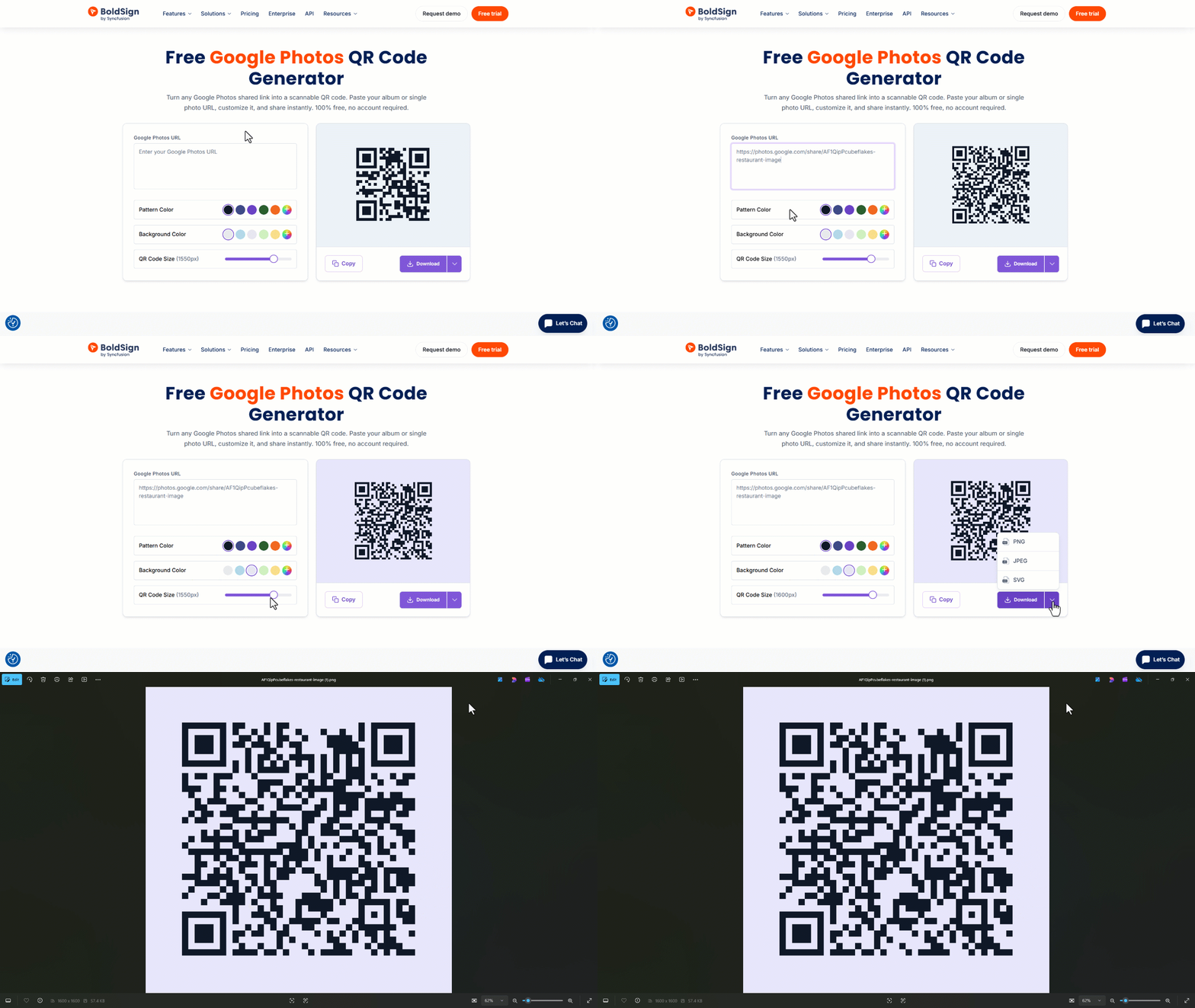
Creating a QR code for a Google Photos link takes only a few moments:
- Open the tool: Go to the free Google Photos QR code generator.
- Paste your Google Photos link: Add the shared album or single photo URL. Make sure the sharing settings allow the right people to view it.
- Customize and download: Adjust the pattern color, background color, or QR code size if needed, then download the QR code as PNG, SVG, or JPEG.
Smart ways to use Google Photos QR codes
Google Photos QR codes are useful whenever you want people to access photos quickly without searching, typing, or requesting a link.
- Events and celebrations: Share wedding albums, birthday photos, farewell memories, reunion pictures, or event galleries with guests.
- School and college activities: Let students, parents, and staff access photos from cultural programs, sports days, exhibitions, classroom activities, and annual events.
- Business portfolios: Share product photos, project galleries, event coverage, before-and-after images, or visual case studies with clients.
- Travel and tourism: Add QR codes to travel brochures, tour cards, itinerary sheets, or memory books so people can view destination photos instantly.
- Retail and product displays: Link shoppers to product galleries, styling ideas, lookbooks, usage photos, or seasonal collections.
- Community programs: Share photos from workshops, charity events, meetups, public programs, and local activities using signs or printed handouts.
Best practices for better scan results
To get the best experience from your Google Photos QR code, follow these simple tips:
- Check sharing access: Make sure the Google Photos album or image is shared with the intended audience before publishing the QR code.
- Use a clear call to action: Add short text such as “Scan to view photos,” “Scan for the event album,” or “Scan to open the gallery.”
- Avoid sharing private albums publicly: If the album contains personal or sensitive photos, share the QR code only with trusted viewers.
- Test before printing: Scan the QR code on different mobile devices to confirm that the Google Photos link opens correctly.
- Keep the design readable: Use strong contrast between the QR code pattern and background color.
- Place it in a visible area: Make sure the QR code is large enough and placed on a flat surface for easy scanning.
Start sharing Google Photos smarter today
The free Google Photos QR code generator makes photo sharing faster, cleaner, and more accessible. Whether you are an event organizer, teacher, photographer, business owner, marketer, student, or community coordinator, this tool helps you turn Google Photos links into instant scan experiences.
There is no signup, no software installation, and no complicated setup. Create your QR code in seconds and make every shared album easier to access.
Ready to simplify your document workflows? Sign up for a free 30-day trial or connect with our support team for a personalized demo.
Frequently asked questions
Can I use a Google Photos QR code for wedding or event albums?
Yes. You can create a QR code for a shared Google Photos album and place it on invitations, thank-you cards, event boards, or photo booths so guests can scan and view the album easily.
Can I update the photos after sharing the QR code?
Yes. If the QR code points to a shared Google Photos album, you can add more photos to the same album later. Users scanning the same QR code can access the updated album if the sharing link remains active.
Why should I use a QR code instead of sharing a Google Photos link?
A QR code is easier to use on printed materials and physical displays. People can scan it instead of typing or copying a long Google Photos URL, which makes photo access faster and more convenient.
Can businesses use Google Photos QR codes for product galleries?
Yes. Businesses can use Google Photos QR codes to share product photos, project galleries, lookbooks, event images, or visual portfolios with customers and clients.
How can I make my Google Photos QR code easier to scan?
Use a clear background, strong color contrast, enough white space around the code, and a readable size. Always test the QR code on multiple mobile devices before printing or sharing it.

BoldSign Team
The official team behind BoldSign—the simple, secure eSignature solution trusted by businesses worldwide. Our platform helps individuals and teams create, sign, and manage documents effortlessly while maintaining full compliance. Experience BoldSign yourself with a free trial or request a personalized demo to see it in action.
More posts by BoldSign Team