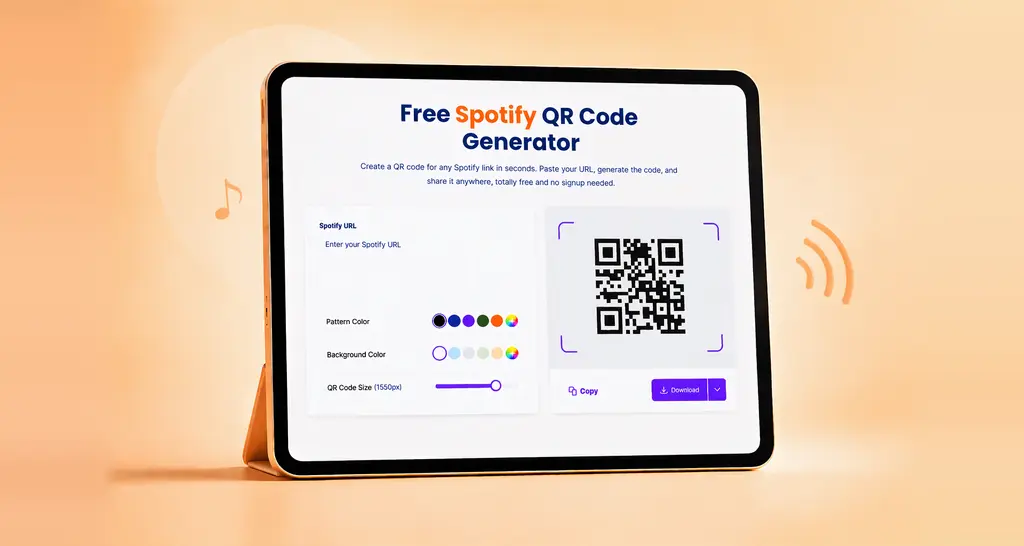
TL;DR: BoldSign’s free tool instantly converts any Google Maps link into a clean, customizable QR code, making it easy to share locations for events, businesses, classrooms, and marketing with no signup or downloads required.
We are excited to introduce the free, online Google Maps QR Code generator, a simple and reliable tool that helps you convert a Google Maps link into a scannable QR code. Whether you are a business sharing your store location, an event organizer guiding guests to a venue, or a student sharing a meeting spot, this tool makes location sharing quick and accurate. It requires no signup, keeps your files private, and works directly in your browser for a smooth experience. Create Google Maps QR Codes in seconds with BoldSign!
Why choose the free BoldSign Google Maps QR Code generator?
Our Google Maps QR generator is built for everyone, from beginners to professionals. Here are the key benefits:
- 100% Free: Generate unlimited Google Maps QR Codes without fees or hidden restrictions.
- Your Links Stay Private: Everything happens inside your browser. Your map links are never stored on any server.
- Accurate Location Sharing: Turn any Google Maps link into a QR code that helps users reach the correct location instantly.
- Works on All Devices: Use it easily on your phone, tablet, or computer. No installations or downloads are required.
- Quick and Simple: Paste the link, customize your QR code, and save it instantly. No tech skills needed.
- Unlimited Usage: Create as many QR codes as you want for events, businesses, meetings, or campaigns.
Key features of the free Google Maps QR Code generator
- Flexible customization: Adjust pattern color, background color, and sizes to match your brand or design style.
- Live preview: See your QR code update instantly while you customize it.
- High-quality downloads: Download crisp, clear QR codes suitable for posters, banners, flyers, packaging, or digital campaigns.
- Cross-platform Support: Works smoothly across Windows, macOS, Linux, Android, and iOS from any modern browser.
- Instant scanning: Optimized for fast and accurate scanning on all major smartphones.
- Reset anytime: Start over with one click if you want a fresh QR code setup.
How to create a Google Maps QR Code in 4 easy steps
Here’s how to create your QR code:
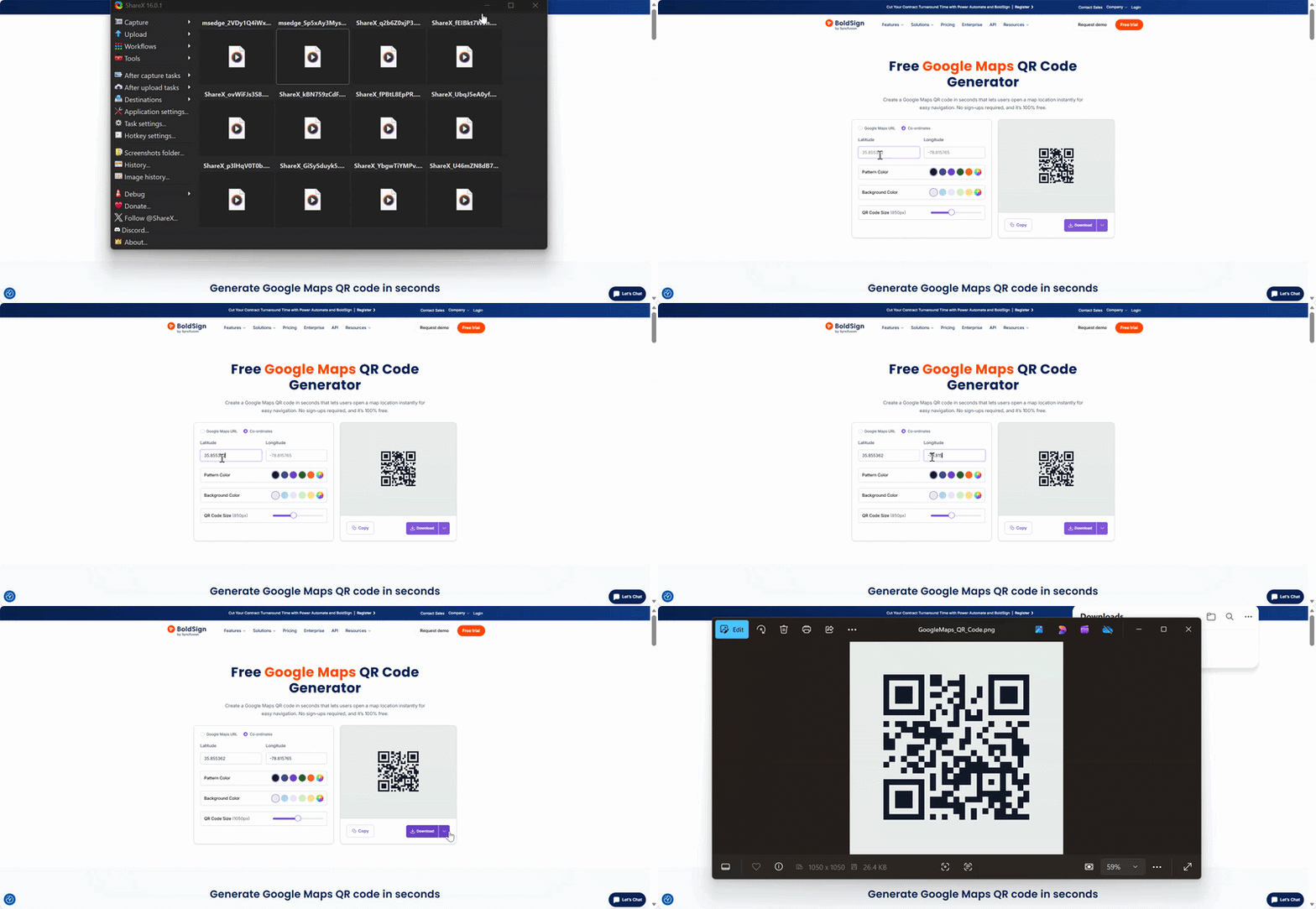
- Visit the Tool: Open the Google Maps QR Code generator on the BoldSign website.
- Paste your Google Maps location link to generate a QR code.
- Customize the QR code: Adjust the pattern color, background color, and QR code size as needed.
- Download Your QR Code: Save the QR code as a high‑quality image, ready to print or share.
Share locations instantly!
The BoldSign Google Maps QR Code generator makes location sharing quick, accurate, and hassle-free. From events and stores to classrooms and meetups, this tool helps people reach the right place without confusion. No sign-ups, no software, and no complicated steps needed.
Want to simplify document signing too? Sign up for a free 30-day trial or connect with our support team for a personalized demo.
Frequently asked questions
Where can I use a Google Maps QR Code?
You can use a Google Maps QR Code on business cards, storefront signs, wedding invitations, event posters, delivery notes, brochures, and appointment reminders to help people reach a location faster.
Can I create a QR code for a specific business location on Google Maps?
Yes. You can copy the Google Maps link for your business, store, office, venue, or landmark and turn it into a scannable QR code that opens the exact location.
How do Google Maps QR Codes help event organizers?
Google Maps QR codes make it easier for guests to find venues without manually searching for addresses. They are useful for conferences, events, meetups, weddings, and pop-up events.
Should I test my Google Maps QR Code before printing it?
Yes. Always scan the QR code from a mobile device before printing or sharing it to confirm that it opens the correct Google Maps location and is easy to scan.
Can I add a Google Maps QR Code to print marketing materials?
Yes. You can place the QR code on flyers, posters, banners, brochures, menus, and packaging so customers can scan it and navigate to your location instantly.

BoldSign Team
The official team behind BoldSign—the simple, secure eSignature solution trusted by businesses worldwide. Our platform helps individuals and teams create, sign, and manage documents effortlessly while maintaining full compliance. Experience BoldSign yourself with a free trial or request a personalized demo to see it in action.
More posts by BoldSign Team