





AI is rapidly changing the way businesses operate, and eSignature workflows are no exception. While AI tools like Claude and ChatGPT excel at understanding natural language, they’ve needed a secure way to connect those requests with real business actions. That’s where BoldSign MCP comes in.
What is BoldSign MCP?
BoldSign MCP is a connector that exposes BoldSign as a set of tools your AI assistant can call via the Model Context Protocol (MCP). This lets your AI securely interact with BoldSign’s eSignature APIs in response to natural-language requests or workflow triggers.
How it Works
- You or a workflow triggers a command. Example: “Send the NDA to Mathew Wilson.”
- The AI chooses a BoldSign tool and runs the matching action — for instance, sending a document from a specific template to a selected recipient in your contacts.
- BoldSign MCP securely calls the BoldSign API, which executes the requested action.
- BoldSign MCP returns structured results (JSON) to the AI

Need to follow up or send a reminder? Just ask your MCP client.
Available tools
The BoldSign MCP Server provides access to a comprehensive set of tools via the BoldSign API:
Documents
- List documents: Retrieves a paginated list of your documents.
- List team documents: Retrieves a paginated list of team documents.
- Get document: Retrieves detailed information, including status, for a specific document using its ID.
- Revoke document: Allows you to cancel or call off a document that is in progress.
- Send reminders: Sends reminders to signers who have not yet completed their signature on a document.
Templates
- List templates: Retrieves a paginated list of templates available in your BoldSign account.
- Get template: Retrieves detailed information for a specific template using its ID.
- Send document from template: Creates and sends out a document for signing based on a pre-configured template.
Contacts
- List contacts: Retrieves a paginated list of contacts from your BoldSign account.
- Get contact: Retrieves detailed information for a specific contact using their ID.
Users
- List users: Retrieves a paginated list of users in your BoldSign organization.
- Get user: Retrieves detailed information for a specific user using their ID.
Teams
- List teams: Retrieves a paginated list of teams in your BoldSign organization.
- Get team: Retrieves detailed information for a specific team using their ID.
Why it matters
In short, BoldSign MCP matters because it transforms AI from an assistant that talks into one that actually handles business-critical document workflows, fast and secure. Most organizations experimenting with AI want it to do work, not just provide text outputs. By giving AI secure access to BoldSign, MCP delivers measurable productivity gains instead of surface-level assistance. With BoldSign MCP, instead of just suggesting what to do, your AI can now securely execute eSignature workflows in BoldSign.
Getting Started with the BoldSign MCP Server
To start using the BoldSign MCP Server, you’ll need to set it up and connect it with both your BoldSign account and an MCP-compatible client. Here’s a step-by-step guide to help you get started:
Note: BoldSign also offers a fully hosted MCP server that requires no local installation or Node.js setup. Refer to the latest BoldSign MCP documentation for current endpoint details and setup instructions. The npm-based installation described below remains supported for local development and offline scenarios.
Prerequisites
- BoldSign account: Sign up for a free trial or use an existing sandbox/paid account to obtain API credentials. Sign up here.
- BoldSign API key: Generate an API key from the BoldSign web app. Refer to the BoldSign API documentation for instructions.
- Node.js: Install Node.js (version 18.0.0 or higher).
- MCP-compatible client:
Choose an MCP-compatible app to interact with the server. Some popular options include:
- Cursor
- Visual Studio Code (with MCP support)
- Windsurf
- Claude Desktop
- Cline
- Or any other app that supports the Model Context Protocol
Setup instructions in Claude Desktop:
Download and install the latest version of Claude Desktop from the official website by visiting the Claude Desktop download page.
Installation
This section assumes that you have already installed the Claude Desktop application and signed in with your account.
- In Claude Desktop, open the Settings menu in the bottom-left corner.

- In the Settings page, select the Developers tab.

- Next, click on the Edit config button to open the claude_desktop_config.json file in your preferred text editor.


- Add the following configuration to claude_desktop_config.json:
{
    "mcpServers": {
        "boldsign": {
            "command": "npx",
            "args": ["-y", "@boldsign/mcp"],
            "env": {
                "BOLDSIGN_API_KEY": "YOUR_BOLDSIGN_API_KEY",
                "BOLDSIGN_API_REGION": "US"
            }
        }
    }
}
Replace YOUR_BOLDSIGN_API_KEY with your actual BoldSign API key.
The BOLDSIGN_API_REGION can be set to US, EU, CA, or AU depending on your account region.
- Save your changes, quit Claude Desktop, and restart the application to apply them.
- Once the application is restarted, you should see the BoldSign MCP server tools listed in the Search and tools section.

For installation in other MCP Clients, you can check the documentation below
Setup BoldSign MCP server in Cursor
Setup BoldSign MCP Server in Windsurf
Setup BoldSign MCP Server in VS Code
Setup BoldSign MCP Server in Cline
Conclusion
The BoldSign MCP Server is a game-changer for businesses looking to combine the power of AI with eSignature capabilities. By connecting LLMs with BoldSign’s API, it enables developers and organizations to automate and optimize their document workflows like never before.
Ready to get started? Sign up for a free BoldSign account, set up the MCP server, and experience the future of eSignature automation today! For more details, visit the BoldSign MCP GitHub repository and explore the BoldSign API documentation.
We value your feedback! Feel free to share your thoughts or comments in the section below.
Need help or have questions? Our support team is here for you, visit the Support portal to get assistance.
FAQs
Is it only for developers?
No, while developers can deploy it easily, business users can also access its features through no-code or low-code AI tools.
Does MCP Server store any data?
No. MCP doesn’t save any user data or documents— it just passes requests between the client and BoldSign.
What can I do with it?
You can send documents from templates, track status, and manage users, teams, and contacts.
Is it compatible with all LLMs?
Any LLM that supports tool calling will work with BoldSign.

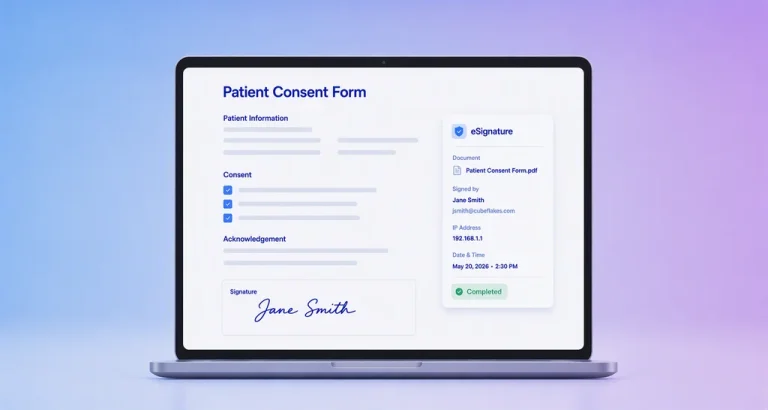
Healthcare eSignature: How Healthcare Providers Collect Patient Consent Digitally
Explore healthcare eSignature workflows that help providers collect patient consent digitally across intake, check-in, telehealth, and record management.
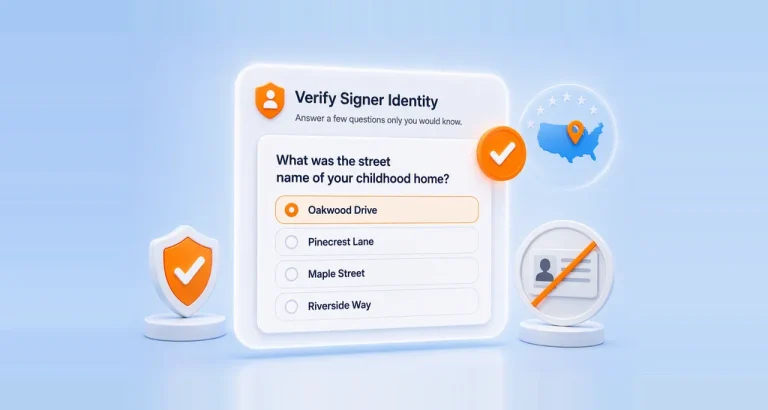
Webinar Show Notes: Verify Signers with Knowledge-Based Authentication in BoldSign
KBA authentication webinar recap: how signers verify with security questions, what happens when verification fails, and how KBA compares to ID Verification.

How to Choose Authentication Levels for Internal vs External Approval Documents
Learn how to choose document authentication levels for internal and external approvals using a simple risk-based framework for better security and control.
 30-day free trial
- No credit card required
- 30-day free trial
- No credit card required
