How to Streamline Financial Statement Signing with BoldSign
Financial statements and reports are essential documents that provide a comprehensive overview of a company’s financial health. These reports are used by management, investors, auditors, and regulatory bodies to make informed decisions.
Signing these documents is important to confirm their accuracy and approval. However, traditional, paper-based signing can cause significant delays, require physical storage, and increase the risk of losing or damaging important documents. Additionally, tracking and collecting multiple signatures across departments can be difficult and time-consuming.
BoldSign offers a secure and efficient digital signature solution that eliminates the need for paper and emailed documents, ensuring the process is faster, more organized, and more secure. In this blog, we will discuss how you can effectively send and sign financial statements and reports with BoldSign.
How to send financial statements and reports for signing in BoldSign
Let’s see how to send financial statements and reports for signing easily with BoldSign.
Start by opening your BoldSign account, or you can create a new account if you do not have one. Click Create New on the dashboard page and then click Create New Document.
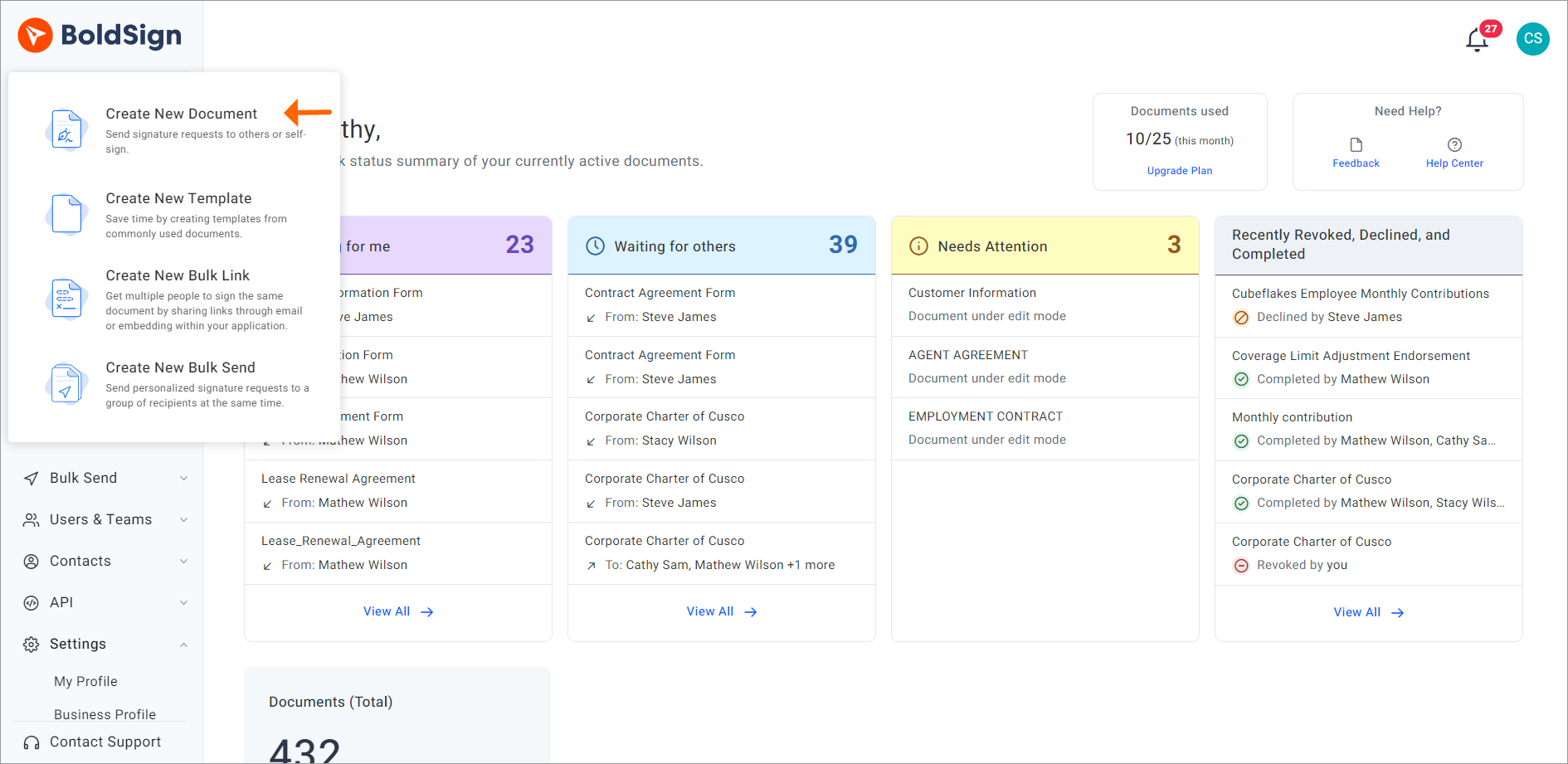
Dashboard page
Upload your financial statements or reports by using one of the three options in BoldSign: upload a file from your computer, choose a file from cloud storage, or select from your templates. Then, navigate to the section below to add signatories.
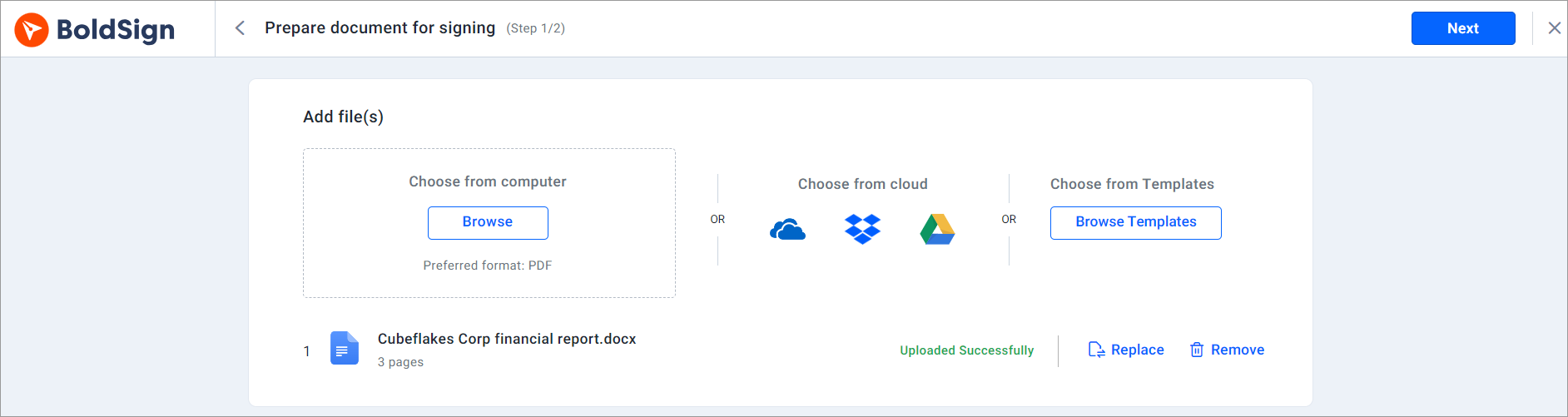
Document upload options
Fill in signers’ details. BoldSign allows you to include multiple signers for your statements and reports. Additionally, you can set a signing order, which has the document signed in a specified sequence. BoldSign automatically sends the request to the next signer when a signature is completed.
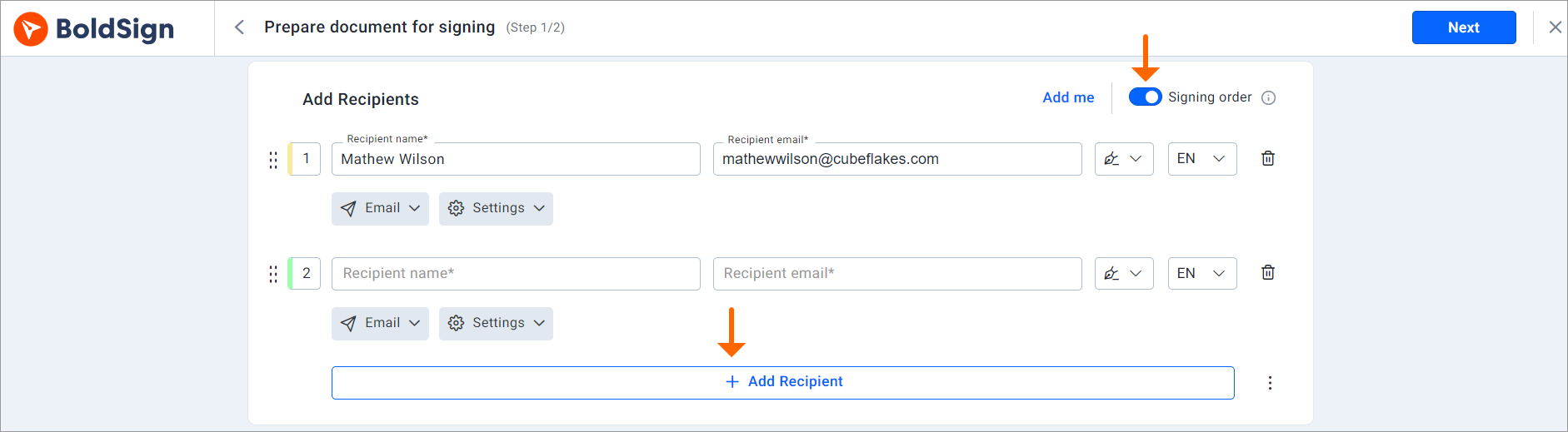
Add signers
Select the document delivery option: email, SMS, both or WhatsApp.
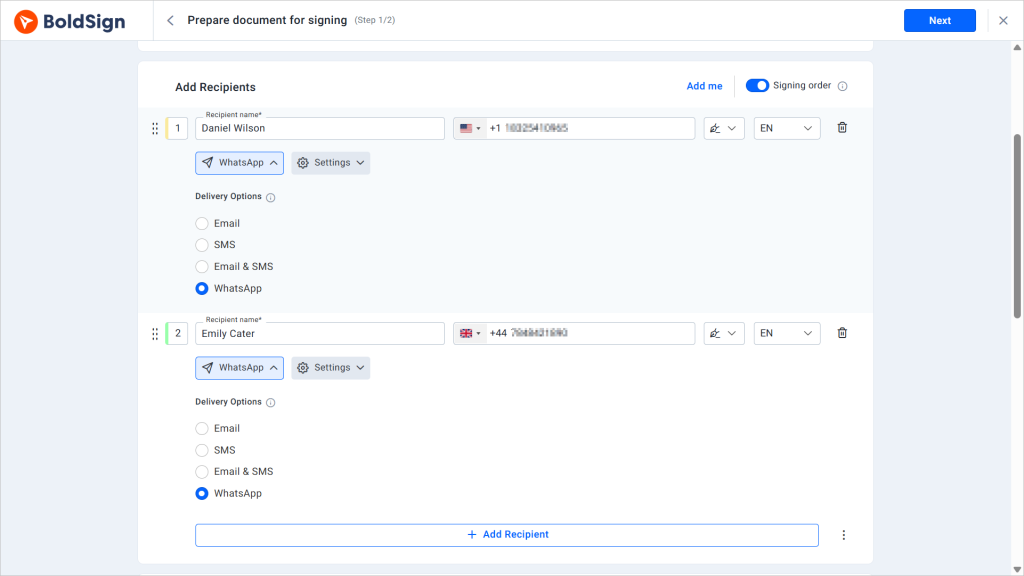
Delivery options
Pick your desired signer authentication option. Ensure document security by confirming the signer’s identity. Our four available verification methods are SMS OTP (one-time password), email OTP, identity verification, KBA, and access codes.
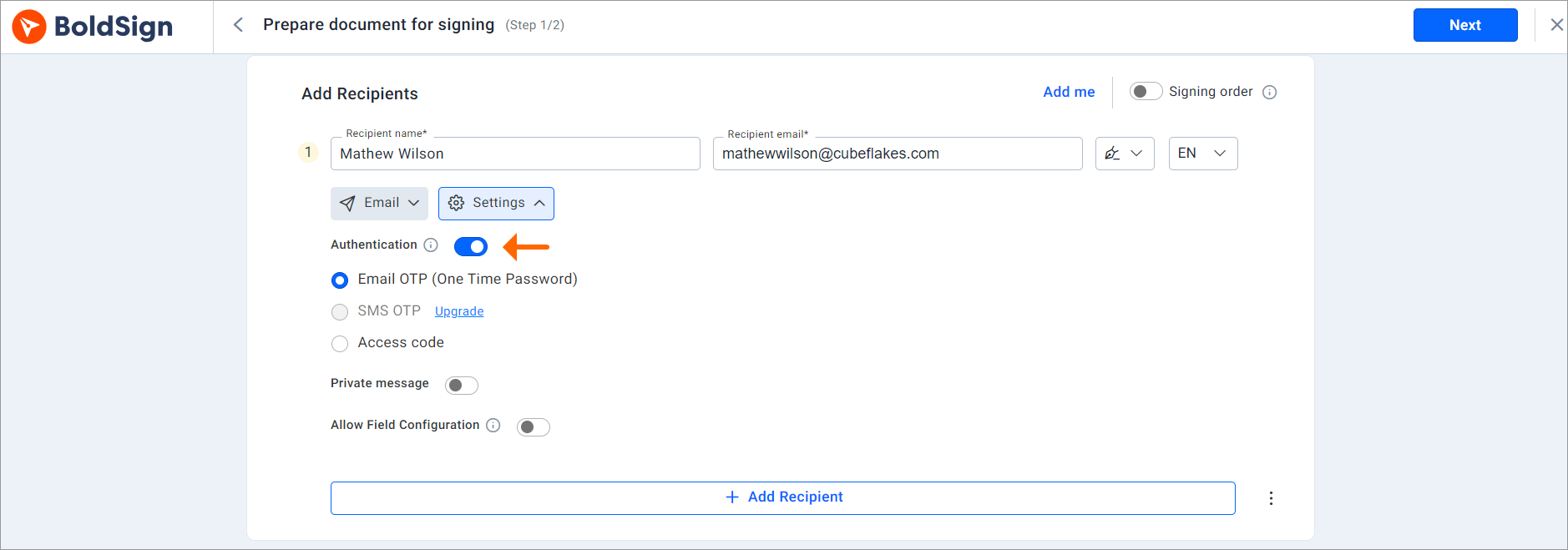
Authentication options
Ensure proper document management and timely responses by adding an expiration date to documents and setting automated reminders to be sent to signers for pending signatures via email or in app notifications. Click Next to be navigated to the Configure fields section.
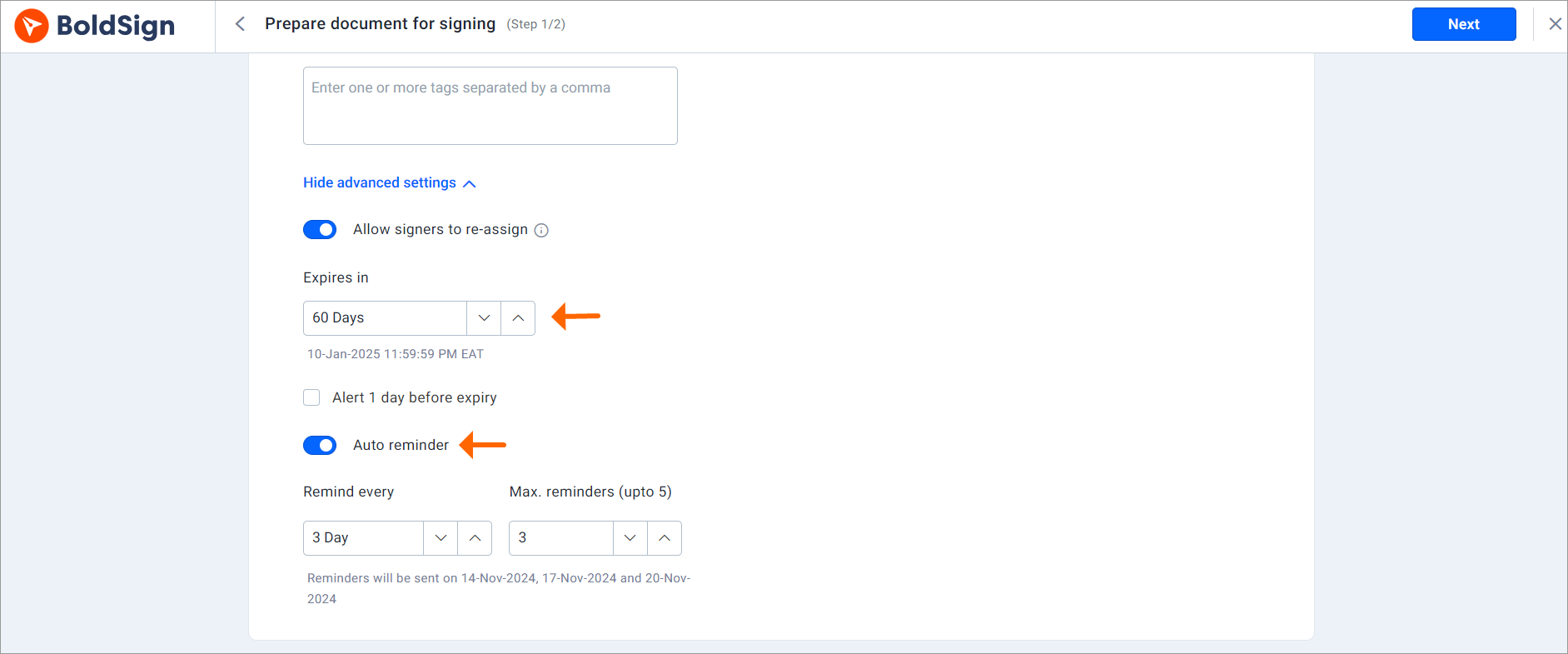
Document settings
Add the necessary fields to your document to guide signers through the content, ensuring they do not miss any signature points. Once the fields are in place, send the document for signing.
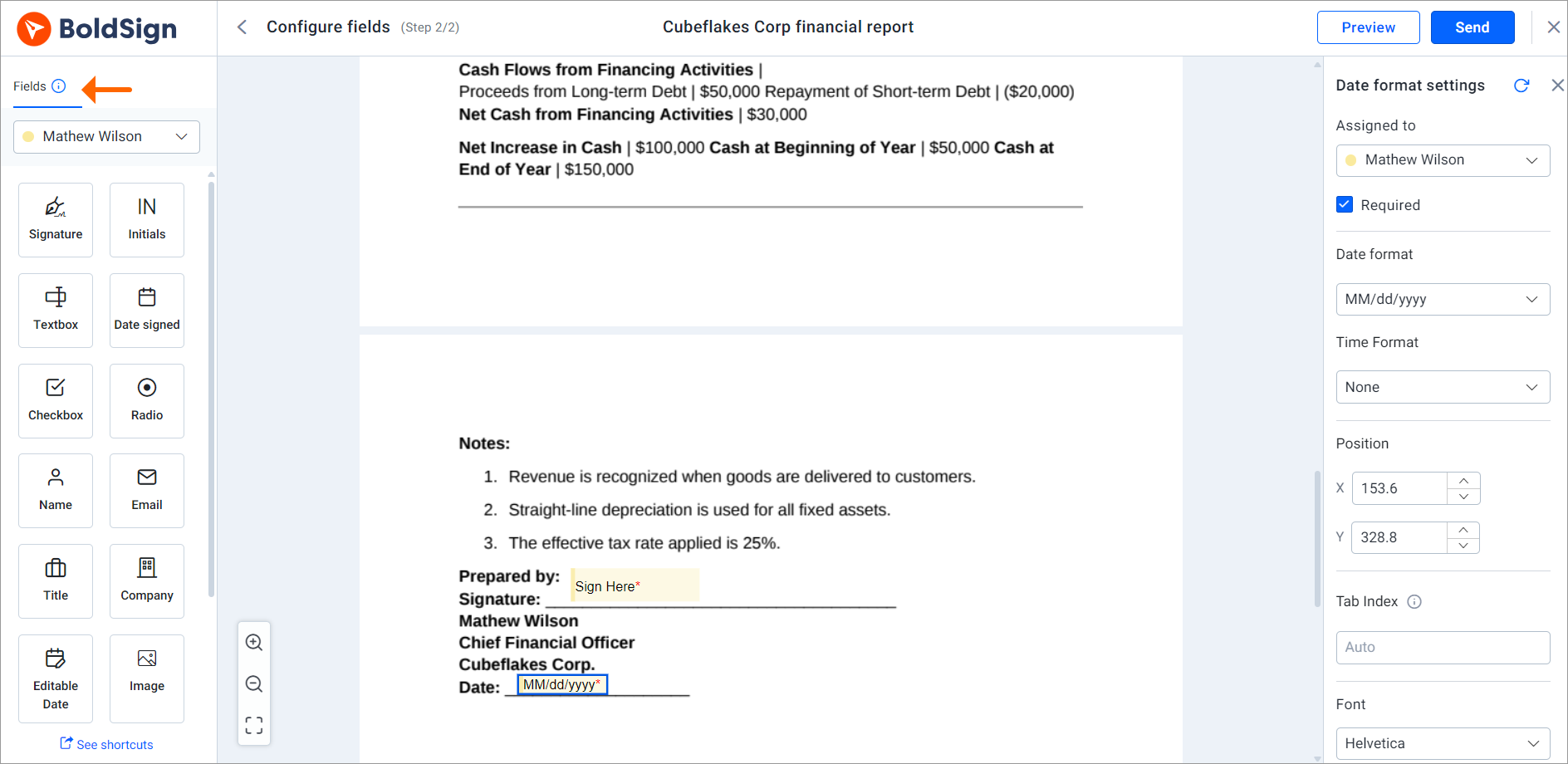
Configure fields
Transforming financial statements with BoldSign features
BoldSign comes with powerful features that ensure the seamless signing of financial statements and reports.
Create custom templates
Create templates for frequently sent financial statements, such as balance sheets and income statements, to streamline the document signing process. Templates save time by eliminating the need to draft documents from scratch each time. They also reduce errors, ensure consistency, and simplify the creation of professional reports for stakeholders.
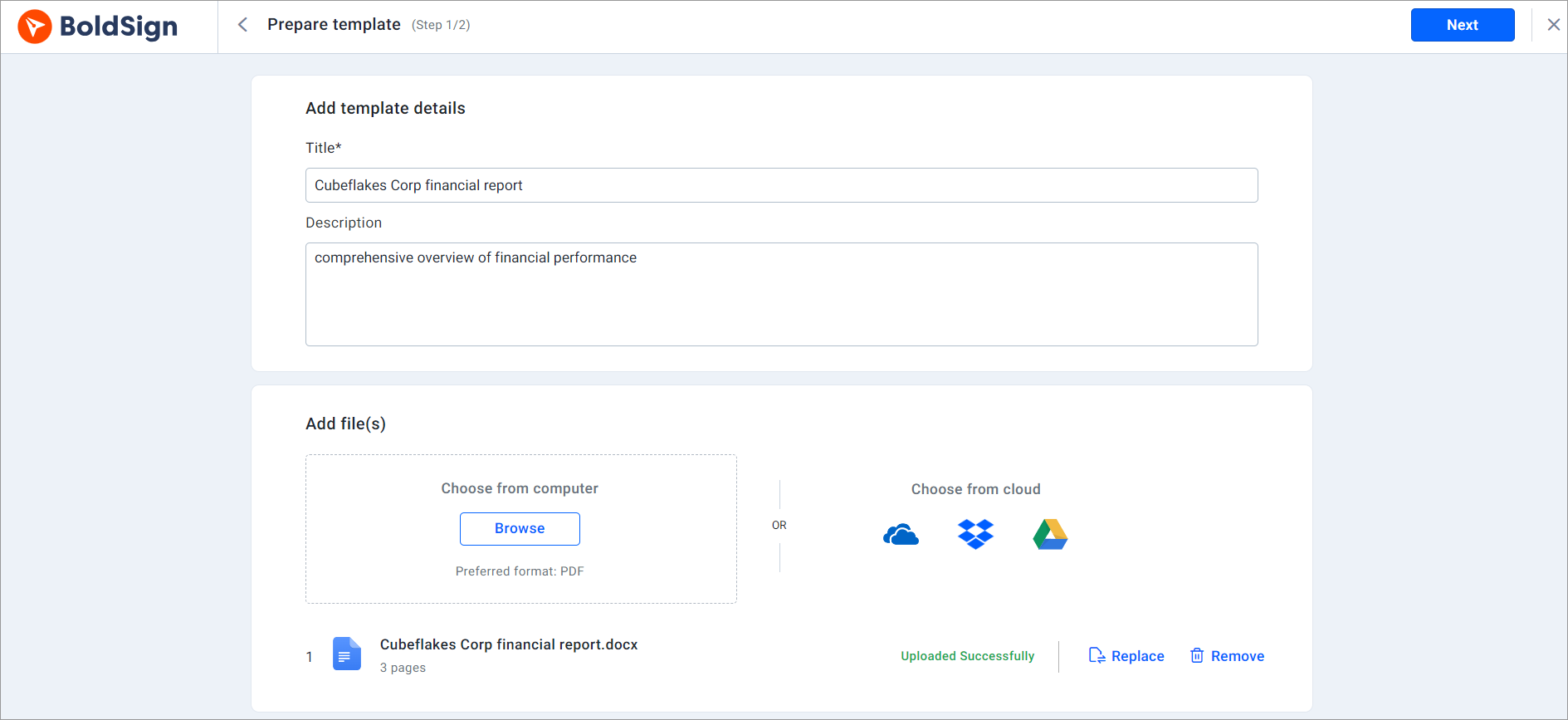
Template creation page
Access via mobile devices
With mobile access, financial professionals can manage and sign documents anytime, anywhere, allowing them to meet deadlines and make quick decisions. This BoldSign feature ensures a smooth workflow, protects sensitive information, and enables stakeholders to review and sign financial documents effortlessly on the go.
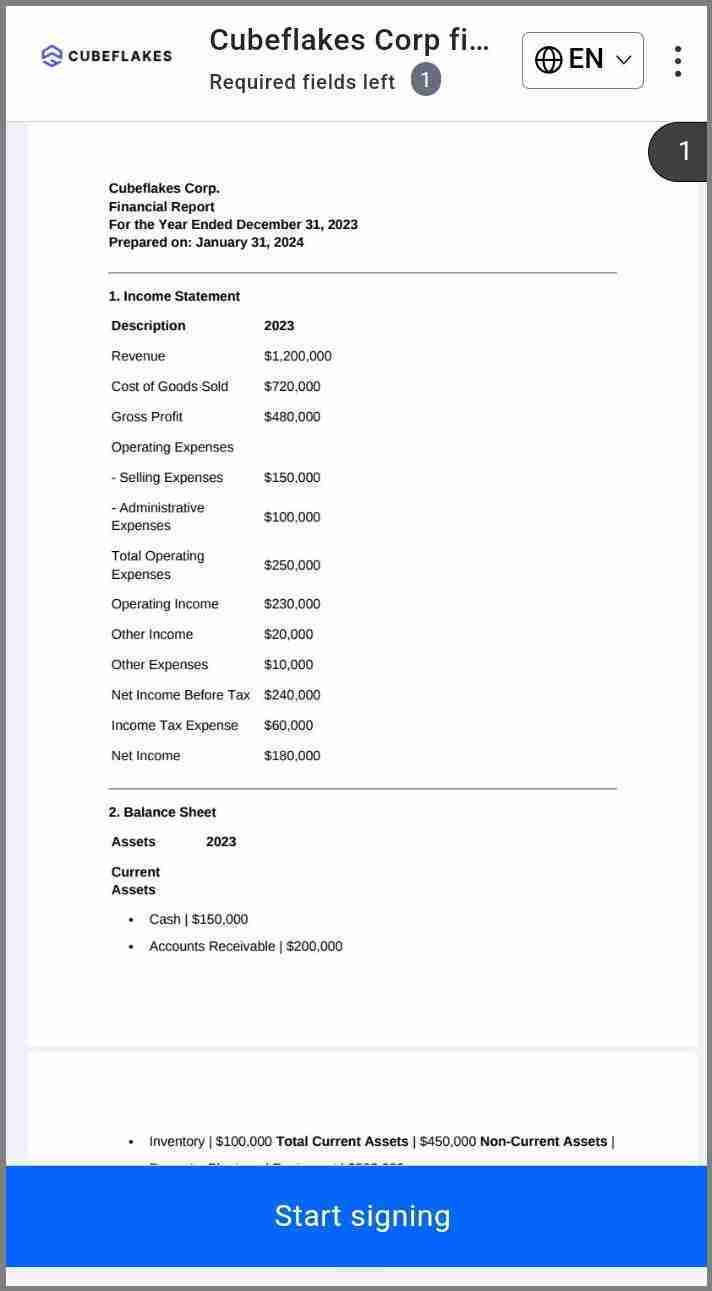
Mobile signer page
Brand your document
Applying your brand name, logo, and color scheme to the signers’ page and email request reinforces your brand identity and credibility. This custom branding approach ensures your financial statements and reports are professional and consistent, thus building trust with recipients and enhancing your organization’s professional image.
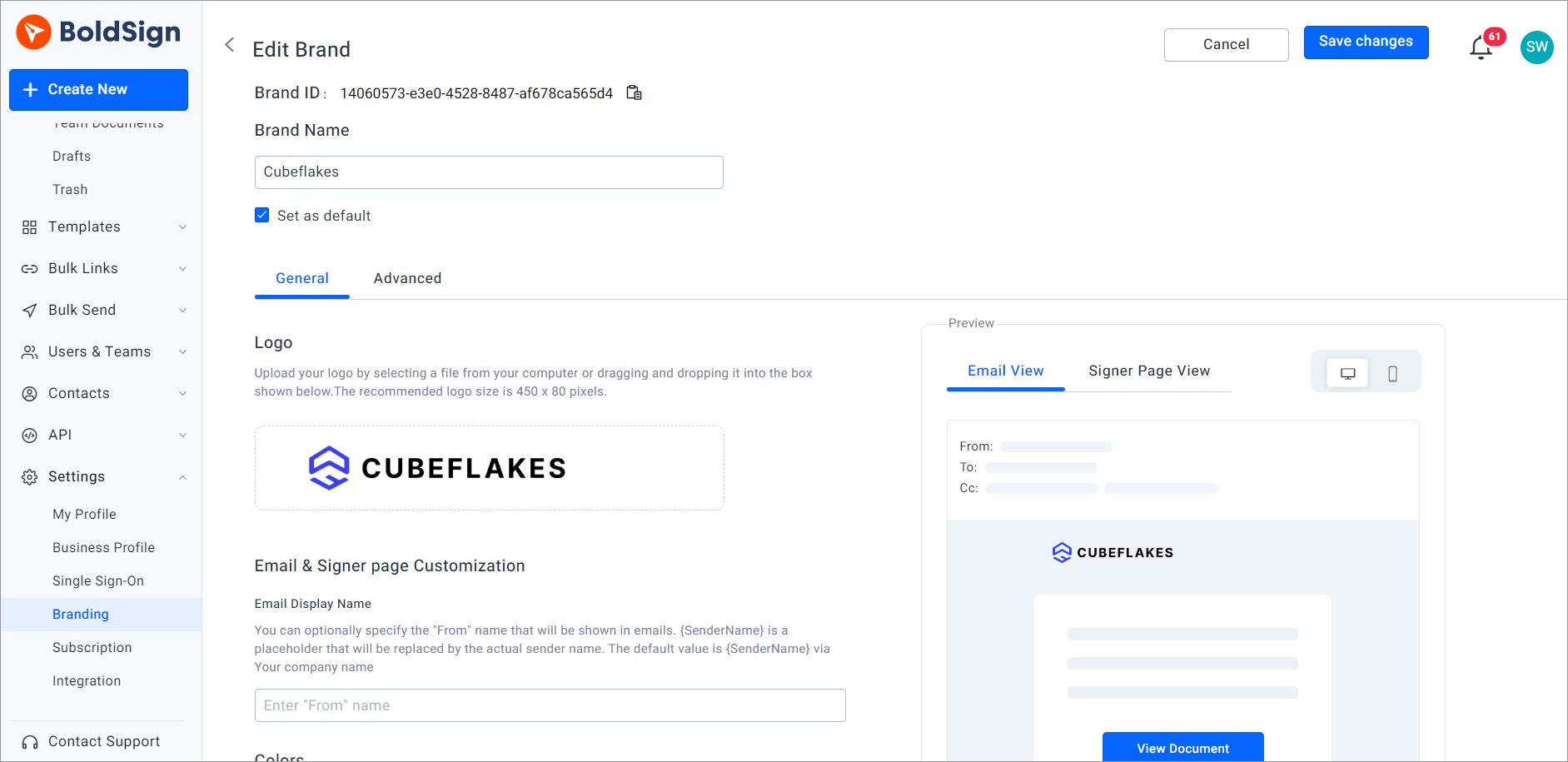
Custom branding page
Scalability
BoldSign helps manage financial statements and reports by handling a growing number of documents and users effectively. It remains reliable and fast even as the volume of transactions increases, supporting both the firm’s expansion and its need for secure, compliant document management.
Wallet-friendly
BoldSign helps accounting firms save money by eliminating costs for printing, mailing, and storing physical documents. With features like unlimited documents, multisigner workflows, and secure authentication, firms can manage contracts and financial statements efficiently without extra costs. This keeps their budget in check while ensuring timely and compliant document processing.
Security and compliance
With BoldSign, accounting firms benefit from top-notch security and compliance, as it is certified compliant with SOC 2® Type 2, GDPR, HIPAA, and PCI DSS. This ensures the highest level of protection for sensitive financial information, which is essential for accurate and reliable financial reporting.
BoldSign’s comprehensive audit trail records details for every action on a document, including signatures, timestamps, and IP addresses, providing transparency and verifying document authenticity. This detailed record supports regulatory compliance and enhances the integrity and accuracy of financial statements and reports.
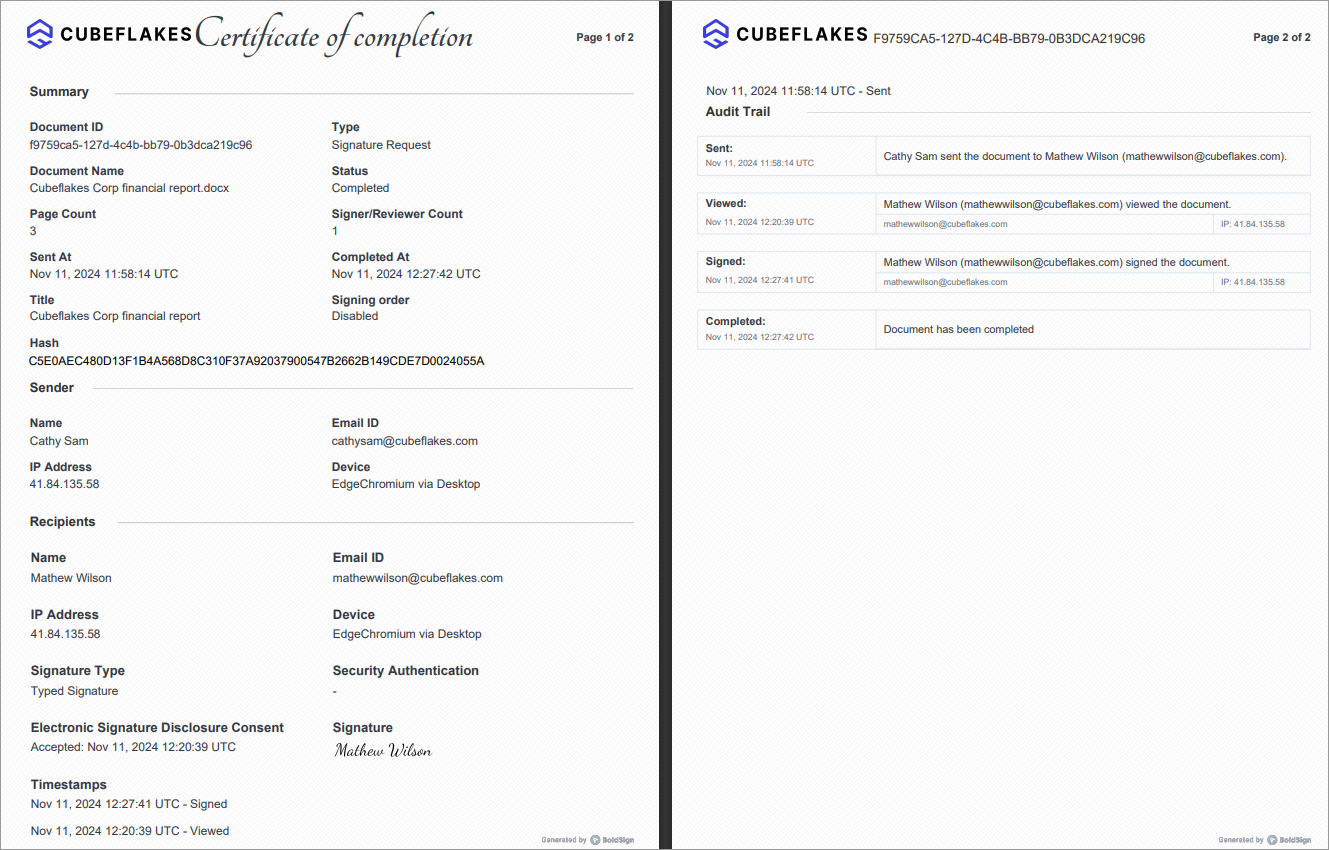
Audit trail document
The signing procedure
Signers can easily complete their financial documents by following these steps:
- Start the signing process by opening your email to find the signing request, then click Review and Sign.
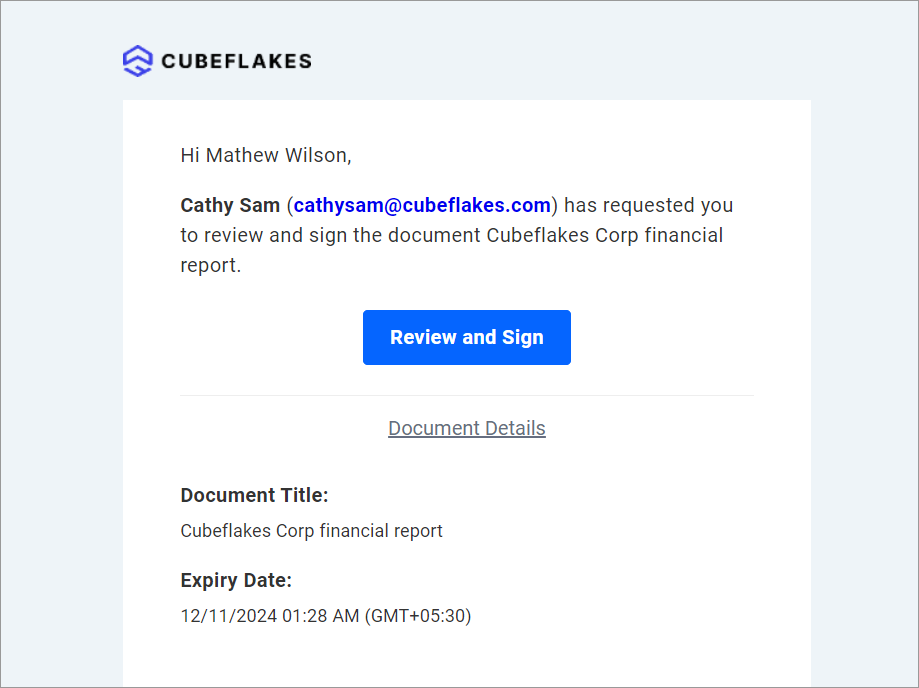
Review and Sign
- Once you’ve accessed the document, read the terms and conditions. Then, check the box and select Continue to proceed to the signing page.
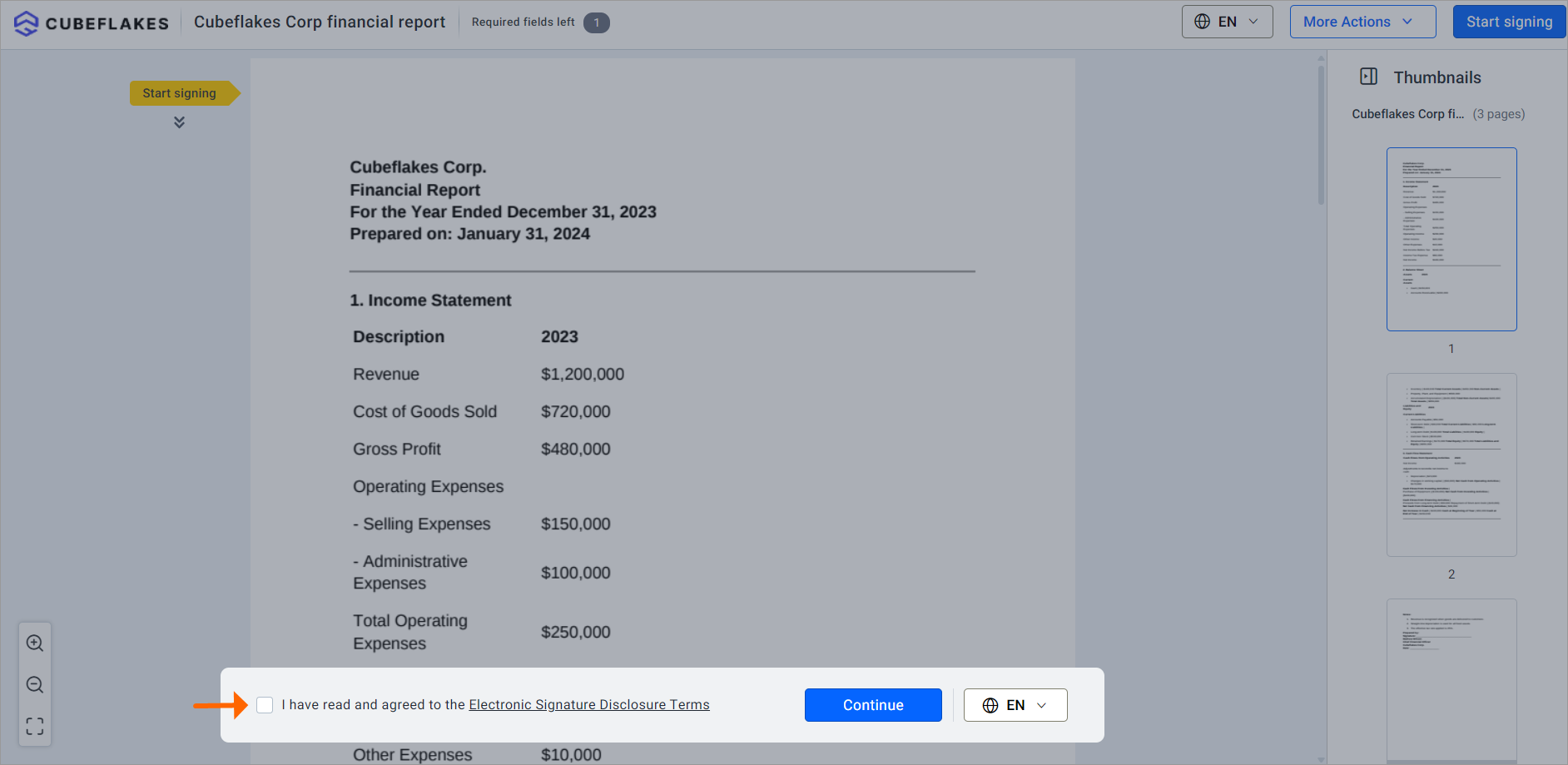
Disclosure terms
- Review the document, then click Start signing to begin the signing process.
- Fill in the required fields.
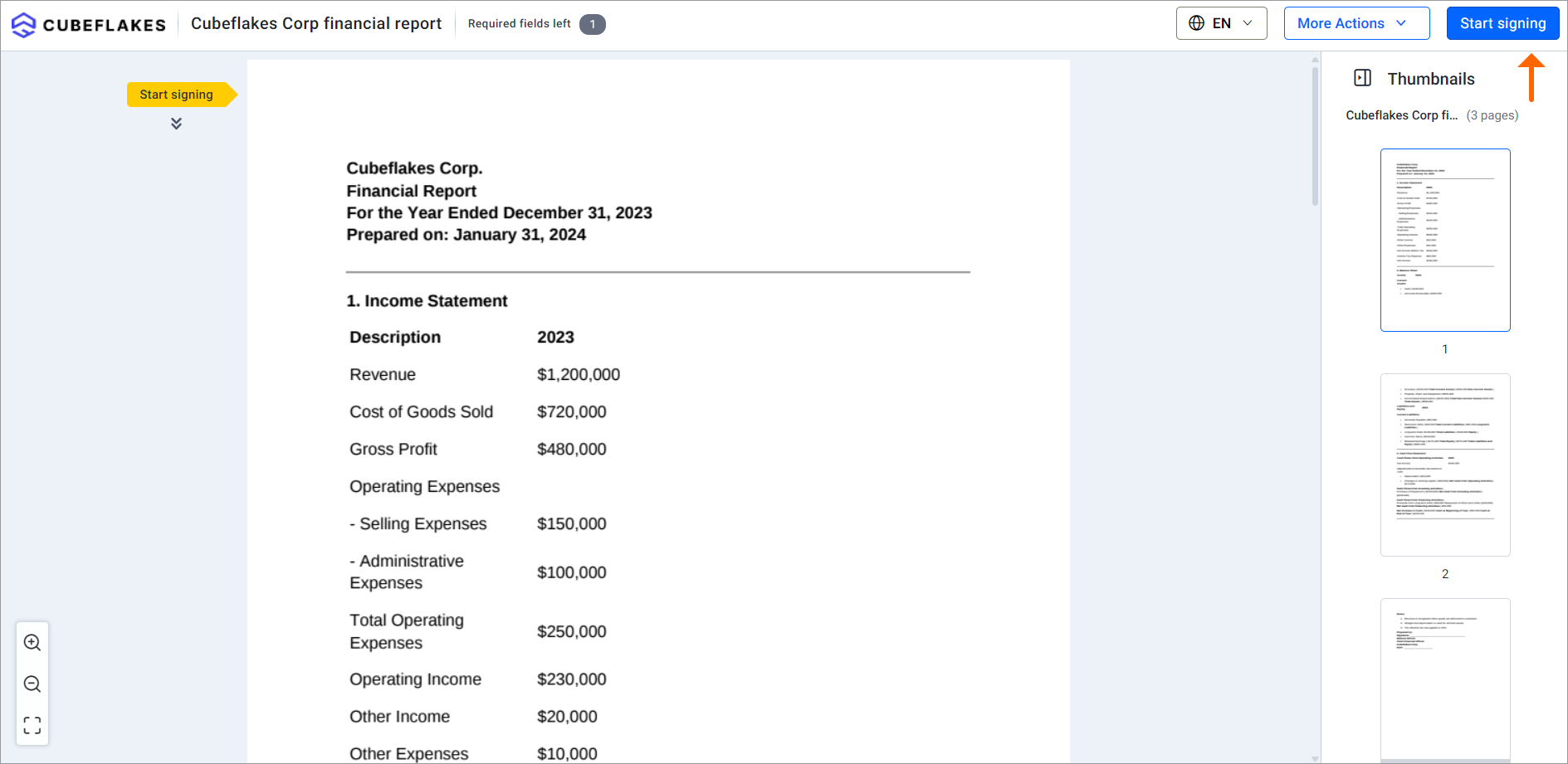
Start signing button
- After completing the required fields and signing the document, click Finish to finalize the process. The document will then be submitted successfully.
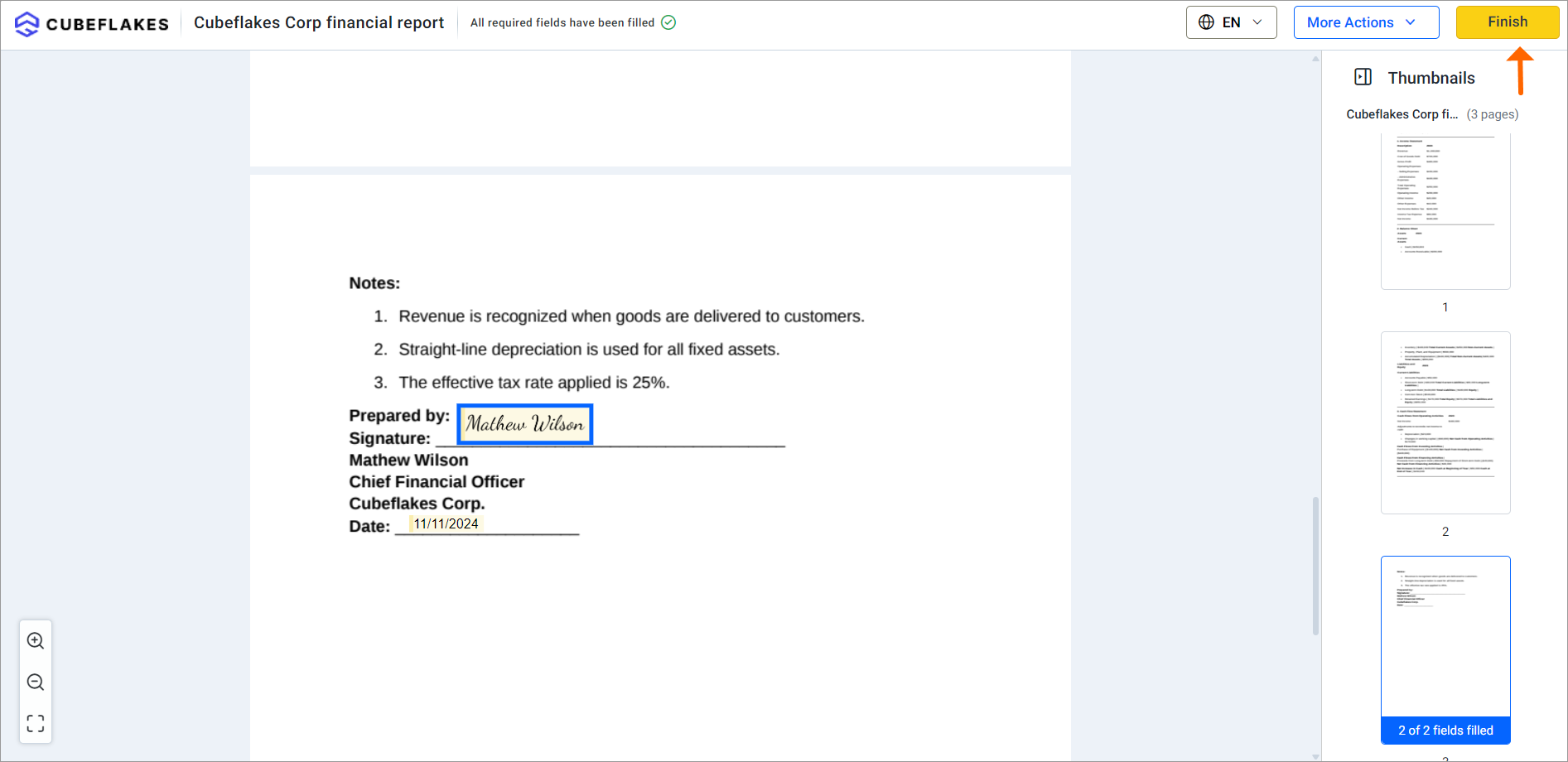
Finish button
Conclusion
BoldSign provides tailored solutions to streamline all your signing needs. With our advanced features, managing your financial statements and reports becomes more efficient, allowing you to focus on larger organizational goals.
Thank you for reading our blog post. To see BoldSign in action, consider opening an account or starting with a free trial to explore all our features at no cost. If you have any questions or need assistance, visit our support portal or schedule a demo, where we can address all your concerns. We’d also love to hear your suggestions for topics you’d like us to explore in future blogs in the comments section!

Rowan Sam Kerongo Makori
Rowan contributes to the BoldSign blogs and helps the articles team. He is passionate about writing high-quality and informative content. His interests include reading books, writing, and exploring.
More posts by Rowan Sam Kerongo Makori