Signer Authentication Methods in BoldSign for Secure Document Signing
TL;DR: Authentication helps ensure the right person signs a document, using methods like OTPs, access codes, KBA, or identity checks. Choose the option that balances security needs with a smooth signing experience.
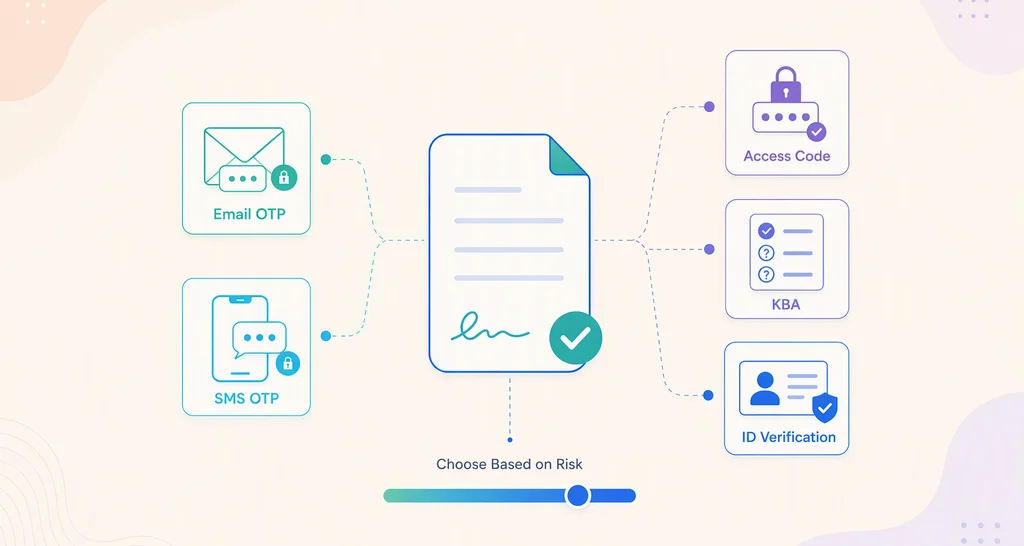
Authentication adds a verification step before a signer can access and sign a document. Email OTP works well for many routine workflows, SMS OTP works well when a signer’s phone number is more reliable than their inbox, access codes give sender-controlled entry, KBA verifies identity through knowledge-based questions without requiring an ID upload, and identity verification provides higher assurance for sensitive or regulated documents.
The best method depends on document risk. Use the lowest-friction option that gives your team the level of assurance it needs.
What is signer authentication
Signer authentication is the process of verifying that the person opening a signing link is the intended recipient before they can view or sign a document.
It helps reduce unauthorized access, impersonation risk, and signing disputes while strengthening the reliability of the signing workflow.
What problem does signer authentication solve
Without additional authentication, a signing workflow often relies on one assumption: the person with access to the email link is the intended signer.
That assumption can break in real-world situations:
- A signing link is forwarded to someone else.
- A shared inbox is used by multiple people.
- An email account is accessed by an unintended user.
- A signer later disputes the action.
Signer authentication adds a checkpoint before document access. This helps confirm that the signer has the required access or identity proof before they can proceed.
Main signer authentication options
Signer authentication methods provide different levels of assurance. Some verify access to an email or phone number, while others verify identity more directly.
| Authentication method | Best reason to use it | How it works |
| Email OTP | To verify access to the registered email address | A one-time code is sent to the signer’s email address before document access |
| SMS OTP | To verify access to the signer’s phone number | A one-time code is sent to the signer’s phone before document access |
| Access code | To control entry using a sender-created code | The signer enters a code shared separately by the sender |
| Identity verification | To confirm the signer’s real identity for higher-risk workflows | The signer completes identity verification steps before accessing the document |
| KBA (Knowledge- Based Authentication) | To confirm identity using personal history, without an ID upload | The signer answers a series of questions generated from public records and personal history before accessing the document |
Typical flow:
Signing link → Authentication → Document access → Sign → Audit trail
Email OTP authentication
Email OTP sends a one-time passcode to the signer’s email address. The signer must enter the code before accessing the document.
Why it matters
Email OTP confirms that the signer has access to the email address linked to the signing request. It does not prove legal identity, but it reduces the risk of simple link sharing because document access requires both the signing link and the email verification code.
When to use Email OTP
Email OTP works well for:
- Routine business documents
- Internal approvals
- Known recipients
- Low- to medium-risk workflows
- Signing flows where low friction is important
How it works in BoldSign
A typical Email OTP workflow in BoldSign looks like this:
- Upload your document.
- Add the recipient’s name and email address.
- Open recipient settings.
- Enable authentication.
- Select Email OTP.
- Add the required signing fields.
- Send the document.
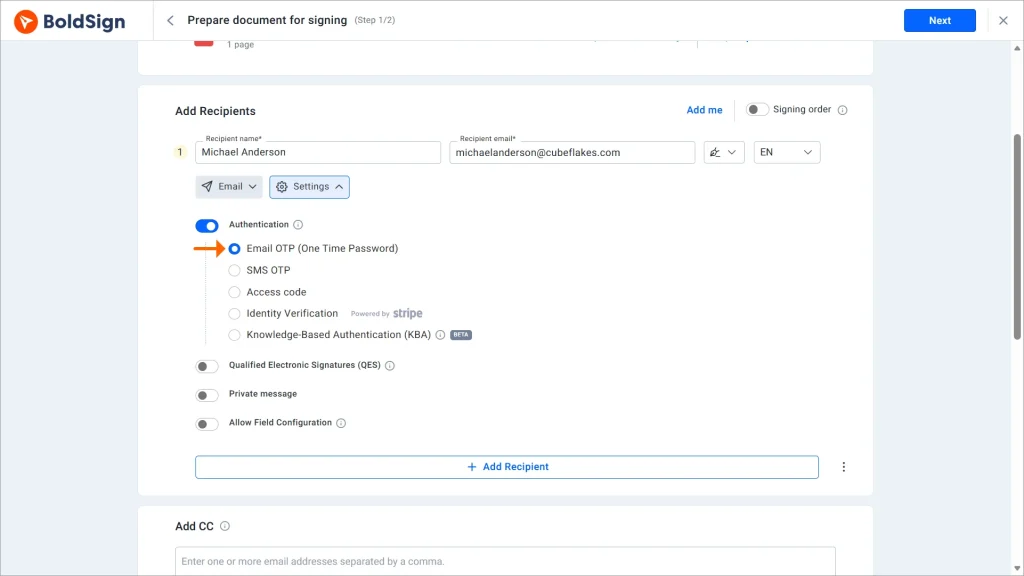
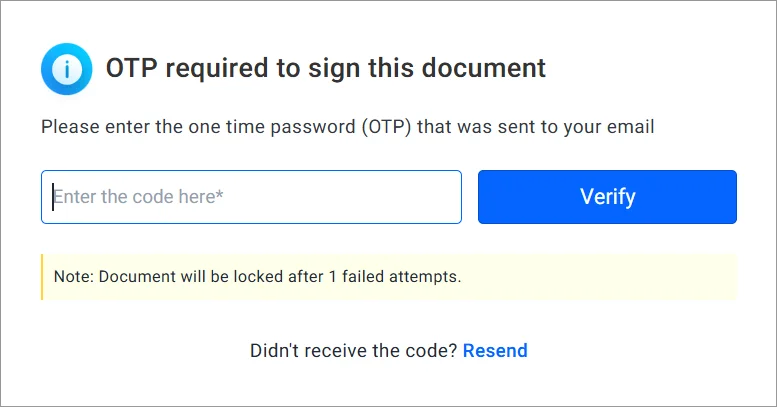
The signer opens the signing link, receives an OTP by email, enters the code, and then proceeds to sign.
SMS OTP authentication
SMS OTP sends a one-time passcode to the signer’s phone number. The signer must enter the code before accessing the document.
Why it matters
SMS OTP adds a second verification channel. Even if someone gains access to the email link, they also need access to the signer’s phone number to continue.
When to use SMS OTP
SMS OTP is useful for:
- External agreements
- Higher-risk documents
- Customer-facing workflows
- Agreements where email-only access is not enough
- Situations where an additional verification channel is required
How it works in BoldSign
A typical SMS OTP workflow in BoldSign looks like this:
- Upload the document.
- Add recipient details, including phone number.
- Open recipient settings.
- Enable authentication.
- Select SMS OTP.
- Add the required signing fields.
- Send the document.
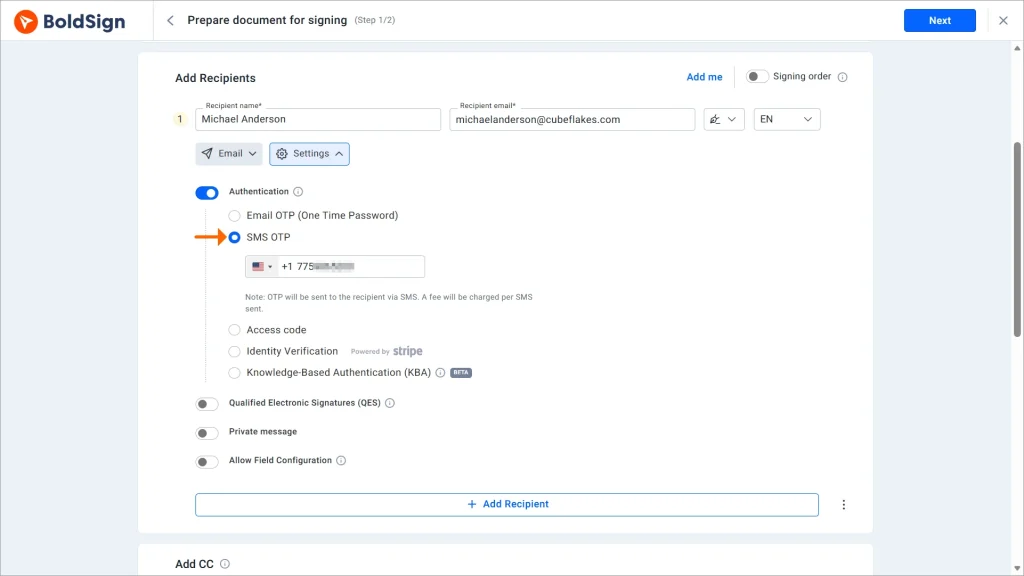
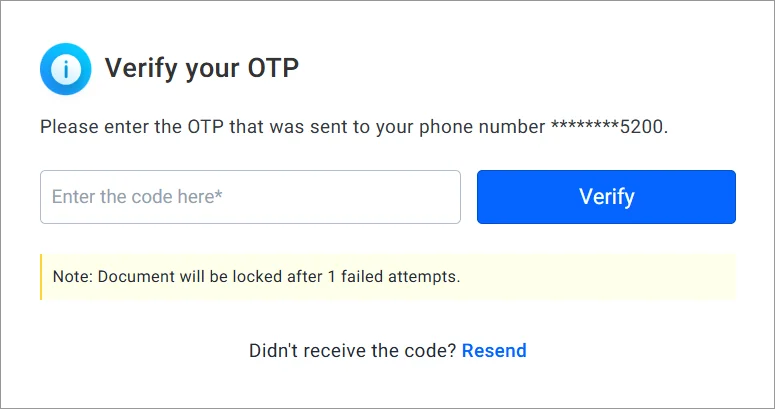
The signer clicks the signing link, receives a code by SMS, enters the code, and then gains access to the document.
Access code authentication
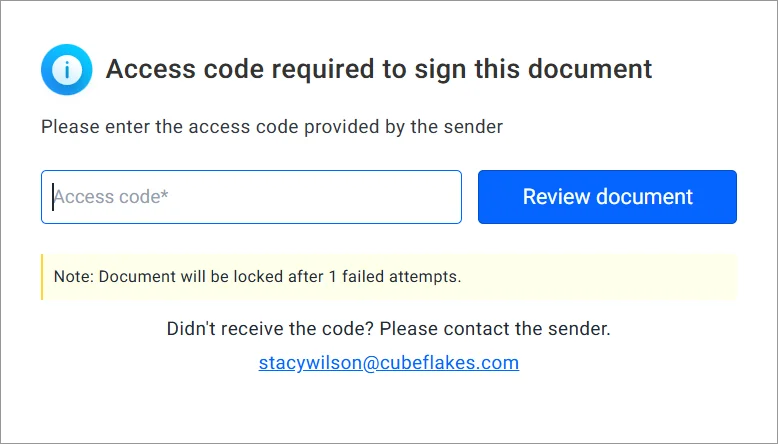
An access code is a predefined code created by the sender. The signer must enter it before accessing the document.
Why it matters
Access code authentication gives the sender control over how access is shared. It does not rely on email or SMS delivery, but it does require the sender to share the code securely through a separate channel.
When to use access codes
Access codes work well when:
- You can share the code securely outside the signing email.
- You want to avoid email or SMS delivery issues.
- You need controlled access for a specific recipient or workflow.
- The recipient is already known to the sender.
How it works in BoldSign
A typical access code workflow in BoldSign looks like this:
- Upload the document.
- Add recipients.
- Open recipient settings.
- Enable authentication.
- Select Access Code.
- Enter a strong, unique code.
- Share the code with the signer through a separate secure channel.
- Add fields and send the document.
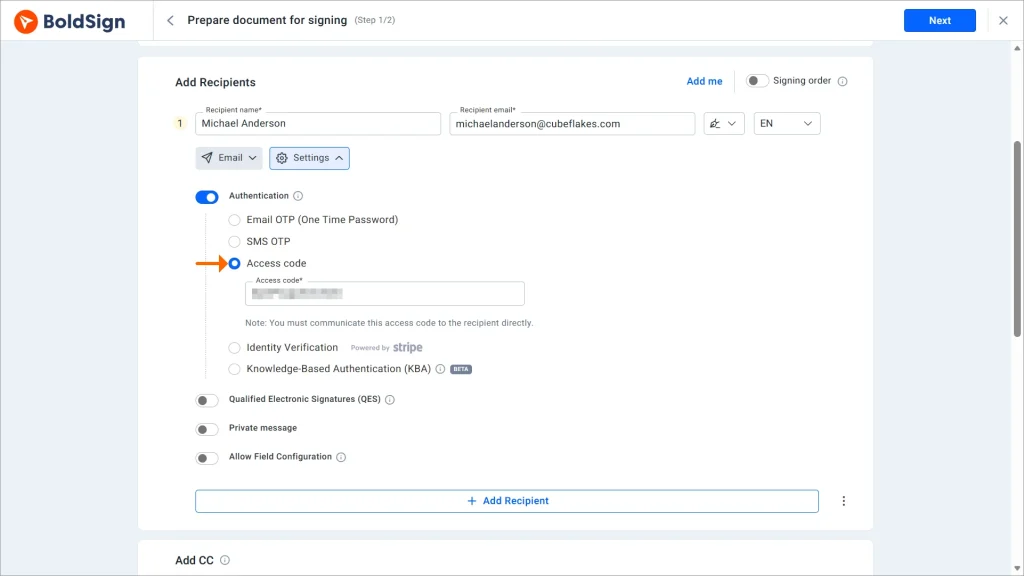
The signer must enter the access code before viewing or signing the document.
Identity verification
Identity verification is a higher-assurance authentication method designed to confirm the signer’s identity, not just access to an email inbox or phone number.
Why it matters
OTP methods verify access. Identity verification goes further by requiring the signer to complete identity checks before accessing the document.
Depending on region, document type, and account configuration, identity verification may include steps such as validating identity information or reviewing a government-issued identity document.
When to use identity verification
Identity verification is best for:
- High-value agreements
- High-risk transactions
- Regulated workflows
- Sensitive documents
- Situations where stronger proof of identity is required
How it works in BoldSign
A typical identity verification workflow in BoldSign looks like this:
- Upload the document.
- Add recipient details.
- Open recipient settings.
- Enable authentication.
- Select Identity Verification.
- Add required signing fields.
- Send the document.
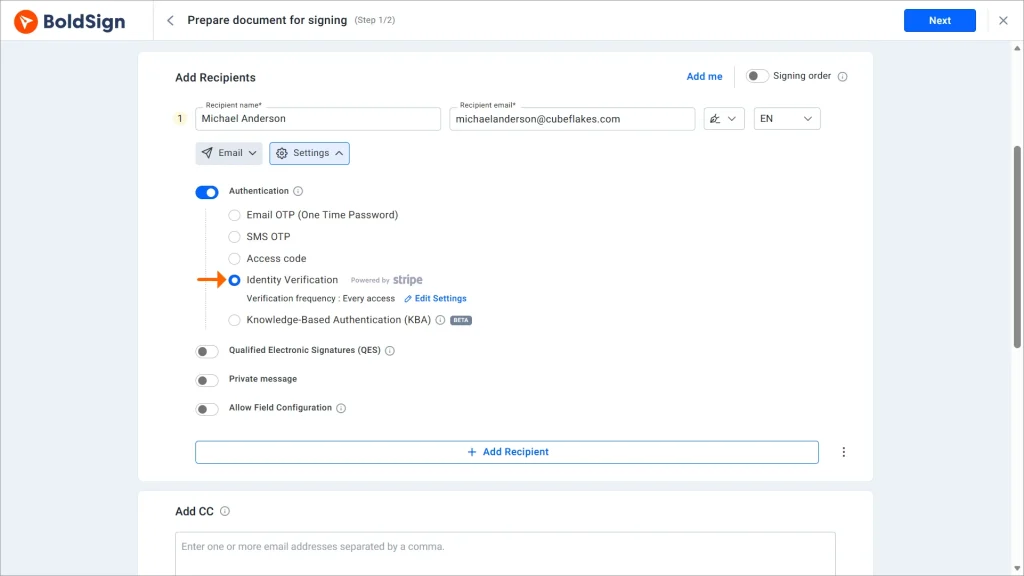
The signer opens the signing link, completes the verification steps, gains access after successful validation, and then signs the document.
Identity verification provides a higher level of assurance, but it may add more time and friction to the signing process.
KBA authentication
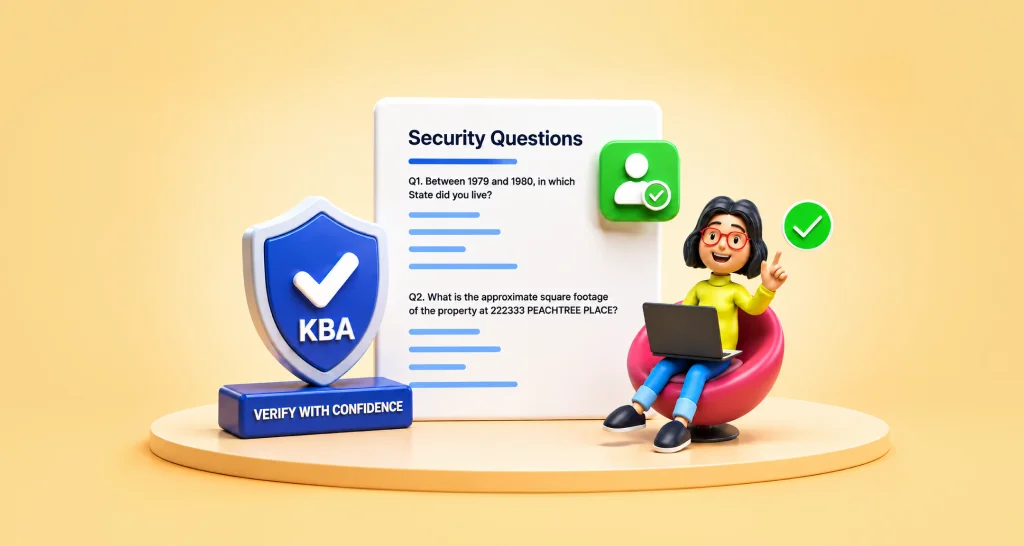
Knowledge-based authentication (KBA) verifies a signer’s identity using their legal identity details and security questions generated from public record data, instead of an ID upload or selfie.
Why it matters
KBA confirms something the signer knows, not just something they have access to. It sits between OTP and identity verification in assurance: stronger than confirming an inbox or phone number, but without requiring a document upload or biometric match.
When to use KBA
KBA works well for:
- Higher-assurance workflows where OTP isn’t enough
- Signers who may be uncomfortable uploading a government ID
- U.S.-based recipients only, since it relies on SSN-linked public record data
- Financial, insurance, healthcare, HR, or legal documents needing stronger-than-OTP verification without added onboarding friction
How it works in BoldSign
A typical KBA workflow in BoldSign looks like this:
- Upload the document.
- Add the recipient’s name and email — make sure the name matches their legal identity, since KBA compares it during authentication.
- Open recipient settings.
- Enable authentication.
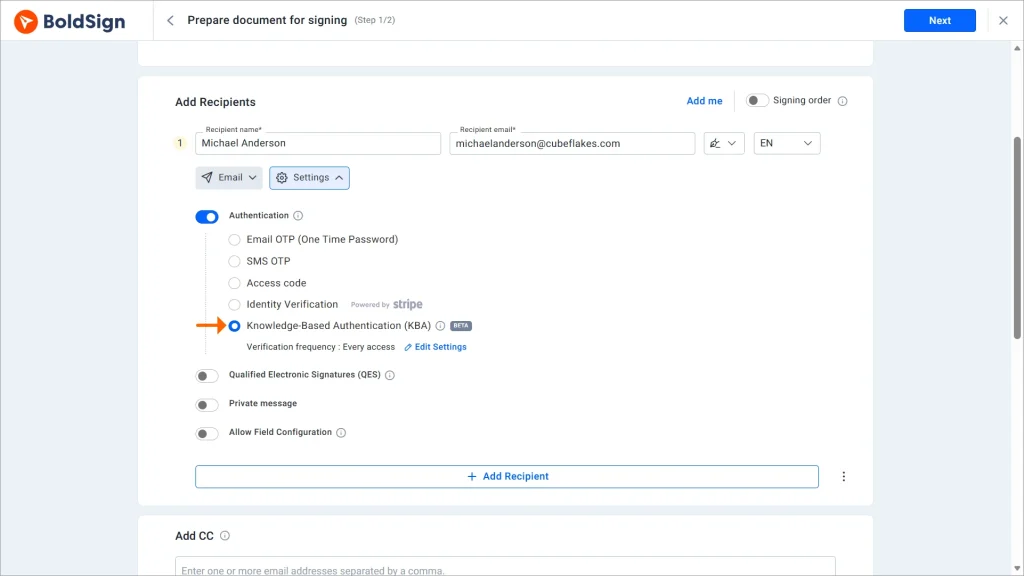
- Select KBA.
- Review the KBA settings for that signer (frequency, retry attempts, and name-match tolerance).
- Add the required signing fields and send the document.
The signer opens the signing link, agrees to a consent checkbox, enters their legal identity details, answers the generated security questions,
Choosing the right authentication method
The best authentication method depends on the risk level of the document and the signer experience you want to maintain.
| Document scenario | Recommended authentication |
| Internal approvals | Email OTP |
| Routine business documents | Email OTP or access code |
| Standard external agreements | SMS OTP |
| Sensitive agreements | SMS OTP, KBA or identity verification |
| High-risk or regulated workflows | Identity verification, or KBA for U.S. signers |
Use the lowest-friction method that still meets your security, compliance, and business requirements.
Security vs. friction comparison
| Method | Security strength | User friction | Key consideration |
| Access code | Medium | Low to medium | Code must be shared securely through a separate channel |
| Email OTP | Medium | Low | Verifies email access, not identity |
| SMS OTP | Medium to high | Medium | Requires phone access and SMS deliverability |
| KBA | High | Medium | Strong identity signal without ID upload; U.S.- based recipients only |
| Identity verification | High | High | Better assurance, but may reduce completion rates |
Stronger authentication adds assurance, but it also adds steps. For routine documents, too much friction can slow completion. For sensitive documents, stronger verification may be worth the added effort.
Best practices for signer authentication
To make authentication effective without hurting completion rates:
- Match the authentication method to the document’s risk level.
- Use the lowest-friction option that meets the workflow requirement.
- Share access codes through a separate secure channel.
- Avoid using identity verification for routine, low-risk documents.
- Plan fallback steps if OTP delivery fails.
- Keep signer instructions clear and predictable.
- Review plan availability and current pricing before rollout.
Final thoughts
Authentication is not about adding unnecessary steps. It is about reducing uncertainty.
A completed signature shows that an action happened. Signer authentication helps show whether the right person had the required access or identity proof before completing that action.
For the best results, map your document types by risk level, then choose the authentication method that balances security, signer experience, and completion speed.
Want to secure your signing workflows without adding unnecessary friction?
Start a BoldSign trial or book a demo to see how Email OTP, SMS OTP, access codes, KBA, and identity verification can be matched to your document risk levels.

Rayronald Ochola Otieno
Rayronald Ochola Otieno is a content specialist at BoldSign, specializing in video content and help articles within the eSignature domain. As a blog author, he creates well-researched, insightful content that simplifies complex eSignature topics like digital signatures, compliance, and workflow automation for businesses and professionals. With expertise in creating educational videos and articles, Ray helps users understand and adopt secure, efficient signing solutions. Beyond writing and video creation, Ray enjoys exploring new technologies, reading about the latest industry trends, and continually refining his skills.
More posts by Rayronald Ochola Otieno