How Salesforce eSignature Workflow Helps Close Deals Faster
TL;DR: Keep the entire signature process inside Salesforce: launch from the record, prefill only the fields that matter, route signers consistently, track status on the Opportunity, and auto-save the signed PDF. The fewer times a rep leaves Salesforce, the faster the deal closes.
A rep gets verbal approval on Tuesday. The contract gets downloaded, edited, emailed, forwarded, forgotten, resent, and finally signed the following Monday. Nobody updates Salesforce. Finance asks where the PDF is. Legal asks who approved the change. The rep asks why this always happens.
A fast Salesforce eSignature workflow keeps document sending, signer routing, status tracking, and signed PDF storage tied to the Salesforce record. The fewer times a rep leaves Salesforce to chase paperwork, the faster the deal moves from verbal yes to closed-won.
How to build a Salesforce eSignature workflow that speeds up deals
A fast workflow is not just digital. It is structured.
At a minimum, a rep should be able to:
1. Open a Salesforce record such as an Opportunity, Lead, Account, or Contact
2. Start a signature request from that record
3. Use a template or approved document
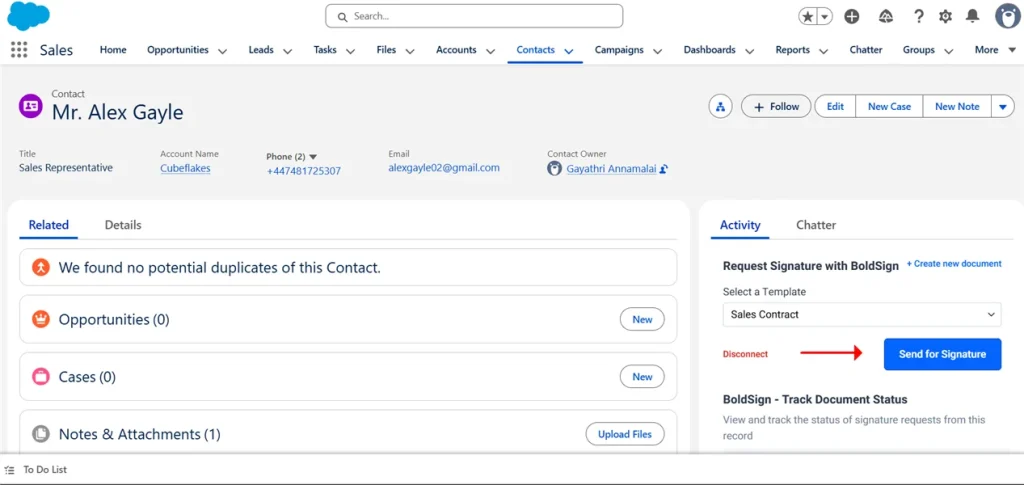
4. Prefill key fields from Salesforce instead of typing them manually
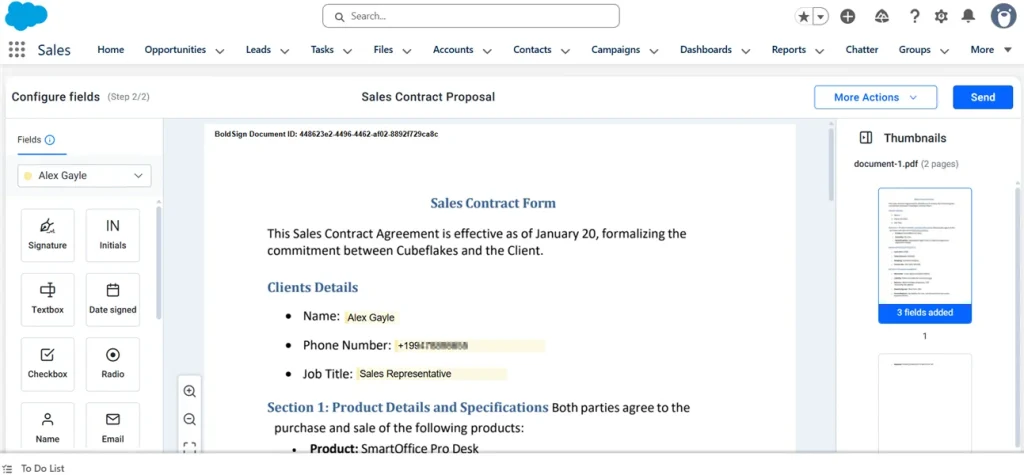
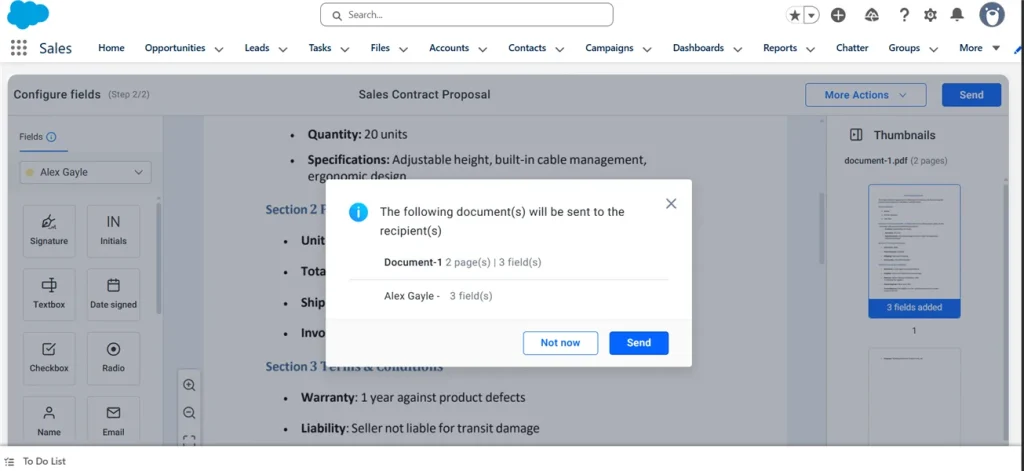
5. Confirm signer roles and routing
6. Send the document without leaving the CRM
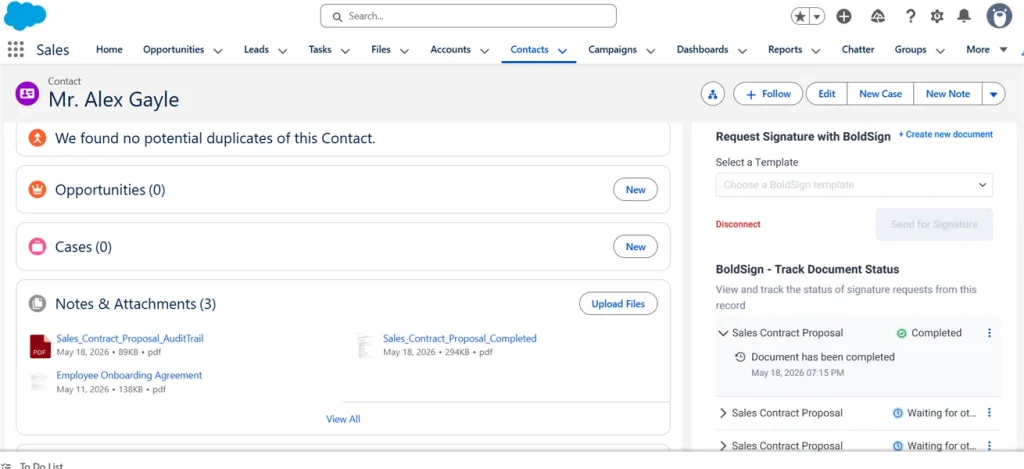
7. Track status on the Salesforce record
8. Save the signed PDF back to Salesforce automatically when completed
That is the difference between Salesforce document signing and a messy email attachment process pretending to be a workflow.
Tools like BoldSign for Salesforce are built around this kind of workflow: Sending documents from Salesforce records, pre-filling fields, tracking status, and storing completed PDFs back in Salesforce.
Manual workflow vs. Salesforce-driven workflow
Your eSignature workflow can either slow deals down with manual steps or speed them up with a structured, Salesforce-driven process.
Manual workflow:
A rep downloads an order form, edits the customer name manually, emails the PDF, waits, forgets to follow up, gets the signed copy later, and uploads it to Salesforce if they remember.
Salesforce workflow:
A rep opens the Opportunity, selects an approved template, lets Salesforce field mapping prefill the document, uses preset signer routing, tracks status on the record, and has the completed PDF saved back automatically.
The second workflow does not just save clicks. It removes delay, guesswork, and avoidable mistakes.
Best practices before you automate
Before automating your eSignature workflow, it’s important to build a clear, structured foundation to avoid complexity, errors, and rework later.
Start with one high-volume template
Do not try to automate every agreement type on day one. Start with the document your team sends most often, such as an NDA, order form, or MSA addendum.
Why this matters: high-volume documents create the most repetitive work. Standardizing one of them first gives you a faster win and a cleaner rollout.
Templates also do more than speed up sending. They help enforce:
- Approved language
- Required fields
- Consistent signer roles
- Repeatable routing
If every rep builds documents differently, the process becomes harder to manage, track, and scale.
Map only the fields that actually reduce cycle time
Field mapping is one of the biggest drivers of speed in a Salesforce eSignature workflow, but overbuilding it early can create more maintenance than value.
Start with the fields reps retype most often, such as:
- Company name
- Signer name and email
- Title
- Billing address
- Amount
- Term
- Start date
- Opportunity owner details
A lean mapping strategy removes the repetitive entries that slow reps down. An overbuilt mapping strategy tries to automate everything at once and becomes fragile whenever fields or processes change.
The simplest rule: map the fields that save time on every send, not the fields that look impressive in setup.
Decide where signed documents live before rollout
One of the most common post-signature problems is not signing speed. It is document retrieval.
If different teams store executed agreements in different places, the deal may be signed but still hard to work with later. Decide where signed documents should live in Salesforce and make that rule consistent.
For many teams, that means saving the signed PDF as a Salesforce File and linking it to the Opportunity. In some cases, it may also make sense to link the same document to the Account or Contact for renewals, service, or support visibility.
The goal is simple: nobody should have to ask, “Where is the signed contract?”
Assign an owner for exceptions
Fast workflows do not fail on normal sends. They fail on edge cases.
Declined signatures, expired requests, wrong signers, voided documents, and pricing changes can push deals into a black hole if nobody owns them.
When nobody owns exceptions, the deal enters the Bermuda Triangle: everyone can see the problem, nobody fixes it, and the quarter ends badly.
Make exception ownership explicit in your sales ops or rev ops process. If something goes wrong, the next step should already be clear.
Best practices during sending
During sending, focus on accuracy, clear recipient roles, proper signing order, and concise messaging so documents are delivered correctly and completed without delays.
Put the fastest path inside the rep’s normal workflow
If reps have to leave Salesforce, search for the latest version of a document, re-enter customer details, and remember who signs next, the workflow is already too slow.
A strong Salesforce contract workflow starts from the record the rep is already using. That reduces friction, improves adoption, and lowers the chance of preventable errors.
The more the process depends on memory, the less reliable it becomes.
Use templates for governance, not just speed
Templates save time, but their bigger value is control.
They help teams standardize:
- Approved content
- Signer placement
- Required fields
- Common routing paths
If one-off uploads are allowed, define when they are acceptable and how they are reviewed. Otherwise, flexibility quickly turns into inconsistency.
This is one of the easiest ways to reduce rework in eSignature for Salesforce: fewer document variations, fewer corrections after sending.
Make signer routing explicit
A fast document can still stall if the wrong person receives it first or if the signing order is unclear.
Set routing rules that match how your deals actually move. For example:
- Customer signer first, then internal countersign
- Two customer signers for larger agreements
- Internal approval before external send for high-risk deals
Bad routing depends on the rep remembering what to do.
Good routing makes the next signer obvious from the start.
That means fewer “Who signs next?” delays and fewer resend cycles caused by avoidable setup mistakes.
Set reminder and expiration defaults
Many deals do not slow down because signing is hard. They slow down because follow-up is inconsistent.
Default reminders and expiration windows help keep requests moving without forcing reps to manage every signature request manually.
Useful defaults often include:
- Automatic reminders after a set number of days
- Expiration periods that match your deal cycle
- Clear email subject lines and message templates
This is where Salesforce signature status tracking becomes practical. Reps should not need detective skills to know whether a customer opened a contract.
Best practices after sending
After sending, focus on visibility, follow-up, signed document storage, and audit readiness so agreements do not get lost once they leave the rep’s hands.
Track status on the record where reps already work
Status visibility turns document follow-up into a process instead of a guessing game.
A rep should be able to look at the relevant Salesforce record and immediately understand whether the request is:
- Sent
- Viewed
- Completed
- Declined
- Expired
These statuses matter because they tell the rep what to do next.
If status is hidden in an inbox or buried in email notifications, follow-up slows down. If status is visible on the Opportunity, action becomes much easier and much faster.
Define follow-up actions for each status
Status alone is not enough. Teams need a simple playbook.
A basic example:
- Sent, not viewed: confirm the signer email and resend if necessary
- Viewed, not completed: follow up with a short reminder or offer help
- Declined: route to the exception owner and capture the reason
- Expired: decide whether to extend, resend, or re-qualify the deal
- Completed: confirm storage and move the deal forward
This is where workflow maturity starts to show. The best teams do not just know document status. They know what each status should trigger next.
If you later want stage changes, tasks, or other actions to run automatically, that is where Salesforce Flow eSignature automation can support a more advanced process once signature completion is reliably captured.
Save completed documents back to Salesforce automatically
A contract is not truly complete if the signed copy still needs to be downloaded, renamed, and uploaded manually.
Completed documents should be saved back to Salesforce as part of the workflow itself. That keeps the deal record complete and gives finance, legal, support, and renewal teams the document where they expect to find it.
For teams comparing tools, this is one of the most practical criteria: not just sending documents from Salesforce, but also ensuring Salesforce signed PDF storage happens consistently after completion.
Keep an audit trail strategy
If your process requires proof of signing activity, decide how the audit trail should be stored and how easy it is to retrieve later.
For example, you may choose to keep audit details alongside the signed PDF or as a separate related file, depending on how your team manages compliance and record access.
The key is consistency. A signed agreement should not be easy to find while the supporting proof lives somewhere else.
How to measure speed in your Salesforce contract workflow
If you want to improve speed, measure the points where deals usually stall.
Send-to-view time
How long it takes from sending the request to the signer first viewing it. This helps identify delivery issues, incorrect signer details, or weak follow-up.
View-to-complete time
How long it takes from first view to completed signature. This shows where friction is happening during signing, routing, or approvals.
Resend and exception rate
How often requests need to be resent or hit states like declined, expired, voided, or wrong signer. This reveals process problems that often stay hidden behind average completion time.
These metrics help teams focus on the real issue: not whether documents are being sent, but where contracts are getting stuck after verbal yes.
Common mistakes that slow deals down
The most common workflow problems are surprisingly repetitive:
- Letting reps freely edit templates, which breaks consistency and governance
- Mapping too many fields instead of starting with the few that matter most
- Failing to show signature status on the Opportunity or chosen record
- Storing executed documents inconsistently across records or folders
- Treating declined and expired requests as edge cases instead of planned exceptions
- Relying on inbox follow-up instead of visible record-based status tracking
Each of these problems adds friction. Together, they turn a manageable signing process into paperwork chaos.
Conclusion: Build a faster Salesforce eSignature workflow
Stop letting signed contracts live in inboxes, downloads, and mystery folders.
With BoldSign eSignature for Salesforce, reps can start signature requests from Salesforce records, reduce repetitive data entry with templates and field mapping, track status on the record, and save completed PDFs back where the team can actually find them.
If your deals keep slowing down after verbal yes, the fix is not more follow-up. It is a better Salesforce eSignature workflow.
Want to keep your contract workflow inside Salesforce? Start your free BoldSign trial or request a demo to send documents, prefill fields, track signature status, and store completed PDFs without leaving your CRM.
Frequently asked questions
How do I send a document for signature from Salesforce?
Use a Salesforce eSignature integration to start the signature request from a Salesforce record, such as an Opportunity or Account. The document can be sent using a template, prefilled fields, and signer routing. With BoldSign Salesforce integration, you can easily send, track, and manage signature requests without leaving Salesforce.
Can signed documents be saved back to Salesforce?
Yes. With the right eSignature workflow, completed PDFs can be automatically saved back to the related Salesforce record, making them easier for sales, finance, and legal teams to find.
Why use eSignature inside Salesforce?
Using eSignature inside Salesforce helps reps avoid switching tools, retyping customer details, tracking signatures through email, or manually uploading signed contracts later. This keeps the deal workflow faster and more organized.
How does Salesforce field mapping help in eSignature workflows?
Field mapping automatically fills document fields using Salesforce data, reducing manual entry, improving accuracy, and helping reps send documents faster. Using BoldSign’s Salesforce integration, mapped fields keep documents auto-filled with accurate data for faster, more consistent workflows.
Can I send documents from a Salesforce Opportunity?
Yes. With BoldSign for Salesforce, users can start a signature request from an Opportunity record, select a template or upload a document, confirm signer details, and send it for signature without leaving Salesforce.
Can I track signature status inside Salesforce?
Yes. Teams can track document status directly from Salesforce, including whether a document has been sent, viewed, signed, declined, or expired. This helps teams follow up faster without switching platforms. Real-time tracking is available through BoldSign Salesforce integration.

Stephen Otieno Okoth
Stephen is a Technical Assistant at BoldSign who specializes in creating clear documentation and engaging videos. He combines his technical skills and creativity to deliver user-focused solutions. Connect with him on LinkedIn.
More posts by Stephen Otieno Okoth