How to Sign a Word Document: Which Method Holds Up Best?
TL;DR: You can sign a Word document using a signature image, a certificate-based Word signature line, or an eSignature platform. A signature image is the simplest option, a Word signature line can help protect the original document, and an eSignature platform makes it easier to collect signatures, track progress, and maintain signing records.
Signing a Microsoft Word document is easy, but not all signing methods provide the same level of verification, document protection, or workflow visibility.
Whether you use a signature image, a Word signature line, or an eSignature platform, each option offers different advantages and limitations. In many situations, the challenge is not just collecting a signature. It is tracking the document, following up with recipients, monitoring signing progress, and managing multiple signers efficiently.
This guide compares the three common ways to sign a Word document and explains which method holds up best for different use cases.
What each Word signing method actually does
A signature image is a picture of a handwritten signature inserted into the document. The document shows the signature, but the image does not contain a built-in record of who placed it there or when.
A Word signature line can be paired with a digital certificate. A digital certificate works like an electronic identity card issued by a certificate authority. When a valid certificate is used, Word can associate the signer with the original file and indicate whether the file changed after signing. Microsoft states that digital signatures can support authenticity and integrity when the certificate is valid and trusted.
An eSignature service adds a managed signing process. The service sends the document to the recipient, records signing activity, and produces supporting records such as timestamps and an audit trail.
For example, an informal internal form may only need a visible signature. A sales contract involving an external customer may need a clearer record of delivery, authentication, signing, and completion.
The three ways to sign a Word document
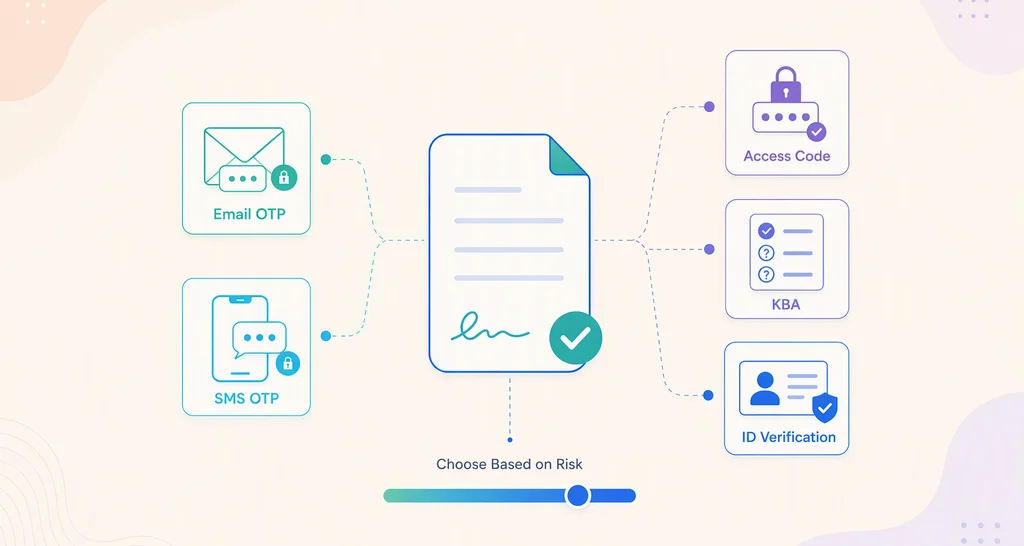
The three signing methods provide different levels of verification, document protection, and supporting evidence:
- Insert a signature image.
- Use a Word signature line with a digital certificate.
- Use an eSignature platform.
Insert a signature image
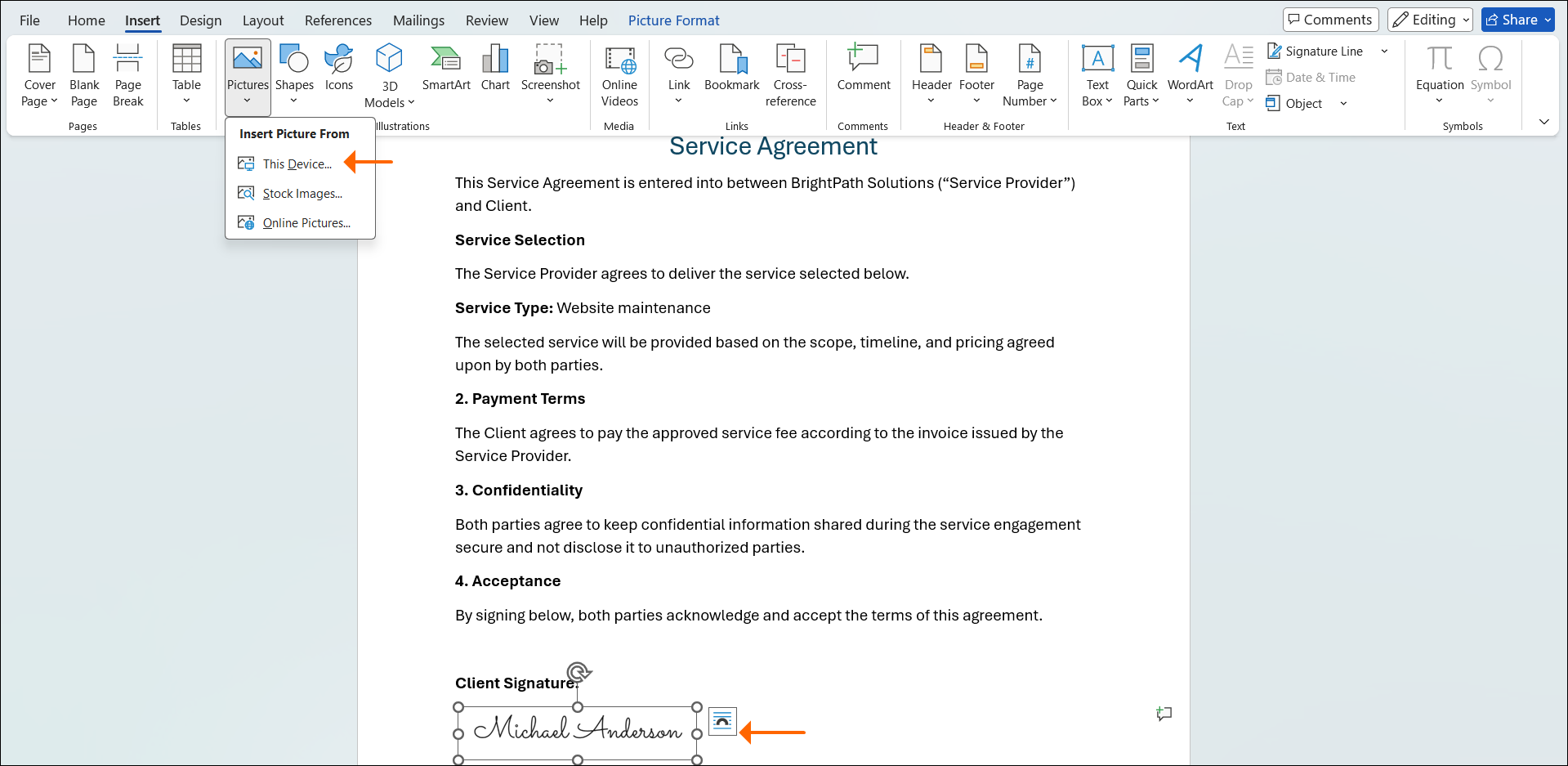
The simplest way to sign a Word document is to insert an image of your handwritten signature. Users typically sign a piece of paper, scan or photograph the signature, save it as an image file, and insert it into the document.
Advantages
- Quick and easy
- Familiar to most users
- Does not require a separate signing service
Limitations
- The image can be copied and reused.
- It does not verify who added the signature.
- It does not record when the signature was added.
- It does not provide an audit trail.
- It does not indicate whether the document was changed afterward.
Best for
- Internal drafts
- Informal approvals
- Documents where proof of signing is not important
A signature image is suitable when only a visible signature is required.
Use a Word signature line with a digital certificate
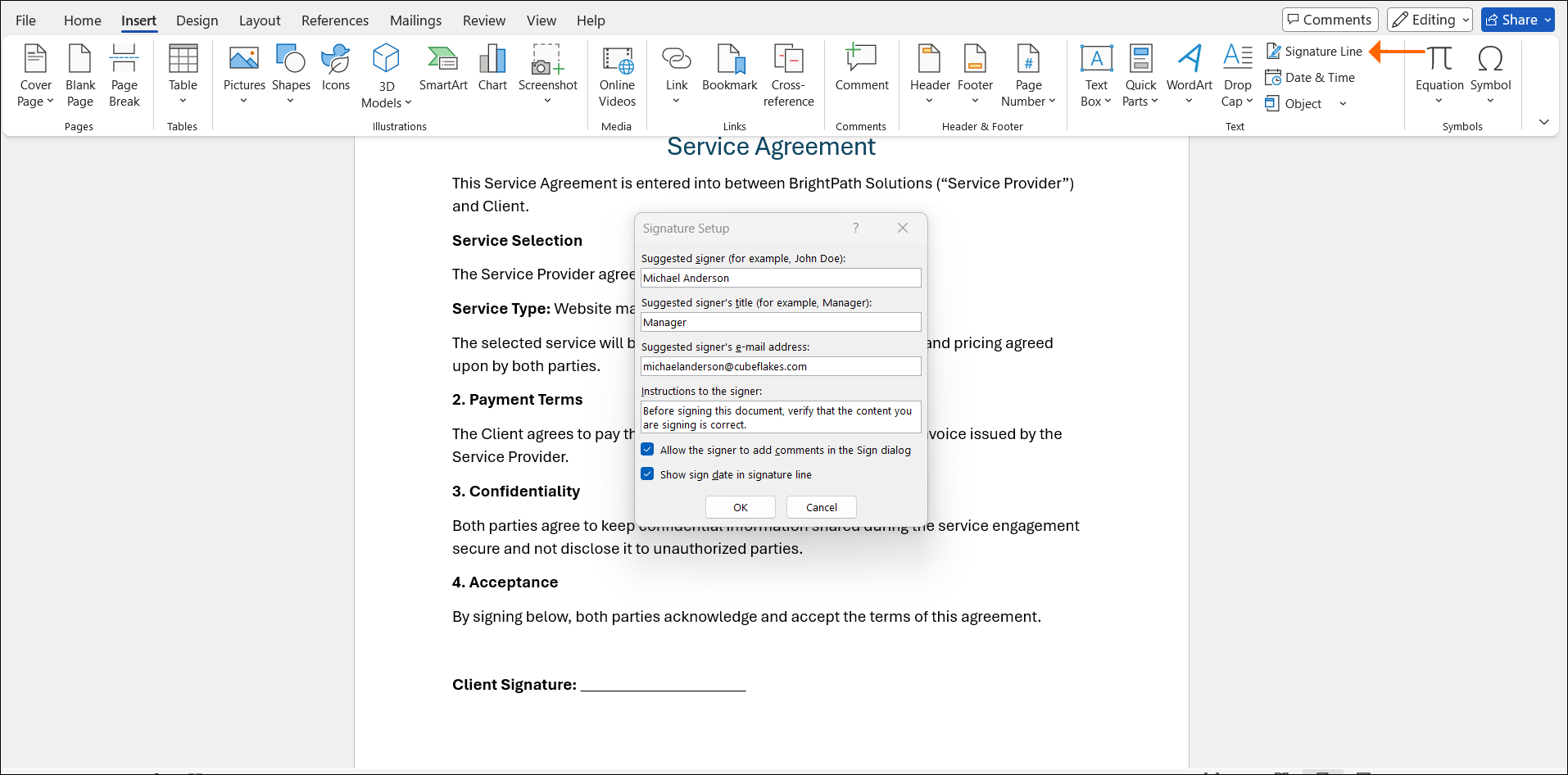
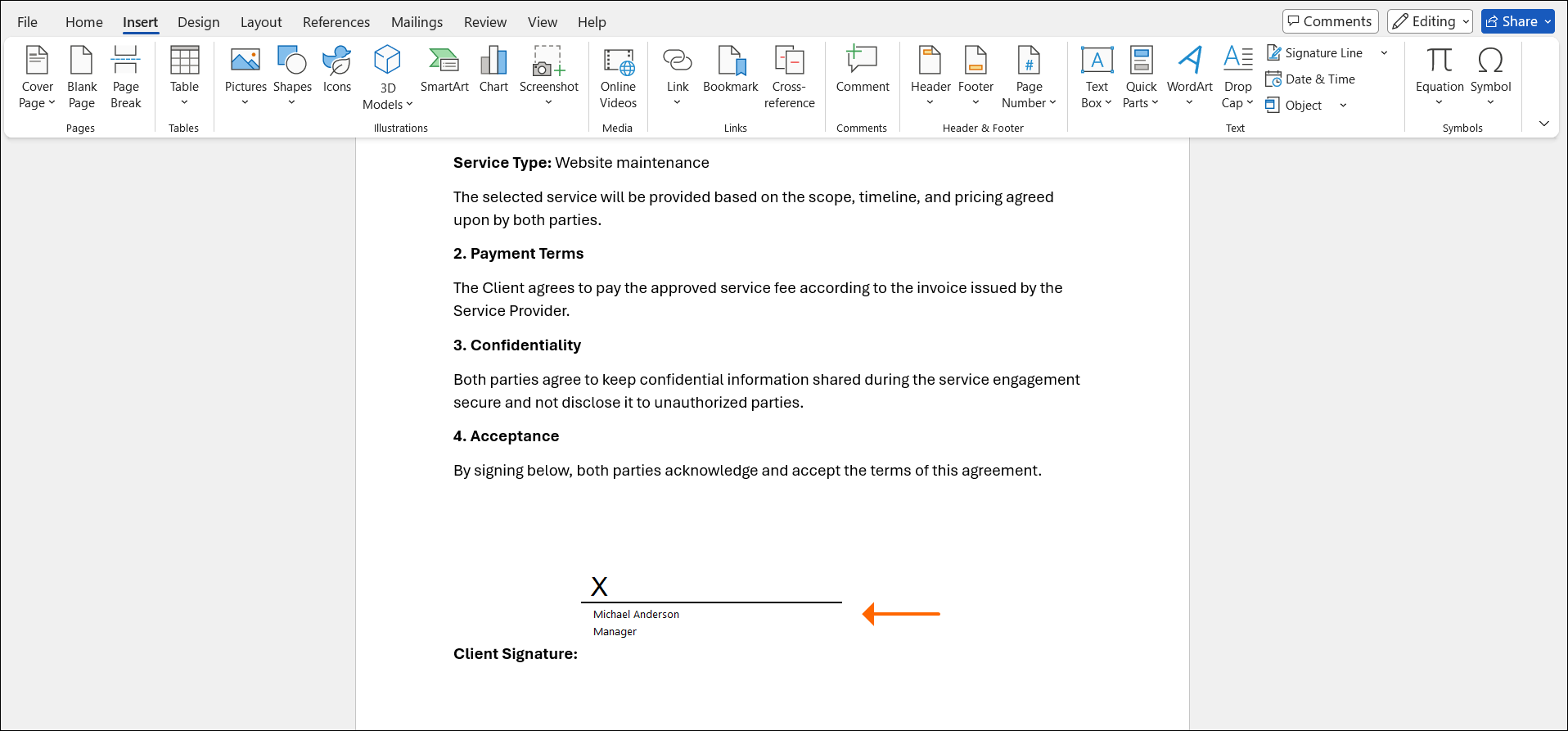
Microsoft Word includes a signature line feature that creates a designated signing area in a document. It can display the signer’s name, title, email address, and signing instructions.
A Word signature line can also support certificate-based digital signing. When a valid digital certificate is used, Word can associate the certificate with the signer and indicate whether the original document was modified after signing.
Advantages
- Built directly into Word
- Creates a designated signing area
- Can display signer information
- Supports certificate-based digital signatures
- Can indicate whether the original document was modified after signing
Limitations
- Requires a valid digital certificate for certificate-based signing.
- Recipients must be able to validate and trust the certificate.
- Does not record document delivery or viewing activity.
- Does not provide centralized signing-status tracking.
- Does not produce a complete signing-workflow audit trail.
Best for
- Organizations that already use digital certificates
- Controlled internal workflows
- Documents whose original Word files will be retained
- Recipients who know how to validate certificate-based signatures
When used with a valid digital certificate, a Word signature line can protect the original file, but external recipients may find the certificate harder to verify.
eSign a Word document with an eSignature platform
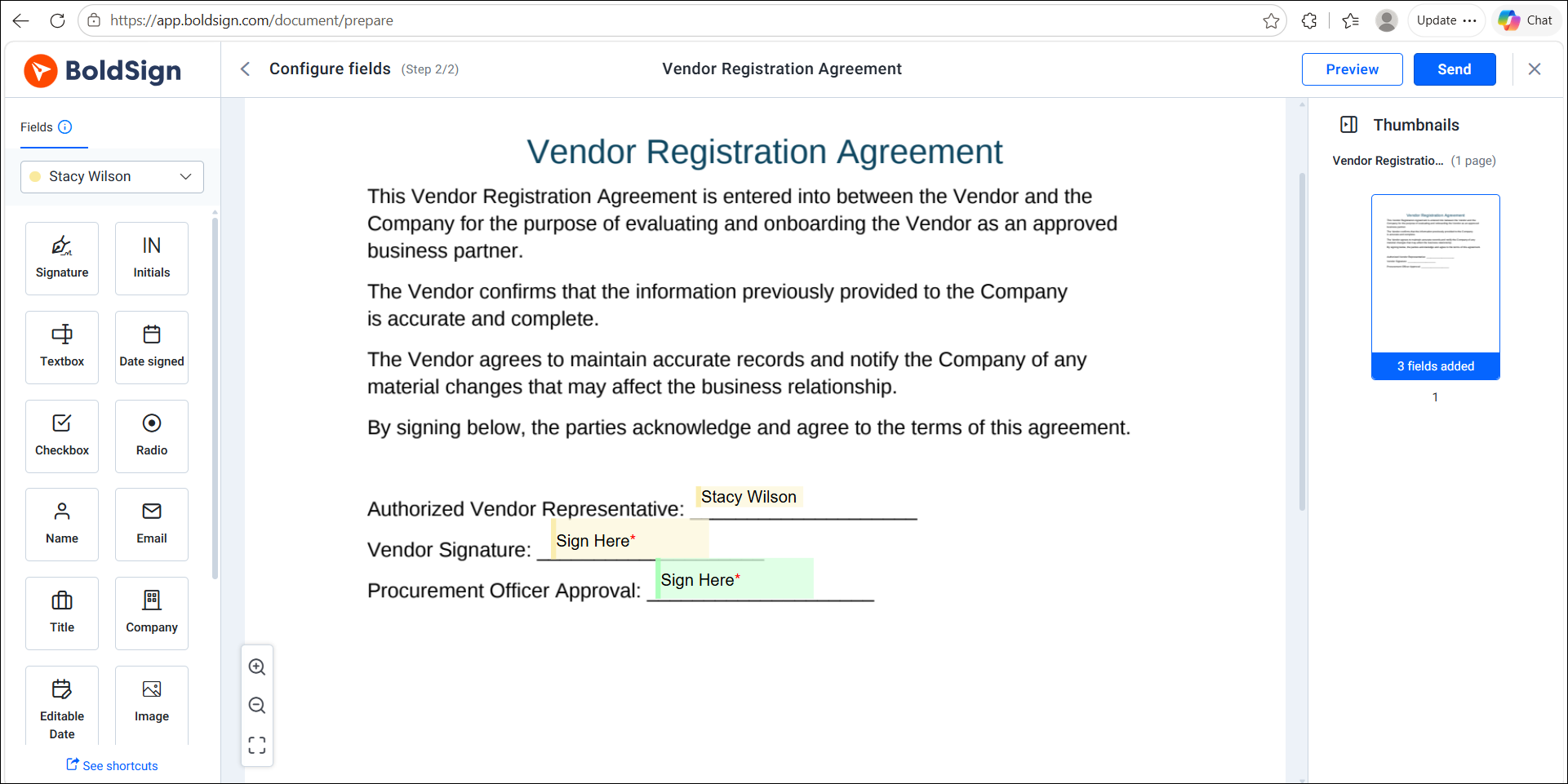
An eSignature platform does more than add a signature to a document. It manages the signing workflow, including document delivery, signature collection, status tracking, reminders, and audit records. Instead of emailing files back and forth, senders can monitor progress, coordinate multiple signers, and manage frequent or high-volume signing requests in one place.
Advantages
- Signer authentication options
- Signing timestamps
- Multiple signers
- Status tracking
- Detailed audit records
- Centralized document management
Limitations
- Requires a separate online platform
- Some features depend on the platform and settings
Best for
- Contracts
- HR forms
- Vendor agreements
- Customer onboarding documents
- Business-critical records
An eSignature platform is suitable when the completed document needs a traceable record of the signing process.
Comparison: Which Word signing method holds up best?
The three methods differ in the information they record and how easily another person can verify the signature later.
| Feature | Signature image | Word signature line with certificate | eSignature platform |
| Creates a visible signature | Yes | Yes | Yes |
| Verifies the signer | No built-in verification | Yes, with a trusted certificate | Depends on authentication settings |
| Records signing time | No | Yes | Yes |
| Shows later document changes | No | Yes | Yes |
| Provides an audit trail | No | No | Yes |
| Supports multiple signers | Manual | Yes | Yes |
| Tracks signing progress | No | No | Yes |
| Easy for external signers | Yes, but not verifiable | May require certificate setup | Yes |
Note: A Word signature line verifies the signer and shows document changes only when used with a valid digital certificate that the recipient can validate.
When should you choose an eSignature platform?
Word’s built-in signing options can work well for occasional document signing. However, as signing volume increases or more people become involved, managing documents manually can become more difficult.
Consider using an eSignature platform when:
- You regularly send the same type of document.
- More than one person needs to sign.
- Signers are outside your organization.
- You spend time following up with recipients.
- You need to track whether documents were received, opened, or signed.
- Other team members need visibility into signing progress.
- You need a record of who signed and when.
- You need a detailed audit trail.
With signature images and Word signature lines, documents are often shared as email attachments. You may not know whether recipients received, opened, or signed the document. You may also need to manually follow up with recipients, track signing progress, and coordinate multiple signers, especially when the document must be routed between several recipients.
An eSignature platform helps manage these activities through a structured workflow with document delivery, status tracking, reminders, audit records, and centralized document management, reducing manual follow-up and improving visibility throughout the signing process.
What happens when a signed Word document is converted to PDF?
Many organizations sign documents in Word and convert them to PDF for sharing or storage. How the signature behaves after conversion depends on the signing method used.
Signature images
When a Word document containing a signature image is converted to PDF, the image generally remains visible and looks the same as it did in the original document.
However, conversion does not make the signature more secure or verifiable. The image remains a visual representation of a signature and does not gain signer verification, timestamps, or an audit trail.
Word signature lines
A certificate-based digital signature is linked to the original signed Word file. When the file is converted to PDF, the visible signature may remain, but the digital certificate supporting its authenticity does not carry over to the new file.
Practical tip: Keep the original signed Word file if the certificate-based digital signature may need to be verified later.
eSignature workflows
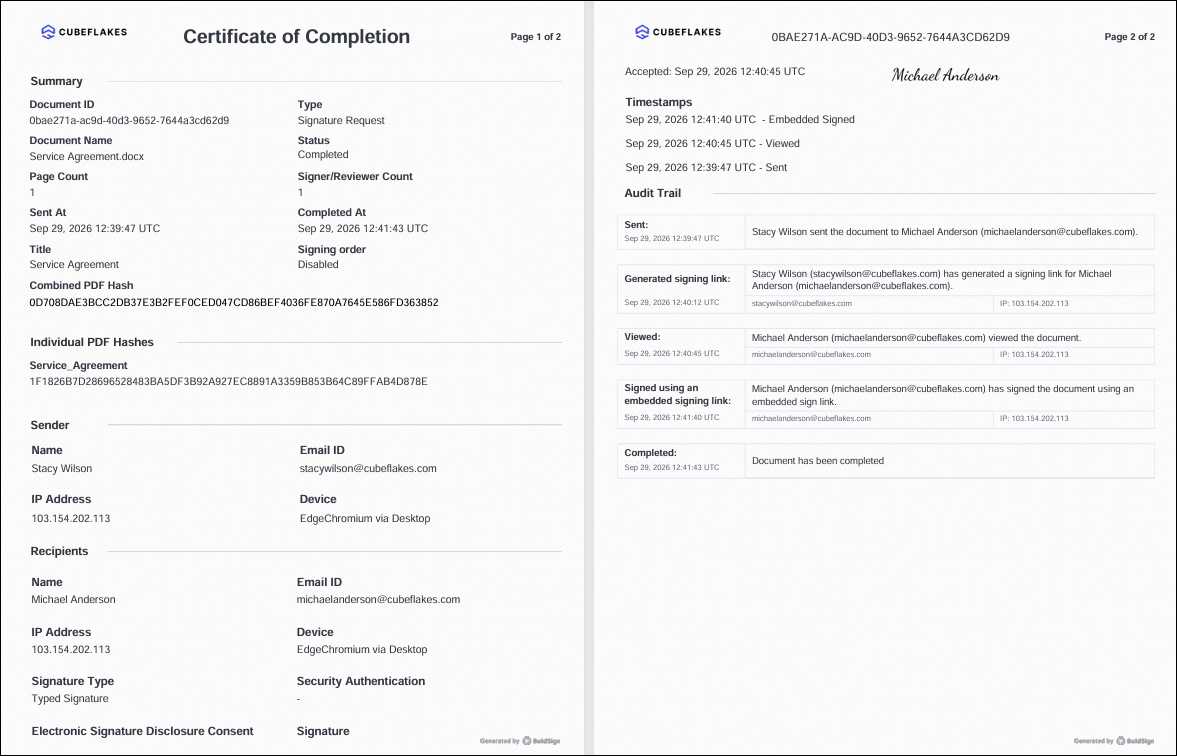
When a Word document is uploaded to an eSignature platform, the sender adds signature fields, assigns them to recipients, and sends the document for signing. After completion, the final PDF is provided with a record of the signing activity.
Depending on the platform and settings, the record can include signing timestamps, authentication details, completion information, document history, and recipient activity.
How to eSign a Word document with BoldSign
BoldSign helps you prepare, send, sign, and track Word documents through a structured electronic signature workflow. Here’s how to eSign a Word document with BoldSign:
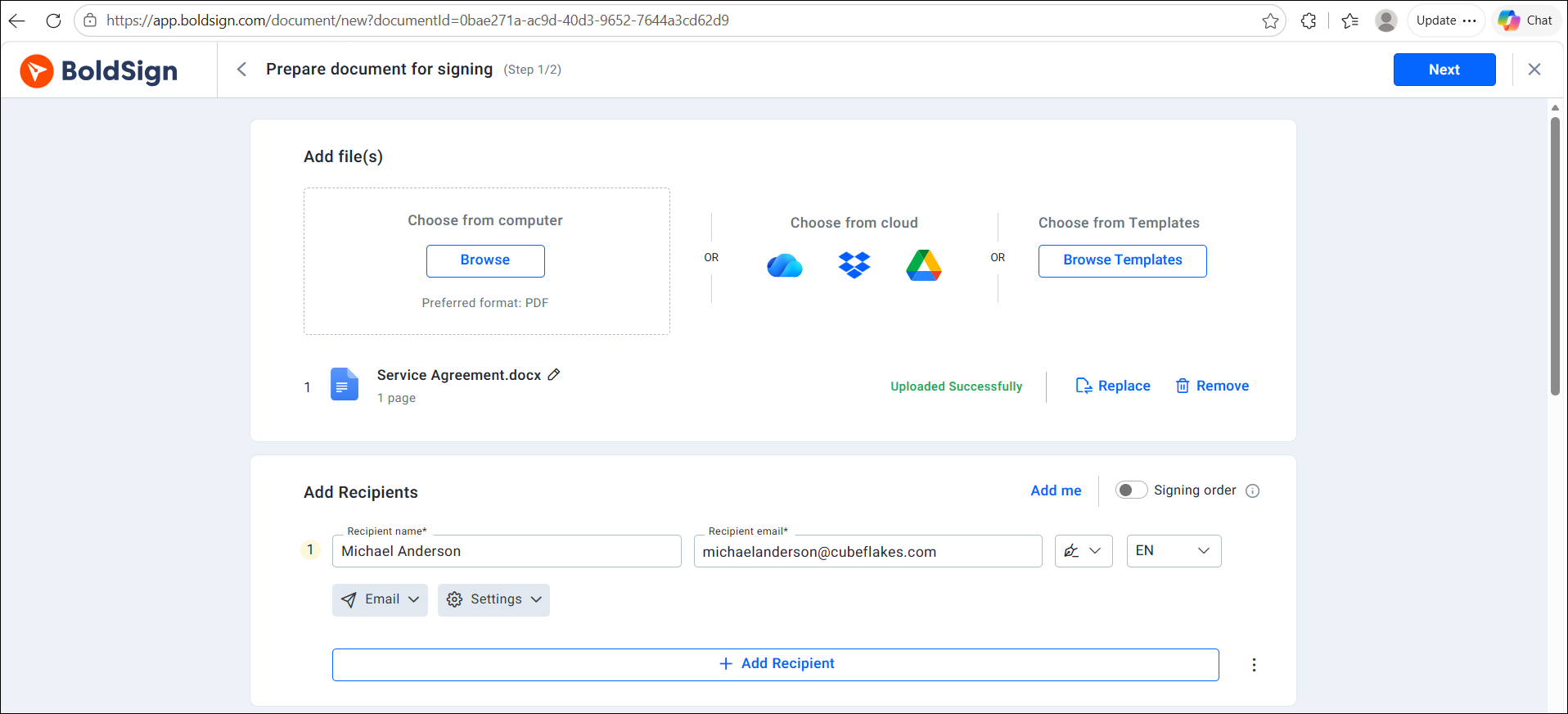
- Upload your Word document and enter the name and email address of each signer.
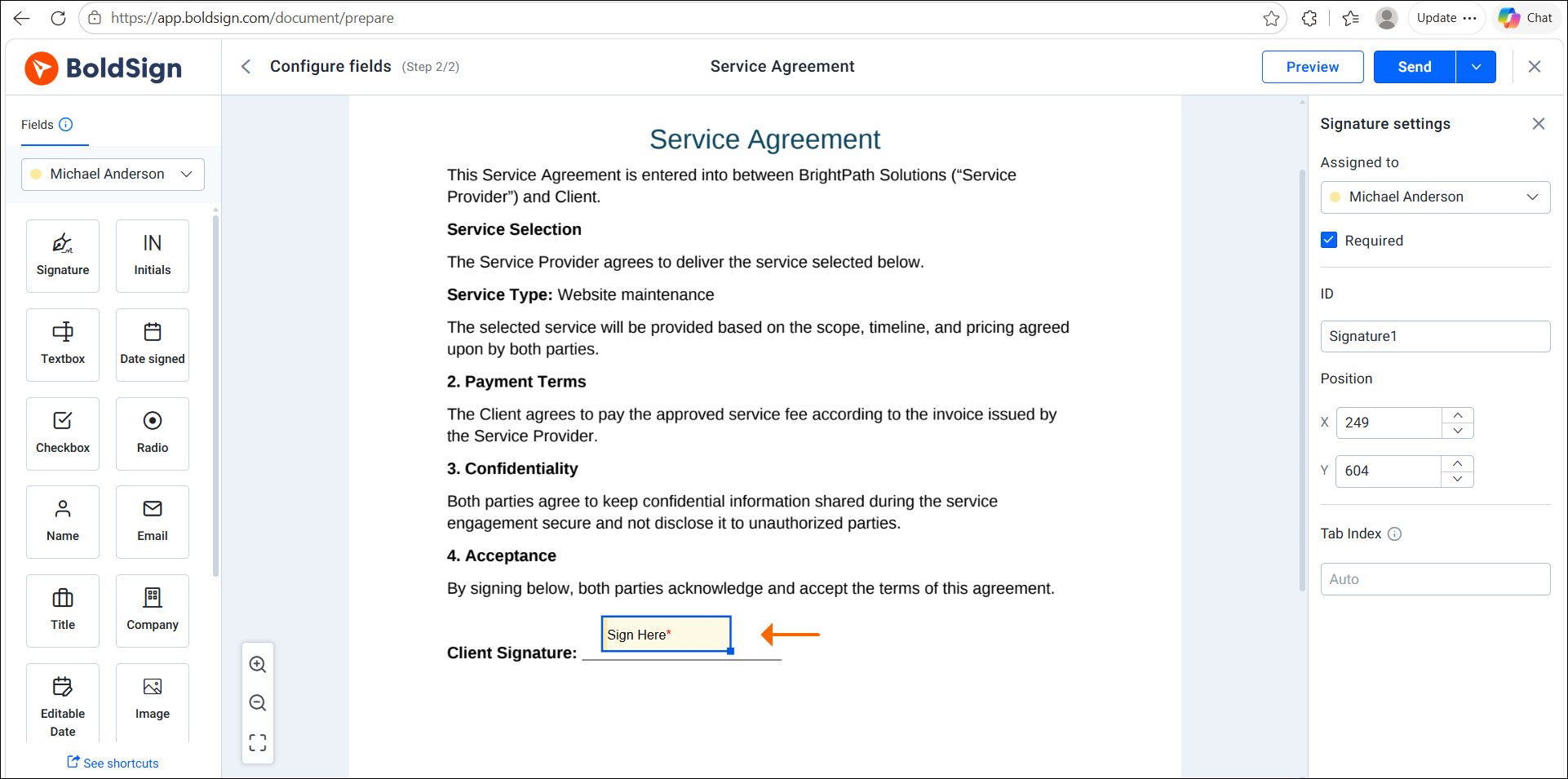
- Drag and place signature fields and any other required fields onto the document.
- Review the document setup and send it for signing.
- Signers receive an email link and can review and sign the document online without creating a BoldSign account.
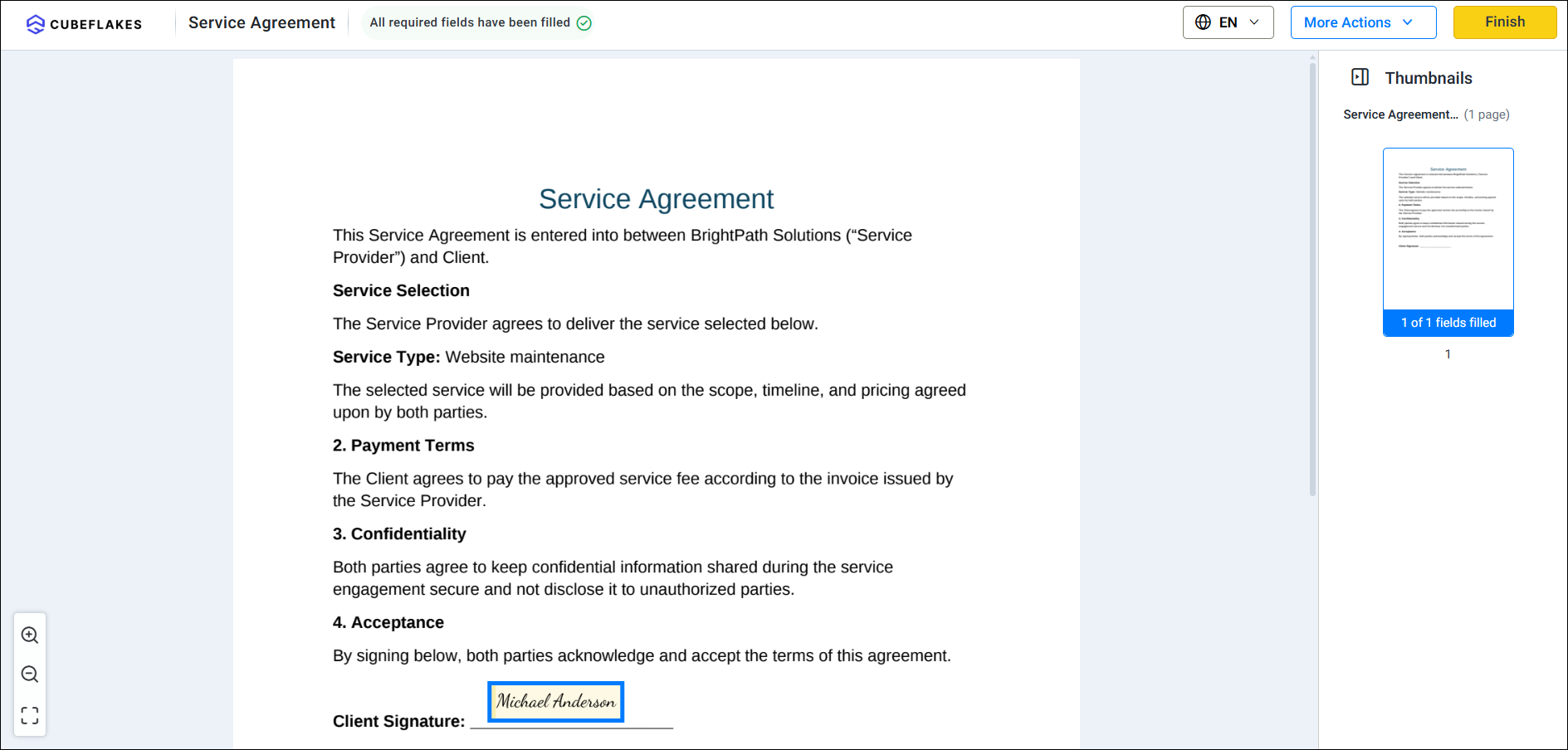
- Once all parties complete signing, download the signed document and audit trail.
Final thoughts
The right signing method depends on both the level of verification required and how you want to manage the signing process. A signature image may be sufficient for informal documents, while a certificate-based Word signature may suit organizations that already have the required certificate and validation setup.
For contracts and business-critical documents, choose a method that provides signer authentication, timestamps, status tracking, and a clear record of the signing process. BoldSign brings these capabilities together in a structured eSignature workflow.
Ready to get started? Try BoldSign free and explore the platform for yourself.
For a guided overview, request a BoldSign demo to see how the platform can support your organization’s signing requirements.
If you have questions or need help, contact BoldSign support for assistance.
Frequently asked questions
Can I sign a Word document electronically without printing it?
Yes. You can sign a Word document electronically by inserting a signature image, using Word's signature line feature, or sending it through an eSignature platform.
What is the difference between a Word signature line and an eSignature?
A Word signature line adds a signing field to a document. An eSignature platform also records signing details such as timestamps and audit trails.
How do I eSign a Word document?
Upload the Word document to an eSignature platform, enter the signer’s details, and place the required signature fields. The signer receives a link to review and sign the document online.
Can a Word signature line verify the signer’s identity?
Yes, when it is signed with a valid digital certificate that the recipient’s software can verify.
Is an eSignature on a Word document legally binding?
Yes, electronic signatures can be legally binding when the applicable requirements are met. In the United States, ESIGN and UETA recognize electronic signatures and records, subject to requirements such as intent, consent, association with the record, and record retention.
Is a signature image in Word legally valid?
A signature image in Word can be legally valid if the signer intended to sign, but it provides limited proof of who added it or when.
Does BoldSign change my Word document when I upload it?
No. BoldSign adds the fields selected by the sender to prepare the document for electronic signing. It does not change the document’s original content. Signers can review the document before signing.
What does a Word signature line not record?
A Word signature line does not provide a complete record of document delivery, recipient authentication, reminders, routing, signing status, or end-to-end workflow activity. Dedicated eSignature platforms typically provide centralized workflow tracking and detailed audit records.

Evans Omondi Otieno
Evans Omondi Otieno is a customer support representative and writer at BoldSign, specializing in creating clear, insightful content to help users navigate eSignature solutions. As a blog author, Evans writes well-researched articles that simplify technical concepts, helping businesses and professionals understand how to use BoldSign effectively. With expertise in technical support and content creation, he ensures users have a seamless experience and gain valuable knowledge from his articles. Connect with him on LinkedIn.
More posts by Evans Omondi Otieno