BoldSign Developer Console: Monitor API Logs, Debug Faster, and Ship with Confidence
TL;DR: The BoldSign Developer Console provides a centralized view of API activity, making it easy to monitor requests, investigate failures, inspect payloads, and export logs for faster troubleshooting.
When an API integration fails, the fastest way to resolve it is to see exactly what was sent and what came back. Without that, developers end up reproducing errors by trial and error, changing one thing at a time and hoping it was the fix.
The BoldSign Developer Console exists to remove that guesswork. It gives you a centralized, filterable log of every request and response your account has made against BoldSign’s eSignature API, so you can find the failing call, read its payload, and confirm the fix before you ship it. Whether you’re wiring up a new integration, validating something in sandbox, or chasing down an incident in live, this is where you go to see what actually happened, not what should have happened.
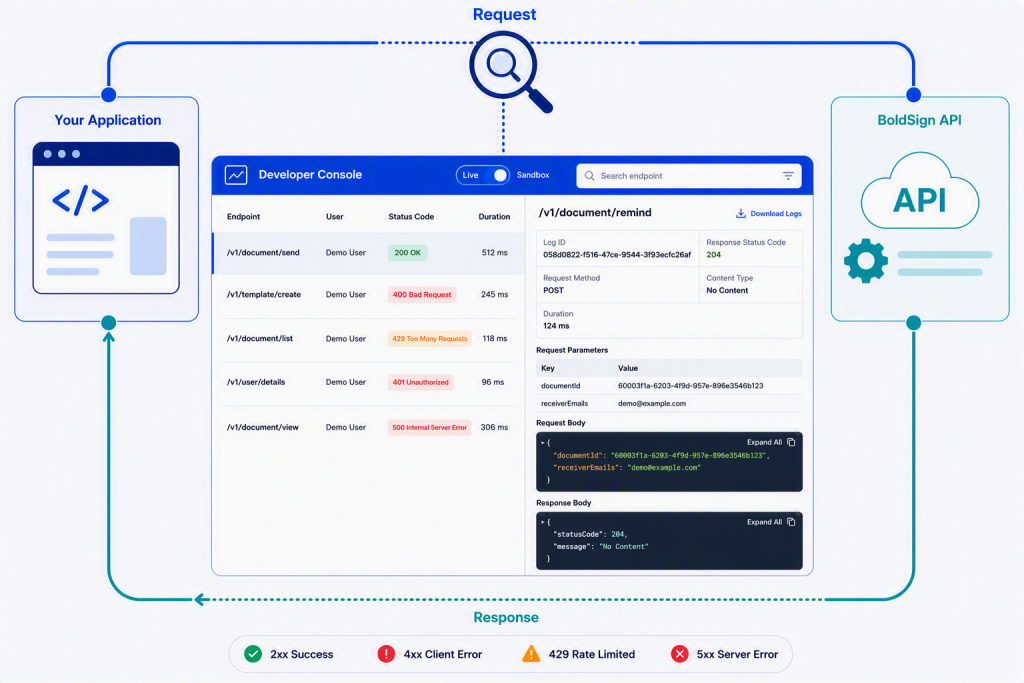
Conceptual illustration of tracing an API request and response for debugging
Key takeaways
- A failed API call is rarely a mystery once you can see the exact request and response, so treat the Developer Console as your first stop before re-reading documentation or guessing at a fix.
- Sandbox and live activity are kept separate. If you can’t find an expected request, one of the first things to verify is that you’re viewing the correct environment.
- Filtering by success or failure status before narrowing by date range turns a wall of logs into a much smaller set of requests worth investigating.
- 429 errors typically indicate rate limiting related to request patterns or request volume. Review retry behavior, polling frequency, and overall API usage to identify potential causes.
- Exported logs can be shared for troubleshooting after reviewing and redacting any sensitive data.
What is the BoldSign developer console?
The BoldSign Developer Console is an API observability and debugging tool that helps developers monitor API activity, investigate failed requests, review request and response details, and troubleshoot integrations throughout development, testing, and production use.
Developers use it to:
- Monitor API activity across sandbox and live.
- Investigate a failed request and see exactly where it went wrong.
- Check a request payload against what the API documentation expects.
- Pull exported logs to share with a support team or another developer.
You’ll reach for it most during integration setup, QA validation, sandbox testing before going live, active troubleshooting once you’re in live, and incident write-ups that need a record of exactly what was sent.
What it isn’t
It’s not a place to learn the API. For that, the BoldSign Developer Hub covers concepts and setup, and Swagger UI lets you construct and test a request from scratch. The Developer Console only shows you what already happened; it doesn’t teach you how to build the call in the first place.
What information you can actually see
The console retains the past 30 days of API activity for your account, including full request and response bodies, request metadata (method, content type, a log ID you can use to reference the exact call), status codes, query parameters, and uploaded file metadata. All of it is downloadable as JSON, which is what turns day-to-day API monitoring into something you can actually hand off or archive.
Getting into the console: Sandbox and live
Admin users can sign in to the BoldSign web app and navigate to API > Developer Console from the left navigation pane. You can also go straight there at developer console.
Once you’re in, a switch control at the top of the page next to the title lets you switch between Sandbox and Live. This matters more than it sounds like it should: a surprising share of “the API isn’t working” reports turn out to be a sandbox key pointed at a live endpoint, or the reverse. Before you dig into logs, run through this quickly:
- Sandbox key is actually being used against sandbox endpoints.
- Live key is actually being used against Live endpoints.
- Webhooks are registered in the same environment you’re testing in.
- The logs you’re reading are from the environment where the failure happened.
- Test documents aren’t getting mistaken for real ones, or vice versa.
If you want to see this in action rather than just read about it, create a free sandbox account and make your first API call. Requests you send will appear in the console, making it easier to inspect API activity.
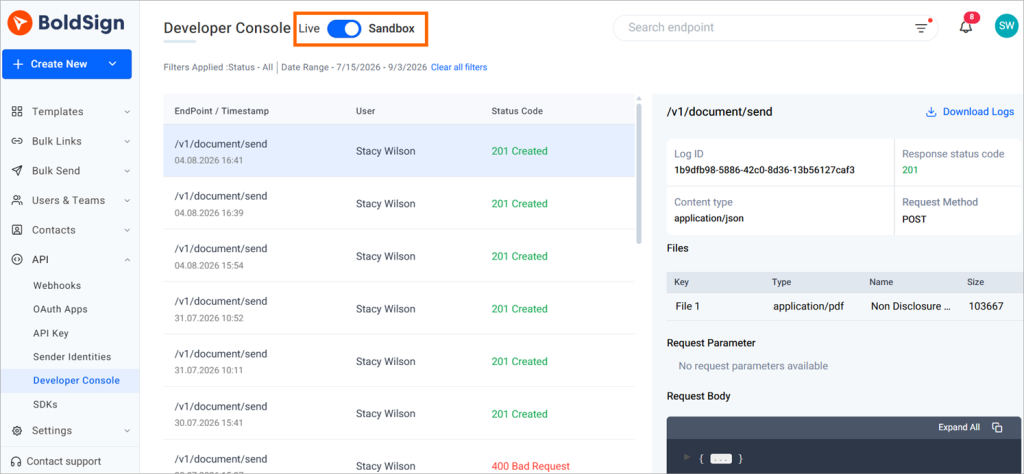
BoldSign Developer Console dashboard with the Sandbox and Live toggle
Reading a log entry
Each log entry displays key details about an API request, including the endpoint path, request timestamp and status code. The endpoint path (for example, /v1/document/send or /v1/template/create) helps you identify which API operation was executed, while the timestamp allows you to correlate the request with events in your own application logs.
The status code provides the first indication of the outcome:
- 2xx indicates the request completed successfully.
- 4xx indicates an issue with the request, such as invalid input, authentication failures, or insufficient permissions.
- 5xx indicates a server-side error and may require a retry or further investigation.
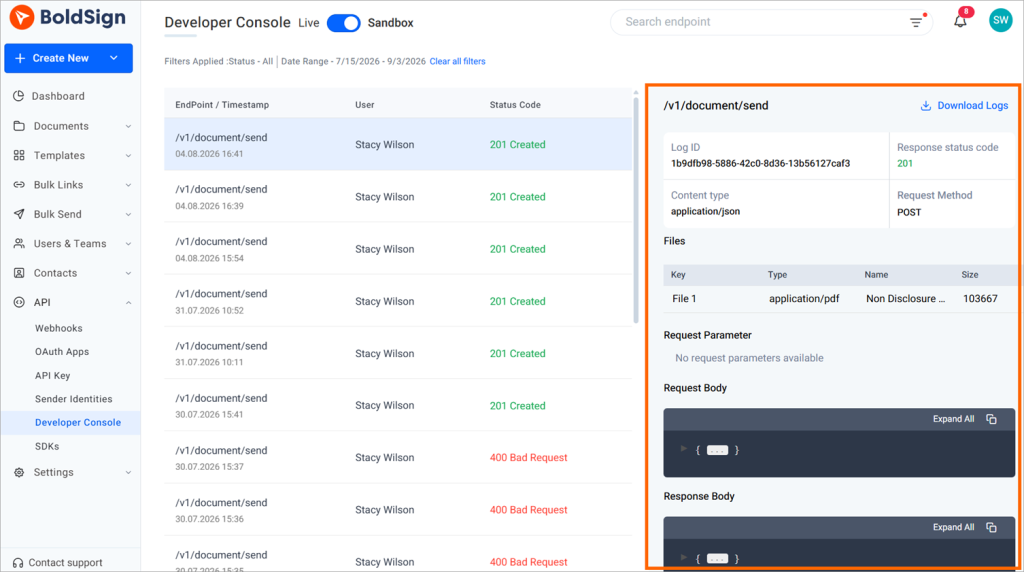
Selecting a log entry opens the detailed view, where you can inspect additional information such as the log ID, request method, content type, request and response payloads, request parameters, and uploaded file details (when applicable). These details make it easier to identify the root cause of failures and verify that requests are being sent in the expected format.
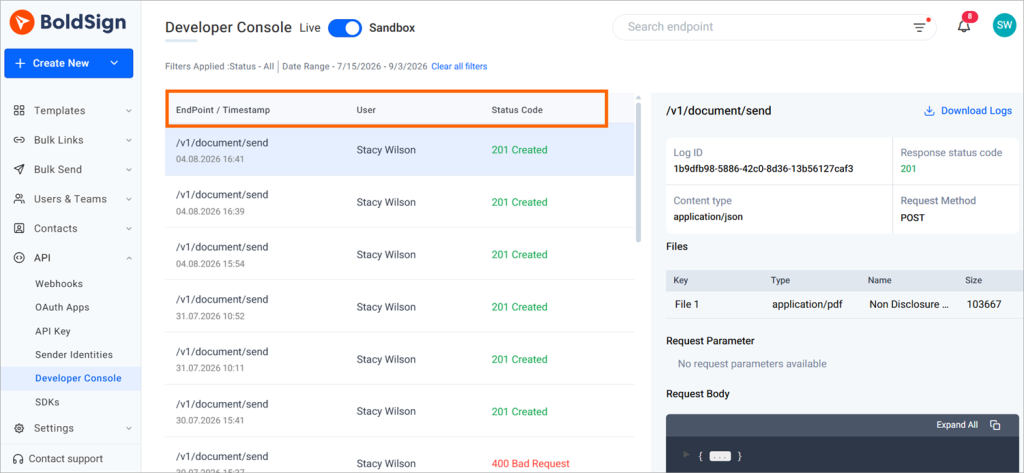
BoldSign Developer Console showing endpoint, timestamp, and status
Filtering to the failure, fast
Instead of manually scrolling through API logs, use the available filters to narrow the results and focus on the requests related to the issue you’re investigating.
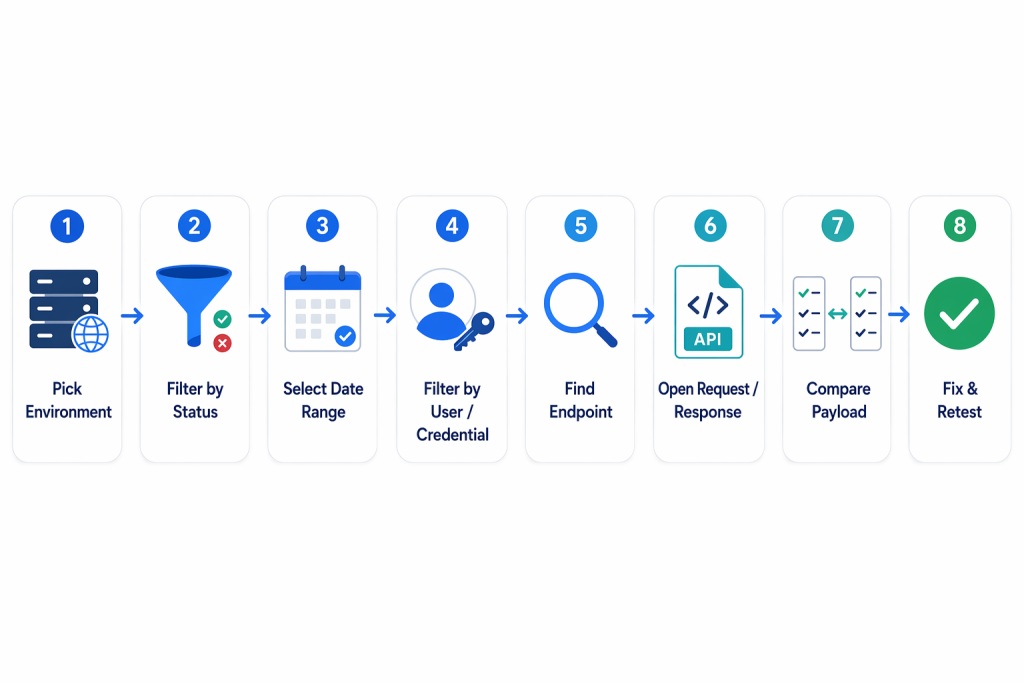
Flow diagram illustrating a typical API troubleshooting workflow
A practical troubleshooting workflow looks like this:
1. Select the environment (Sandbox or Live)
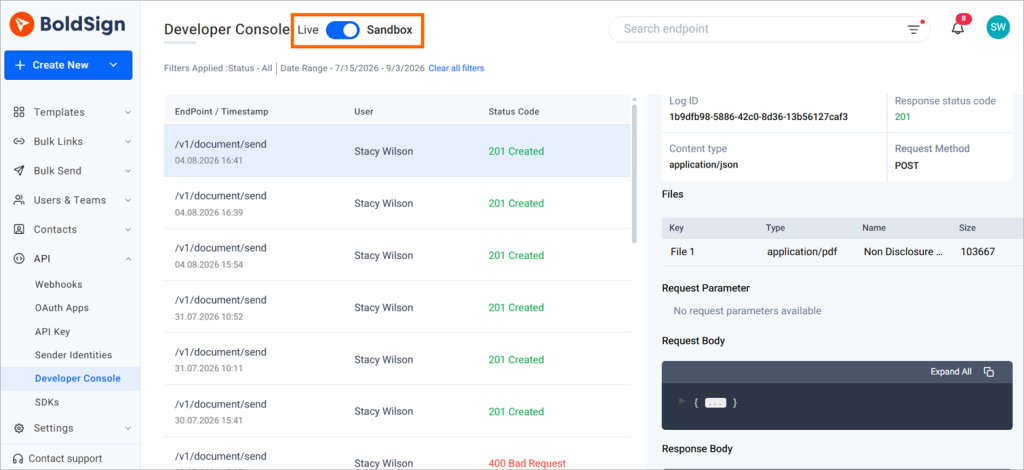
Sandbox and live environments
2. Filter logs by Status to isolate successful or failed requests.
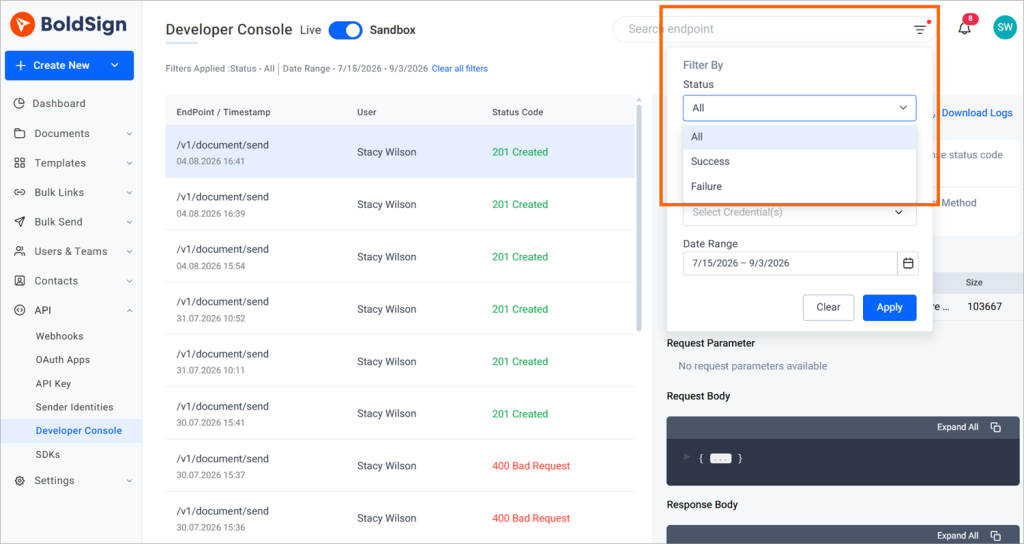
Filter by status
3. Use the date range filter to narrow the results to the period when the issue occurred.
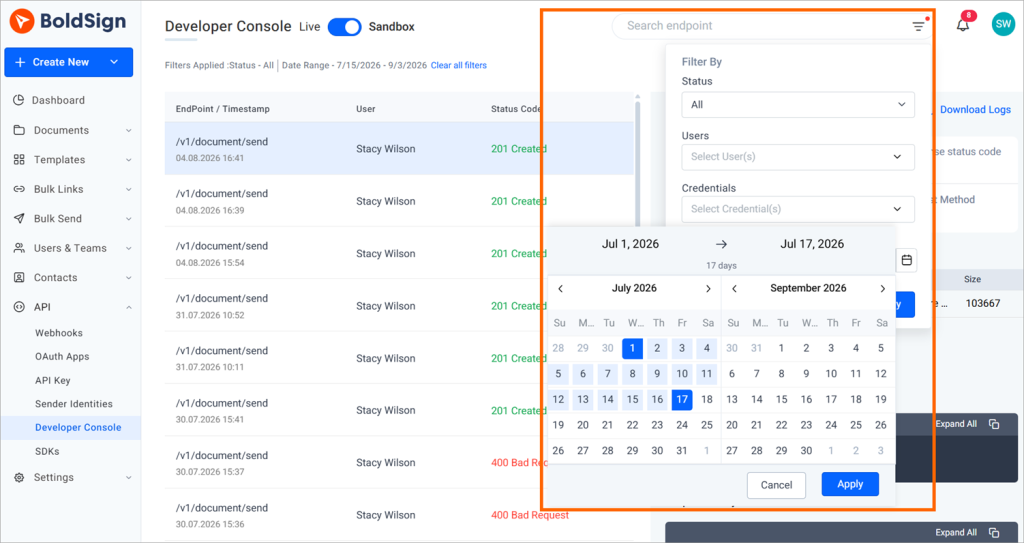
Filter by date range
4. Optionally filter by User or Credential if you need to focus on a specific integration or API key.
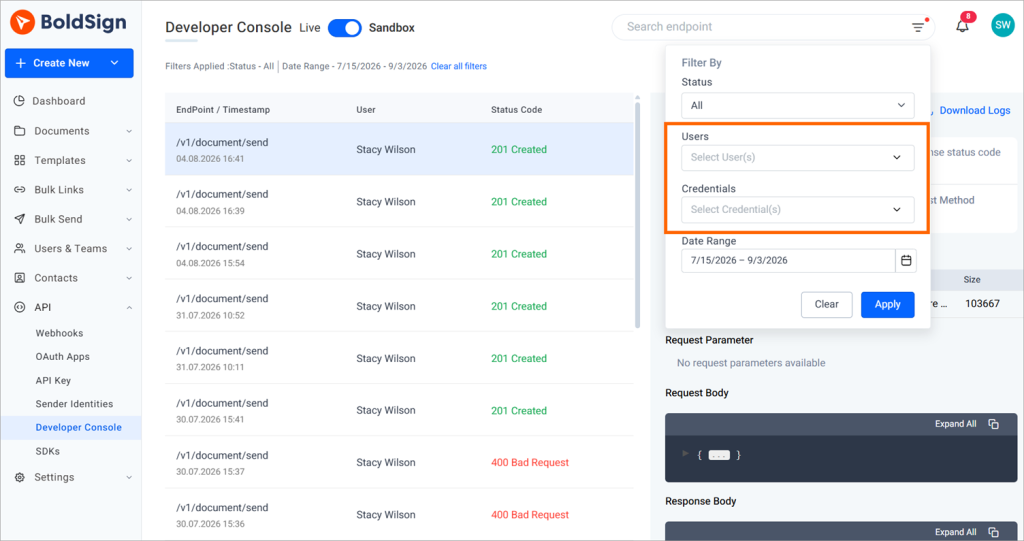
Filter by user or credential
5. Locate the relevant endpoint.
6. Open the log entry and inspect the request and response details.
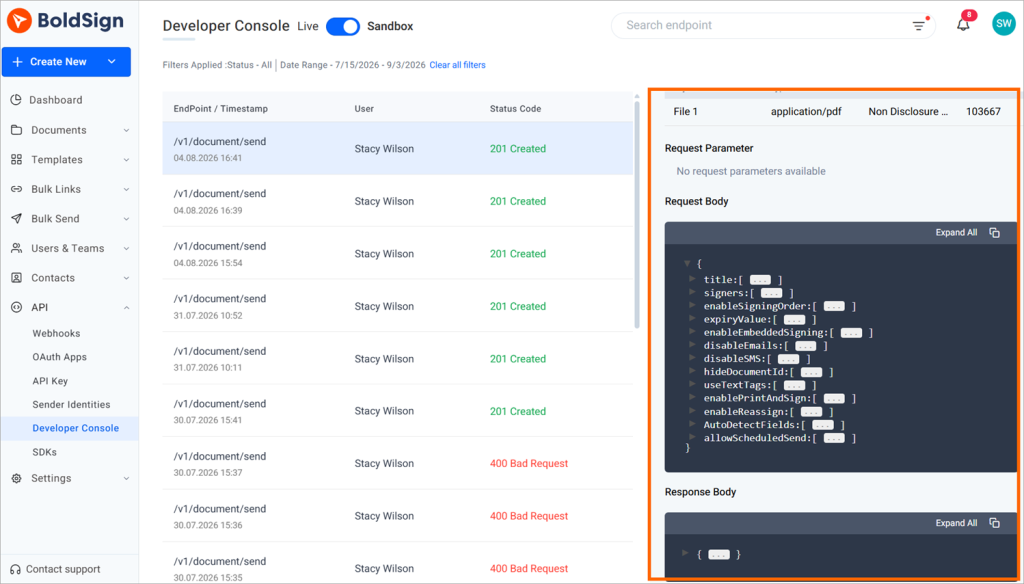
Request and response details
7. Compare the request parameters and payload with the API documentation.
8. Make the necessary changes and retest the request.
This workflow helps reduce a large volume of API activity into a much smaller set of relevant entries, making it easier to identify, investigate, and resolve issues.
Common failures and how to work through them
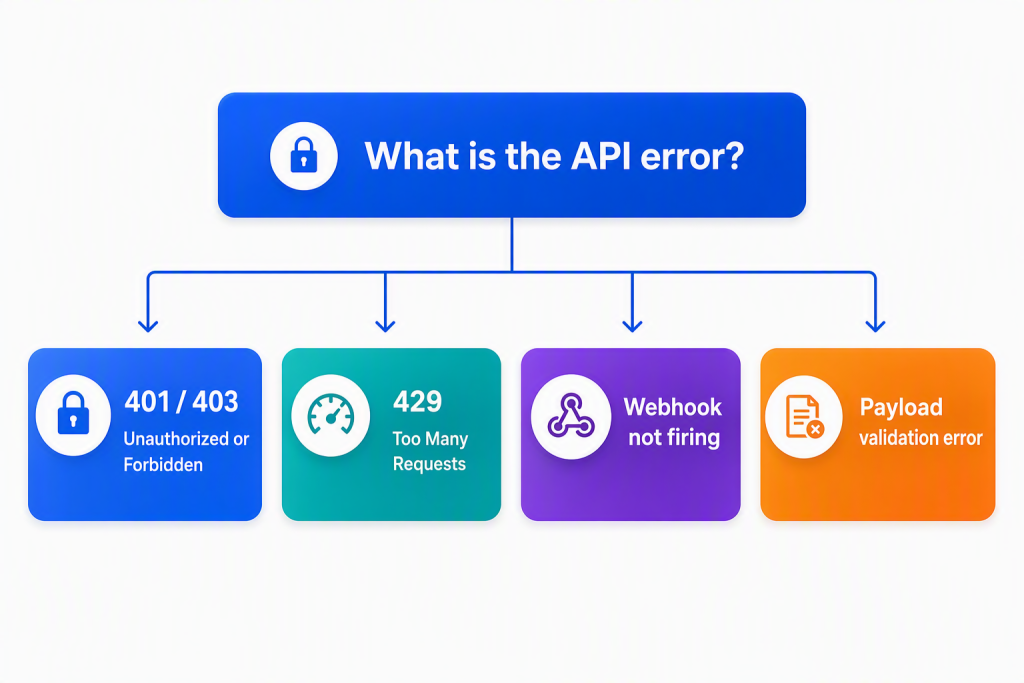
401 Unauthorized or 403 Forbidden
This is an authentication or permissions problem, not a logic bug. Usual causes: an expired or invalid API key, a sandbox key hitting a live endpoint (or the reverse), missing permissions for the specific action, or an OAuth scope that doesn’t cover what you’re asking for. Check the key is active and correctly scoped, confirm you’re in the right environment, and if OAuth is involved, review the authentication documentation against the exact flow you implemented.
429 Too Many Requests
A 429 Too Many Requests response typically indicates that a rate limit has been reached. Review your application’s request patterns, request volume, polling frequency, and retry behavior to identify potential causes. Common improvements include reducing unnecessary polling and where it’s an option, move to webhook-driven updates, avoiding bursts of repeated requests, and implementing appropriate backoff and retry logic.
Webhook not firing
If a webhook isn’t firing as expected, first verify that you’re testing in the correct environment. Confirm the webhook URL is correct, that it’s registered in the same environment (Sandbox or Live) you’re testing in, and that the API action you expect to trigger the event actually ran. You can use the console to review the related API request and confirm whether it completed successfully.
Payload validation errors
Open the request payload in the console and compare its structure and data types directly against the API schema shown in Swagger UI, field by field. Missing required fields and mismatched data types account for most of these failures, and seeing the actual sent payload next to the expected schema is usually enough to spot the gap.
Looking closer at requests and responses
The Developer Console provides detailed visibility into API requests and responses, making it easier to investigate failures, review payloads, and troubleshoot integration issues. In addition to request and response bodies, it presents related information such as file details, request parameters, status codes, and request metadata in separate sections for easier analysis.
This structured view helps you quickly identify missing fields, incorrect values, file-related issues, or malformed payloads without having to sift through the entire request data manually.
Exporting logs for support handoffs and internal records
The Download Logs option lets you export API logs as a JSON file for further analysis, troubleshooting, or sharing with support. This is the practical option when you need to hand a specific failure to a support team, write up an incident for your own team’s records, or reproduce a customer-reported bug using the exact request and response that caused it.
Before you send an exported file anywhere, check it for anything sensitive. Redact business information or personal data where it appears, never include an active API key or access token in something you’re sharing, and send exported logs only through a channel your organization already trusts for that kind of data.
Developer Console vs. the rest of the BoldSign developer tools
| Tool | What it's for | When to reach for it |
| Developer Console | Watching and debugging API activity that already happened | A request is failing, you need to see the actual response, or you're monitoring live |
| Developer Hub | Learning how the API and SDKs work | Getting started, learning authentication, or exploring an SDK |
| Swagger UI | Building and testing a request from scratch | You need to try an endpoint or check the exact expected request format |
| SDK documentation | Language-specific implementation details | You're integrating BoldSign in a particular language or framework |
The Developer Hub, Swagger UI, and SDK documentation help you learn, build, and test integrations. The Developer Console complements those tools by providing visibility into API activity and troubleshooting information for requests made through your account.
Closing thoughts
When something goes wrong, the fastest path to a fix is seeing exactly what happened. The BoldSign Developer Console gives you the visibility to trace requests, inspect responses, troubleshoot failures, and verify changes before they reach production.
Ready to try it? Create a free BoldSign sandbox account, generate your API keys, send your first request, and use the Developer Console to see your API activity in real time.
Frequently asked questions
Where is the BoldSign Developer Console?
Account administrators can go to API → Developer Console in the BoldSign web app, or open developer console directly once you're signed in.
How far back can I see API activity?
Thirty days. Anything older than that won't show up in the console, so export logs for anything you need to keep on record longer than a month.
Can administrators see every API call on the account, not just their own?
Account admins typically get broader visibility than a regular user, though the exact scope depends on permissions and account setup. The Admin API Log Visibility knowledge base article walks through how that filtering works.
Can I download the logs?
Yes. The Developer Console lets you download logs as a JSON file for troubleshooting, record-keeping, or sharing with support.
Is sandbox activity mixed in with live activity, or kept separate?
They're kept fully separate, and you can switch between them using the toggle at the top of the console. sandbox requests never appear in live logs, and live requests never appear in sandbox logs. If a request seems to be missing, make sure you're looking at the correct environment.

Mohan Ravi
A seasoned tech enthusiast with over 5 years of hands-on experience in the ever-evolving world of software development. From mastering the intricacies of .NET to harnessing the power of JavaScript, Mohan’s expertise extends across the realms of full-stack development. A true problem-solver and a passionate coder at heart, he is always eager to explore new technologies and bring innovative ideas to life.
More posts by Mohan Ravi