What’s New in BoldSign: July 2024 Latest Features & Updates
In July 2024, BoldSign added a range of exciting new features designed to elevate your eSignature experience. This blog explores these updates, highlighting how each feature can streamline your signature workflow and optimize document management.
Timely signatures with signing links
Previously, after sending a signature request with BoldSign, the sender had to track its status and manually remind signers to complete their actions. A link was provided to sign or approve the document in a reminder email. Now, BoldSign has introduced a generate signing link feature that allows senders or their administrators to generate and share unique signing links for documents still in progress via messaging apps, offering an additional reminder beyond standard email notifications. This feature is invaluable when a signer misplaces the original email or just needs one last reminder.
To use this feature, BoldSign account administrators must turn on the
Enable Document Signing Link Generation option in the Business Profile settings.
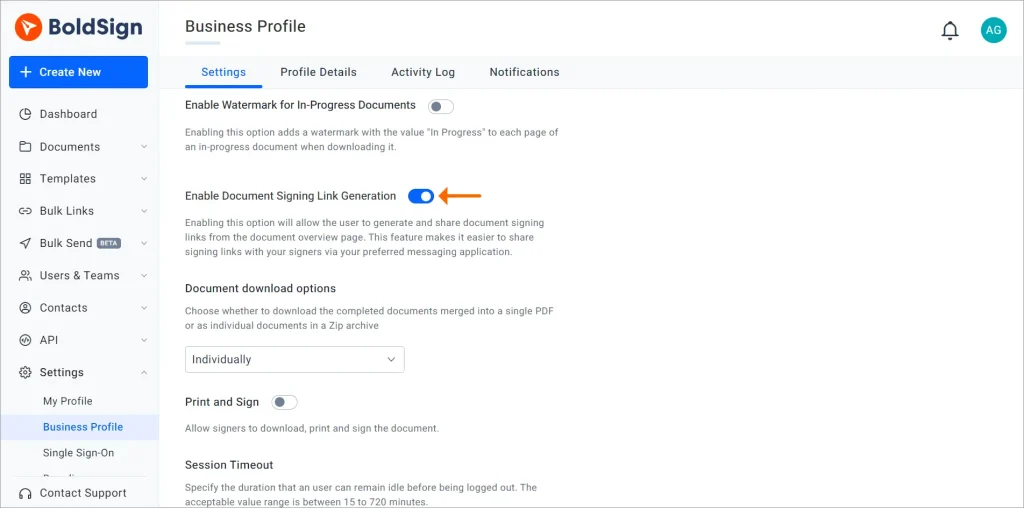
Enable Document Signing Link Generation option
Once the option is enabled, senders or their admins can easily generate a document signing link for each recipient from the Document Overview page.
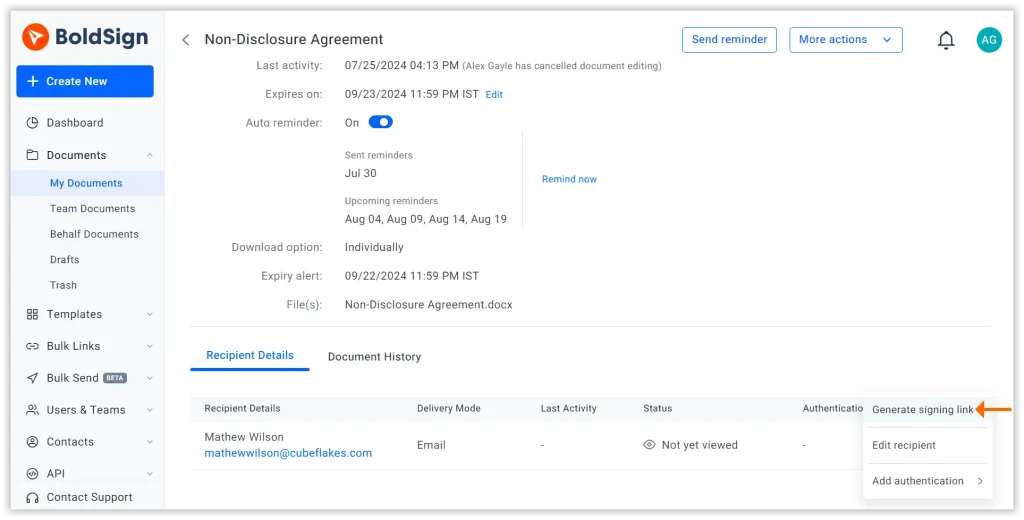
Generate signing link option
Learn more about generating and sharing signing links.
Enhanced flexibility with group checkbox
BoldSign’s new group checkbox feature offers precise control over checkbox selections by allowing users to add multiple checkboxes within a single checkbox field. This enhancement makes it easier for signers to select one or more options as needed.
Individual checkboxes within a group cannot be marked as “required,” but you can set validation rules for the entire group. These rules specify the minimum, maximum, exact, or range of checkboxes that must be selected. If the criteria are not met, an error message will prompt the signer to adjust their selections.
To add a group checkbox to a document:
- Drag and drop a checkbox field to the required section of the document.
- In the checkbox settings section, click Add checkbox to add additional checkboxes to the field.
- Position the added checkboxes in the document to align with the other options.
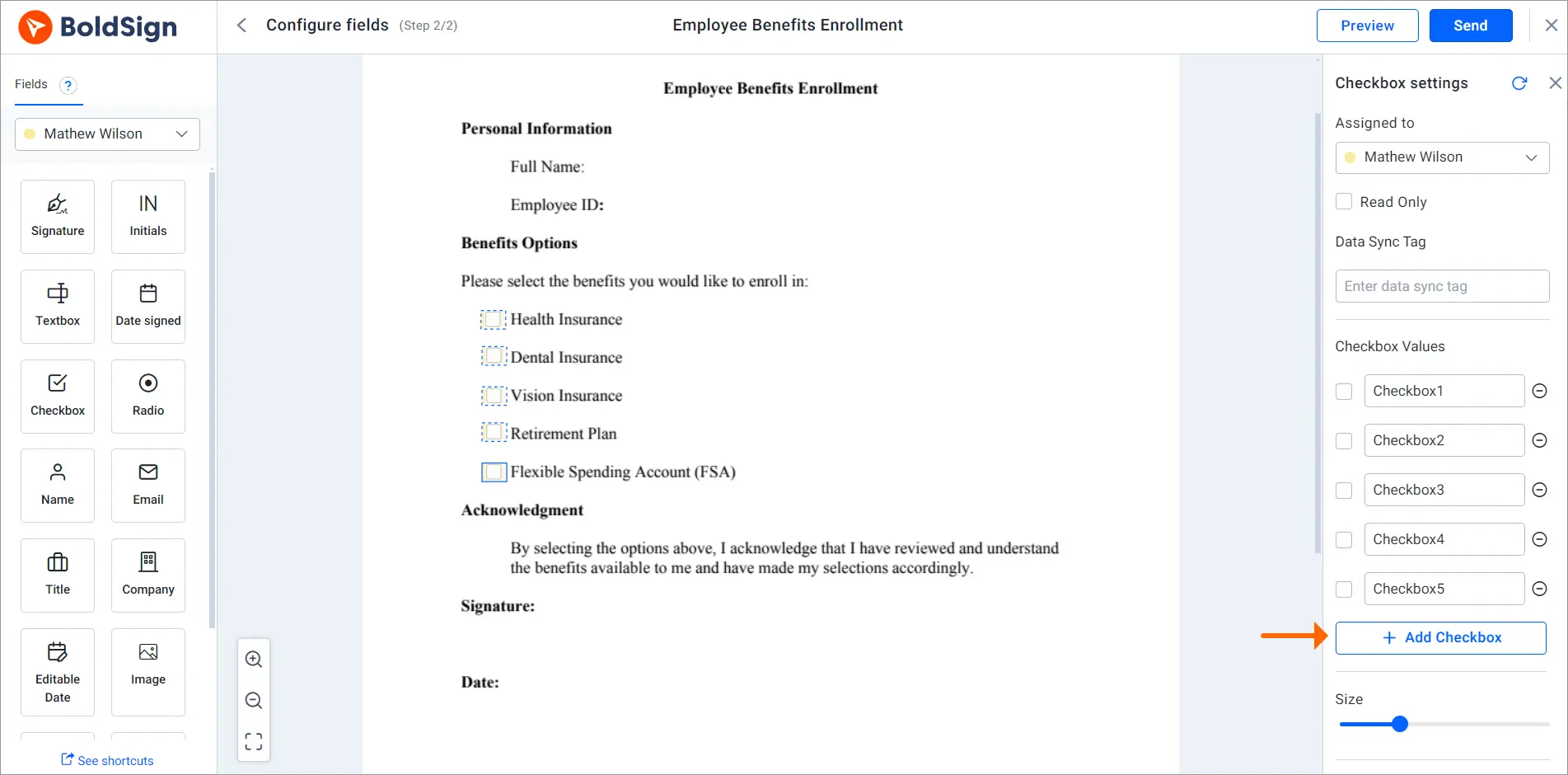
Add Checkbox option in group checkbox
- In the Choose Validation Type section, select the type and value validation rules the signer must meet. The available types are Minimum, Maximum, Absolute, and Range. For instance, if the validation is set to Minimum with a value of 2, the signer is required to select two or more checkboxes.
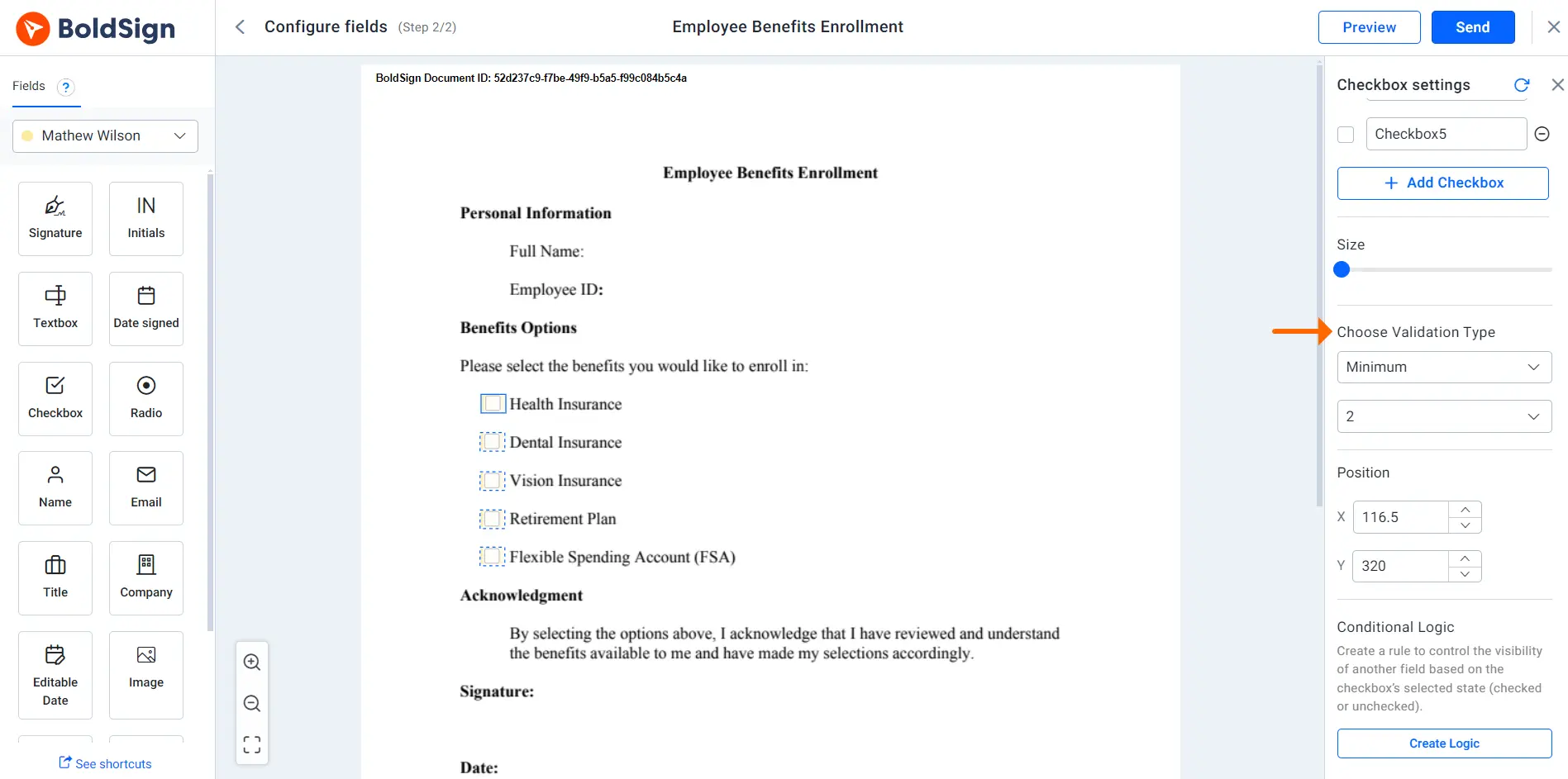
Group checkbox validation rules
This feature is also available in the BoldSign API.
To learn more about adding a group checkbox to a document, refer to these links:
- Adding group checkboxes to a document using BoldSign API.
- Adding group checkboxes to a document using BoldSign web app.
Customized notification settings in the Business Profile page
Managing email notifications has occasionally been a challenge for signers who do not have a BoldSign account. To improve the experience for all recipients, we have introduced notification configuration settings in the Business Profile page. This feature allows account administrators to control which types of emails are sent, ensuring that only the most relevant notifications reach signers and CC recipients. By managing these settings, senders can prevent non-BoldSign-account holders from receiving unnecessary emails, streamline communication, and focus on delivering important updates.
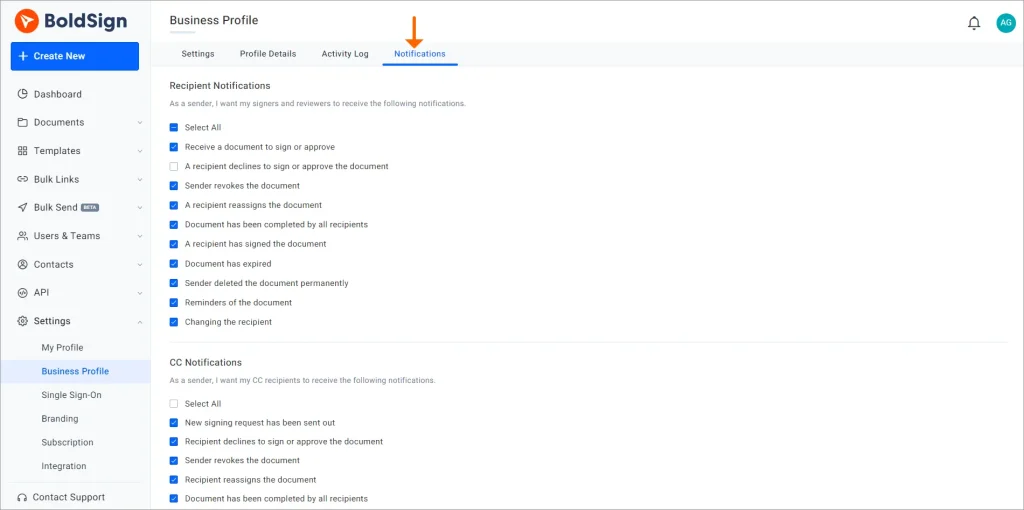
Notification settings in Business Profile
It is important to note that while BoldSign admins can configure notification settings for signers and CC recipients, and BoldSign account holders can configure their own notification settings, if one party enables a notification while the other disables it, the disabled state will take precedence.
This feature is also supported in the BoldSign API.
To learn more about customizing recipient email notifications, refer to these links:
- Configure email notification settings for signers using BoldSign API requests.
- Configure email notification settings for signers in BoldSign web app.
Bulk send grid editing
Imagine you’ve uploaded a CSV file for a bulk send but notice errors in the recipient details. Instead of correcting the CSV file externally and reuploading it, you can now make the necessary edits directly in BoldSign, saving valuable time. Here’s how it works:
- Uploading and editing incomplete or inaccurate CSV files: If you upload a CSV file with missing or inaccurate recipient details, you can now edit it directly within the application. Just double-click the cell that requires updating and enter the correct information within BoldSign.
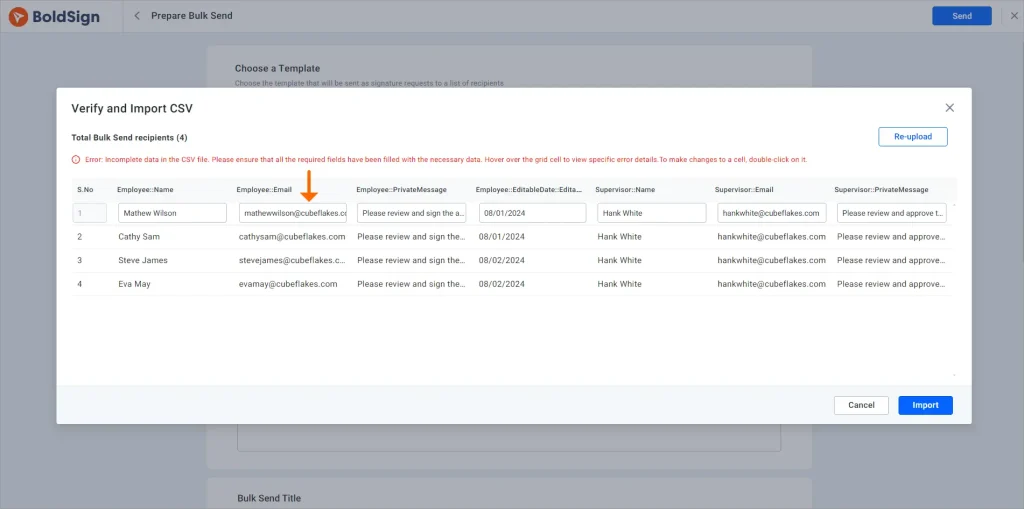
Editing an incomplete CSV file
- Modifying imported CSV files: If you’ve already imported a CSV file and need to edit it, click the Edit File option next to the imported file in the Add Recipients section. This will open an edit box where you can directly update the details within BoldSign.
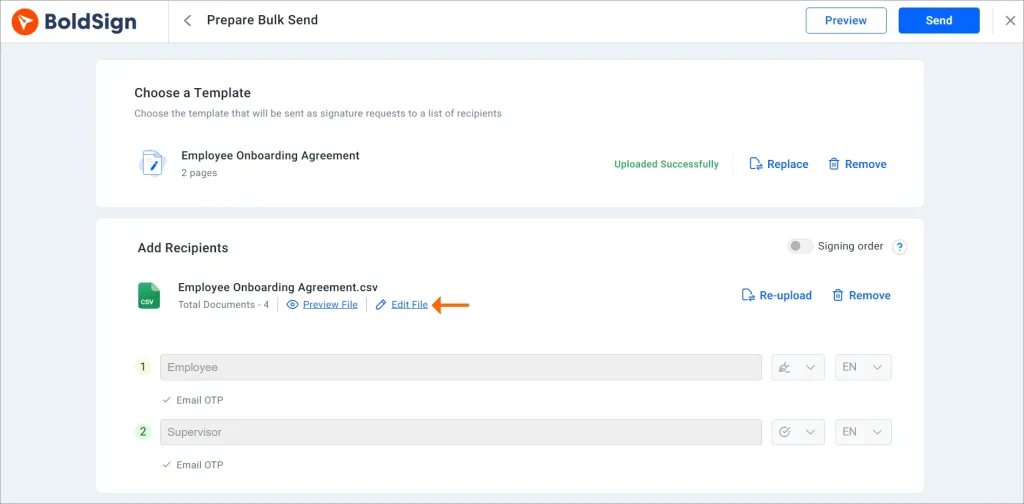
Edit file option for an imported CSV file
Learn more about bulk send grid editing.
Editing features for in-progress documents
Previously, if an error was found in a document after it was sent out for signature, the sender had to revoke the document, clone it, make the necessary changes, and resend it. Alternatively, the sender could create a new signature request from scratch. Now, BoldSign has simplified the process of making changes to in-progress documents. With the BoldSign edit document feature, senders can modify documents that are in progress by adding or replacing attachments, form fields, signers, and more. This feature enables you to make necessary updates without starting over.
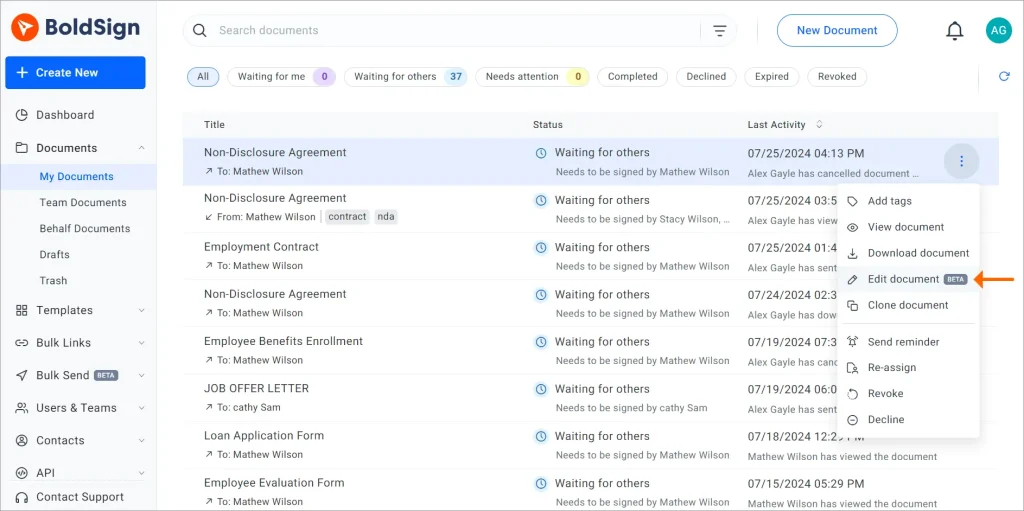
Edit document option
Restrictions to in-progress editing
- Both the document title and brand details cannot be changed when editing the in-progress document.
- Documents in completed, declined, revoked, or expired status cannot be edited.
- If a document has multiple recipients and some have already signed, changes will only apply to those who have not yet signed.
- Label and hyperlink form fields cannot be used if any recipients have completed signing.
Learn more about editing in-progress documents.
Simplified cloud backup integration
Users can now link their BoldSign account with OneDrive, Google Drive, and Dropbox to automatically back up all completed documents to designated folders in these cloud storage services. This integration simplifies document management by ensuring efficient storage and easy access.
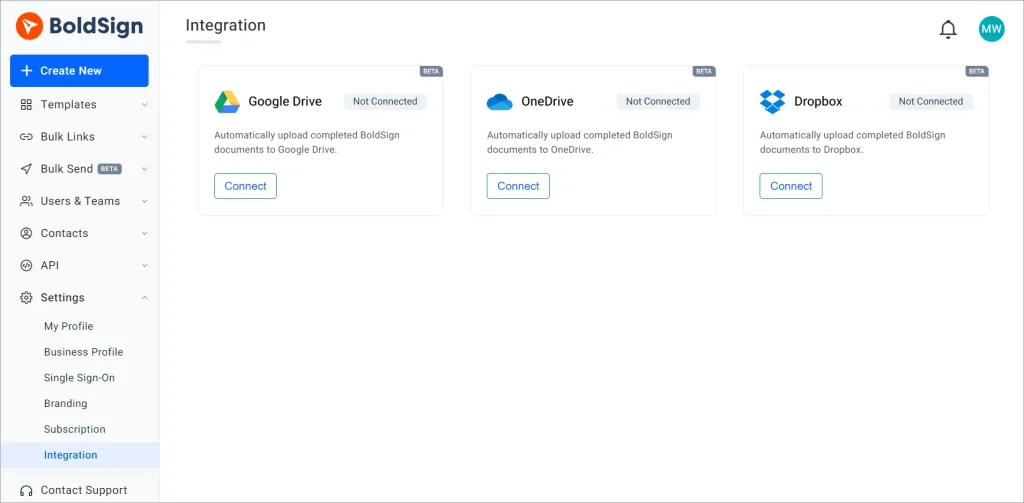
Cloud backup integrations
Additionally, on the Business Profile page, you can enable the Document Deletion Policy option if you want documents that have been uploaded to the cloud to be automatically deleted from the BoldSign application. You can specify the status and age of documents to be deleted using this capability.
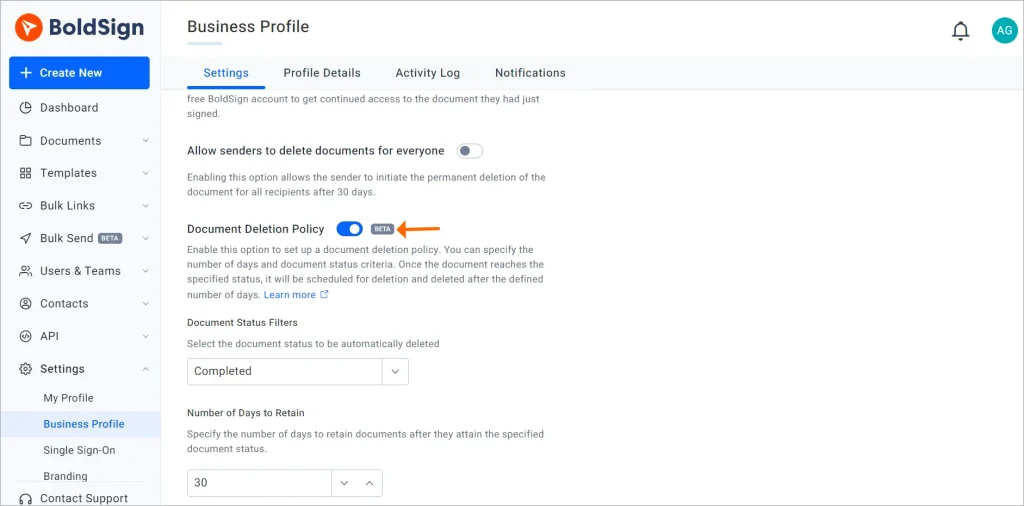
Document deletion policy setting
After the deletion criteria are met and the document is removed from the application, the document will still be safely saved in your connected cloud storage.
Learn more about integrating BoldSign with Google Drive, OneDrive, and Dropbox for cloud backup.
Improved API security with implicit grant and CORS support
BoldSign API security has been enhanced with the addition of an implicit grant with cross-origin resource sharing (CORS) support. This eliminates the need for a client secret to generate access tokens, streamlining authentication and improving integration. Only specified domain URLs can make API calls, significantly enhancing security.
Learn more about improving API security with implicit flow.
Quickly resend webhook events with BoldSign
BoldSign’s new resend webhook events feature allows you to quickly retry sending both successful and failed webhook events. By clicking Retry on the webhook history page, you can manually resend any event, ensuring that critical notifications are delivered as intended.Learn more about resending webhook events.
Conclusion
Thank you for exploring the latest updates to BoldSign! These enhancements reflect our commitment to providing you with the best eSignature experience. We encourage you to try out these new features and see the difference they can make in your workflows by either signing up for a BoldSign free trial or signing in to your account.
As always, we value your feedback and suggestions. If there’s a feature you’d like to see in BoldSign, please share your idea with us in the comments below. Your input helps us continue to evolve and improve our services. If you’d like to learn more about our services, schedule a demo or contact our support team through our support portal.

Rayronald Ochola Otieno
Rayronald Ochola Otieno is a content specialist at BoldSign, specializing in video content and help articles within the eSignature domain. As a blog author, he creates well-researched, insightful content that simplifies complex eSignature topics like digital signatures, compliance, and workflow automation for businesses and professionals. With expertise in creating educational videos and articles, Ray helps users understand and adopt secure, efficient signing solutions. Beyond writing and video creation, Ray enjoys exploring new technologies, reading about the latest industry trends, and continually refining his skills.
More posts by Rayronald Ochola Otieno